
Settings
Settings screen in ASO.dev allows you to personalize your experience with the platform, including choosing a theme, interface language.
Also available are settings for each screen and additional features: translation provider API keys, app-specific password and AI prompts for working with reviews.
Language
Section titled “Language”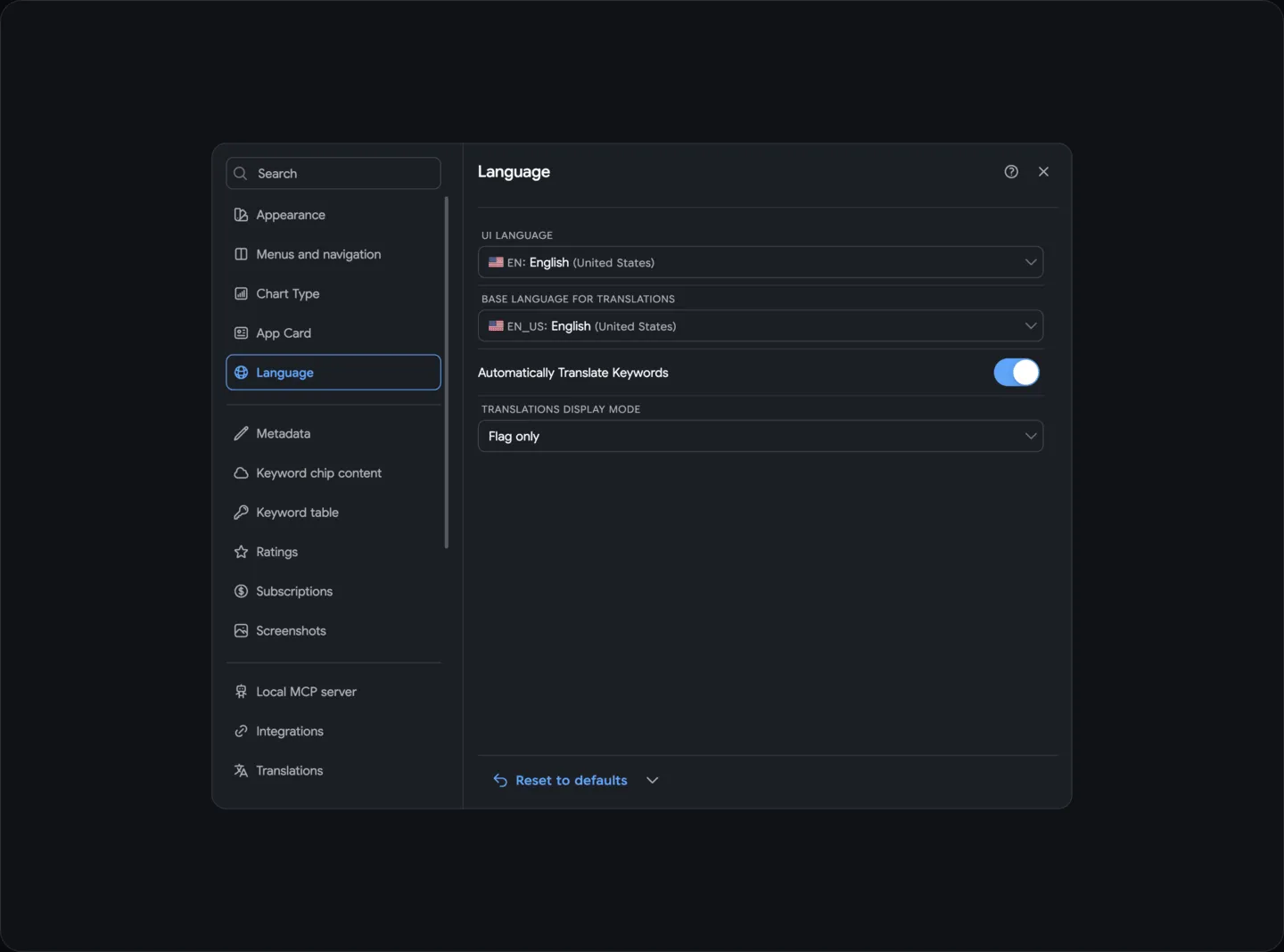
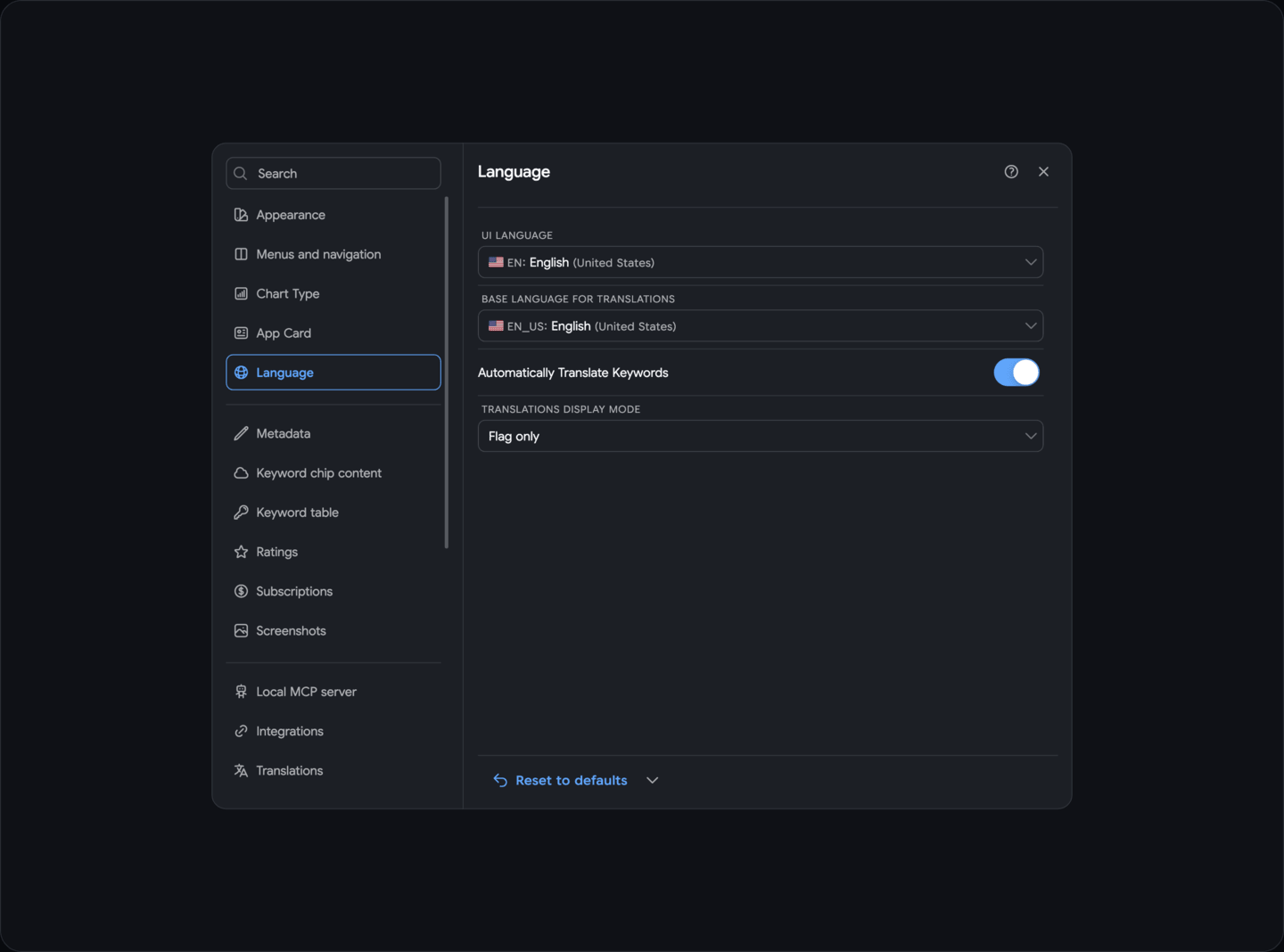
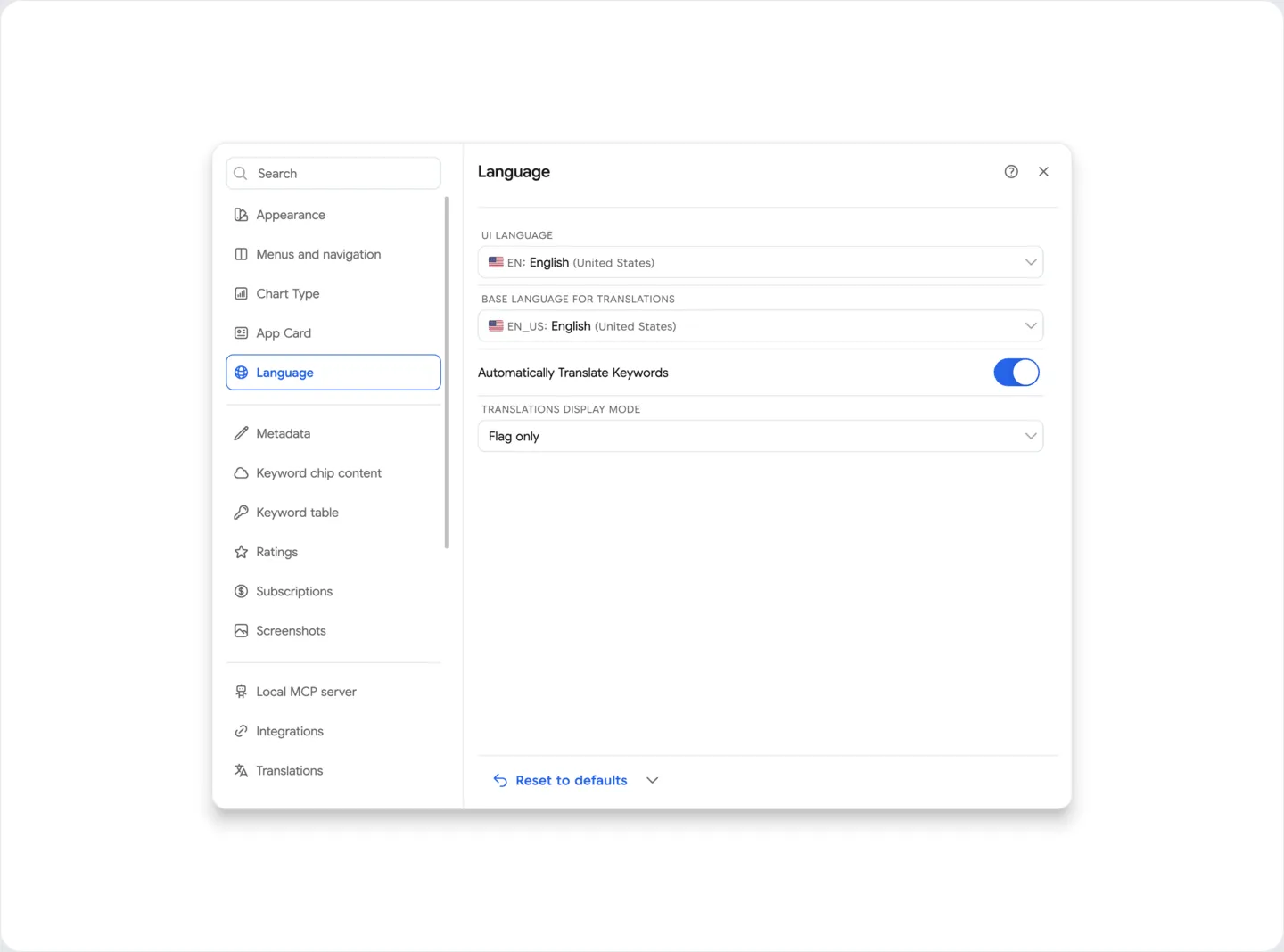
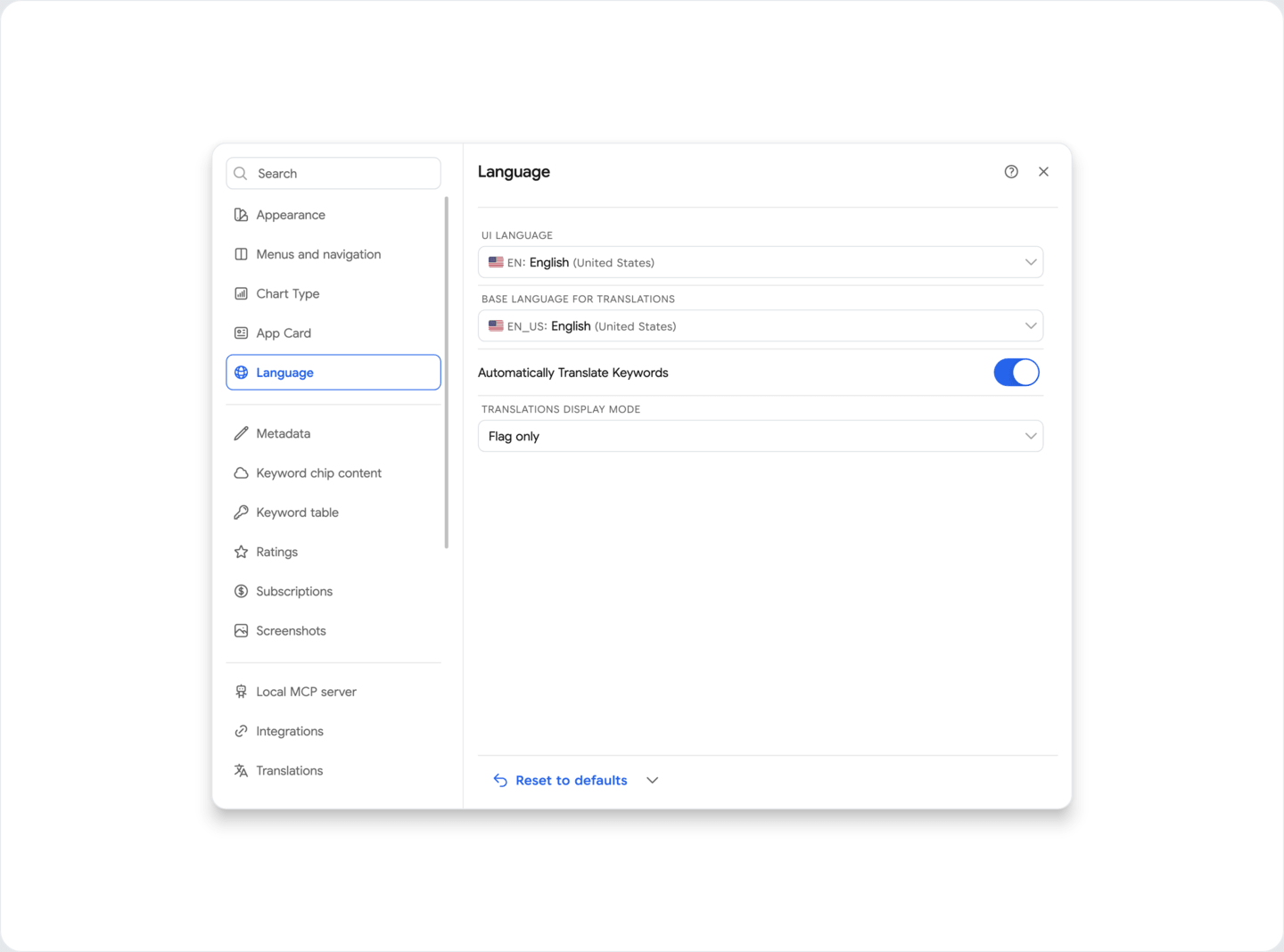
Language - Choose the language you prefer to work with the platform interface.
Base language for translations - Choose the language to translate keywords in the keywords tables and metadata editing, as well as user reviews.
Localization
Section titled “Localization”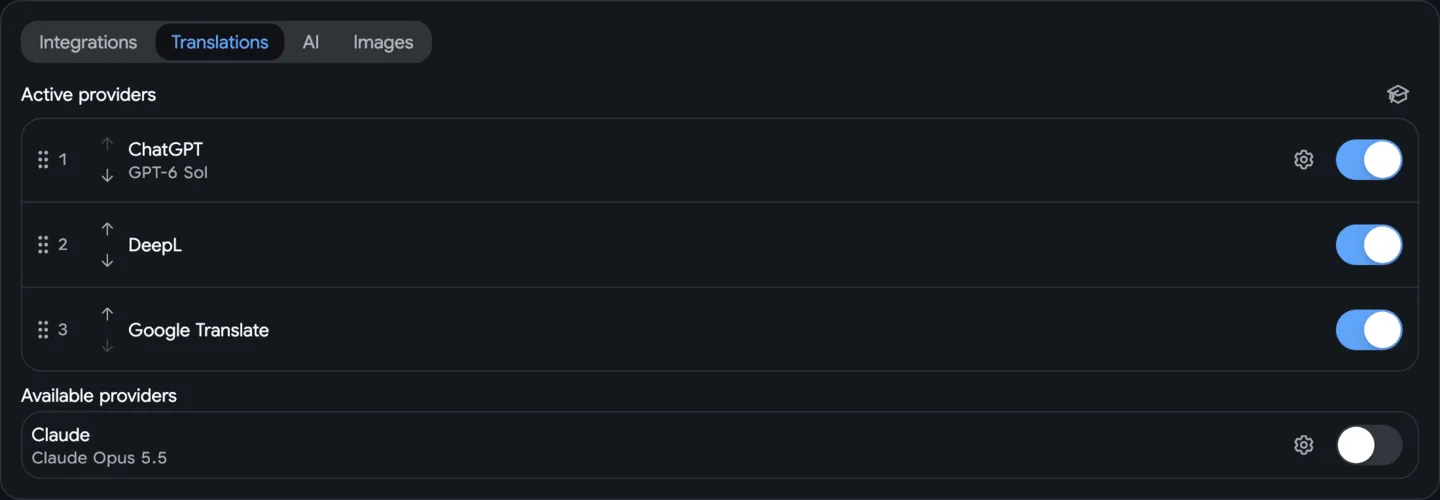
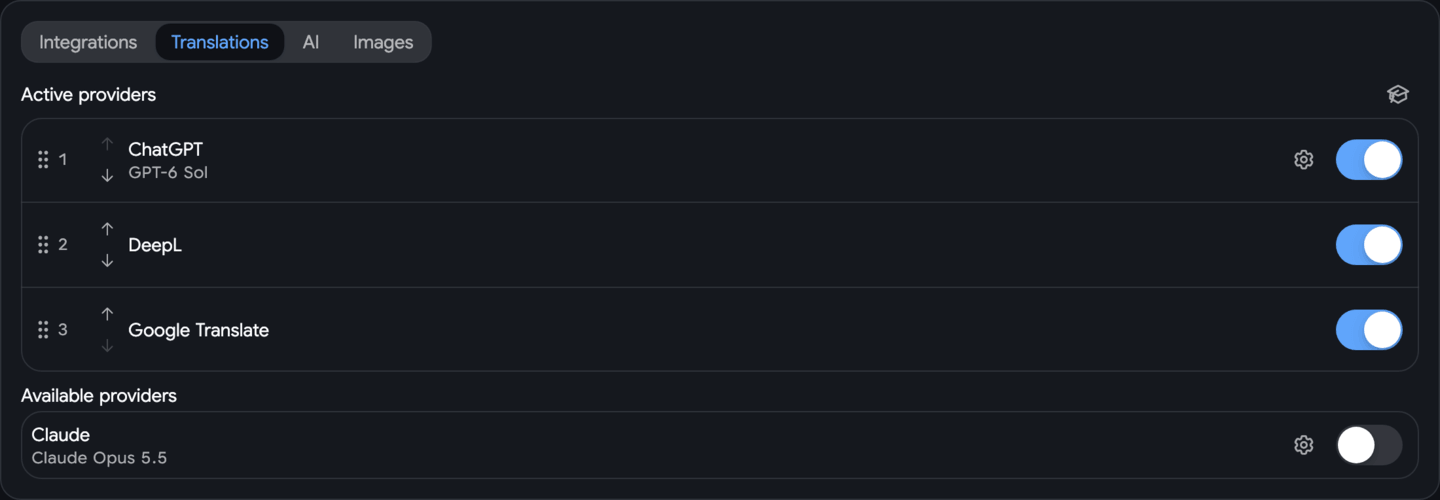
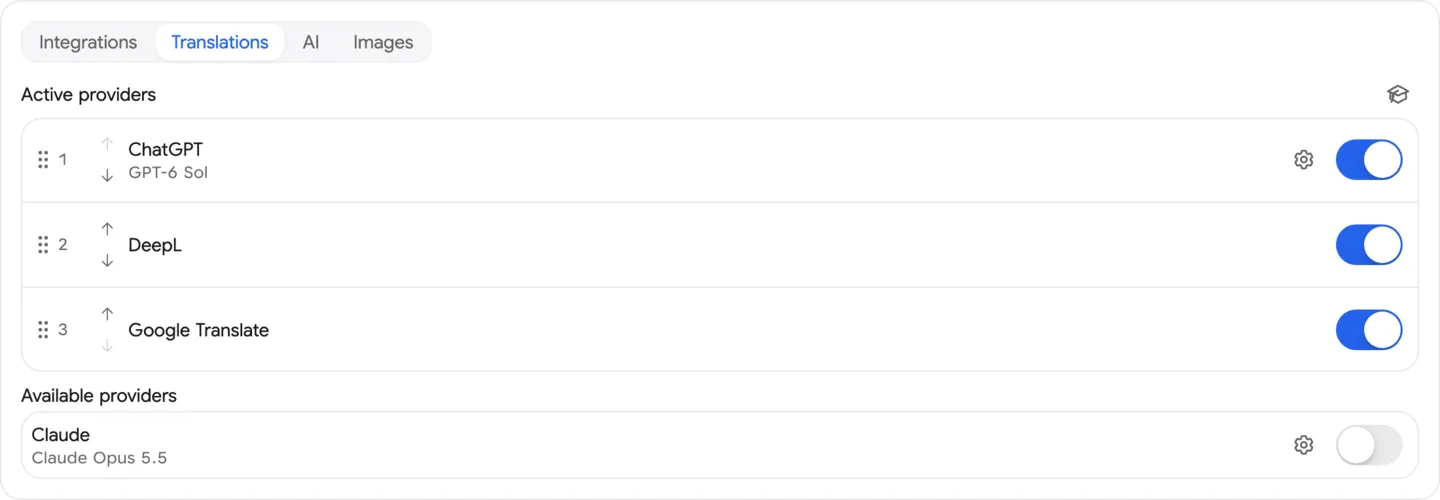
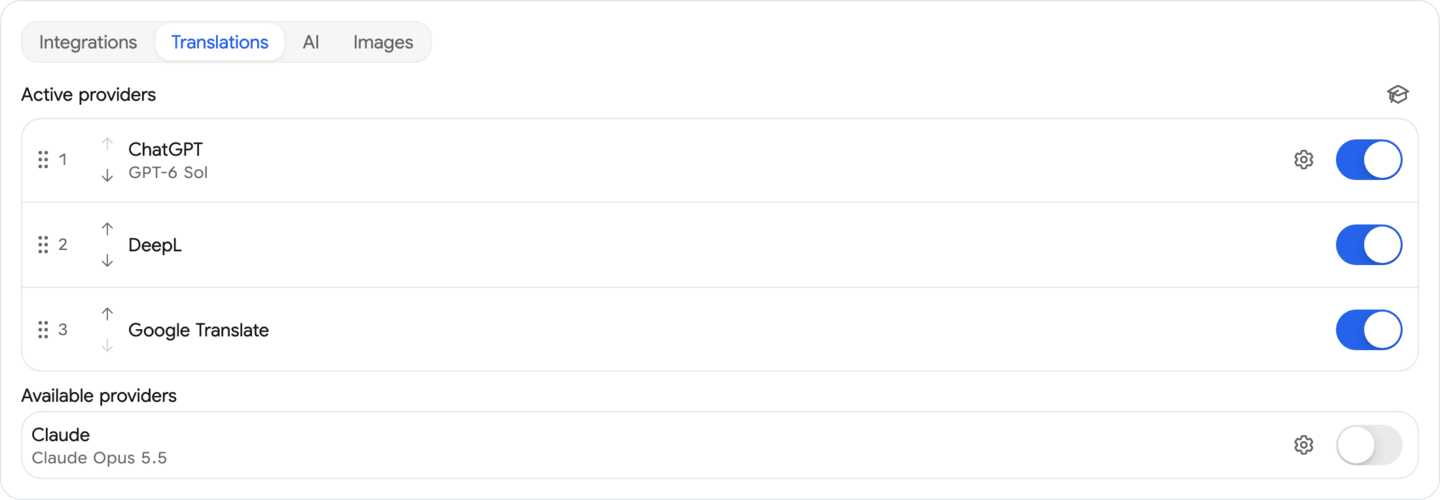
Provider connections and task priorities are configured separately in ASO.dev.
In Settings → Integrations, search for a provider and enter the connection fields shown on its card: API key, base URL, region, supported capabilities and default models, where applicable. The fields depend on the provider. Google Translate is available as a built-in translation option.
Then open the relevant task section:
- Translations: Provider — enable translators and arrange their fallback priority.
- AI: Provider — enable providers for text generation and analysis, with their own priority and models.
- Images: AI Model — enable image-generation providers and choose their image models.
A configured connection can serve more than one task. Enabling a provider for translations does not automatically enable it for text or image generation. Change keys and connection details in Integrations, and change task order in the corresponding provider section.
You can configure the translation provider of your choice (Google Translate, DeepL, Chat GPT, Claude AI) in the ASO.dev settings and also set translation exclusions.
Google Translate
Google Translate is available by default as a free translation provider in ASO.dev.
It is enabled in the default translation configuration. Keep it enabled in Translations: Provider if you want to use it as your main translator or a fallback.
DeepL, Chat GPT, Claude AI, DeepSeek, Gemini, OpenRouter
DeepL, OpenAI, Claude, DeepSeek, Gemini and OpenRouter provide alternative translation options with their own API keys, plans and limits.
DeepL is a dedicated translation integration. The AI providers can also serve text-generation tasks when enabled in AI: Provider. Compare translation quality on your own metadata, terminology and target languages.
To use these providers, you need to obtain an API key, enter it in the settings, and, if necessary, select a model or specify additional parameters.
How to Set the Priority of Translation Providers
In Translations: Provider, change priority by dragging active provider cards or using their move buttons.
The order determines which provider will be used first when translating content.
Disabling a Translation Provider
To disable a specific translation provider, simply toggle the switch to the “Off” position.
This provider will no longer be used for content translation.
You can also change the order of providers to adjust their priority.
Brand Names
Section titled “Brand Names”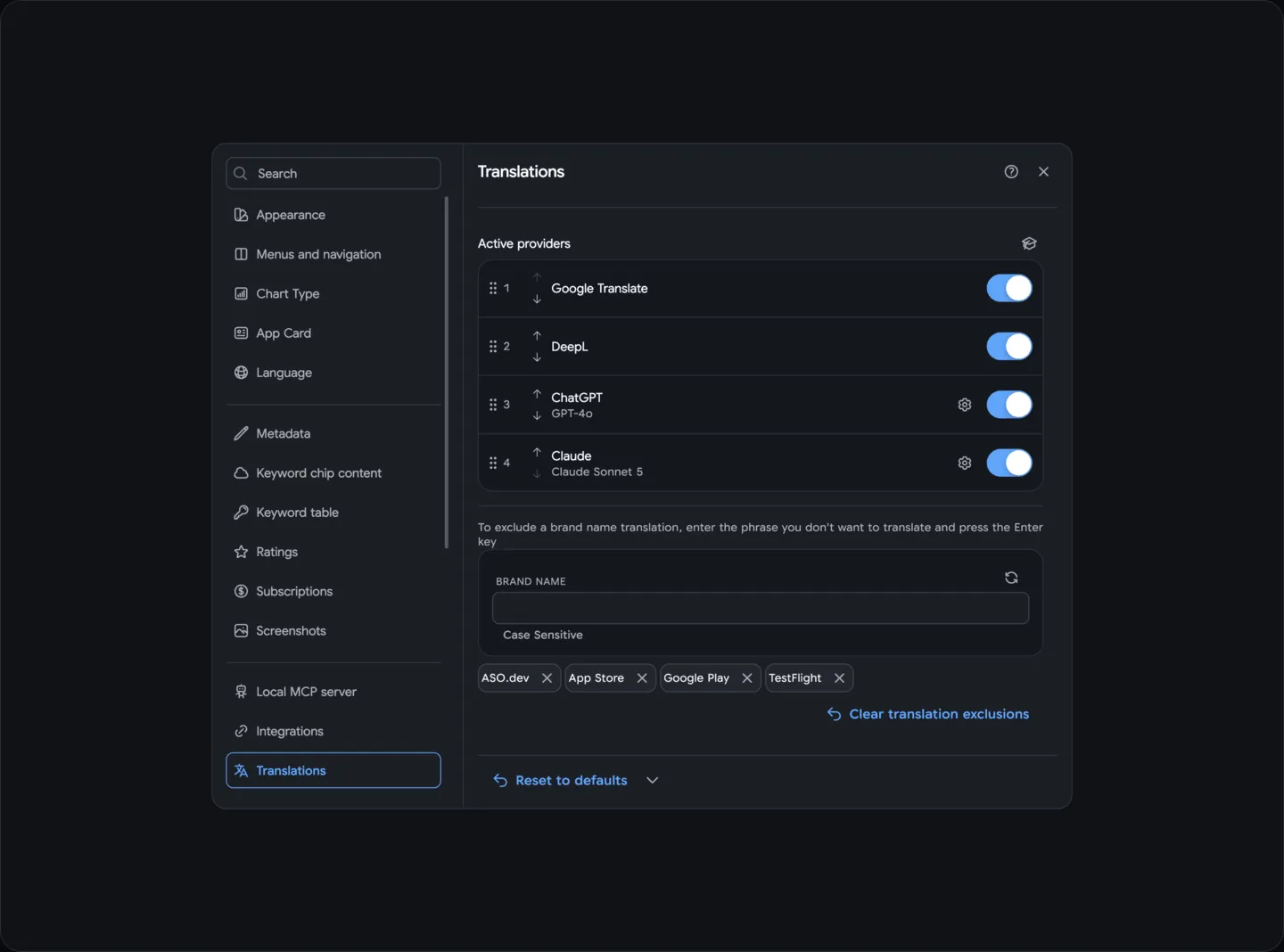
Use Translations: Provider → Translation exclusions for brand names, product names, technical terms and other words or phrases that should stay unchanged during translation.
- Enter the word or phrase you want to exclude from translation in the input field.
- Press Enter or the field’s submit button to add it to the list.
- To remove an exclusion, use its tag’s delete action. Clicking the tag copies its text back into the input field.
Matching is case-sensitive: enter each exclusion with the spelling you want to preserve. The separate Clear translation exclusions action clears this list after confirmation; a general settings reset keeps it.
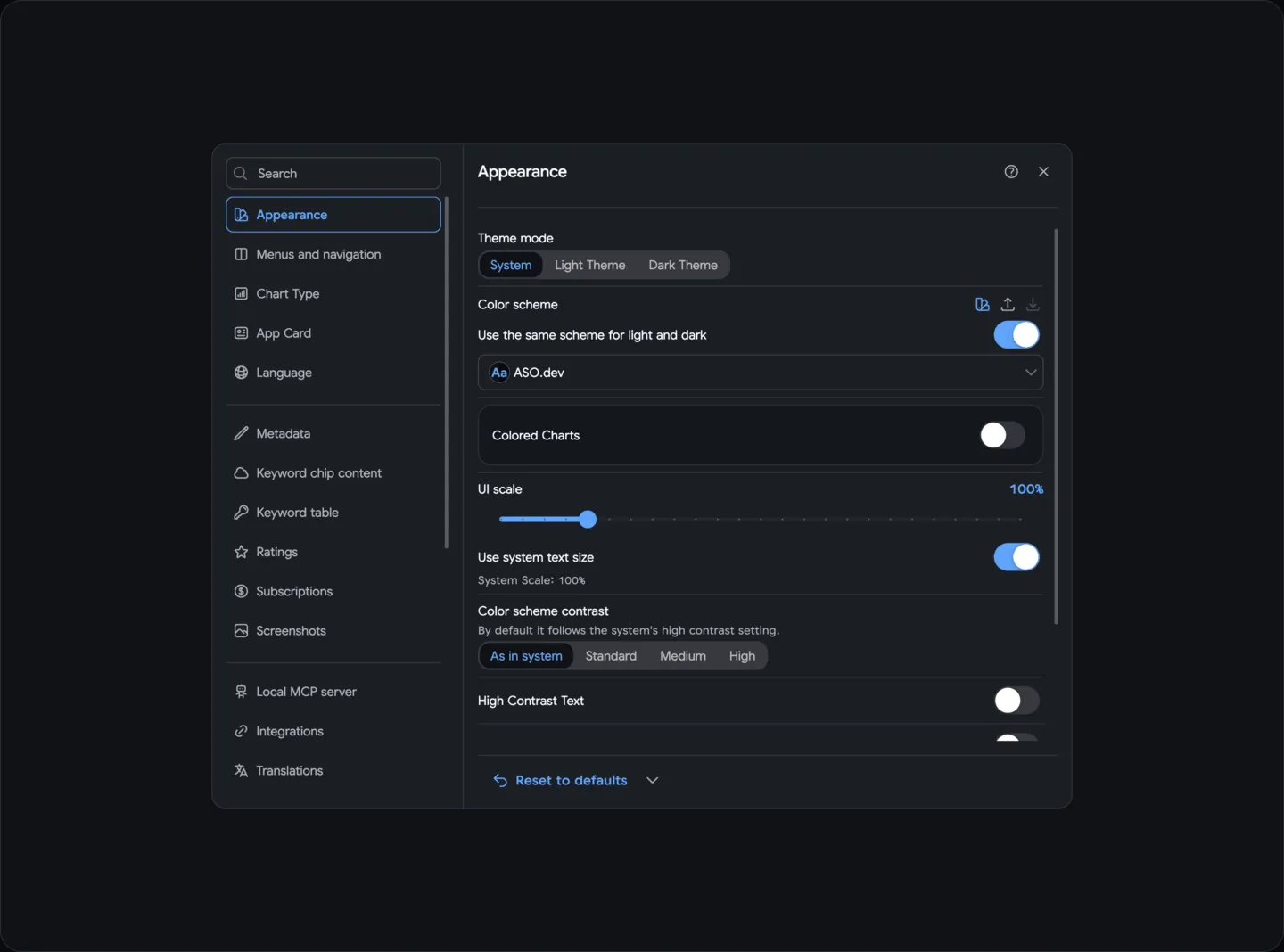
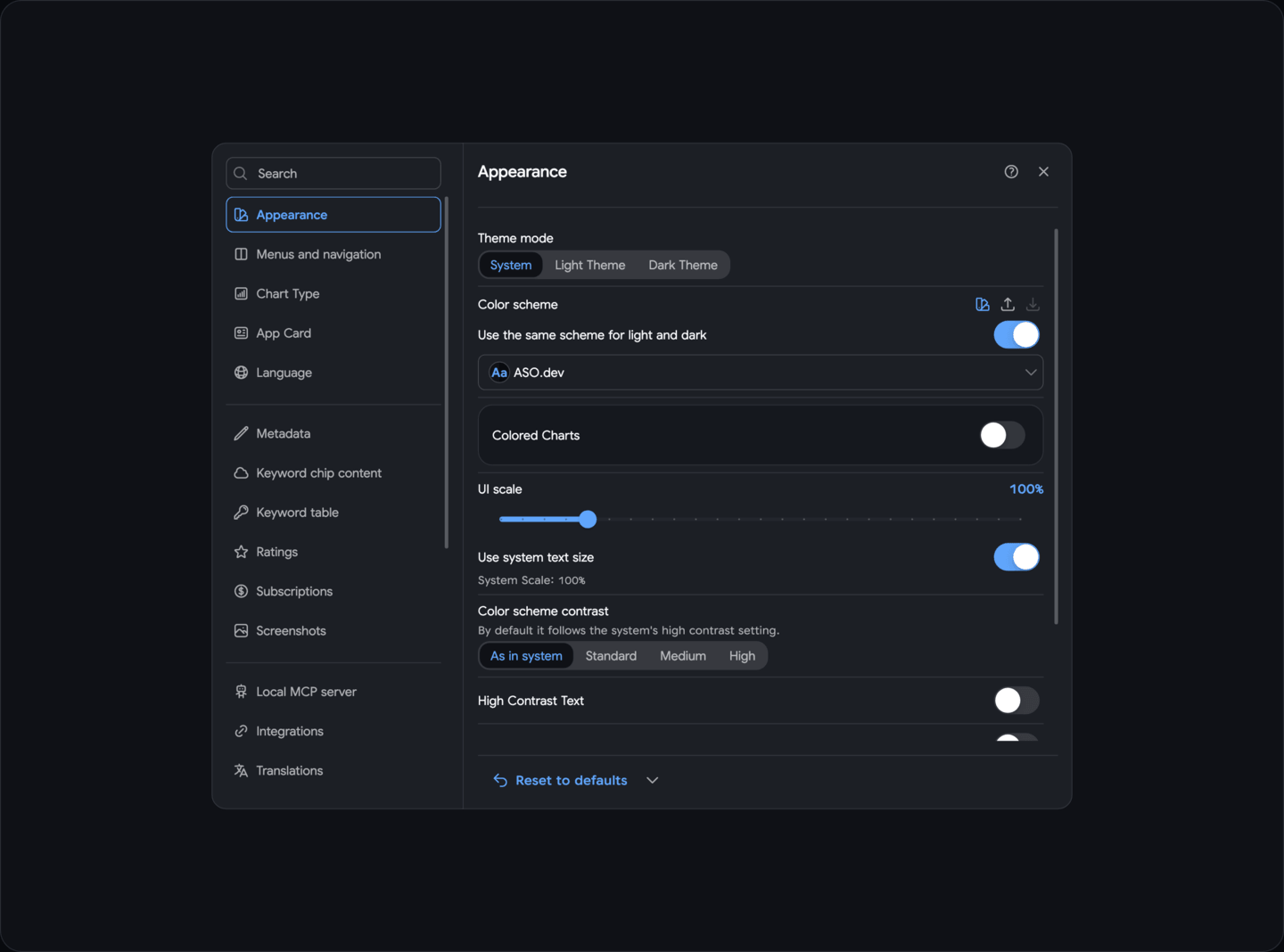
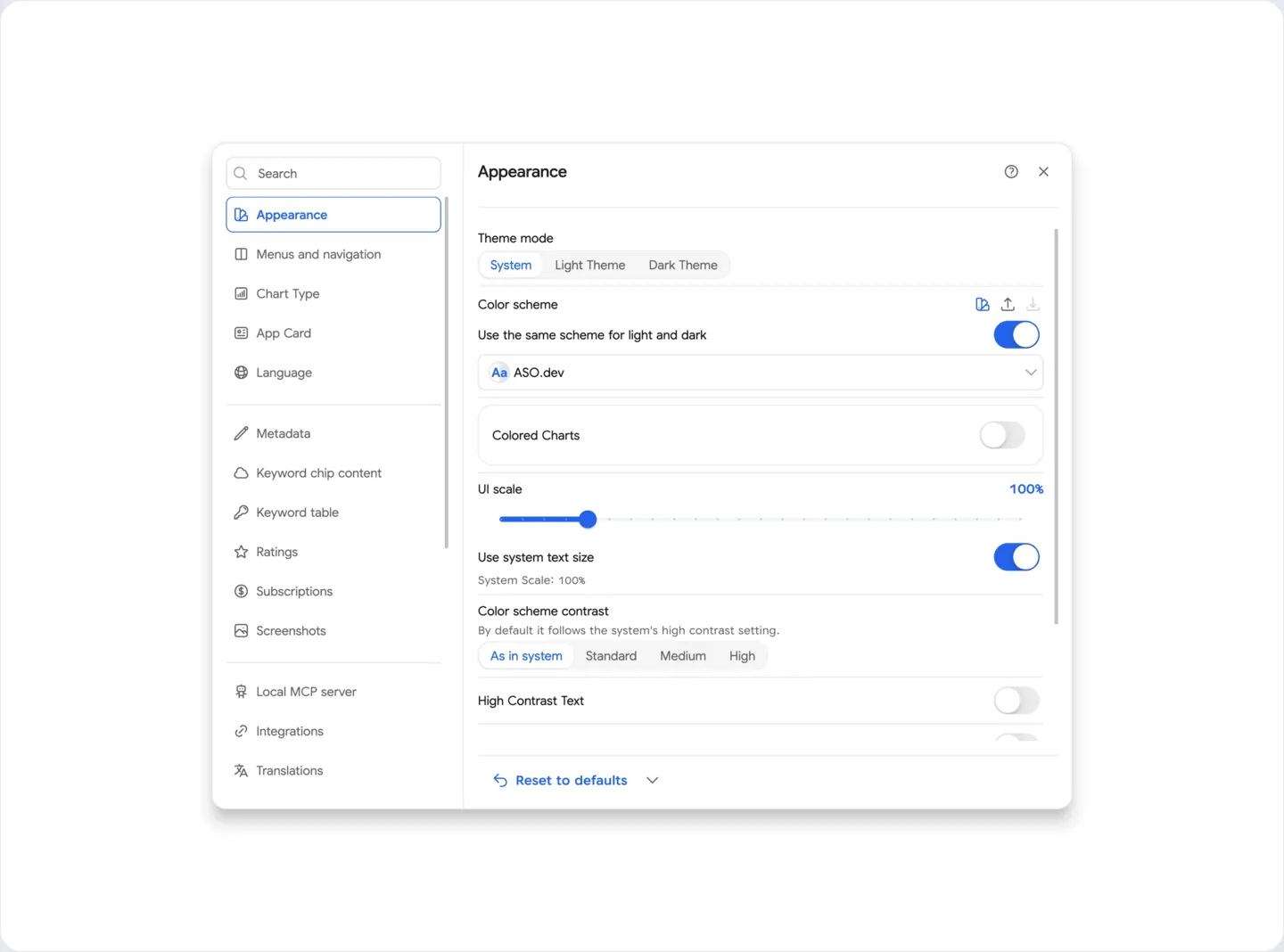
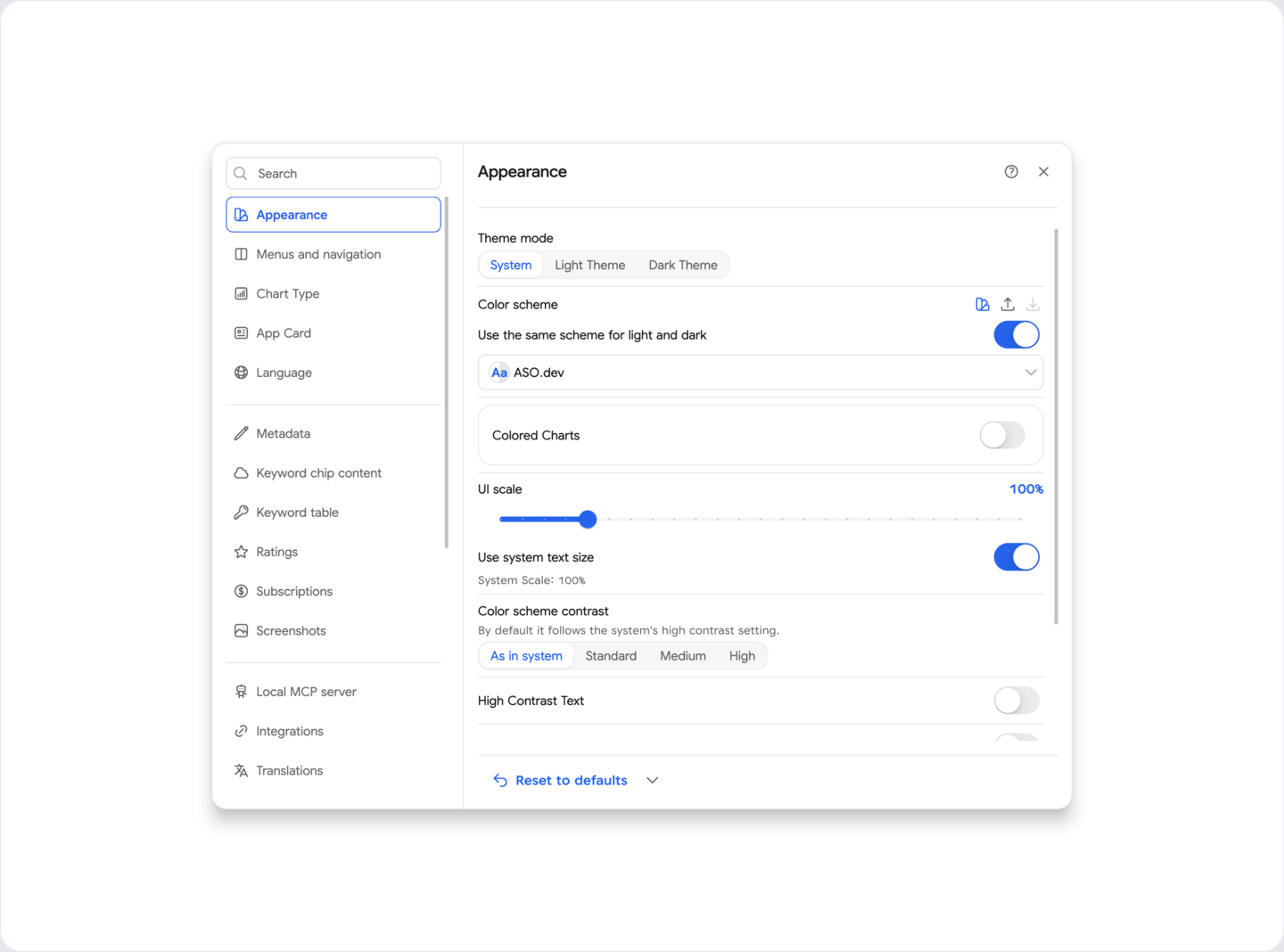
Appearance
Section titled “Appearance”Light theme - customize the appearance of the interface by choosing a light or dark theme.
High contrast interface - choose standard or high contrast for better readability.
High contrast icons interface - choose standard or high contrast icons for better readability.
Hide preview - disable the preview on screens if you want to reduce the interface load.
Hide sidebar - configure the sidebar to be hidden or pinned depending on your preferences.
Disable Haptic Feedback - disable haptic feedback when interacting with the interface on mobile devices.
Metadata
Section titled “Metadata”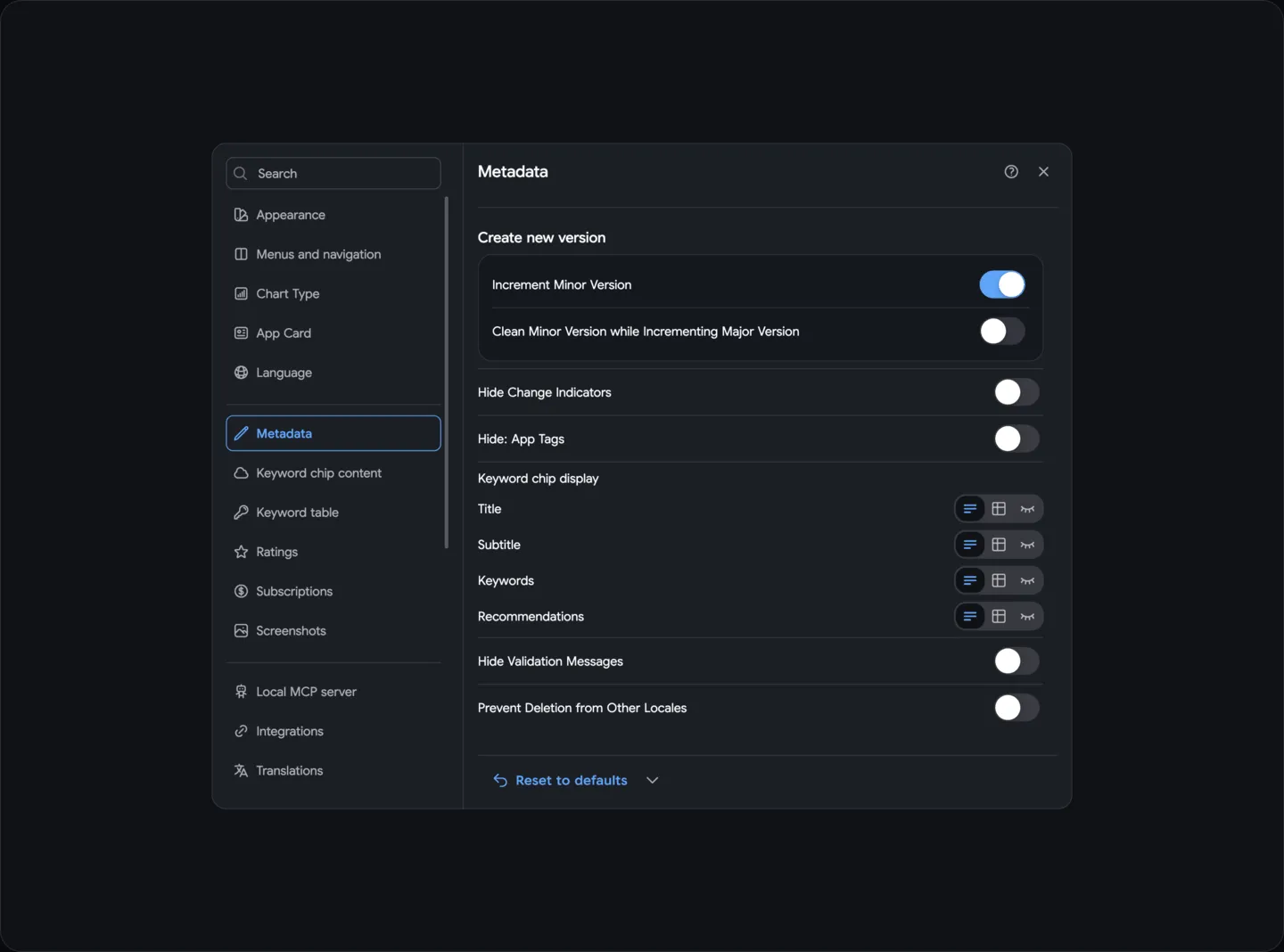
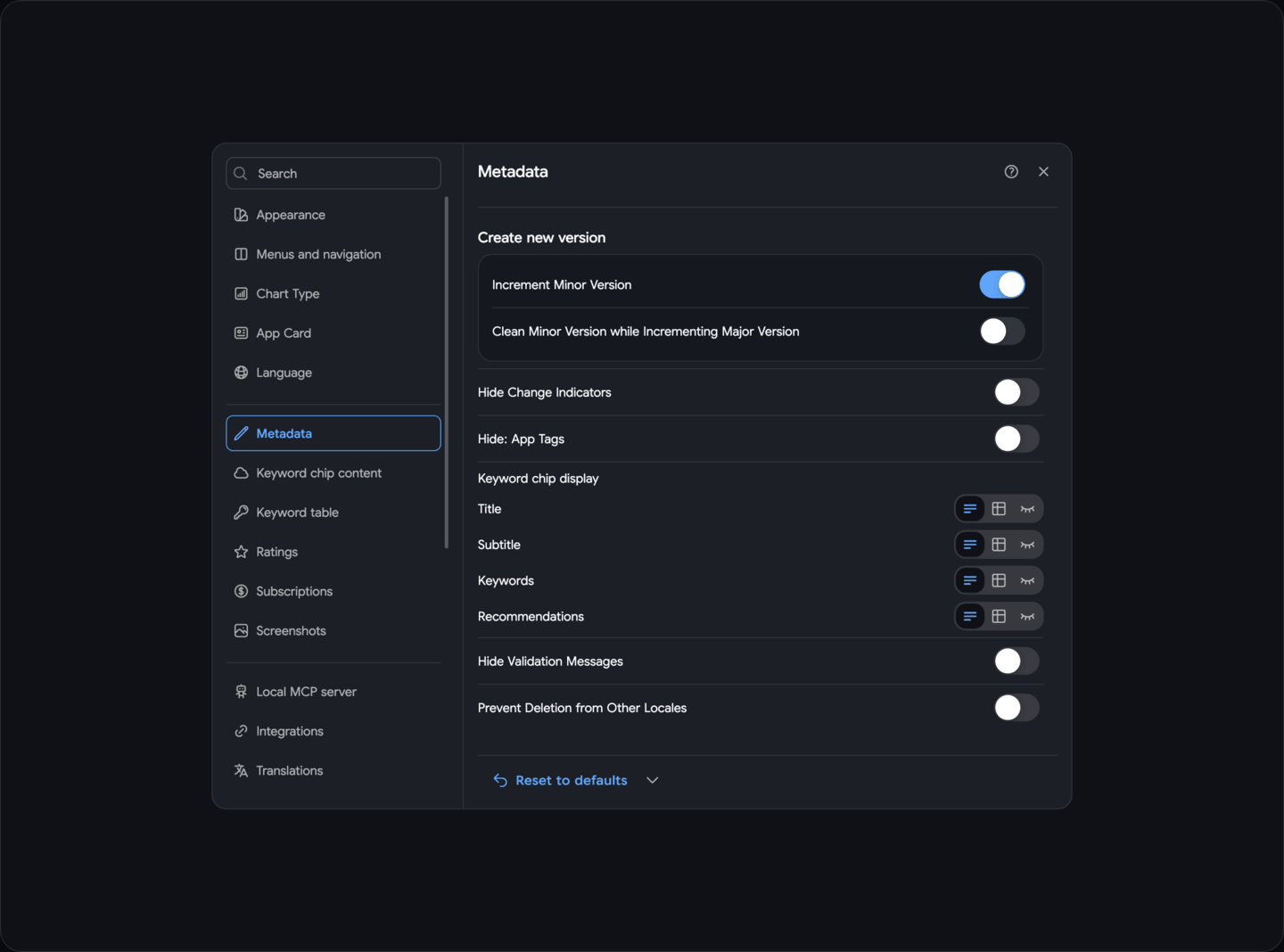
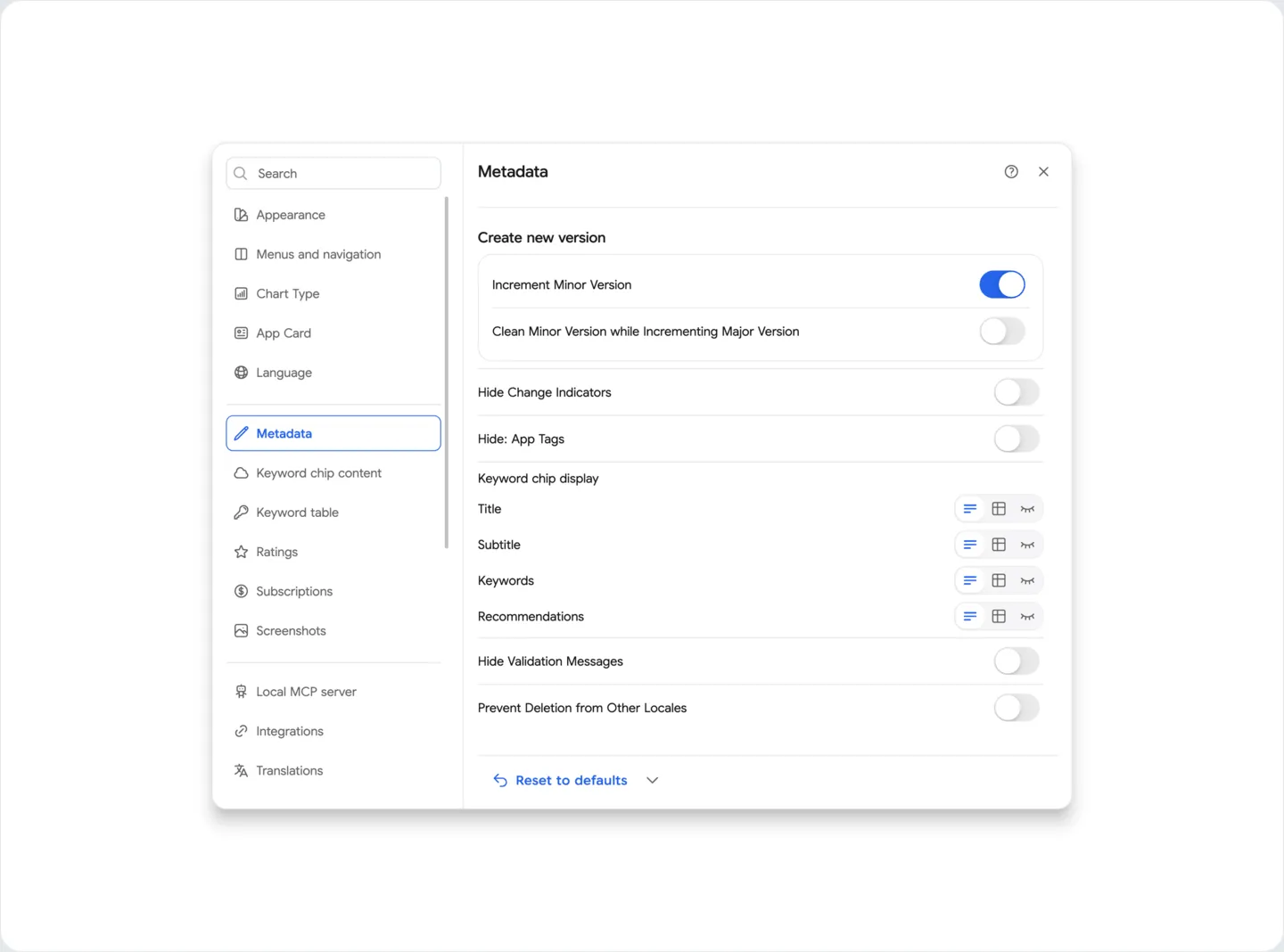
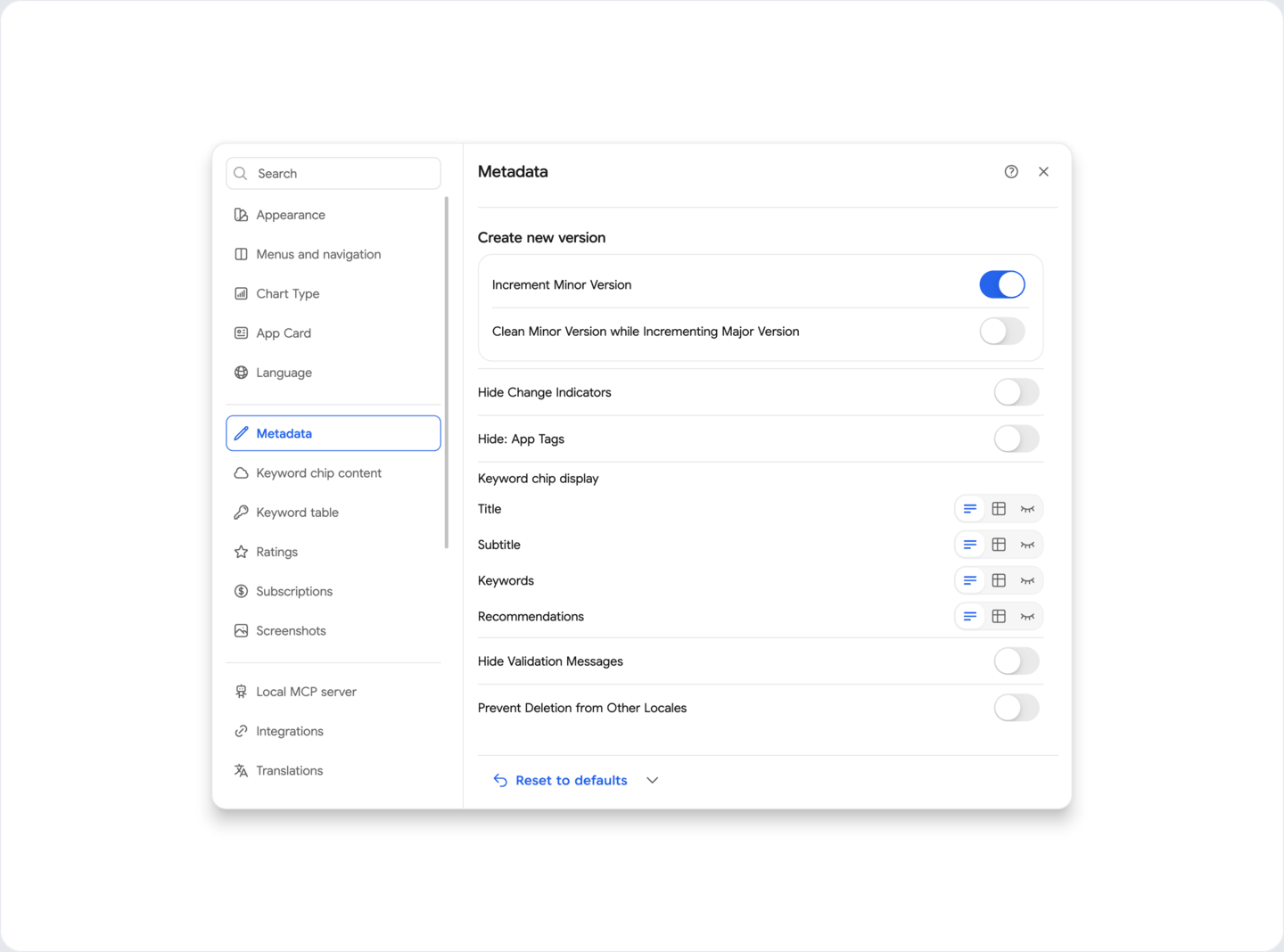
Hide change indicators - disable change indicators in metadata next to each input field in the editor if they distract you.
Metadata: Keywords
Section titled “Metadata: Keywords”Hide keywords data - removes information about each keyword under the input field
Hide keyword suggestions - removes keyword suggestions based on data from App Store Connect and keywords of your competitors
Hide validation messages - removes all validation messages for input fields
Metadata: Cross-localization
Section titled “Metadata: Cross-localization”Prevent deletion from other locales - prevents deletion of keywords from other localizations, delete buttons from other languages are removed so you can focus on the data of the current Localization
Metadata: Versioning
Section titled “Metadata: Versioning”These options belong to the current project and control the version suggested when creating a new version in the metadata editor.
You can manage your app’s versioning more flexibly.
By default, when the major version is increased, the minor version remains unchanged (for example, version 1.2.3 will become 1.3.3).
However, you have two configurable options in the settings:
- Update Minor Version: Automatically increments the minor version while keeping the current major version. For example, version 1.2.3 will become 1.2.4.
- Reset Minor Version on Major Update: When the major version is increased, the minor version resets to zero. This means version 1.2.3 will become 1.3.0.
For a two-part version, the second number is incremented: 1.2 → 1.3. Check the suggested version before saving.
Keywords
Section titled “Keywords”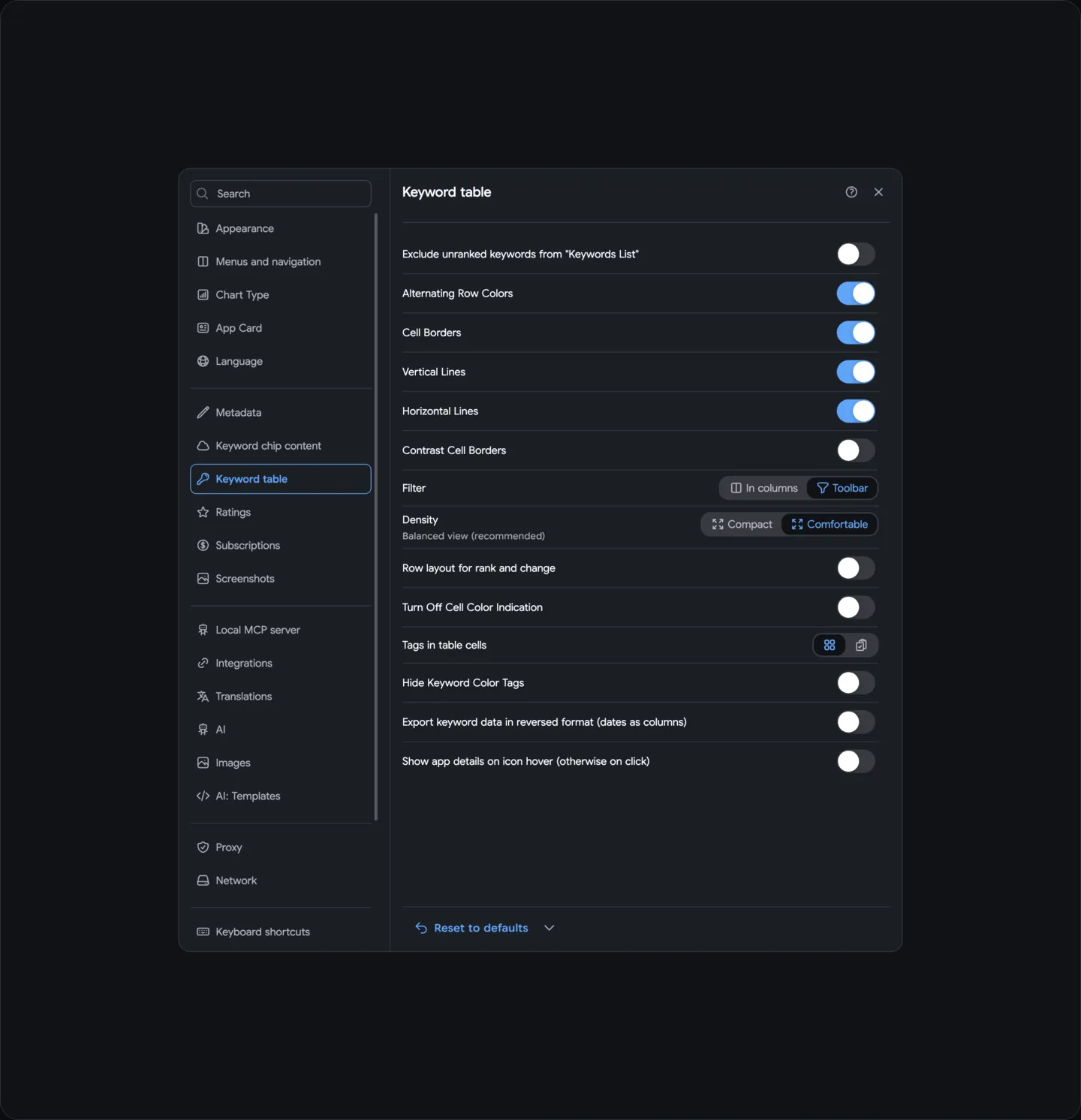
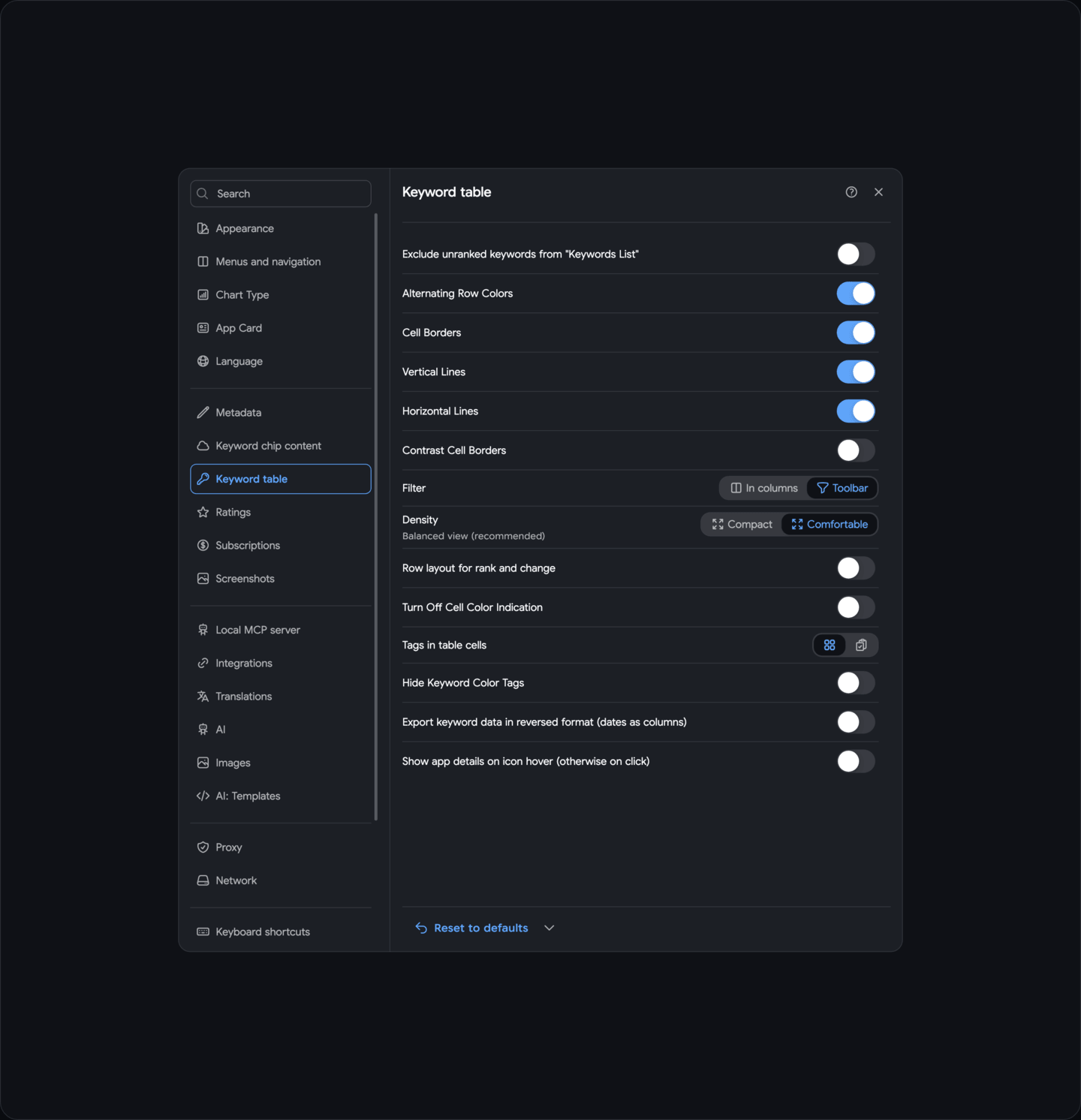
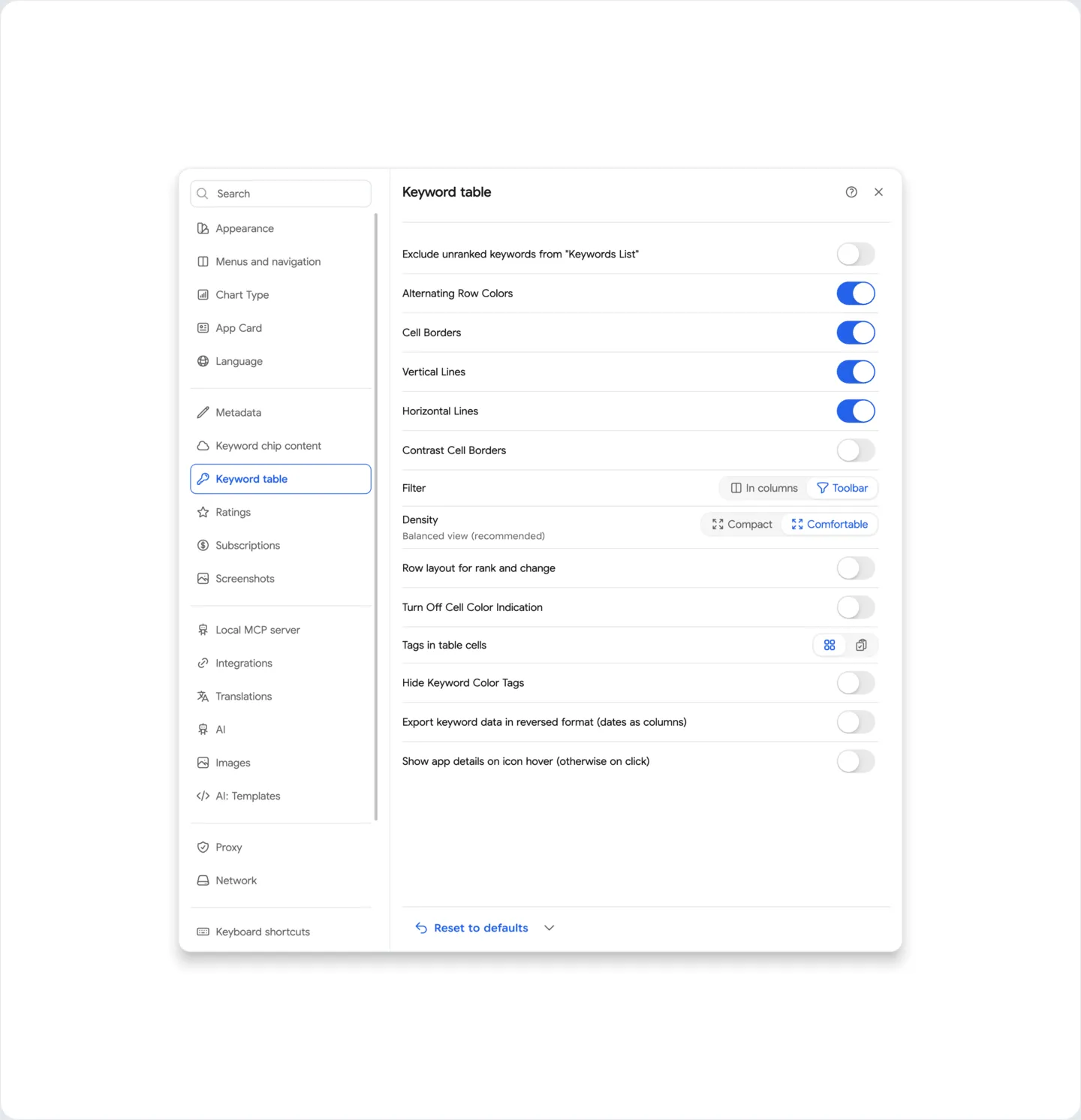
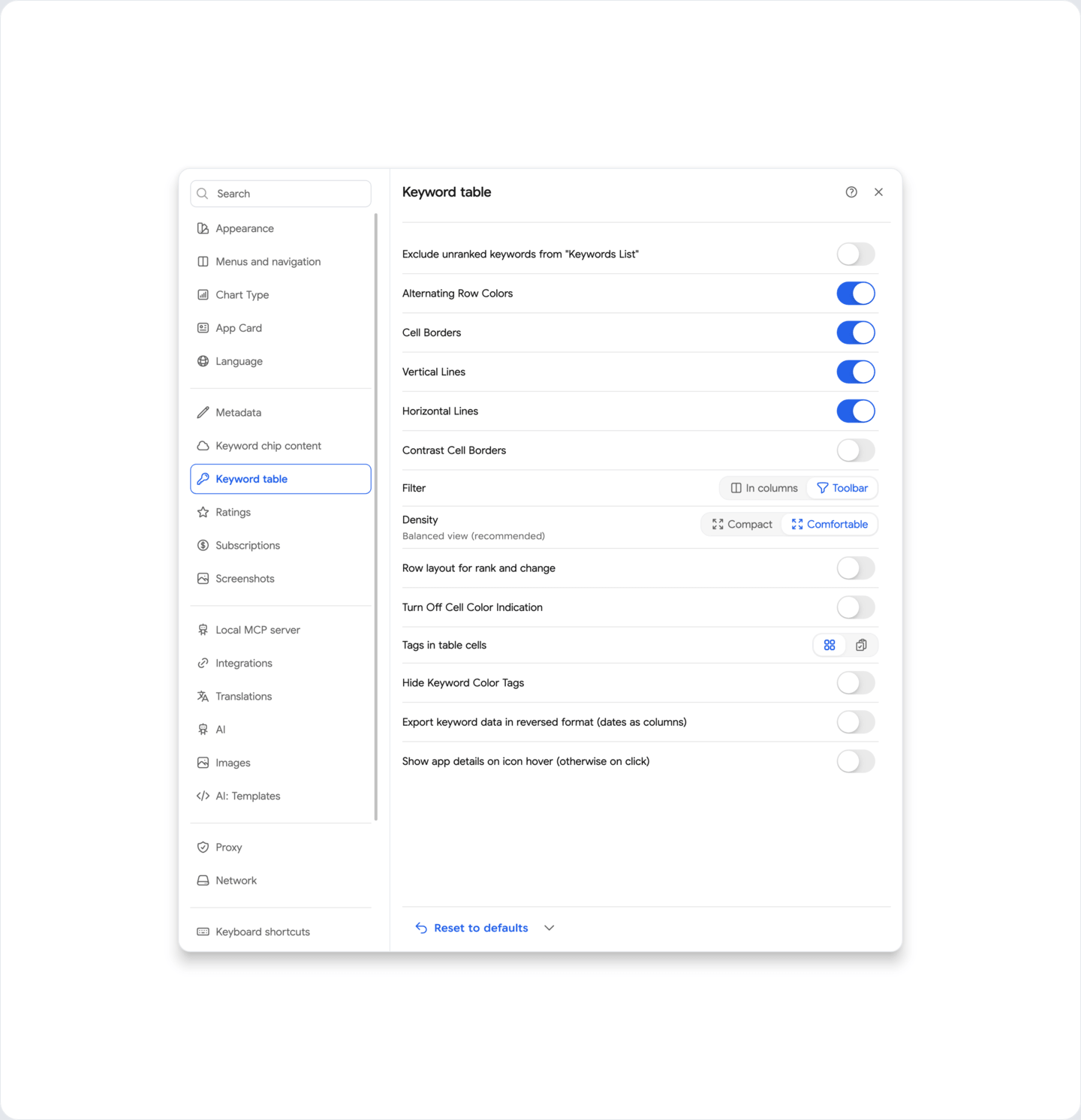
Exclude unranked keywords from the “Keywords List” - removes unranked keywords from the list of keywords, for which there are no positions by keywords of the application in the App Store
Turn Off Cell Color Indication - removes the color indication of cells in the keyword table, when keyword is out of the ranking - highlights cells in red
Hide keyword color labels - removes keyword color labels in the keyword table, if any
Display the number of words in keywords - shows the number of words in each keyword in the long-tail keyword search keyword table
Export keywords data in reversed format (dates as columns) - when enabled, dates will be exported in reverse order, starting from the newest to the oldest, as in the keyword table
Charts
Section titled “Charts”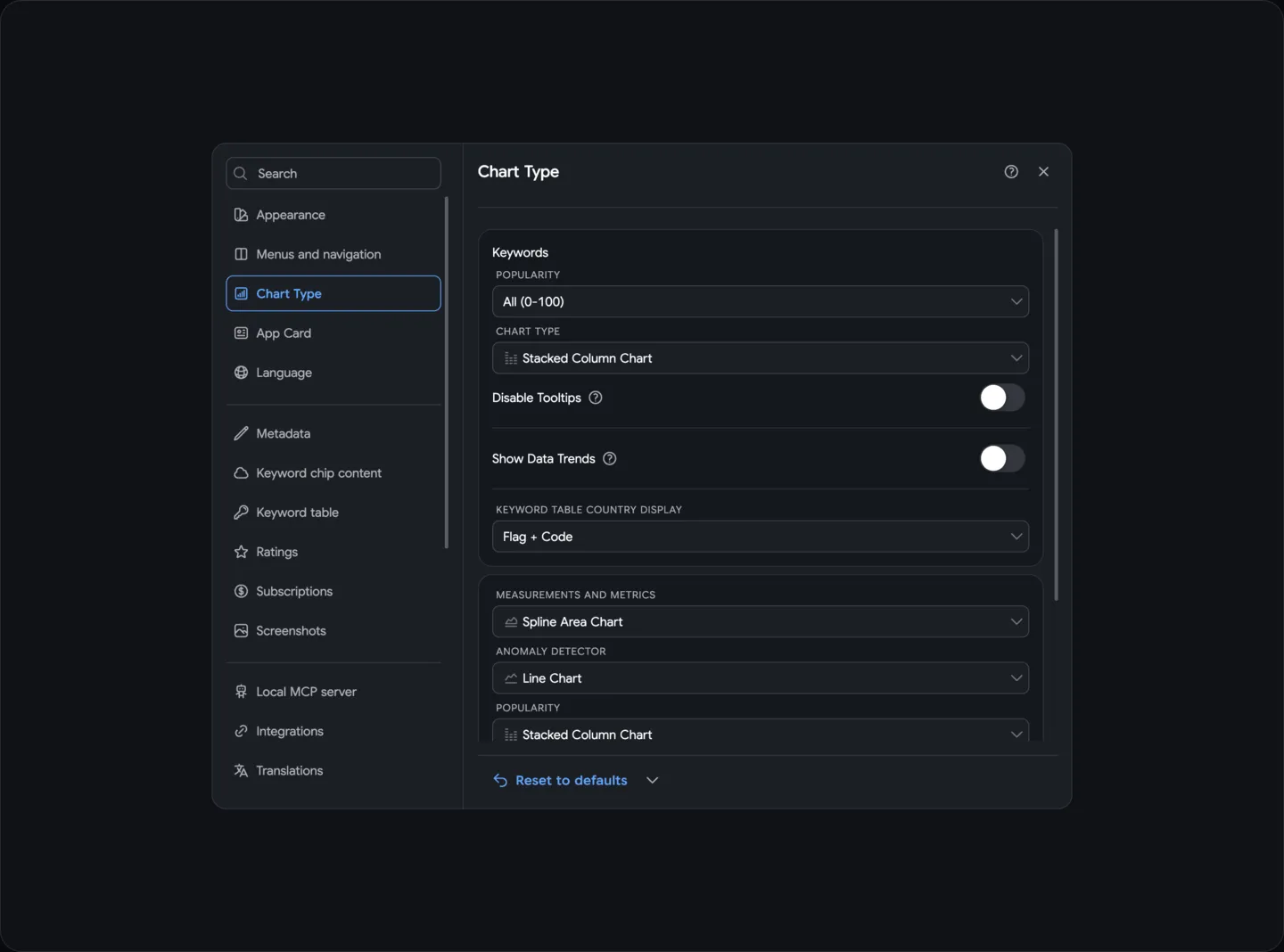
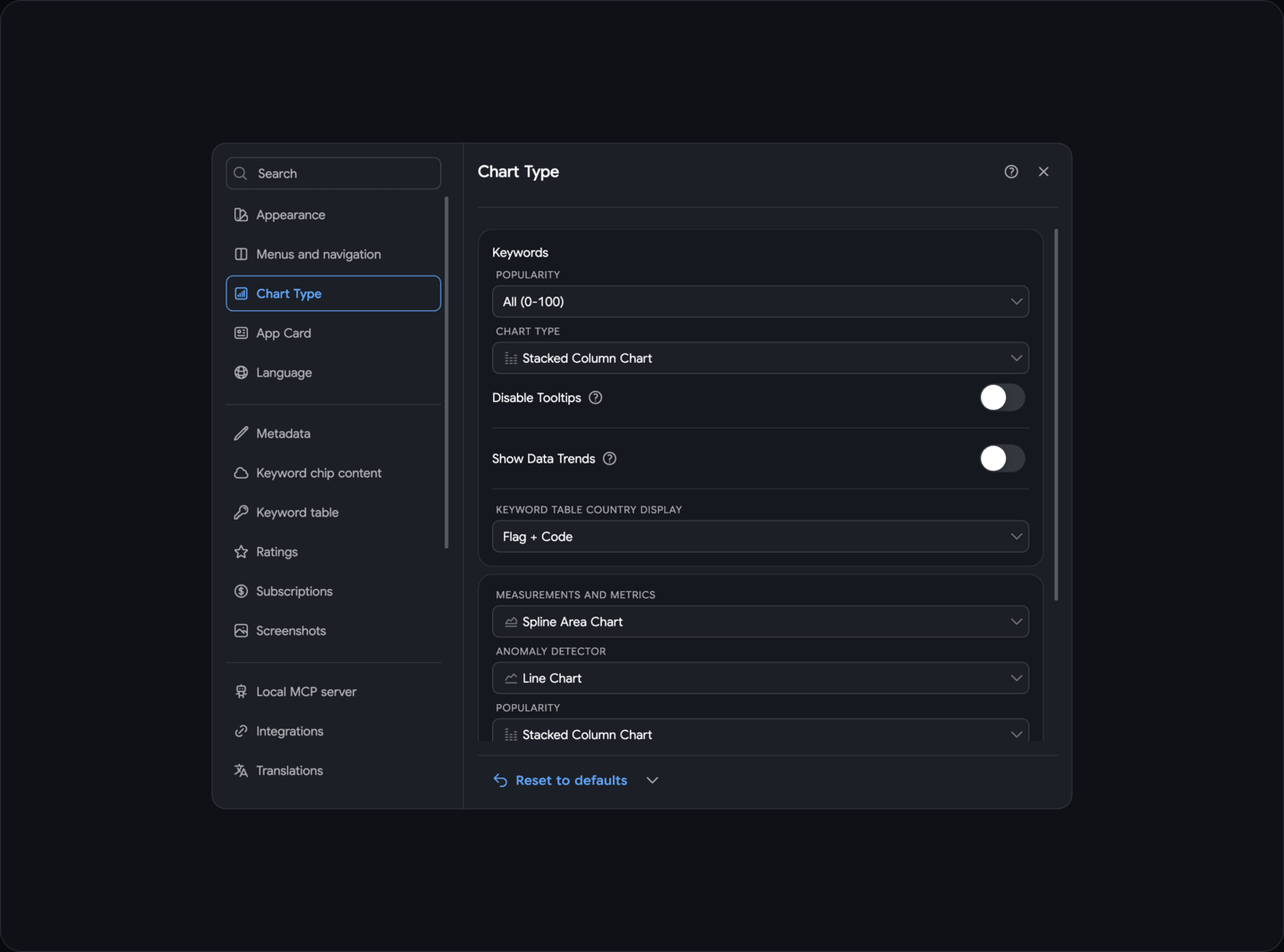
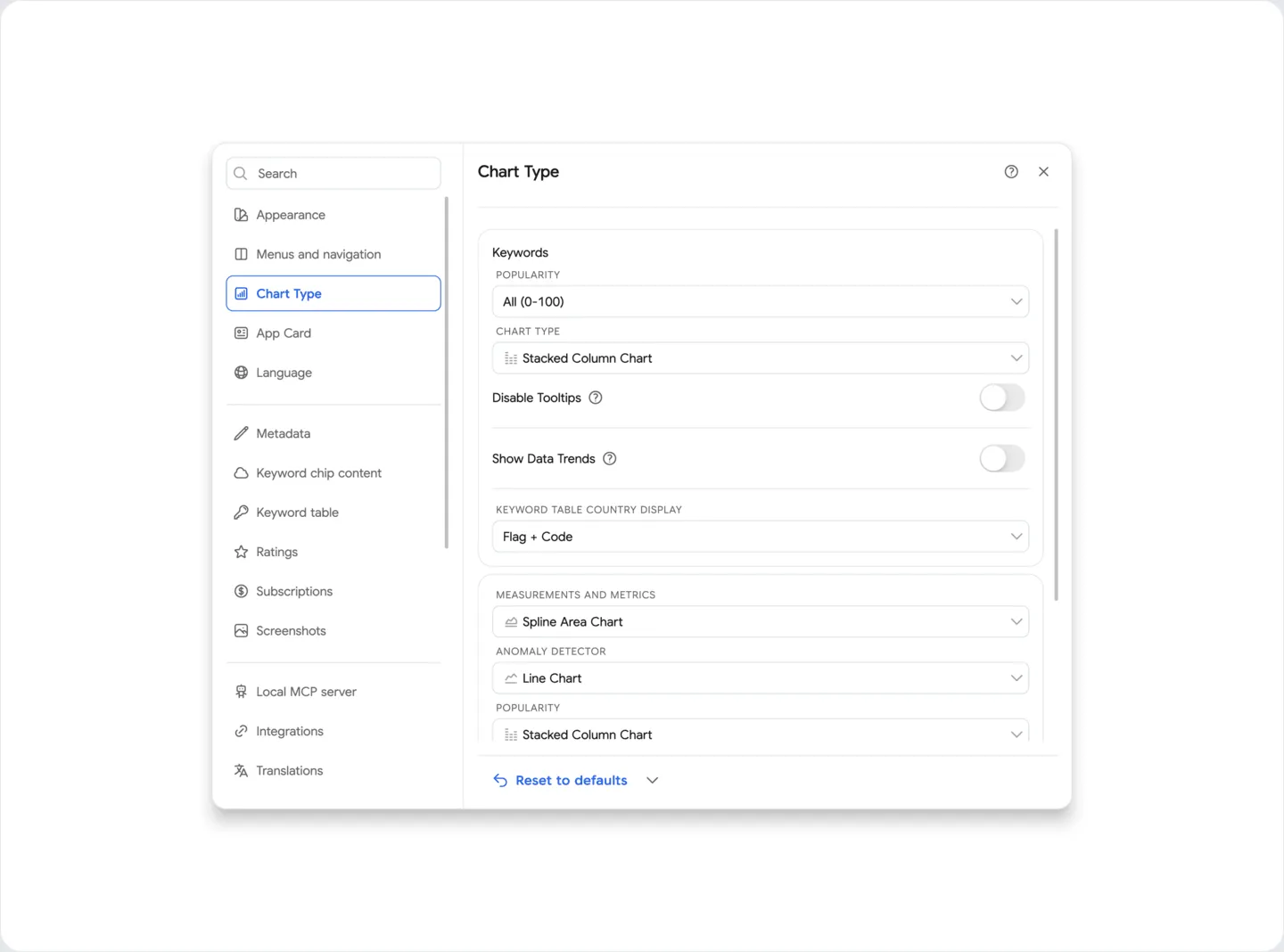
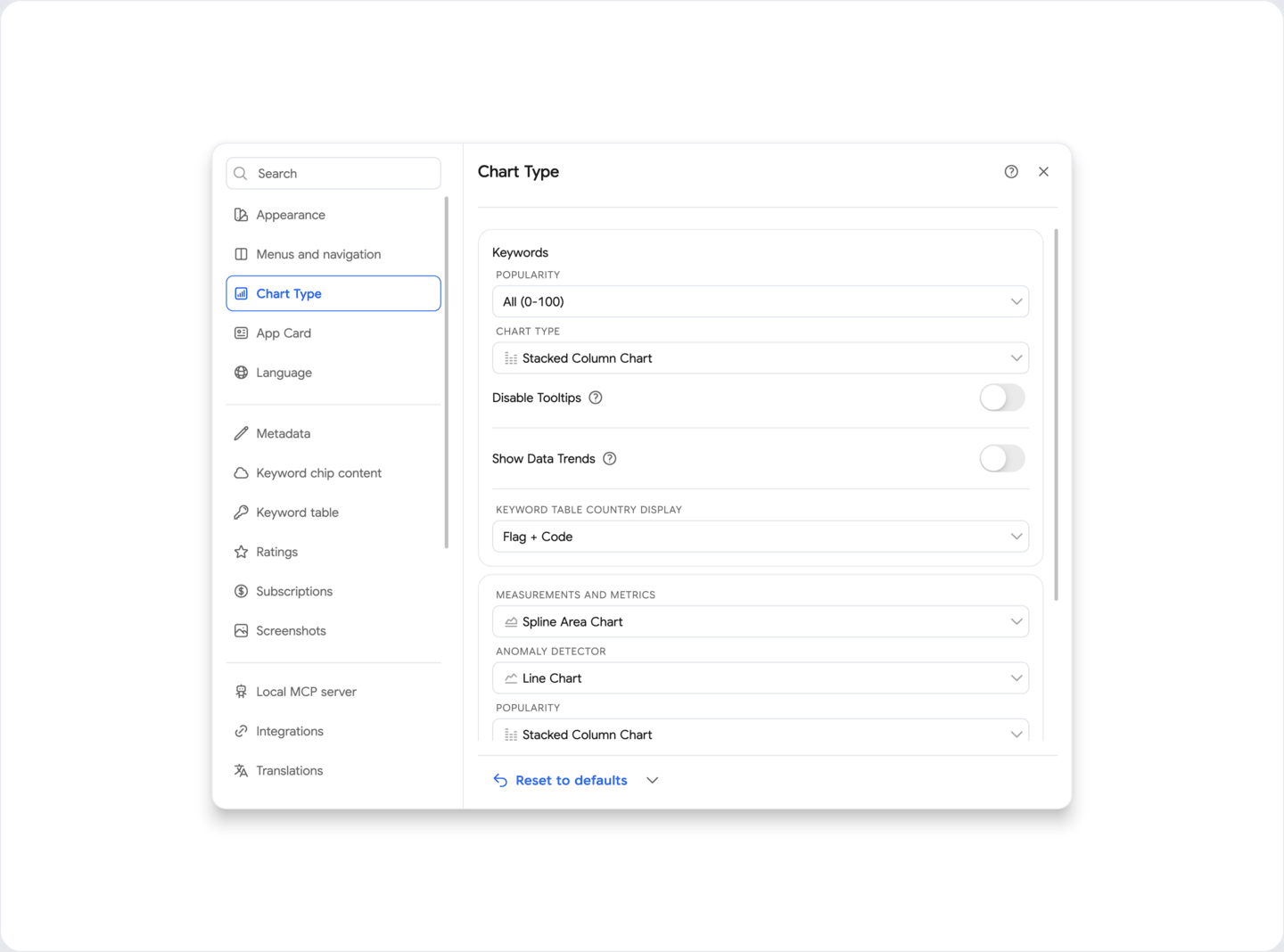
Chart Type - choose the type of charts that you prefer to use for visualizing keyword data.
- Column Chart - a chart in the form of separate columns, where each column corresponds to a specific position range.
- Stacked Column Chart - by default, a chart in the form of columns, where each position range is displayed in its color inside one column.
- Normalized Stacked Column Chart - similar to Stacked Column Chart, but all columns have the same height (100%), and the percentage of keywords in each range is shown inside.
- Line Chart - shows the change in the number of keywords in each position range over time as separate lines, each starting from 0.
- Spline Chart - the same as Line Chart, but with smooth lines instead of sharp angles.
- Stacked Linear Chart - the values of position ranges are summed up, each line is built on top of the previous one, creating an accumulation effect.
- Normalized Stacked Linear Chart - similar to Stacked Linear Chart, but normalized in percentages (summing up to 100%).
- Area Chart - a chart in the form of filled areas, where each area corresponds to a specific position range.
- Spline Area Chart - similar to Area Chart, but with smoother lines for better visualization.
- Normalized Area Chart - similar to Area Chart, but all areas have the same height (100%), and the percentage of keywords in each range is shown inside.
You can choose the chart type for a few screen separately:
- Anomaly Detector
- Search Ads Popularity history
- Keywords
- measurements
For the Keywords:
Search Ads Popularity shows keywords on charts with the selected Search Ads Popularity (SAP) range to track dynamics.
- All - no filtering by popularity
- Low popularity - from 6 to 100
- High popularity only - from 20 to 100
Disable tooltips - removes all tooltips when hovering over keyword charts, as well as on the App Information screen.
Show Data Trends - shows the trend of changes in keyword positions over time on the charts.
Colored Charts - when enabled, the charts of keywords will be colored in different colors for better visualization.
For convenience, you can set your own colors.
When editing the base set of colors, you can restore them to the default values by the Default Settings button.
When disabled, the charts of keywords will be displayed in shades of one base color (blue) - by default.
Application Cards
Section titled “Application Cards”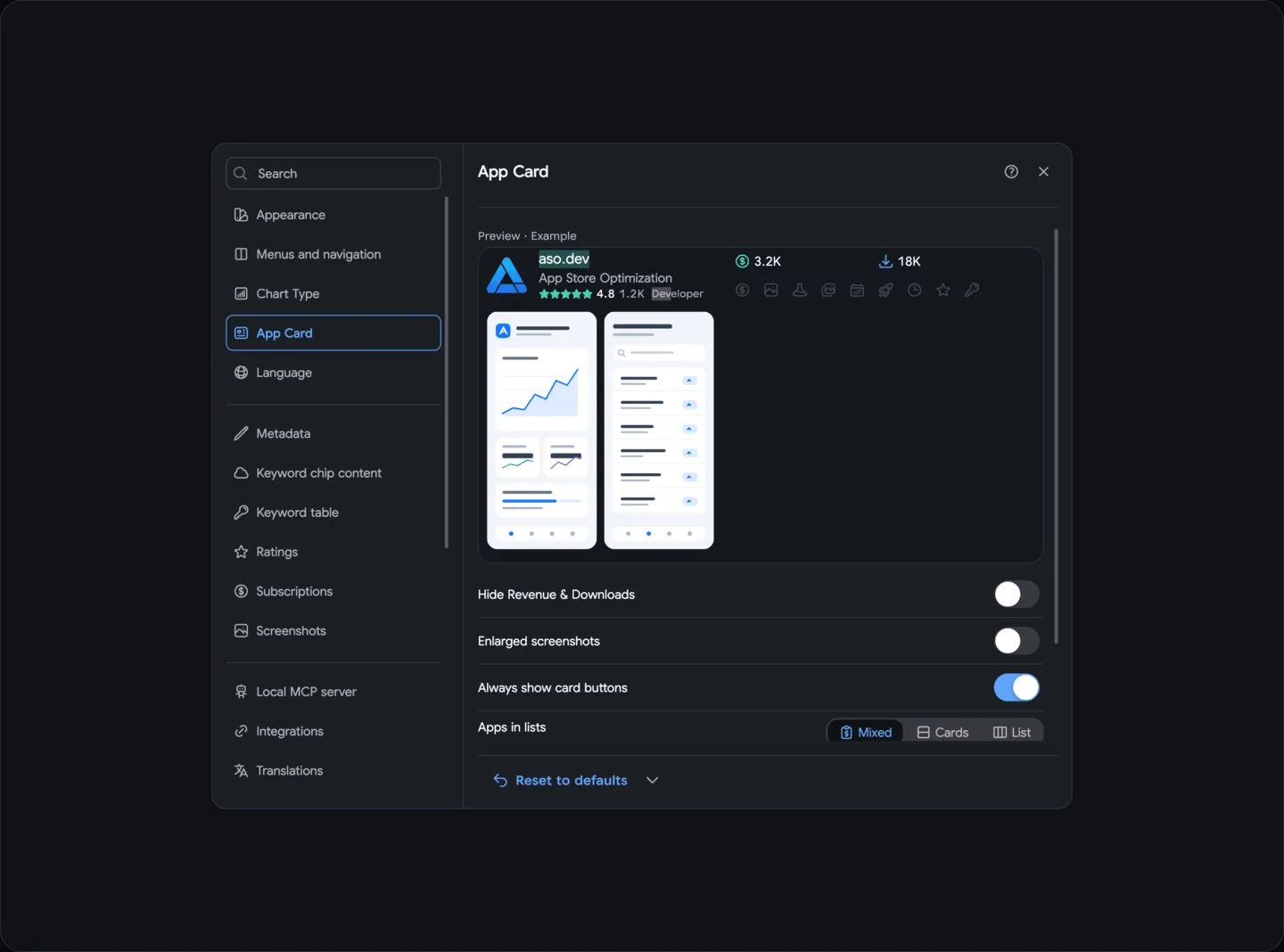
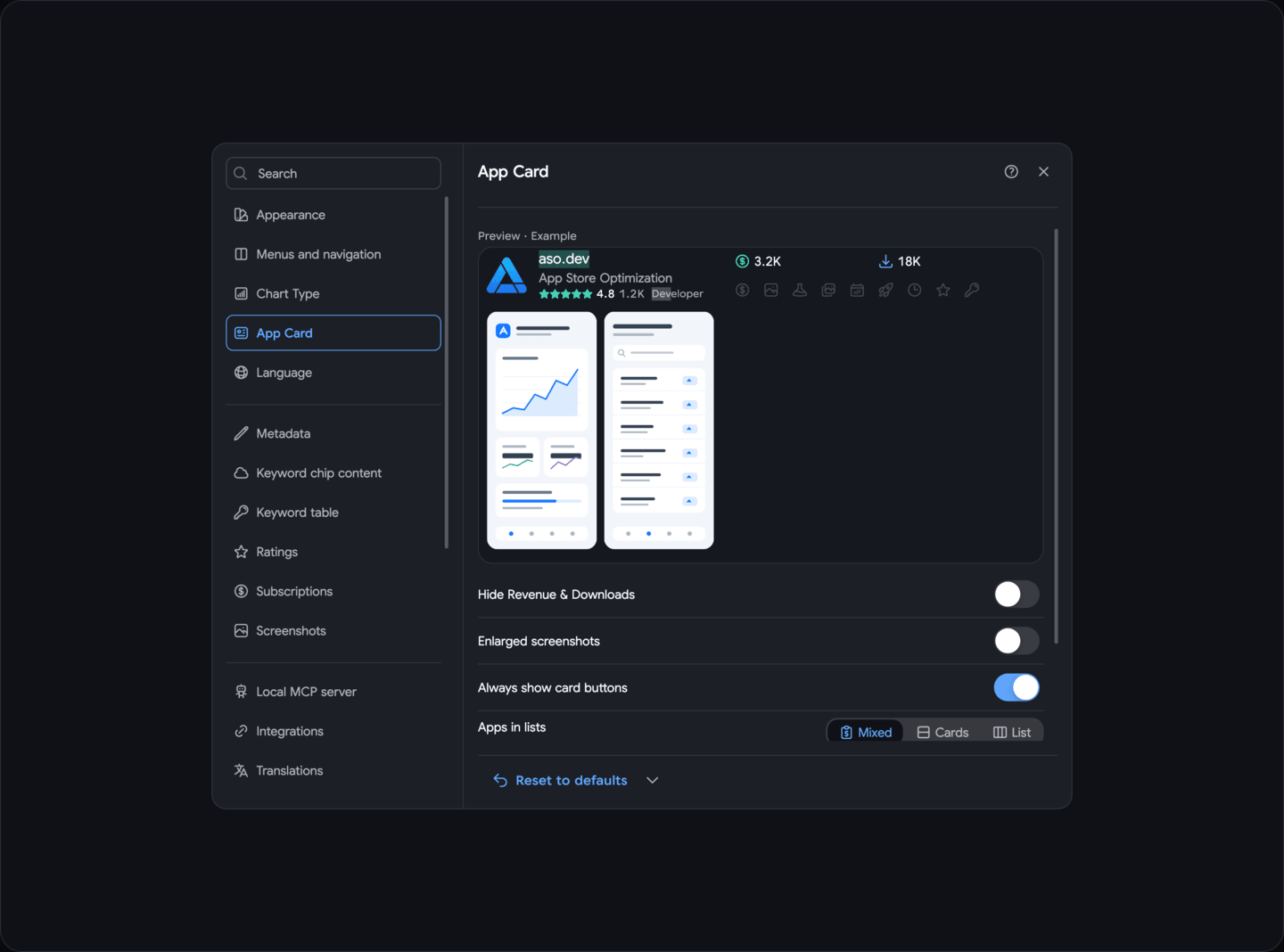
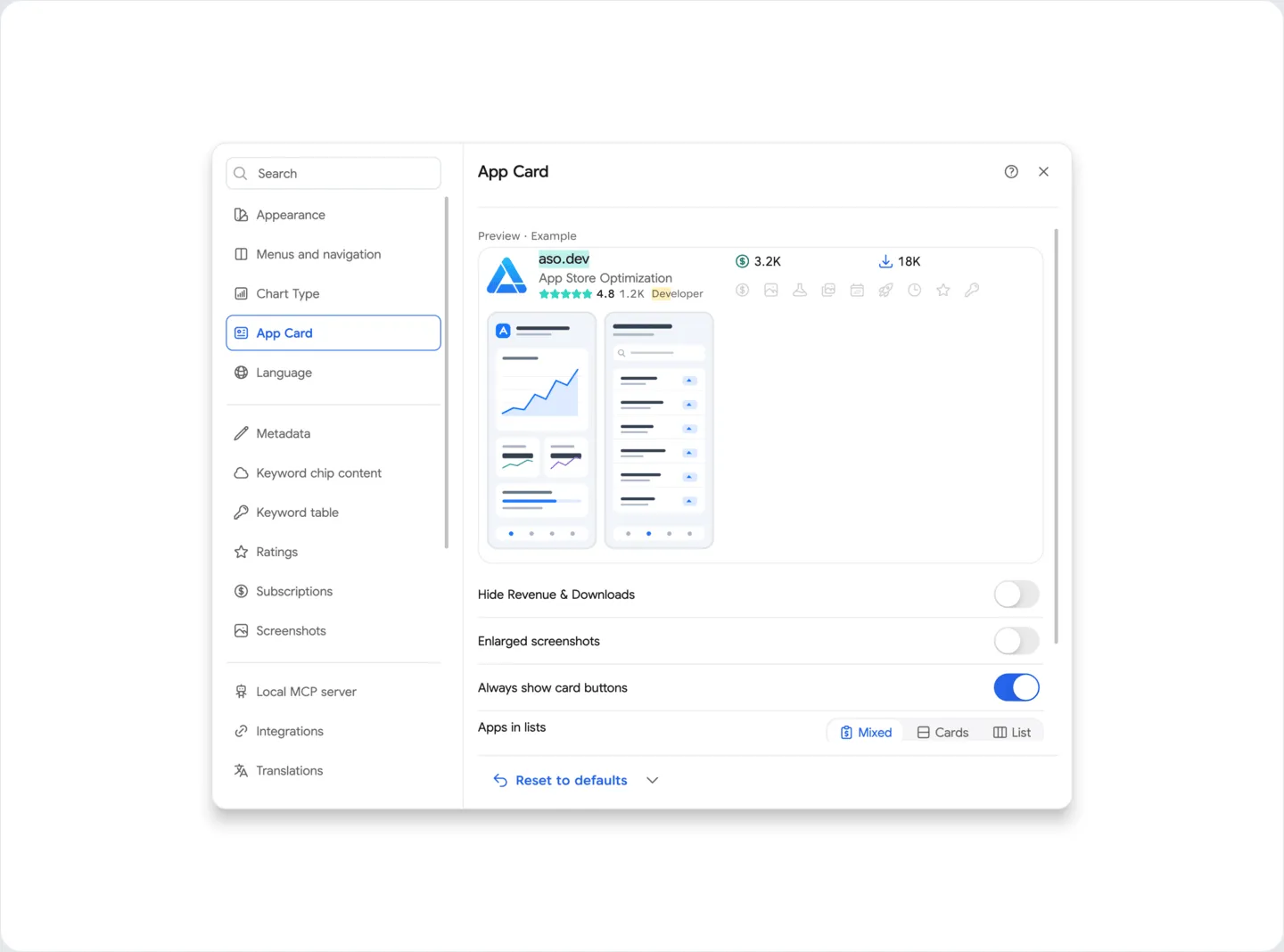
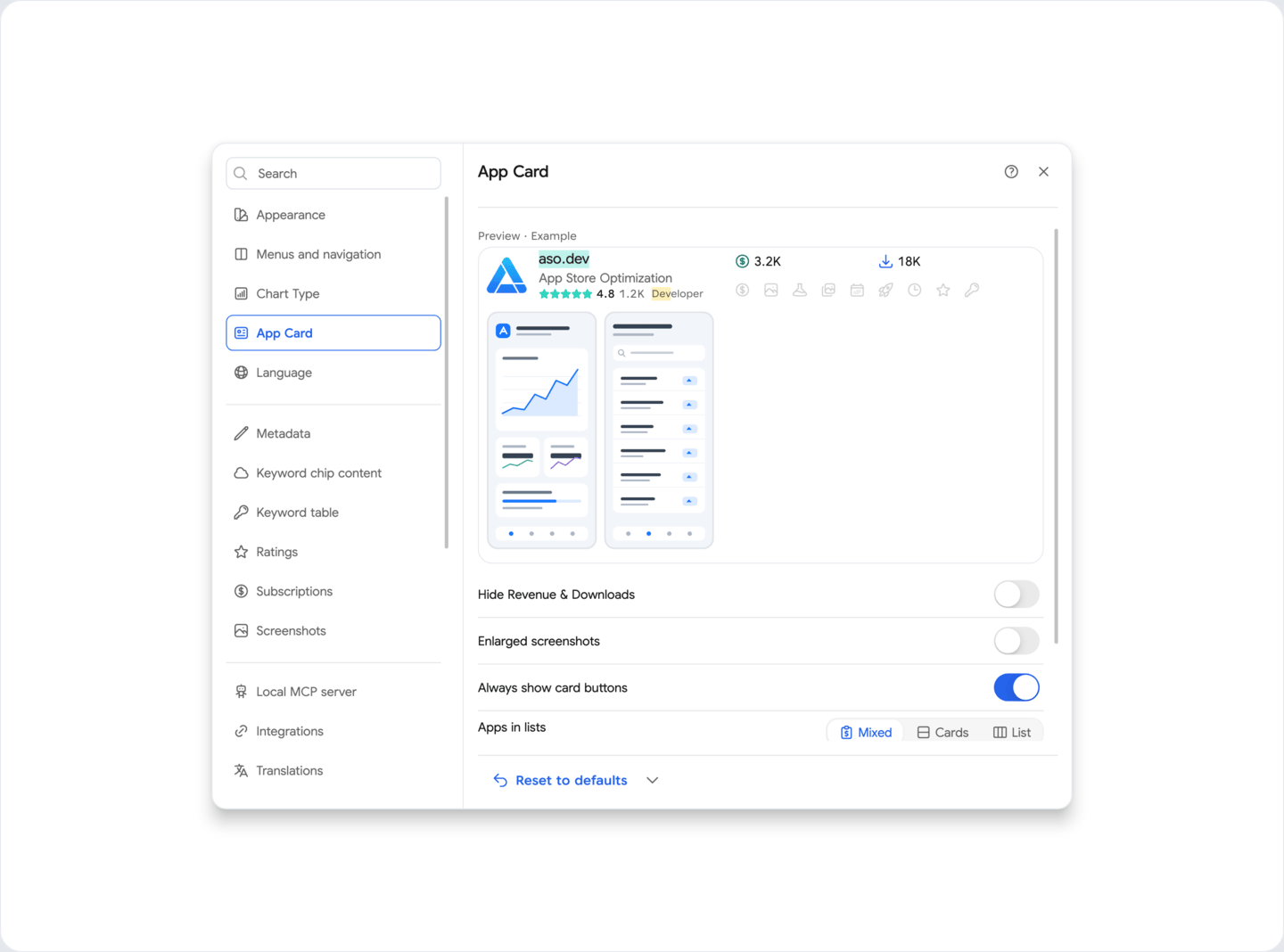
Hide income and downloads - removes data on income and downloads of the application from the application card.
Prevent text copying on click - prevents text copying when clicking on the application card, for quick transition to the App Information screen.
Navigation Mode - choose the navigation mode for Top Apps Screen: Buttons or Drop-downs. By default, the navigation mode is set to Buttons.
Subscriptions
Section titled “Subscriptions”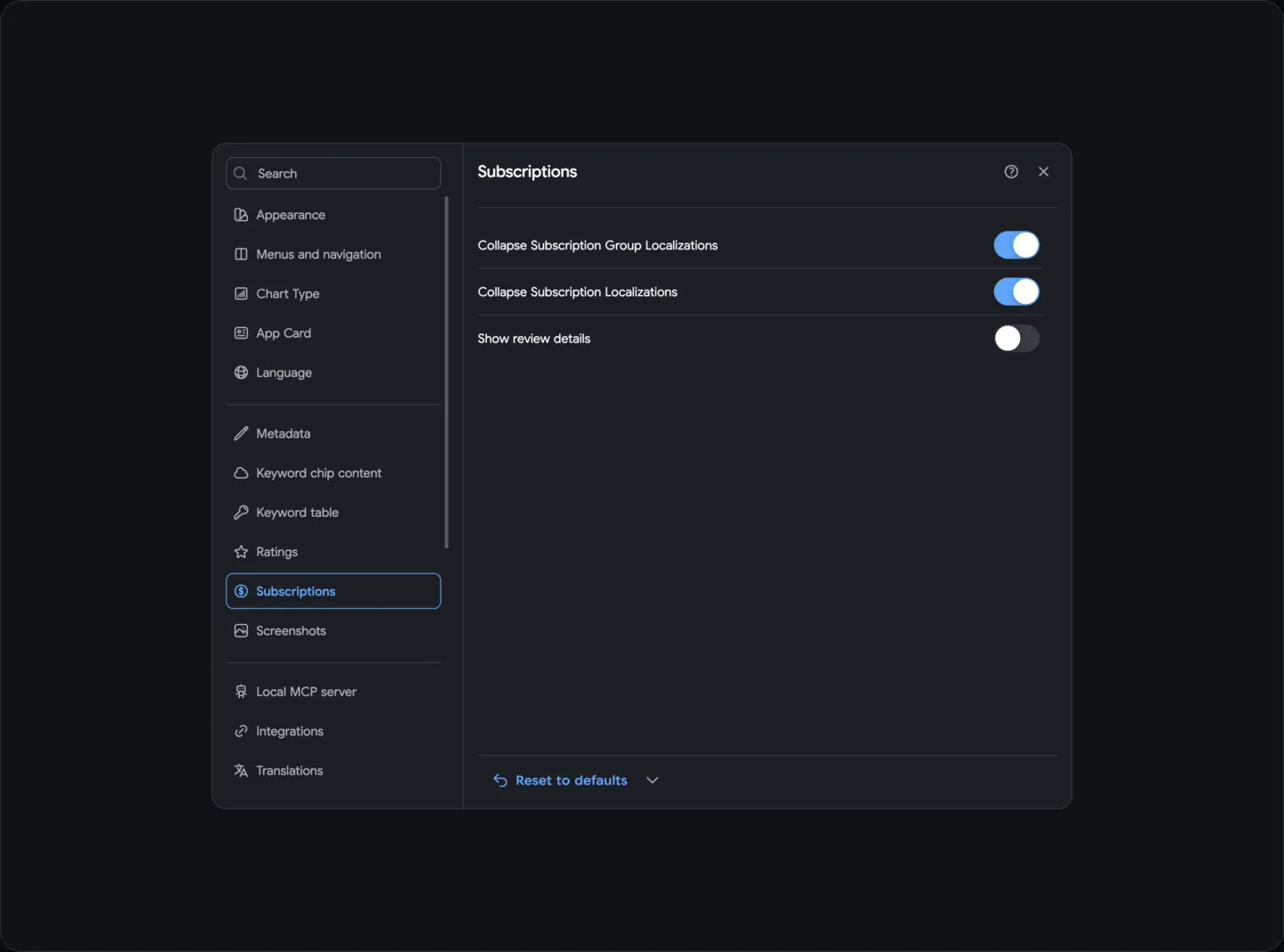
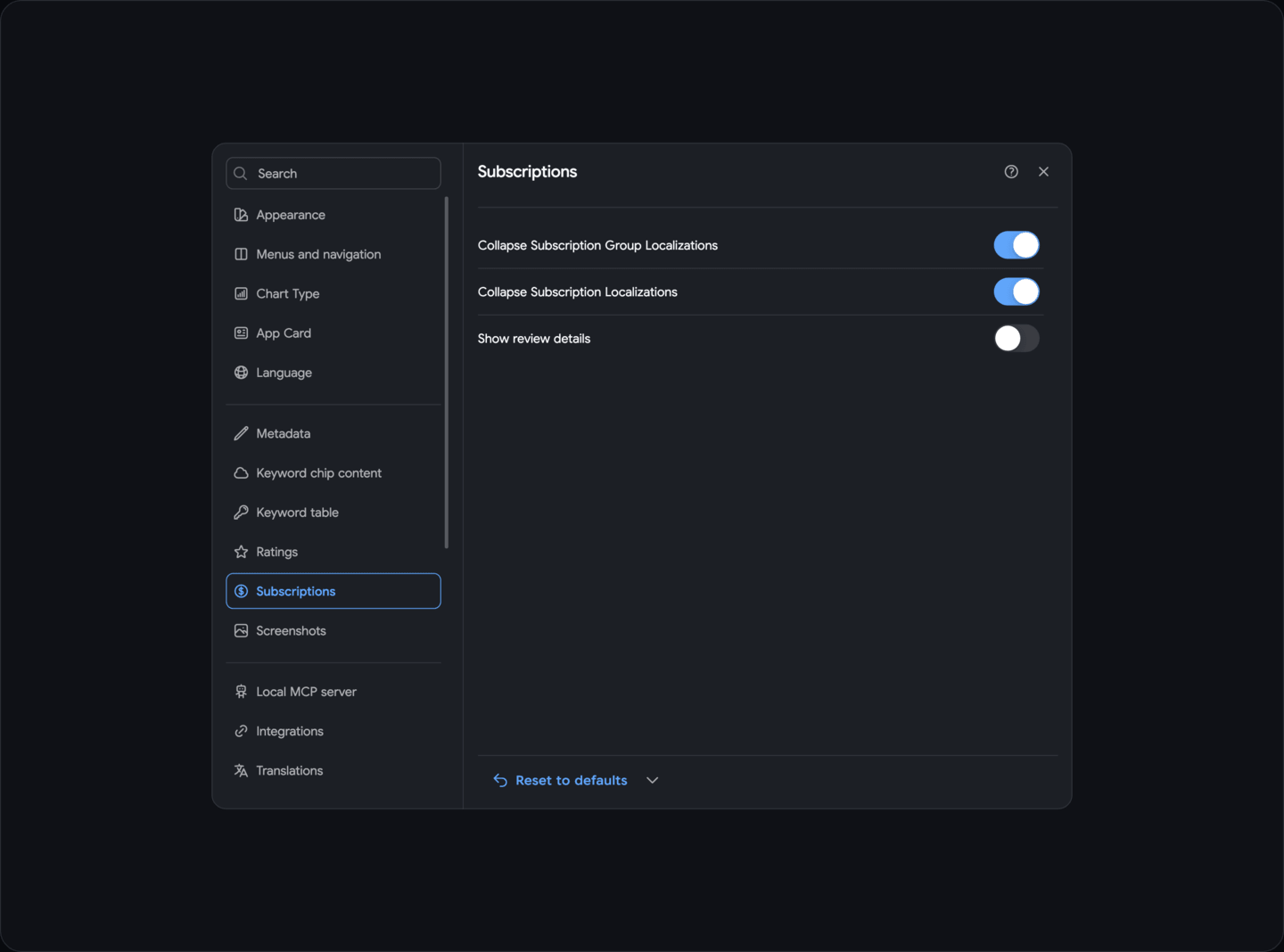
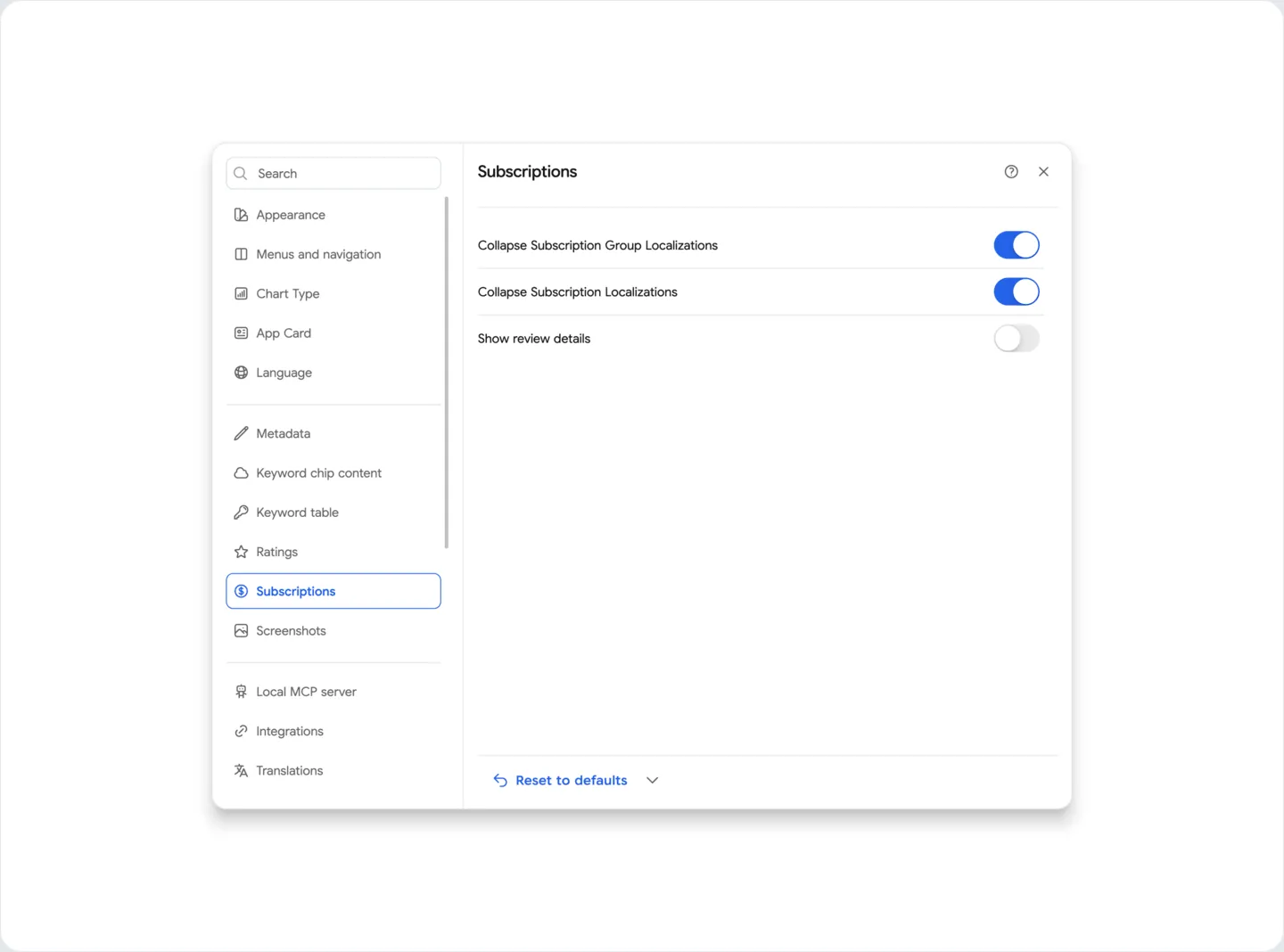
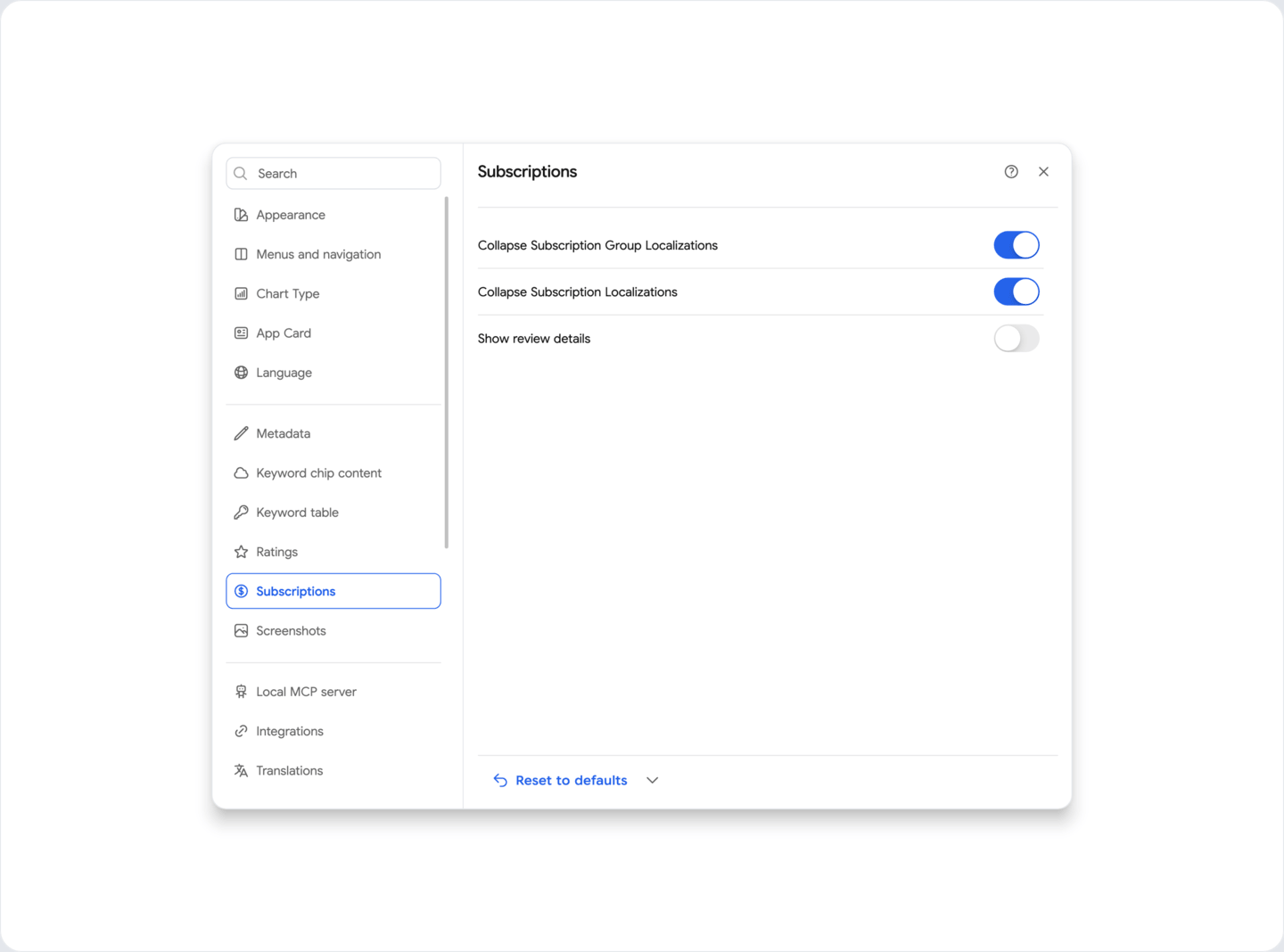
Collapse subscription groups - all subscriptions on the Subscriptions screen will be collapsed by default
Collapse localization subscription groups - when disabled - all localization subscription groups will be expanded for all localizations, by default - collapsed
Collapse subscription localizations - when disabled - all subscription localizations will be expanded for all subscriptions, by default - collapsed
Show details for verification - displays the information sent to the App Store for verification
Screenshots
Section titled “Screenshots”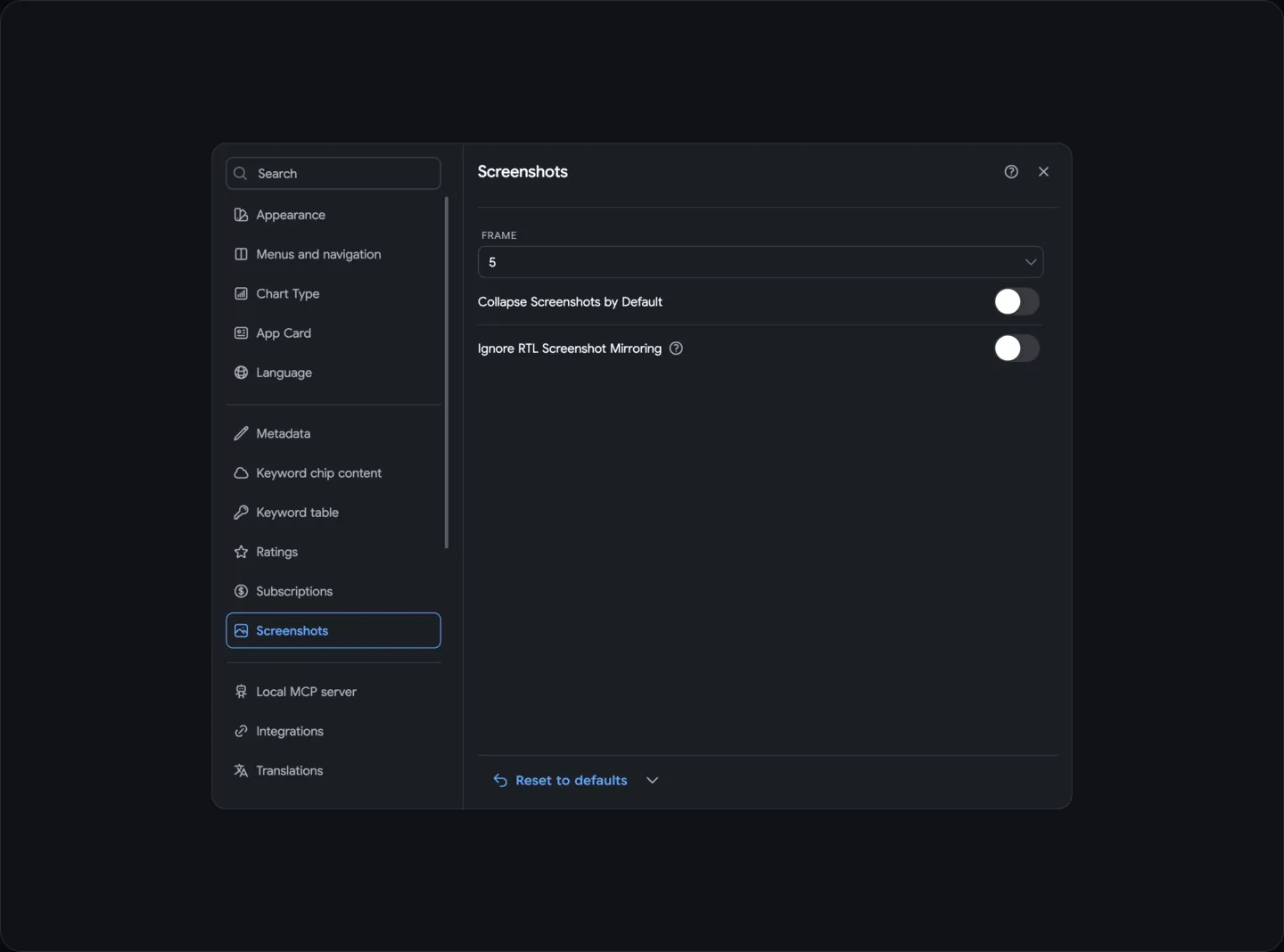
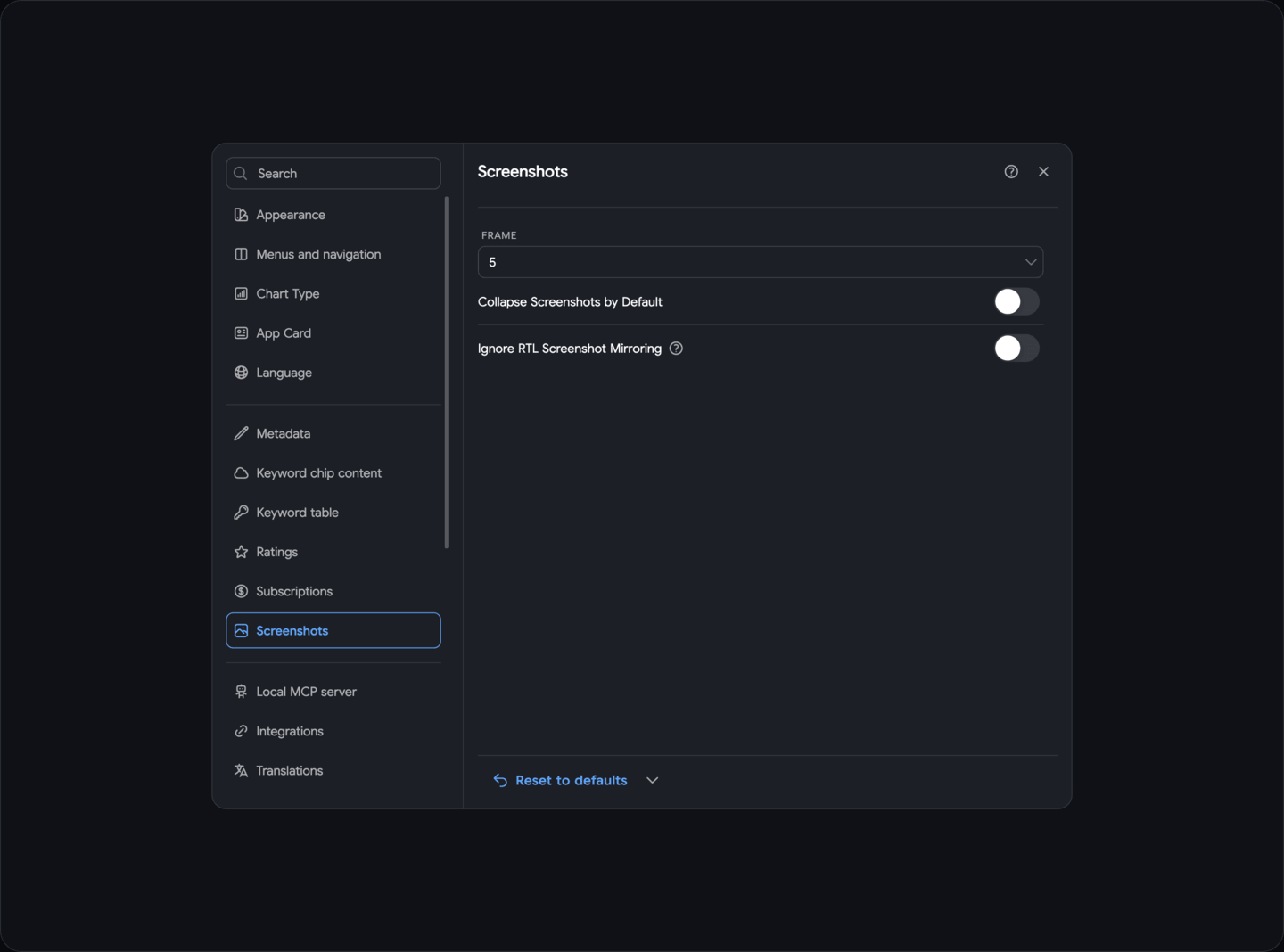
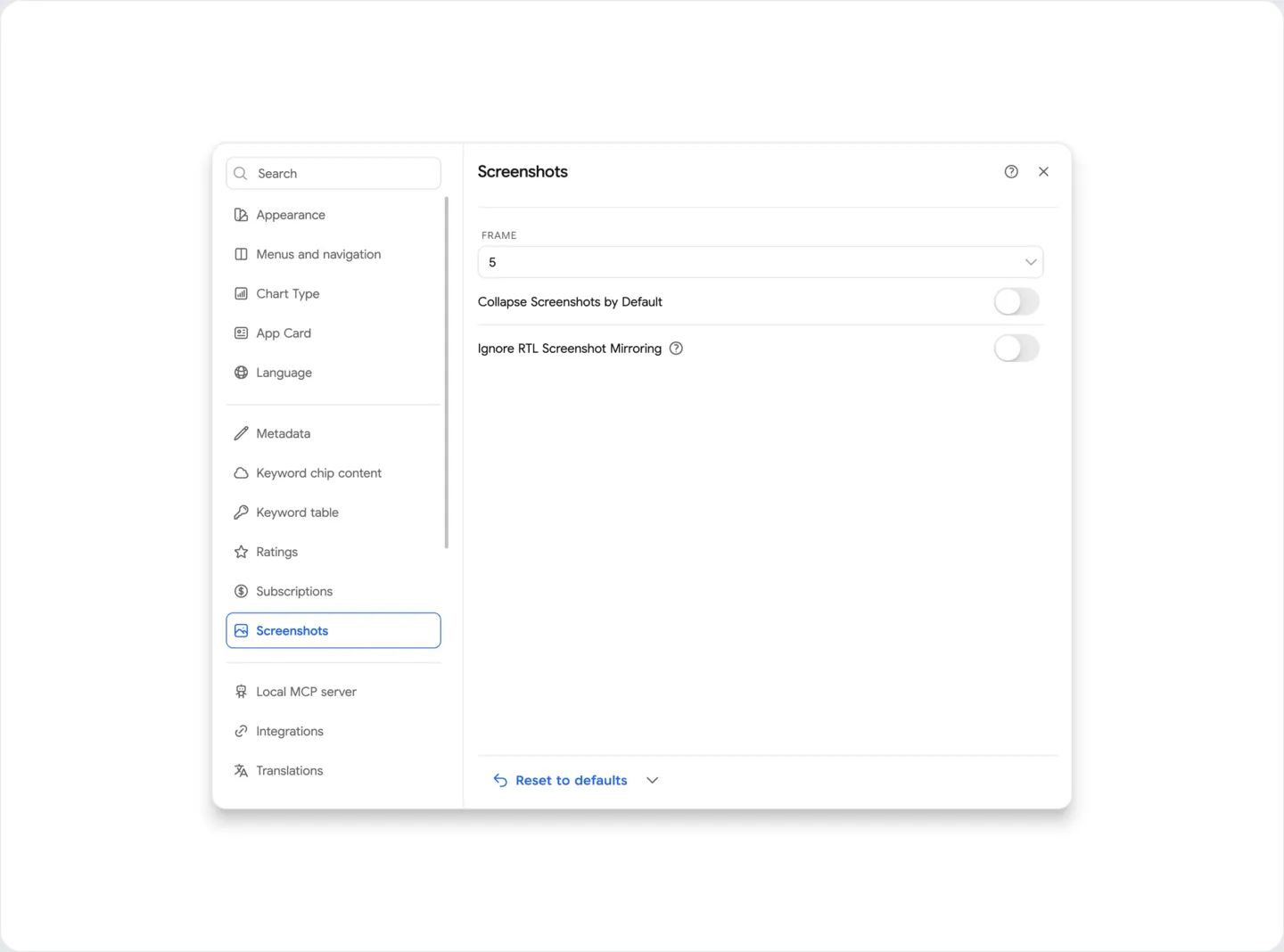
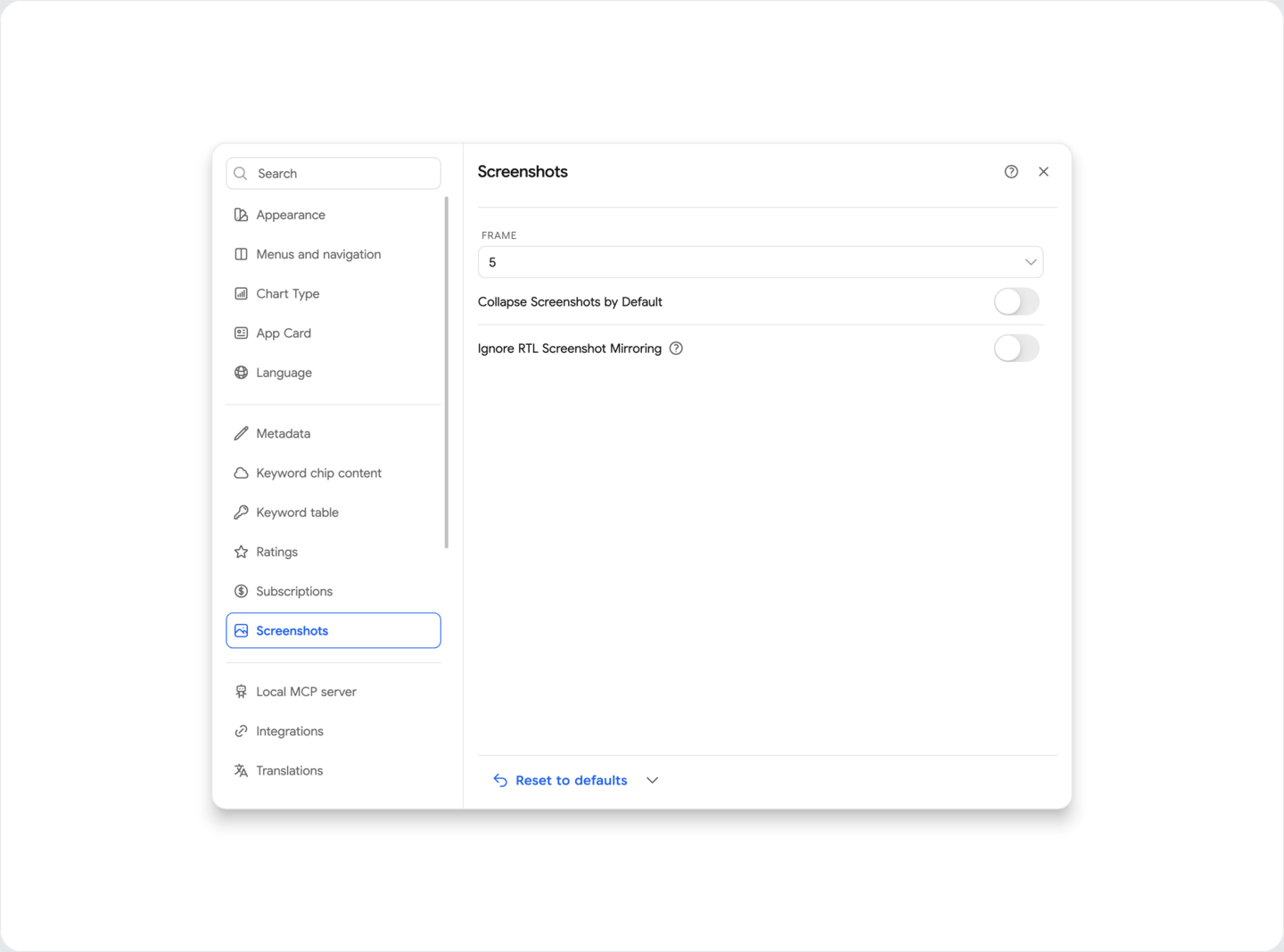
Collapse all screenshots - collapses all screenshot cards on the screen
Ignore locale direction - saves the order of displaying screenshots the same as in the App Store, even for reverse (RTL) localizations.
If this setting is disabled, screenshots will be displayed exactly as in the App Store on real user devices.
This is useful for checking the correctness of displaying screenshots taking into account the text direction and correct image transitions.
Reviews
Section titled “Reviews”Turn off notifications for downloaded reviews: disable notifications for downloaded reviews in App Info.
AI Settings
Section titled “AI Settings”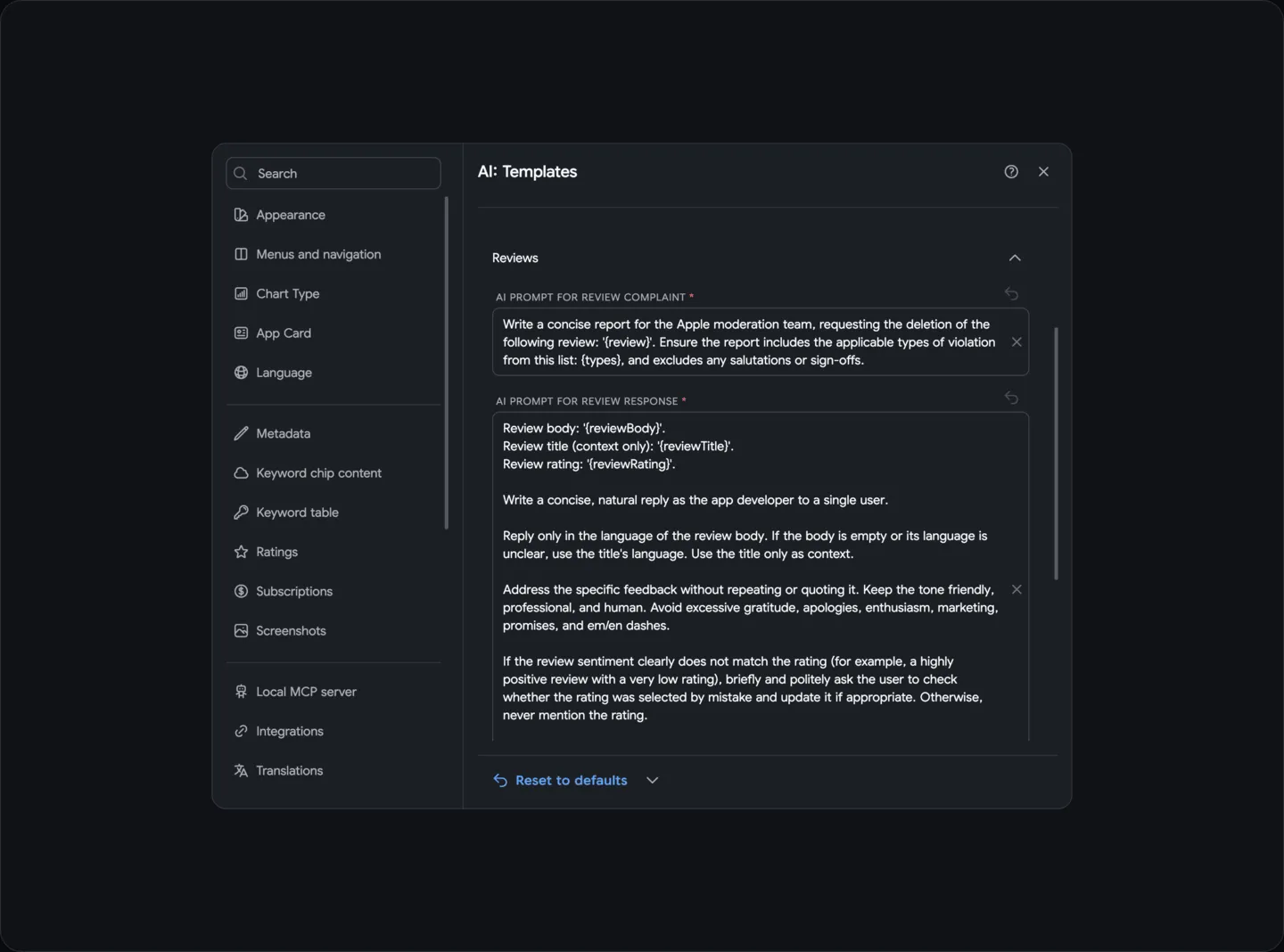
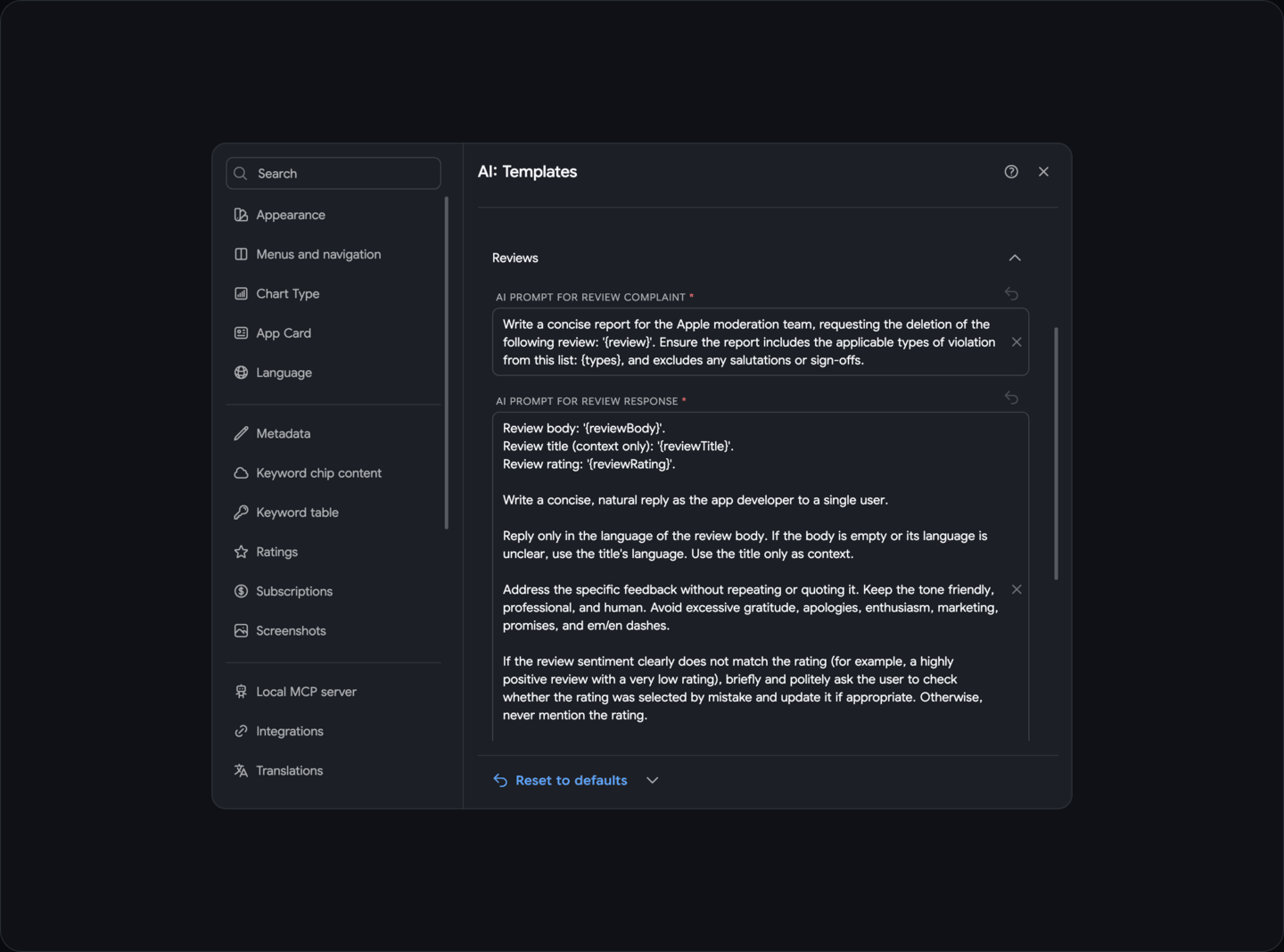
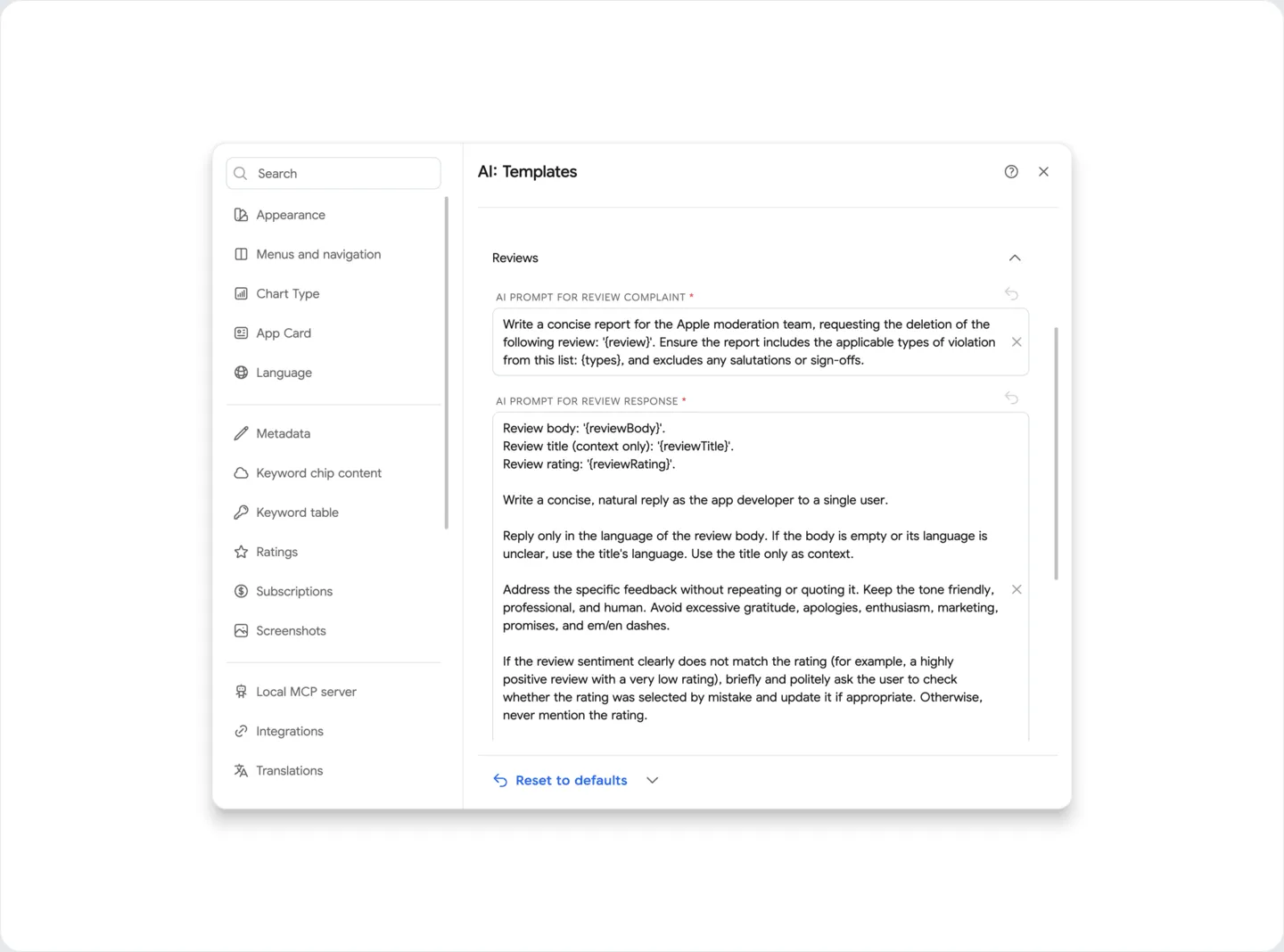
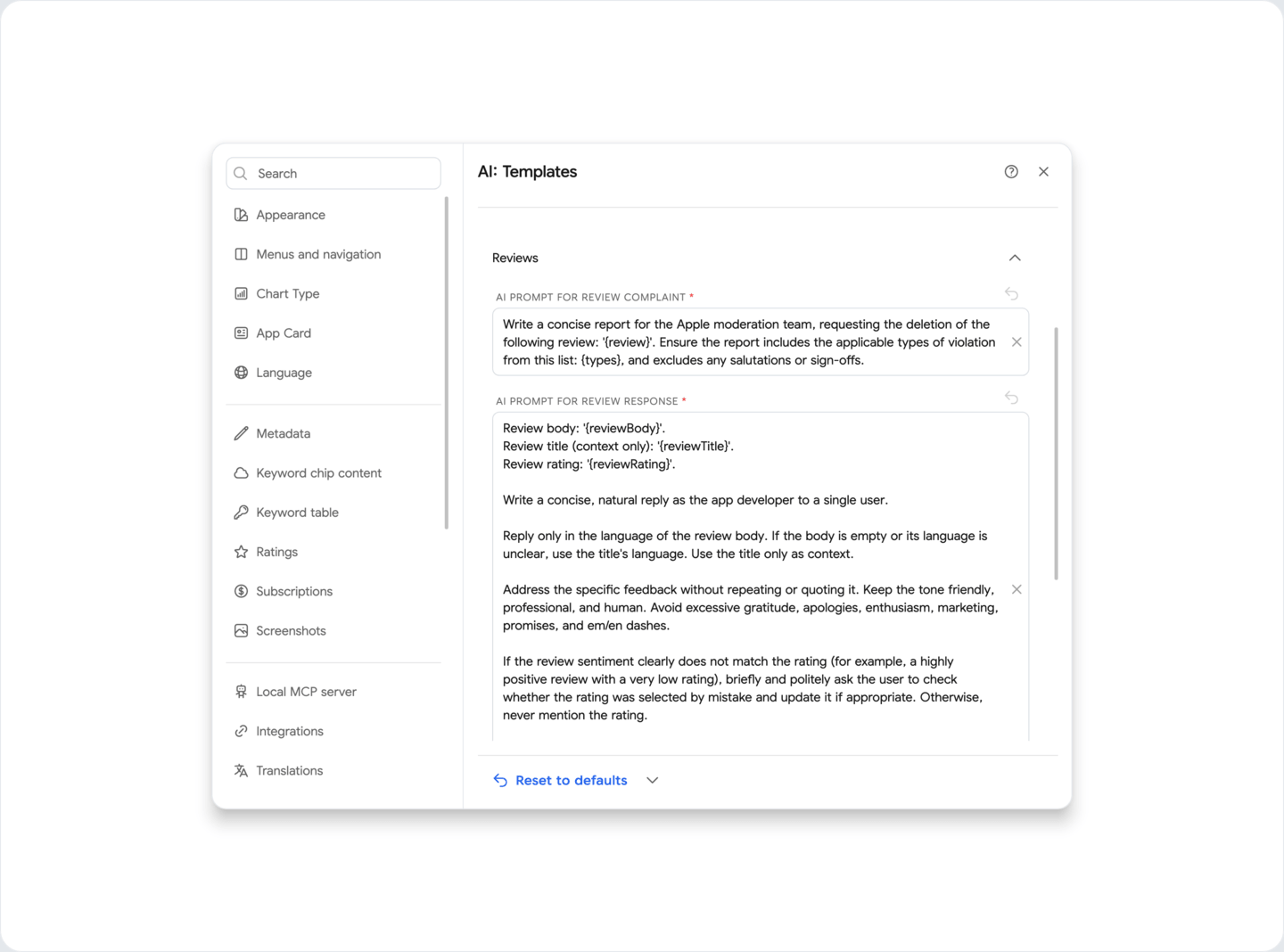
You can change the response or report templates for AI.
You can also configure the order of AI use when reporting or responding to reviews in Localization section.
AI-Prompt for complaint to review - you can view and edit the template complaint to the review, which will be used to send a complaint to the user reviews
AI-Prompt for response to review - you can view and edit the template responses to reviews, which will be used to generate a response through AI to user reviews
Security
Section titled “Security”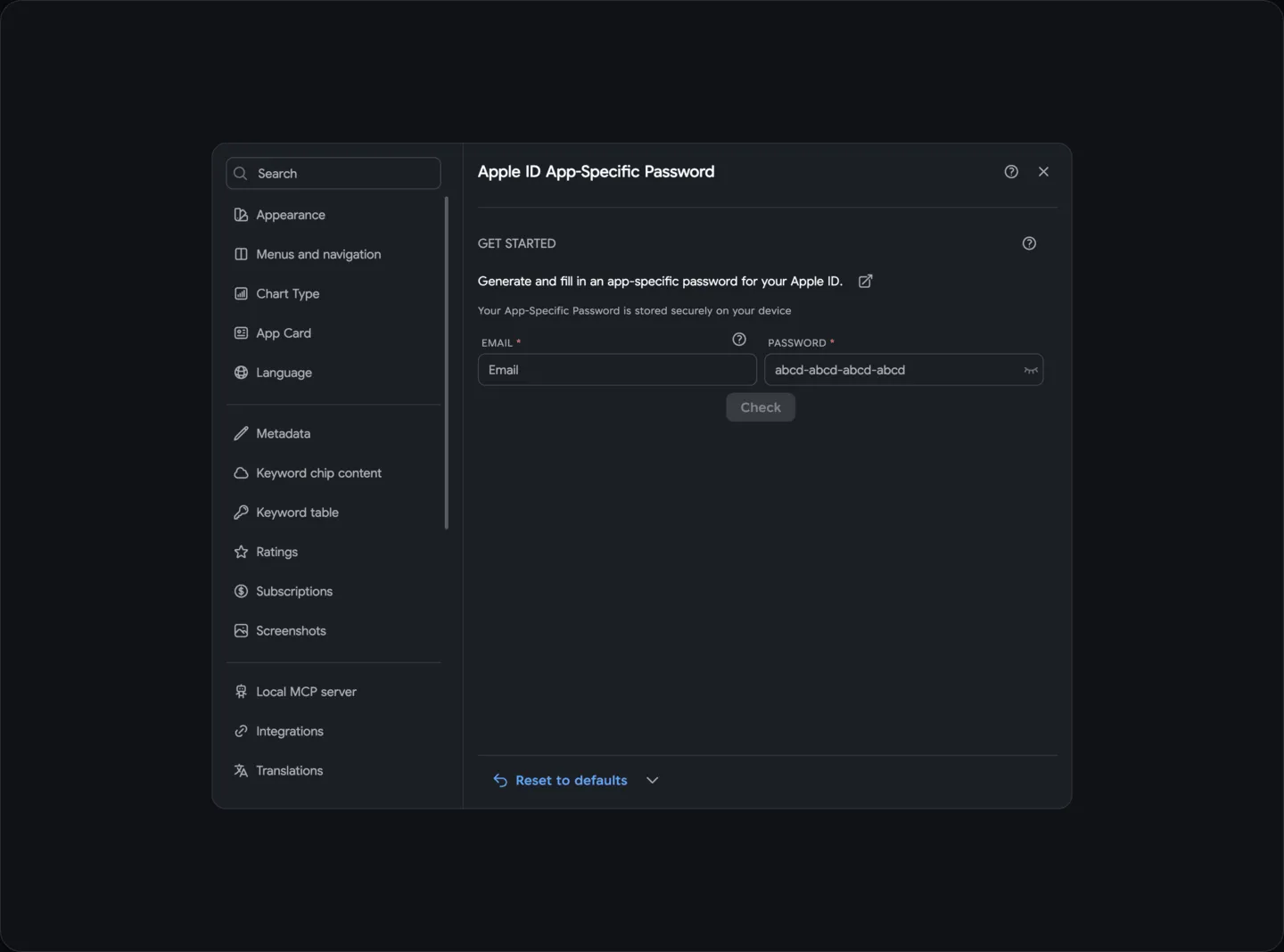
Proxy-server
Section titled “Proxy-server”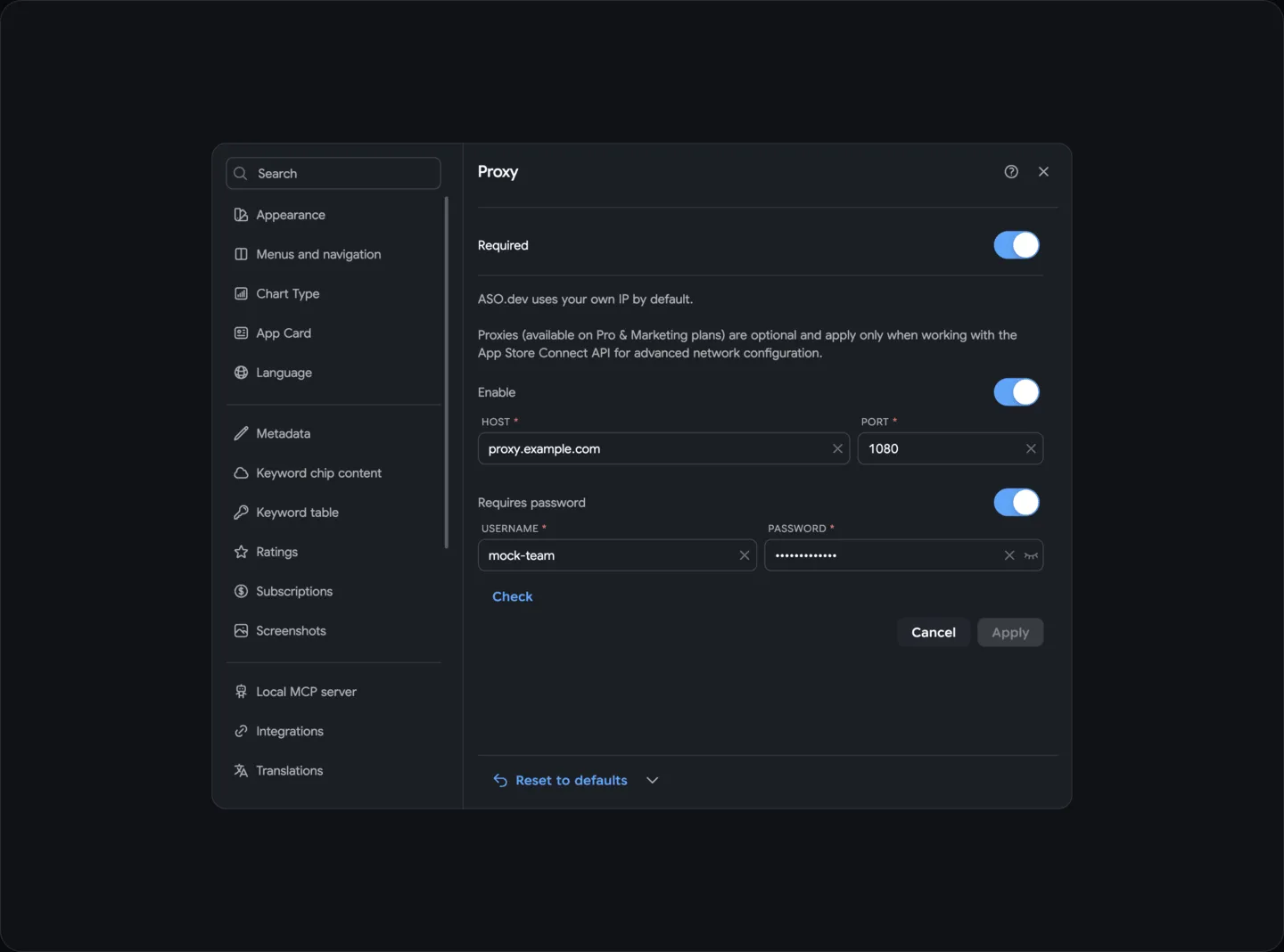
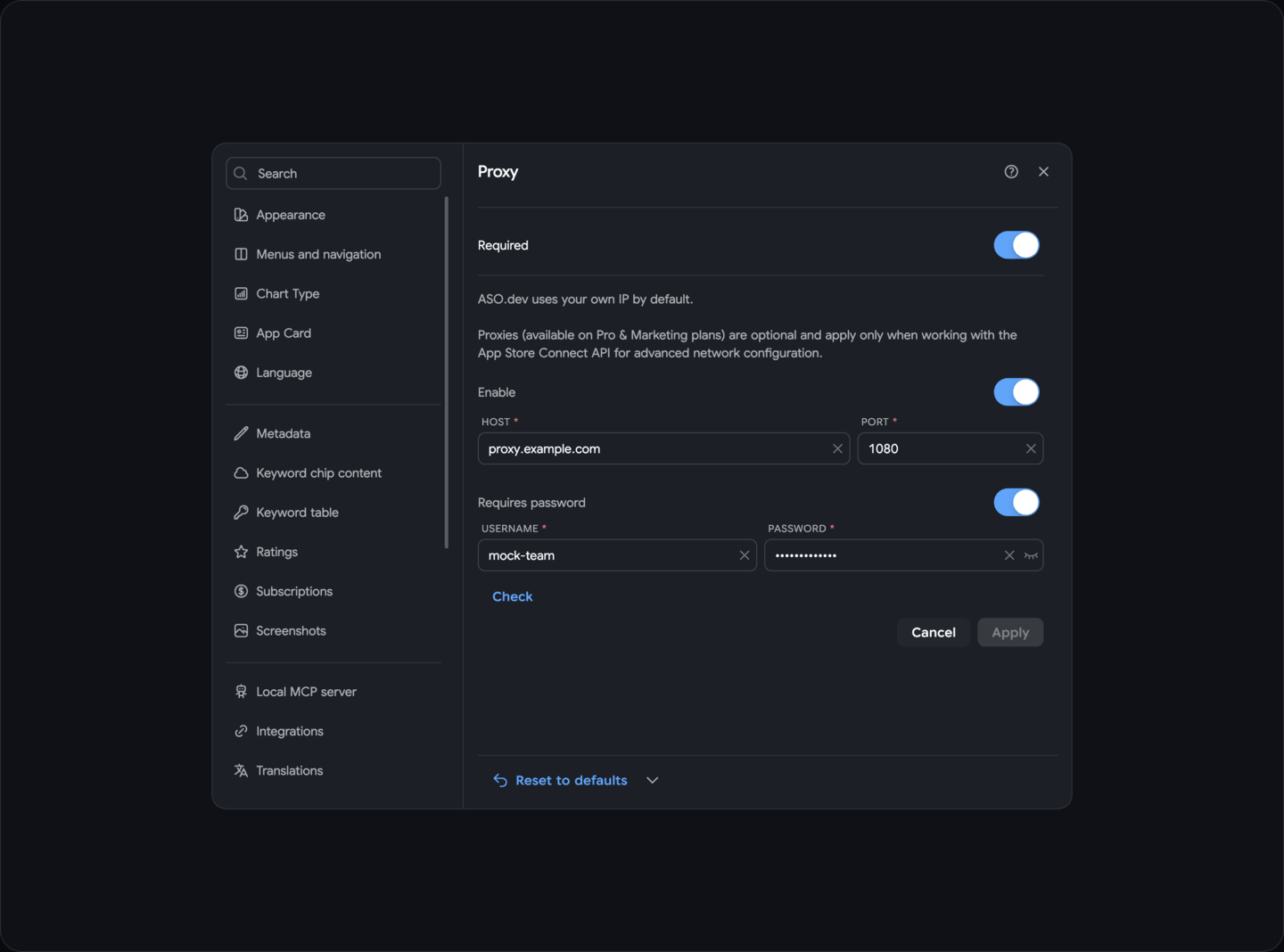
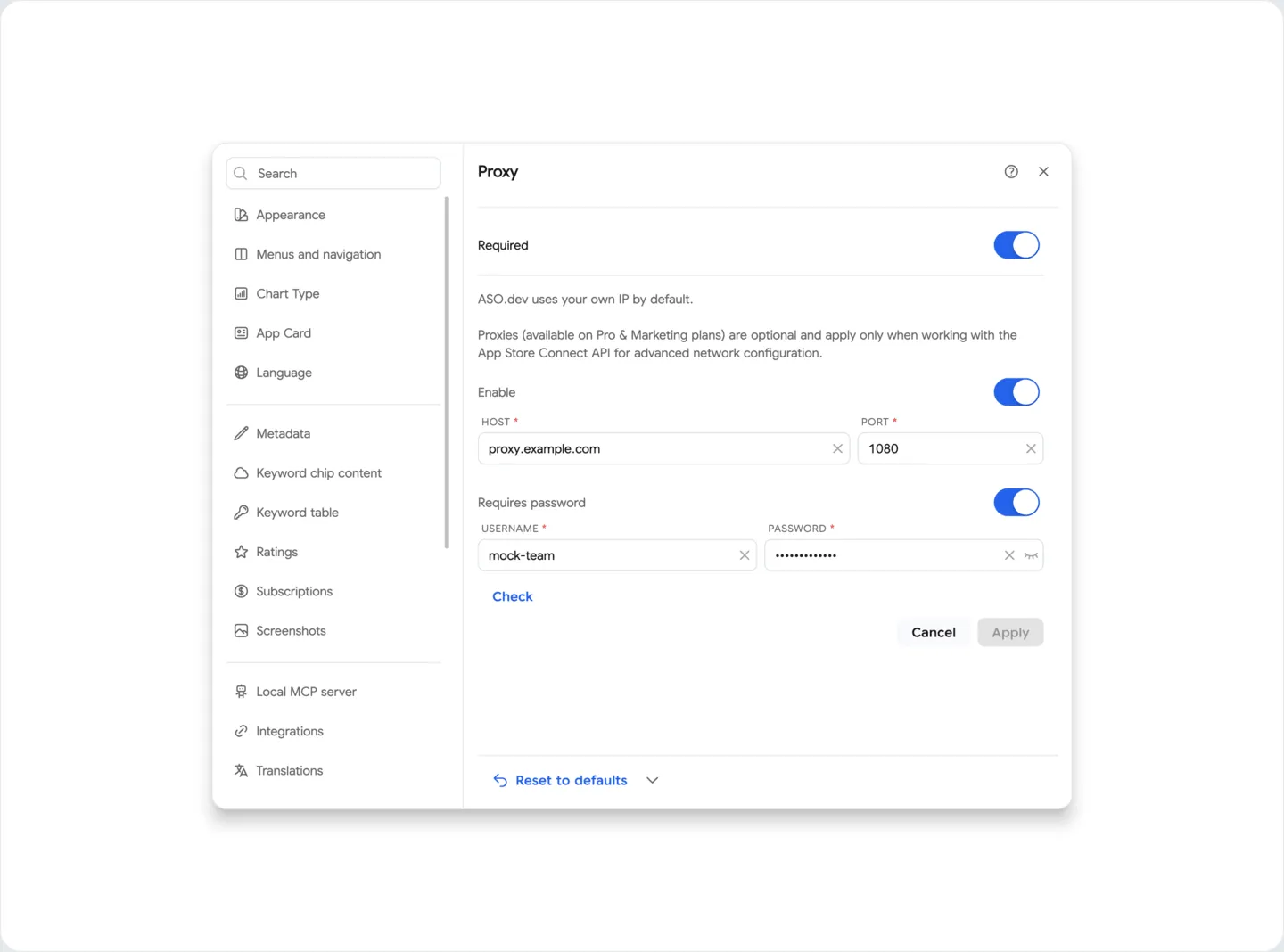
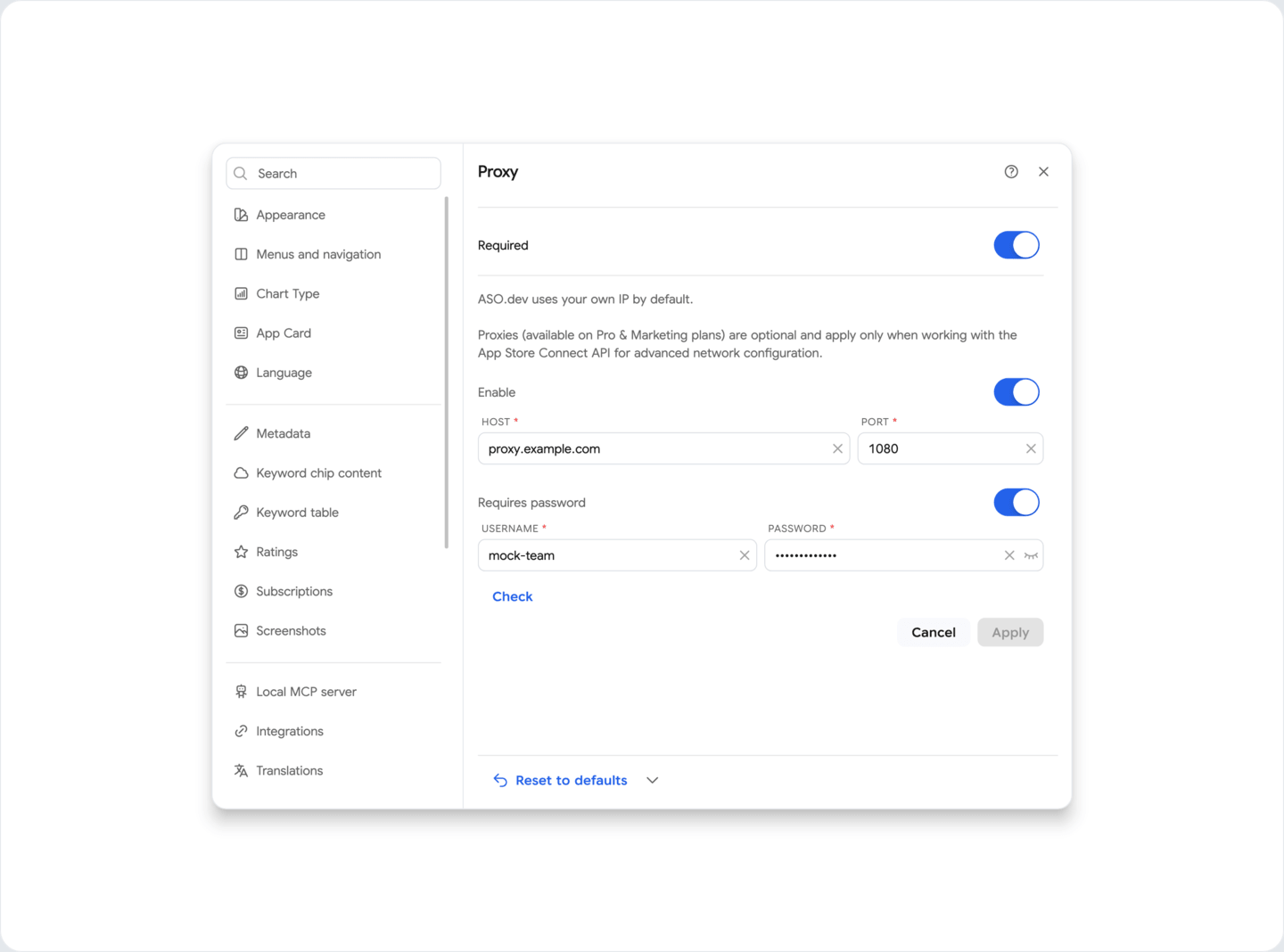
Proxy server - configure a proxy server for secure use of the App Store Connect API.
The proxy server helps reduce the risks of blocking and restrictions from Apple, as well as ensures confidentiality and security when working with multiple developer accounts.
Required — recommended as a second safeguard if all your workspaces must use a proxy. Enable this global setting in addition to configuring a proxy in each workspace. If a workspace has no active proxy configured, ASO.dev blocks its App Store Connect API requests before sending them; it does not fall back to a direct connection. This also protects against accidentally creating or opening a workspace without a proxy.
Active - enabling a proxy server for secure use of the App Store Connect API.
Host - the address of the proxy server, which you can get from your administrator or service provider.
Port - the port of the proxy server, which you can get from your administrator or service provider.
Requires authentication - setting the requirement for authentication to access the proxy server.
Login - login to access the proxy server, which you can get from your administrator or service provider.
Password - password to access the proxy server, which you can get from your administrator or service provider.
The Check button tests the connection to the proxy server to ensure it is set up correctly. If successful, it displays the current IP address as seen through the proxy.
When checking the IP address, two methods are used, each called in turn:
- Server request - checks the IP address from the ASO.dev server.
- Third-party system - checks the IP address using the third-party service ipify API.
If the check fails, you will see an error message.
The connection errored: Connection refused This indicates an error which most likely cannot be solved by the library.
App specific password
Section titled “App specific password”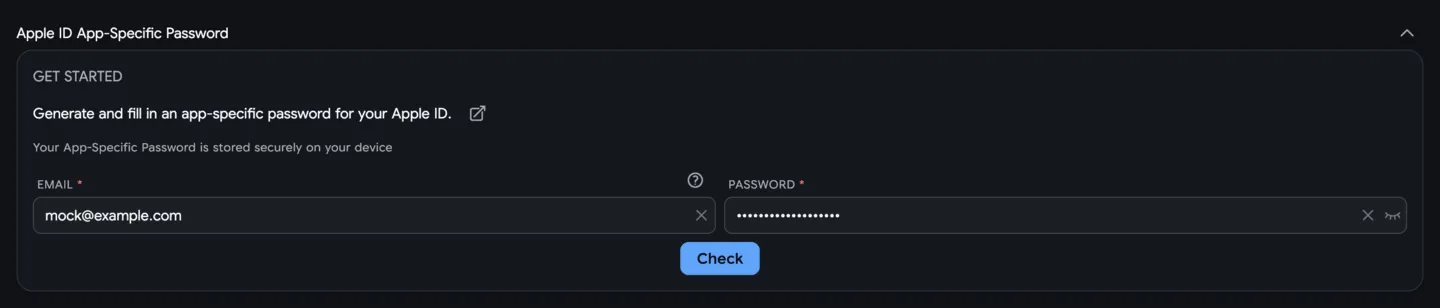
This section is available only for the selected workspace.
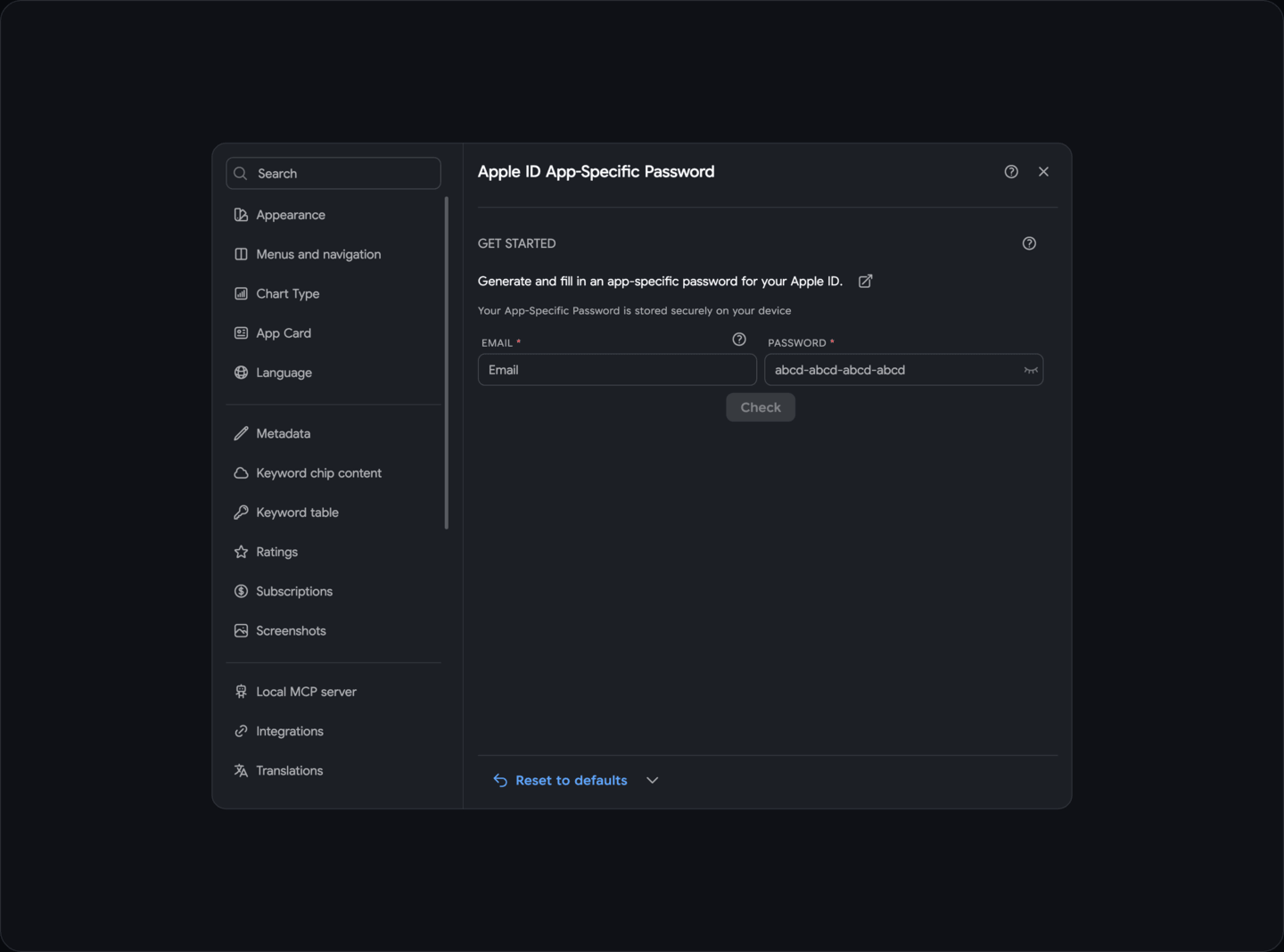
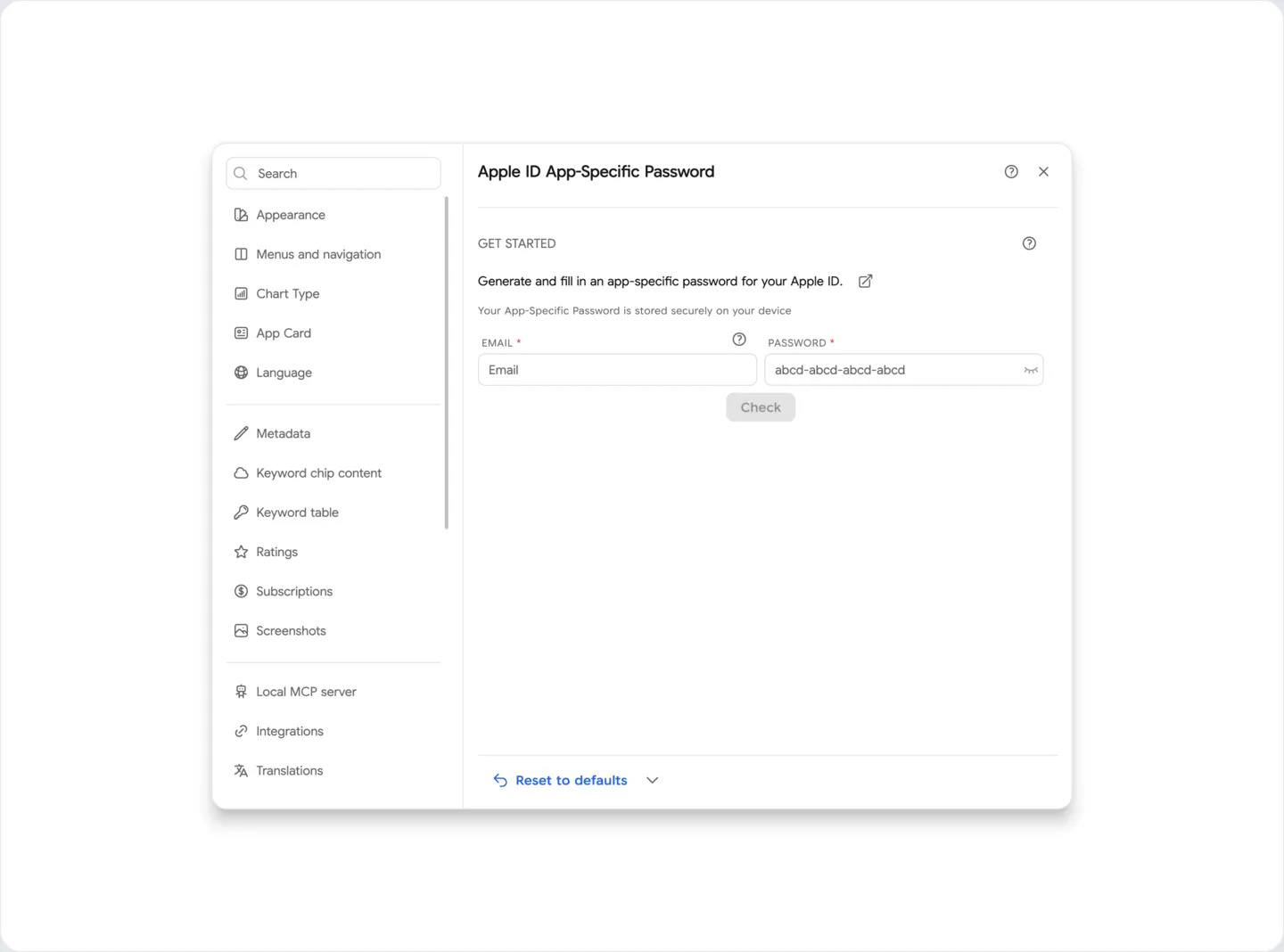
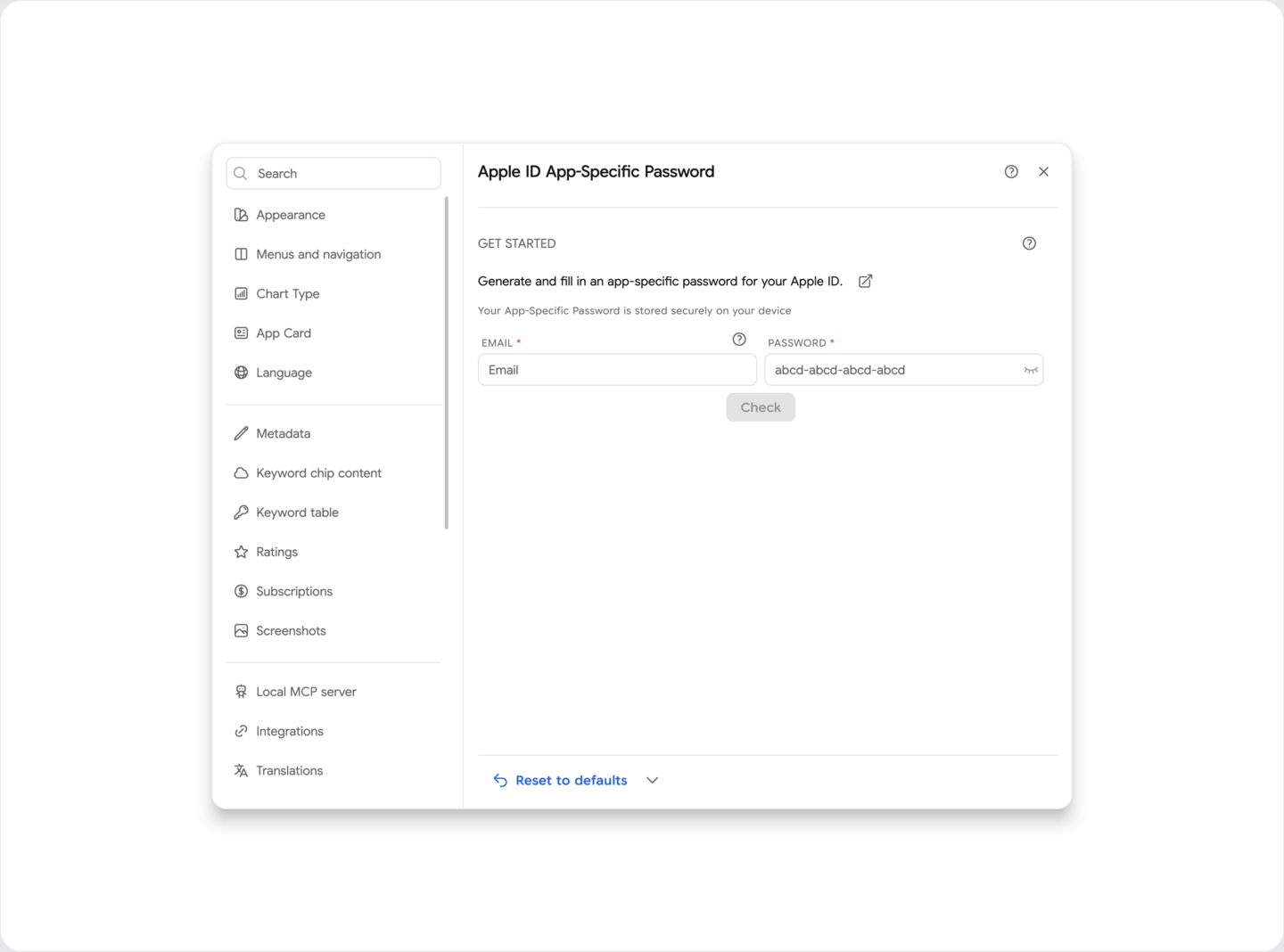
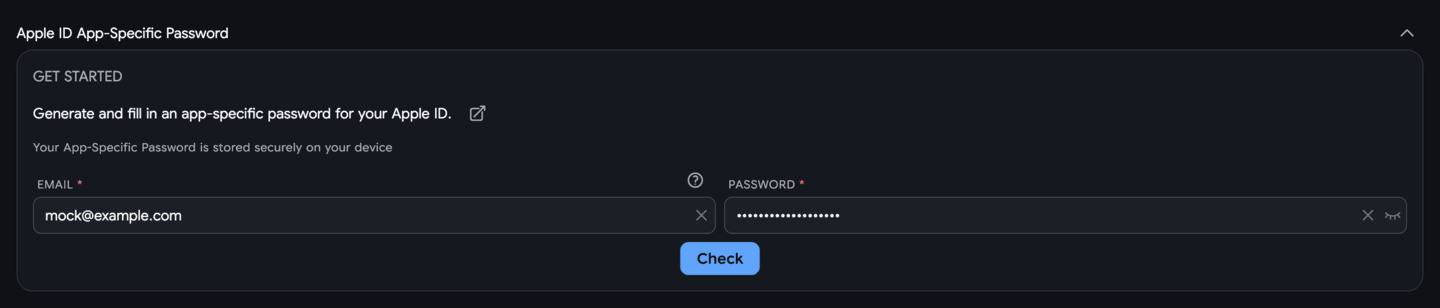
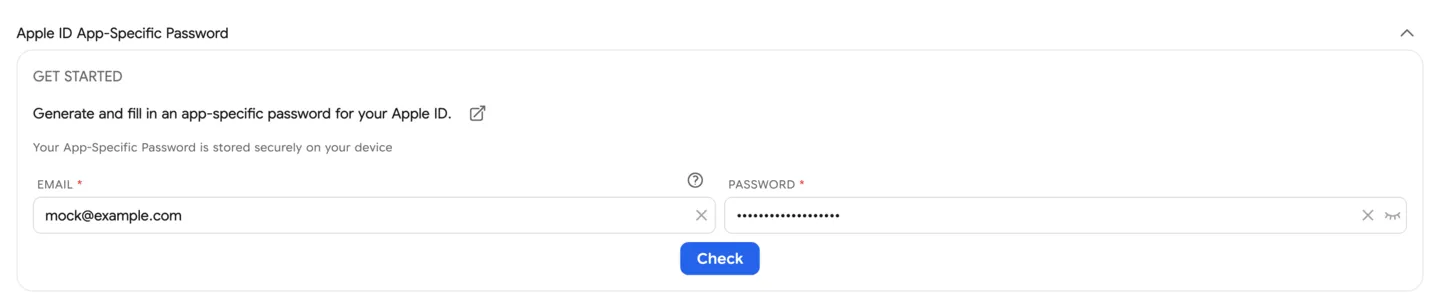
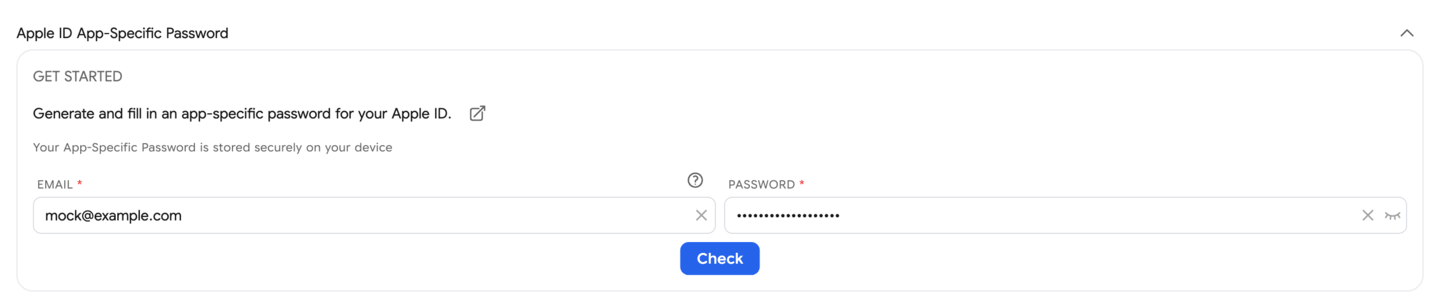
App specific password for Apple ID - in this section, you can add an app-specific password from Apple ID to use it in integration with App Store Connect.
It’s used to get access to Analytics from App Store Connect, as well as to send a complaint to the review.
Or log out of the Apple ID account if you want to use another account.
App Store Connect
Section titled “App Store Connect”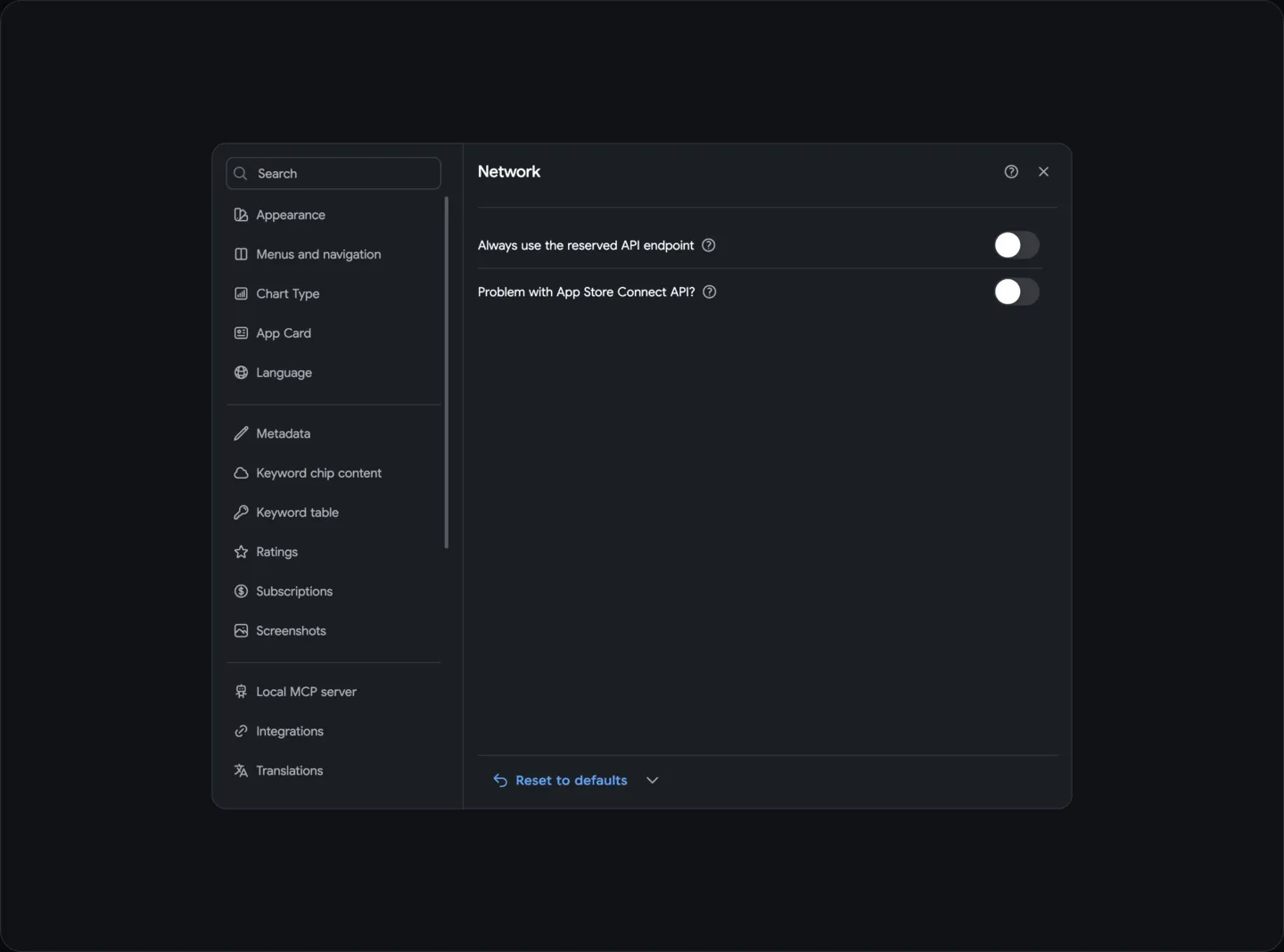
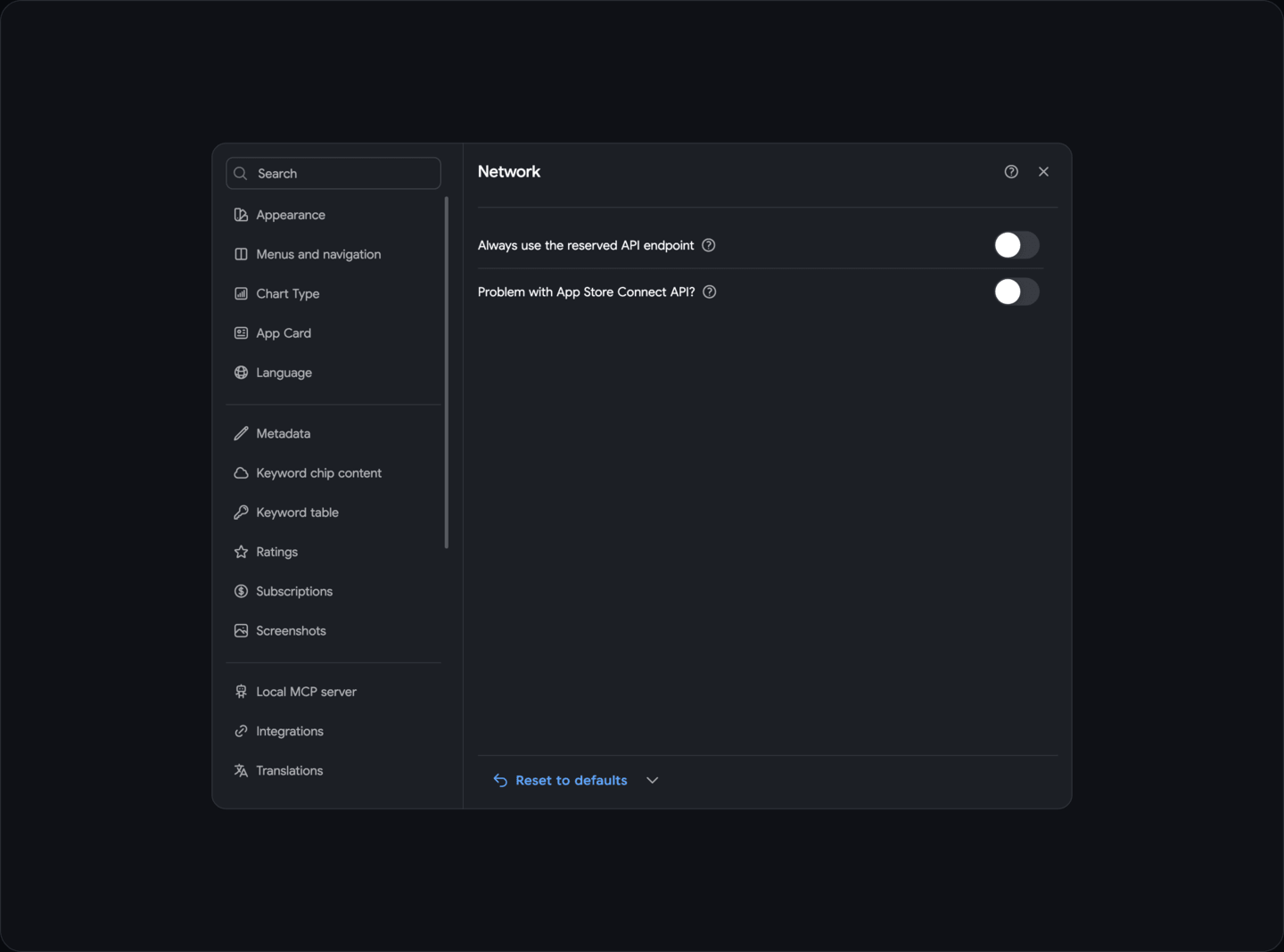
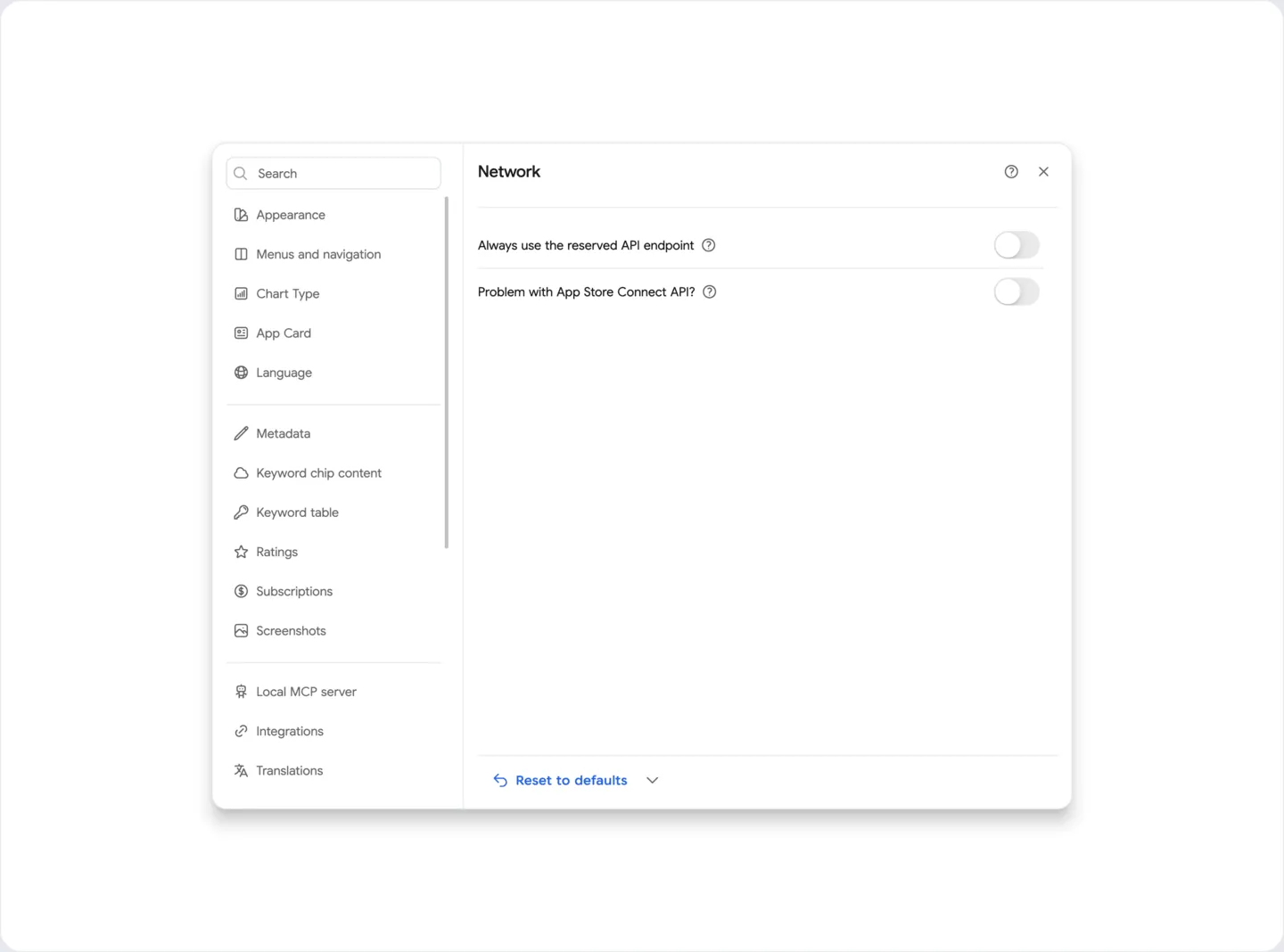
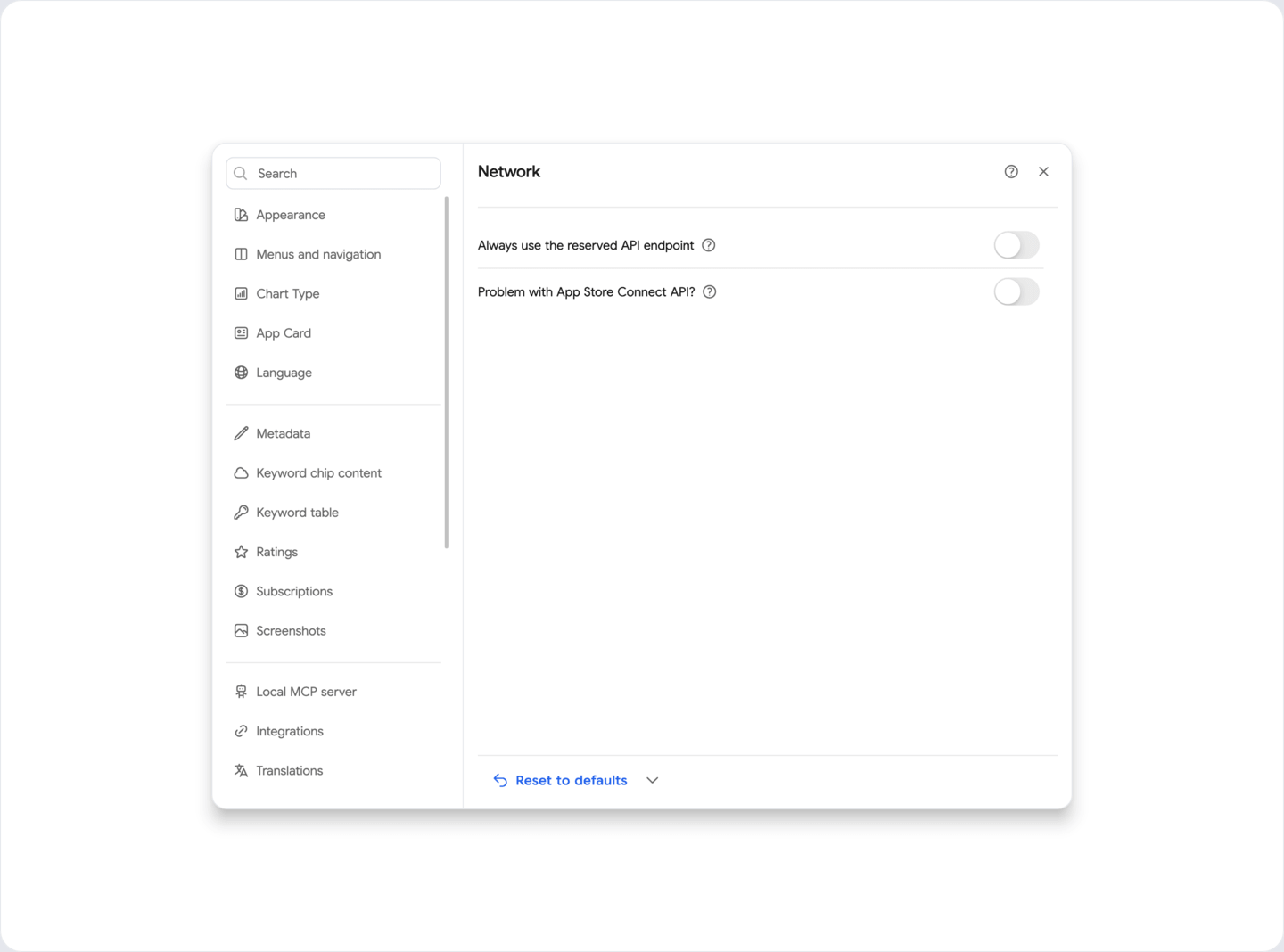
App Store Connect API issue? - This setting is reserved and can be enabled automatically if necessary.
It is designed for situations where the App Store Connect API is not functioning correctly.
For example, to address the error where the Apple App Store Connect API in the metadata editor incorrectly returns the list of app versions.
When enabled, an alternative API will be used, which may be slower but can help resolve issues.
Note that this setting is not saved and must be enabled each time you start ASO.dev, as the API issue is likely temporary.
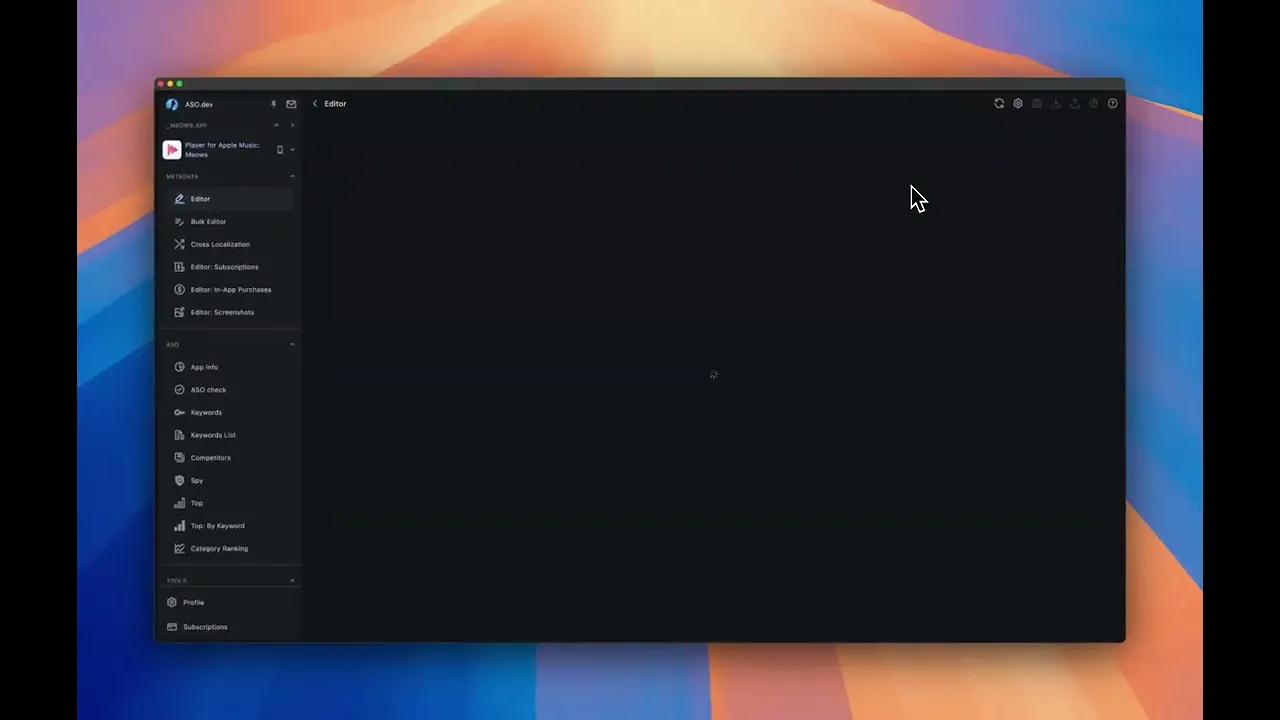
Localization Providers Setup
Section titled “Localization Providers Setup”- Open Settings → Integrations and find the provider by name.
- Expand its card and fill in the required fields. For providers that require an API key, use a key issued by that provider. Enter a base URL, region or other connection fields only where the card requests them.
- Set the supported capabilities and default models where these controls are available.
- Open Translations: Provider, AI: Provider or Images: AI Model, enable the configured provider, choose its task model and arrange its priority.
The available model list and connection fields depend on the provider and task. Where supported, use a custom model identifier if your model is not listed. Use the provider’s current account dashboard to check access and limits.
Google Translate


Google Translate is the built-in translation provider in ASO.dev and is enabled in the default translation configuration. You can change its priority or disable it in Translations: Provider.
DeepL
DeepL API key can be filled in in the Settings → Integrations with the key saved in local application settings. Translation requests use the selected provider.
Issue your API key in DeepL Account Settings.
We do not sync this sensitive information even across your devices.
DeepL API Free includes up to 500,000 translated characters per month.
Chat GPT (OpenAI)

Fill in ChatGPT API key and Organization ID in the Settings → Integrations then select the task model in Translations: Provider or AI: Provider. The key is saved in local application settings; requests use the selected provider.
Issue your API key in OpenAI Account Settings.
We do not sync this sensitive information even across your devices.
Supported Models
The current task selector includes GPT-6 and GPT-5.6 models, GPT-5.5, GPT-5.4, GPT-4.1, GPT-4o and reasoning models. Examples for text tasks:
- GPT-5.4 — a full-size option for metadata, translations and review text.
- GPT-5.4 Mini / Nano — smaller options to compare for frequent or simple tasks.
- GPT-4o Mini — an option for short translations and text generation.
- GPT-4o — an option for more detailed text work.
- o3 / o3 Mini / o4 Mini — reasoning-model options available in the app.
Choose the model by checking translation quality, speed and cost on representative text. The app also accepts a custom model identifier where the selector supports it. Availability and API quotas depend on your OpenAI account.
If a Free model option is available, ASO.dev limits its requests to one every 20 seconds (3 per minute). This is an app-side rate limit; promotional credits, billing and API access are managed by OpenAI.
OpenRouter
OpenRouter provides access to models from different providers through one API key. In ASO.dev, choose the text or image model for the relevant task; model availability and pricing depend on the OpenRouter catalog and your account.
- Create an API key in your OpenRouter account.
- Paste it into Settings → Integrations → OpenRouter.
- Enable it in Translations: Provider, AI: Provider or Images: AI Model, select a compatible model and set its priority.
Gemini (Google)

Gemini can serve translation and text-generation tasks. Image models are selected separately where supported.
- Create a Gemini API key in Google AI Studio.
- Paste it into Settings → Integrations → Gemini.
- Enable the provider for the task, select the task model and set its priority.
The app’s text choices include Gemini 3.8 / 3.7 / 3.6 Flash, 3.5 Flash / Flash Lite, 3.1 Flash Lite and 3.1 Pro Preview. Older Pro, Flash and Flash Lite choices are upgraded to the corresponding current family. Use the selector to check the effective model.
Claude

Claude API key can be filled in in the Settings → Integrations with the key saved in local application settings. Translation requests use the selected provider.
Issue your API key in Anthropic Account Settings.
We do not sync this sensitive information even across your devices.
Supported Models
The current selector includes Fable, Mythos, Opus, Sonnet and Haiku options. Examples for text tasks:
- Opus 4.6 / 4.5 — options for detailed text generation and analysis.
- Sonnet 4.6 / 4.5 — options for translations, metadata and review drafts.
- Haiku 4.5 — an option to compare for short and frequent tasks.
Older Claude 3 selections are upgraded by the app to their current family. Check the model selected for the task before generating text.
For model choices marked Free, ASO.dev spaces requests at least 12 seconds apart (5 per minute). This controls request rate and does not grant free API access; account credits and billing remain with Anthropic.
DeepSeek


DeepSeek API key can be filled in in the Settings → Integrations with the key saved in local application settings. Translation requests use the selected provider.
Issue your API key in DeepSeek => Settings => API keys.
We do not sync this sensitive information even across your devices.
Supported Models
- deepseek-flash — a text-model option in the current app.
- deepseek-v4-pro — another text-model option in the current app.
Older deepseek-chat, V3 and R1 selections are upgraded to deepseek-flash. Choose the task model in Translations: Provider or AI: Provider and check availability in your provider account.