
Featuring Nominations
Featuring nominations help you tell the App Store editorial team about an important app launch, major update, or new content before it goes live. A nomination does not replace Apple’s review process and does not guarantee featuring, but it gives Apple a structured plan: what is changing, when it launches, and which devices, locales, and markets matter.
In ASO.dev, nominations are available in Metadata → Nominations. You can prepare a draft, fill in required fields, choose the nomination type, configure targeting, add supplemental materials, and keep the request organized before submission.
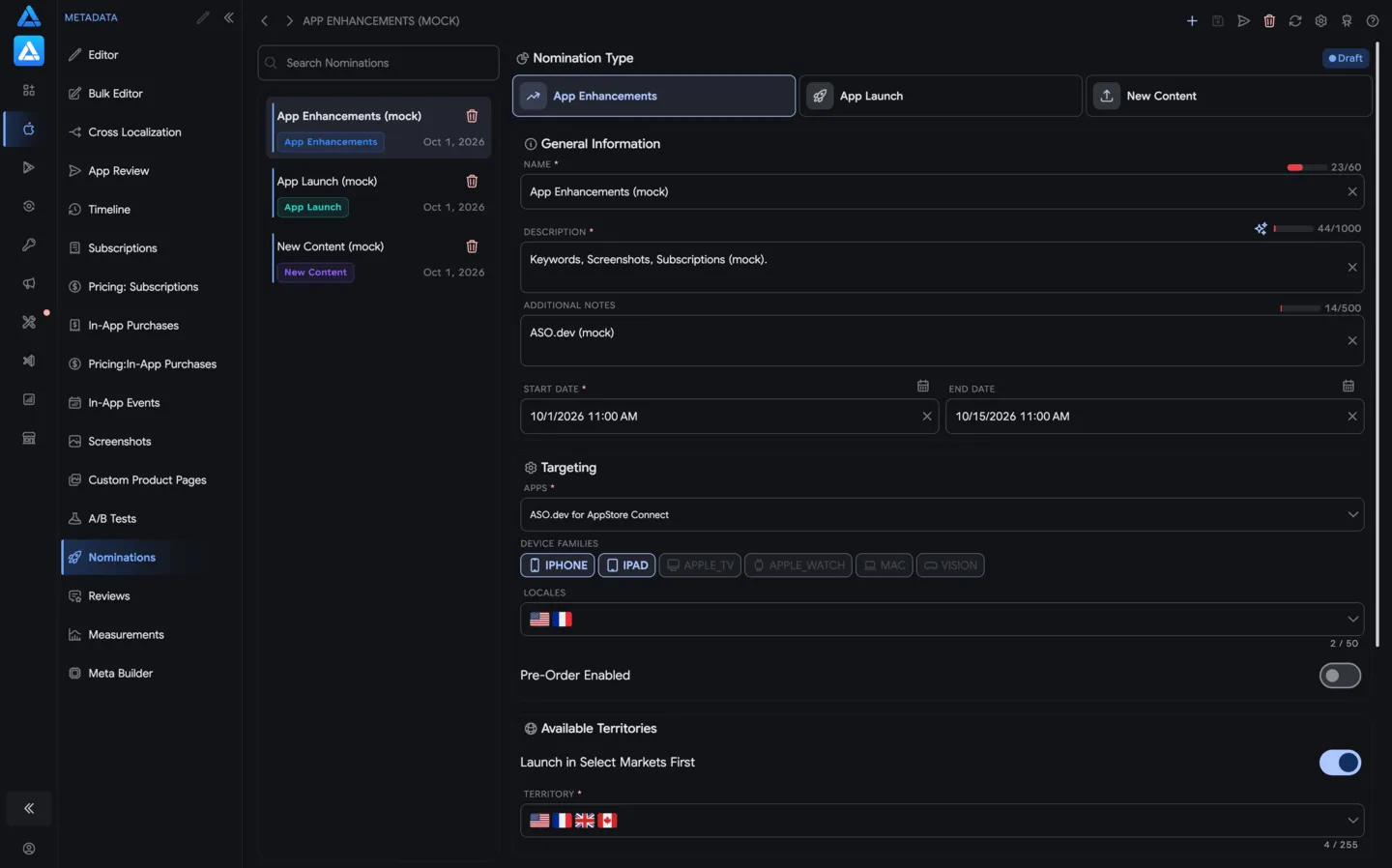
Buttons and Controls
Section titled “Buttons and Controls”Top Bar
Section titled “Top Bar”- Create nomination - creates a new featuring nomination for the selected app.
- Save - saves the draft or changes in the current nomination. Use it before submitting so you do not lose filled fields.
- Archive - moves the nomination to the archive when it should no longer appear in the active list.
- Delete - deletes the current nomination. Check that the correct draft is selected before deleting it.
- Refresh - loads the latest nomination data from App Store Connect.
- Settings - opens screen settings and related metadata options.
- AI Companion - starts the local AI companion (MCP) for working with the current app through an AI client.
- Help - opens documentation for the nominations screen.
Nomination List
Section titled “Nomination List”- Search - filters nominations by name so you can quickly find the right draft or submitted request.
- Delete from list - deletes a nomination directly from the left list.
- Select nomination - opens the selected nomination in the editor on the right.
Nomination Type
Section titled “Nomination Type”- App Enhancements - choose this for major updates, new features, and meaningful product improvements.
- App Launch - choose this for a new app launch or pre-order.
- New Content - choose this for new content, a seasonal campaign, an offer, or an event.
Nomination Fields
Section titled “Nomination Fields”- Generate description with AI - the sparkles button next to the description field. It generates a draft nomination description based on the selected type, name, app, dates, devices, locales, and available context.
- Clear field - clears a field value, for example the name, description, or date.
- Choose date - opens date and time selection for the launch start or end.
- Add link - adds a link to supplemental materials.
Devices
Section titled “Devices”- iPhone - the nomination applies to the iPhone version of the app.
- iPad - the nomination applies to the iPad version of the app.
- Apple TV - the nomination applies to the tvOS version of the app.
- Apple Watch - the nomination applies to the watchOS version of the app.
- Mac - the nomination applies to the macOS version of the app.
- Vision - the nomination applies to the visionOS version of the app.
If a device button is disabled, the selected app does not support that platform or the platform is not available for the current nomination.
When to Create a Nomination
Section titled “When to Create a Nomination”Create a nomination when the app has a concrete launch moment that may be interesting to App Store users.
- App Launch - a new app launch or pre-order.
- App Enhancements - a major update, new functionality, or a meaningful improvement to UX, performance, or app capabilities.
- New Content - new content, a seasonal campaign, an offer, an event, a collection, a mode, a tournament, or another in-app release.
A nomination should be tied to a real product change. A weak request like “our app is great, please feature it” gives the editorial team very little useful information.
What a Strong Nomination Should Include
Section titled “What a Strong Nomination Should Include”A good nomination does more than announce a release. It helps the editorial team quickly understand why this launch may be interesting to App Store users and where it could fit.
To give the nomination a better chance of being considered for featuring, include:
- A clear launch moment - app launch, major feature, new content, seasonal campaign, pre-order, or in-app event.
- User value - what users get: time saved, a new experience, access to content, better quality, or value for a specific audience.
- Novelty - how this release differs from the previous version and why it matters now.
- Readiness for publication - the app, build, metadata, screenshots, localizations, and related events should be ready for release.
- Dates and context - when the launch starts, whether there is a deadline, holiday, season, partnership, or external event.
- Targeting - which devices, locales, and territories truly apply to the launch.
- Review materials - links to a press kit, video, landing page, demo, screenshots, or other materials that do not require login.
- Connection to the App Store experience - if there is an in-app event, pre-order, custom product page, or notable app page change, mention it in the nomination.
Who Can Submit
Section titled “Who Can Submit”In App Store Connect, nominations require the Account Holder, Admin, App Manager, or Marketing role. If the nomination cannot be saved or submitted in ASO.dev, check the API key permissions and the user’s access to the app.
Main Fields
Section titled “Main Fields”Nomination Type
Section titled “Nomination Type”Choose one of three types:
- App Enhancements - use this when the request focuses on new features or significant improvements.
- App Launch - use this when you are preparing a new app launch or pre-order.
- New Content - use this when you are releasing new content, an offer, or an in-app event.
Choose the type before filling the rest of the form. After submission to App Store Connect, some data may have limited editing options, so check the type and related apps before submitting.
The name is used for internal navigation and quick recognition. Keep it short and clear:
- “Spring launch 3.0”
- “AI editor: major update”
- “Pre-order launch”
- “Halloween content”
Apple limits the nomination name to 60 characters.
Description
Section titled “Description”The description is the main field in the nomination. It should explain not only what was released, but why it matters to users and why the update deserves attention.
A good description answers:
- what is launching;
- how it differs from the current version;
- which user problem the update solves;
- why it is relevant now;
- whether there is seasonal, event, partnership, or local context;
- which markets, devices, and locales matter most.
Apple limits the description to 1000 characters. Be specific: use fewer generic phrases and more product facts, user value, and launch details.
The sparkles icon next to the description field starts AI generation for the nomination text. AI uses the selected nomination type, name, app, dates, devices, locales, and available context to prepare a draft within the limit.
Use the AI text as a starting point, not as a final version without review:
- add facts AI does not know: partnerships, dates, audience, and release specifics;
- check that the description does not promise unavailable features;
- remove generic phrases;
- make sure the text sounds like an editorial request, not an ad slogan;
- check the character limit before saving.
Additional Notes
Section titled “Additional Notes”Use additional notes to add context for the editorial team: what makes the app unique, behind-the-scenes details, an inclusive team story, an unusual audience approach, or a useful fact that did not fit in the main description.
This field should not repeat the description. Use it to strengthen the nomination.
Set the expected launch date in start date. If the launch depends on a release window, use end date and provide a range.
Choose dates realistically:
- account for Apple’s review time;
- do not submit the nomination on launch day;
- if the update is tied to a holiday or event, leave enough buffer;
- if the launch is rolled out by market, note that in territory settings.
Targeting
Section titled “Targeting”Select the app the nomination applies to. Apple allows multiple apps from the same account to be linked to one nomination if they are part of the same launch or campaign.
Devices
Section titled “Devices”Select the device families where the update is relevant:
- iPhone
- iPad
- Mac
- Apple TV
- Apple Watch
- Vision
Do not select platforms “just in case.” If the feature works only on iPhone and iPad, select only those devices.
Locales
Section titled “Locales”Select locales where the relevant materials and user experience are prepared. If the update matters only for specific languages or regions, do not spread the nomination across every localization.
Pre-Order
Section titled “Pre-Order”Enable pre-order if the nomination is for an app launching with pre-order. For a regular update, leave this switch off.
Territories
Section titled “Territories”In available territories, specify where the launch will be available. If the app launches in selected markets first, enable launch in select markets first and choose the territories.
This matters for the editorial team: a global release, soft launch, and local campaign are evaluated differently.
Supplemental Materials
Section titled “Supplemental Materials”In supplemental materials, add links that help Apple understand the product and campaign faster. You can attach up to 5 URLs.
Good materials include:
- a release page;
- press kit;
- demo video;
- screenshots or mockups;
- campaign landing page;
- partnership launch materials;
- public roadmap or announcement.
Links should open without login, should not point to drafts, and should not require special access. If a material is temporary, check its availability before submitting the nomination.
In-App Events
Section titled “In-App Events”If the update includes an in-app event, enable has in-app events and link the event to the nomination. This is especially useful for seasonal campaigns, tournaments, content premieres, and limited-time activities.
If there is no event, leave the switch off. A featuring nomination and an in-app event are different entities: the nomination explains to the editorial team why the launch matters, while the event appears in the App Store as a separate user-facing card.
How to Prepare a Strong Nomination
Section titled “How to Prepare a Strong Nomination”- Open Metadata → Nominations.
- Click and create a new nomination.
- Choose the type: App Launch, App Enhancements, or New Content.
- Fill in the name and description.
- If needed, click the sparkles icon to generate an AI description draft.
- Set the date or date range.
- Select the app, devices, and locales.
- Configure territories and pre-order if needed.
- Add links to supplemental materials.
- Review the nomination like an editor: is it clear what should interest App Store users?
- Save and submit the nomination.
What to Write in the Description
Section titled “What to Write in the Description”Use a simple structure:
What is launching: a feature, content, app, or campaign.
Who it is for: a new audience, existing users, a specific region, or a platform.
Why it matters: which problem it solves, what it improves, or what value or feeling it gives users.
Why now: date, season, holiday, partnership, major release, or pre-order.
What is ready: localizations, screenshots, in-app event, or marketing materials.
Example:
In version 3.0, we are launching an App Store Connect metadata editor for teams managing multiple apps and localizations. The update reduces manual work when preparing releases: teams can edit nominations, choose devices and locales, add featuring materials, and track change history. The launch is tied to the new product version and is available for iPhone, iPad, and Mac.
Common Mistakes
Section titled “Common Mistakes”- The description is too generic and does not describe a concrete change.
- The release date is missing or submitted too late.
- All devices are selected even though the update does not work everywhere.
- Key markets or locales are not specified.
- Supplemental links require login.
- The nomination is submitted without allowing time for Apple’s review.
- In-app events are enabled, but the event is not prepared yet.
After Submission
Section titled “After Submission”After submission, the nomination goes to the App Store editorial team for consideration. If the update is a fit for potential featuring, Apple may contact you via the contact email.
In nomination history, you can track:
- creation date;
- last modified date;
- start date;
- current nomination status.