
Subscriptions and In-App Purchases
Google Play Subscriptions and In-App Purchases lets you manage Google Play Billing products in ASO.dev.
The workflow is similar to the Apple subscription and in-app purchase editors: choose a product, edit product details, configure plans or offers, open pricing when needed, then save the prepared changes to Google Play.
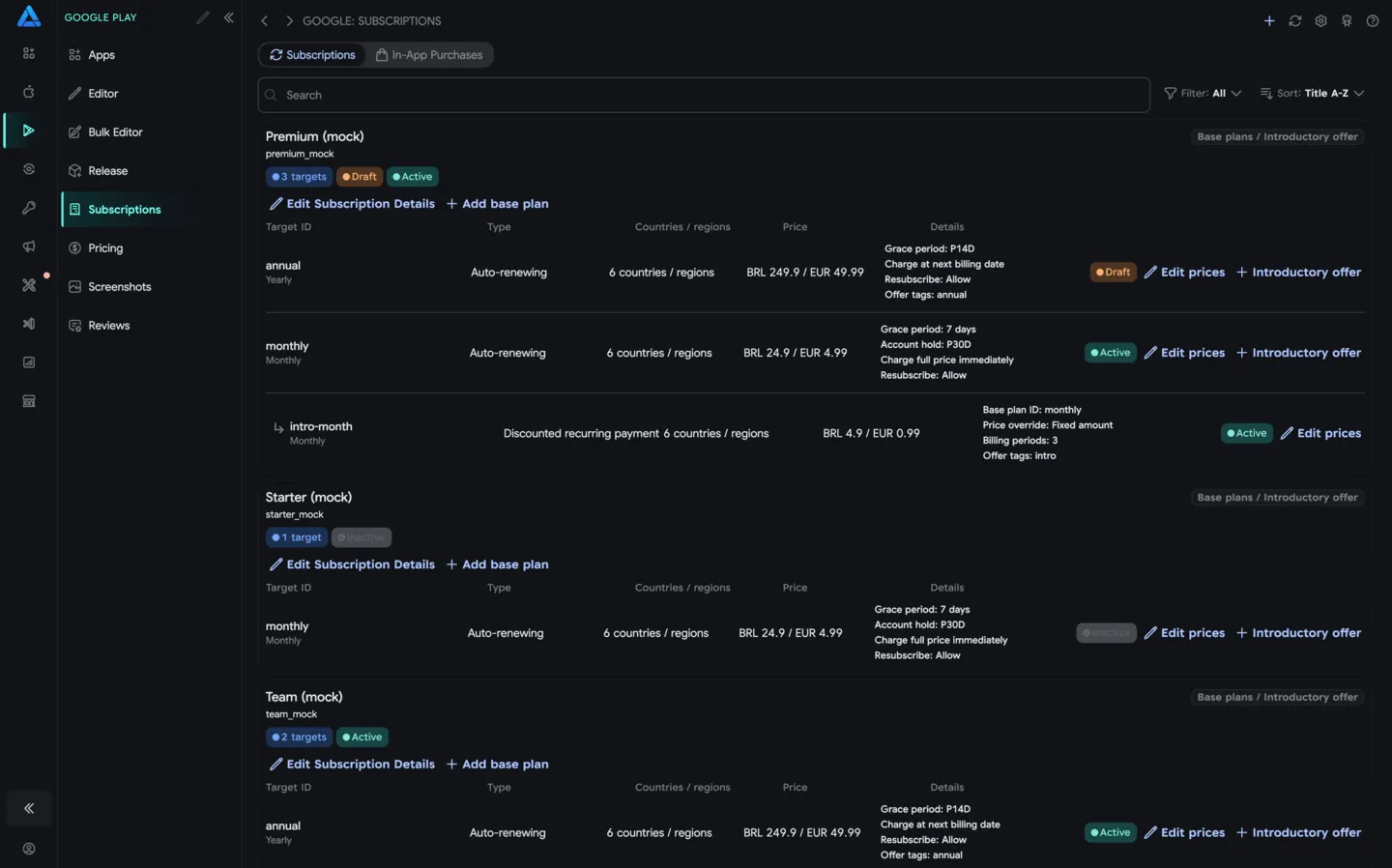
Product List
Section titled “Product List”The screen has two modes:
- Subscriptions - recurring products with base plans and offers.
- In-App Purchases - one-time Google Play Billing products.
Use search, filters, and sorting to find products quickly. Each product card shows its product ID, status, active and inactive targets, countries or regions, price, and available actions.
For subscriptions, ASO.dev shows:
- Base plans - the actual sellable plans, such as monthly or yearly access.
- Introductory offers - trials or discounted offers attached to a base plan.
- Status - active or inactive state.
- Countries / regions - where the base plan or offer is available.
- Price - the current customer price summary.
Subscription Details
Section titled “Subscription Details”Click Edit Subscription Details to edit subscription-level information.
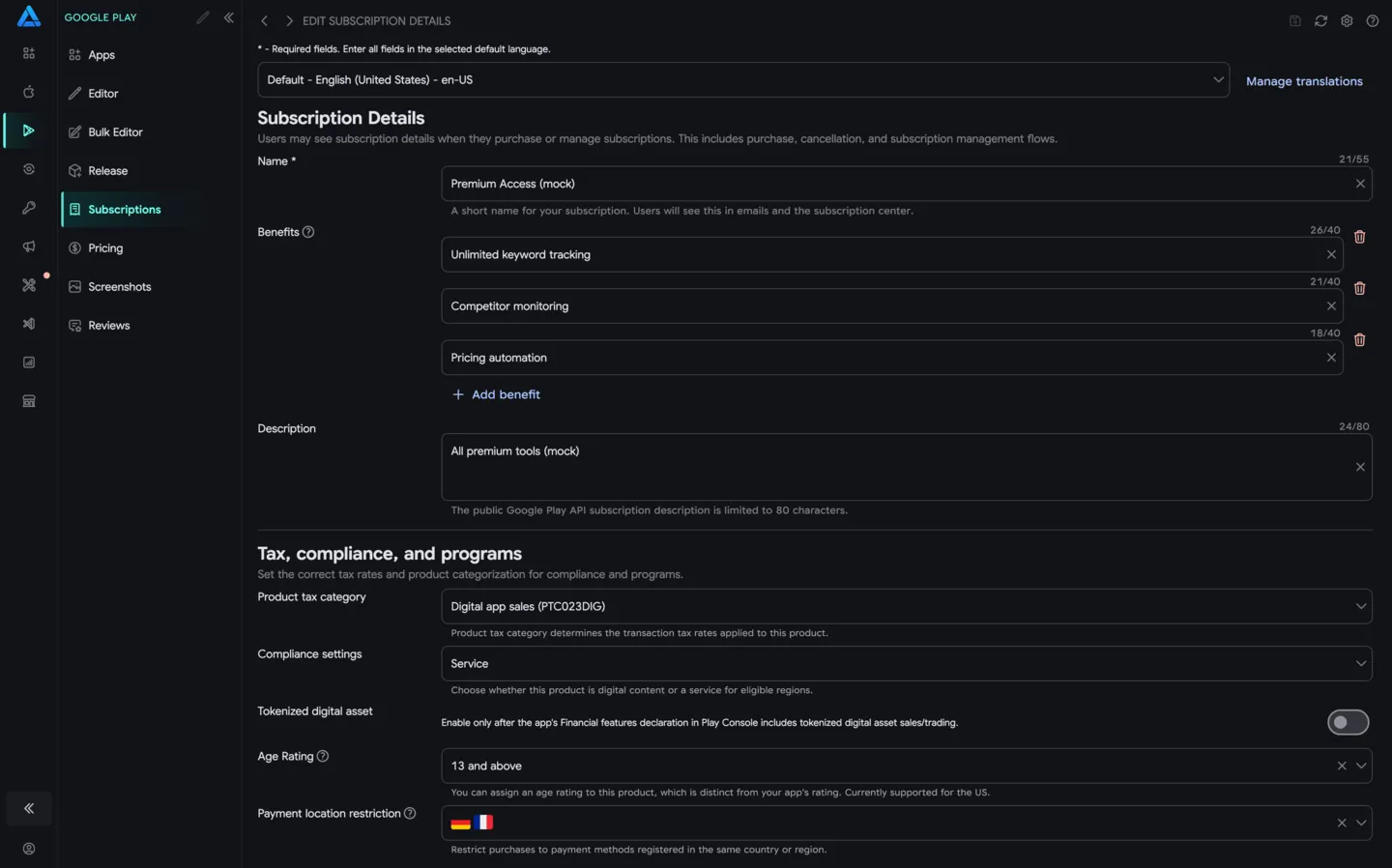
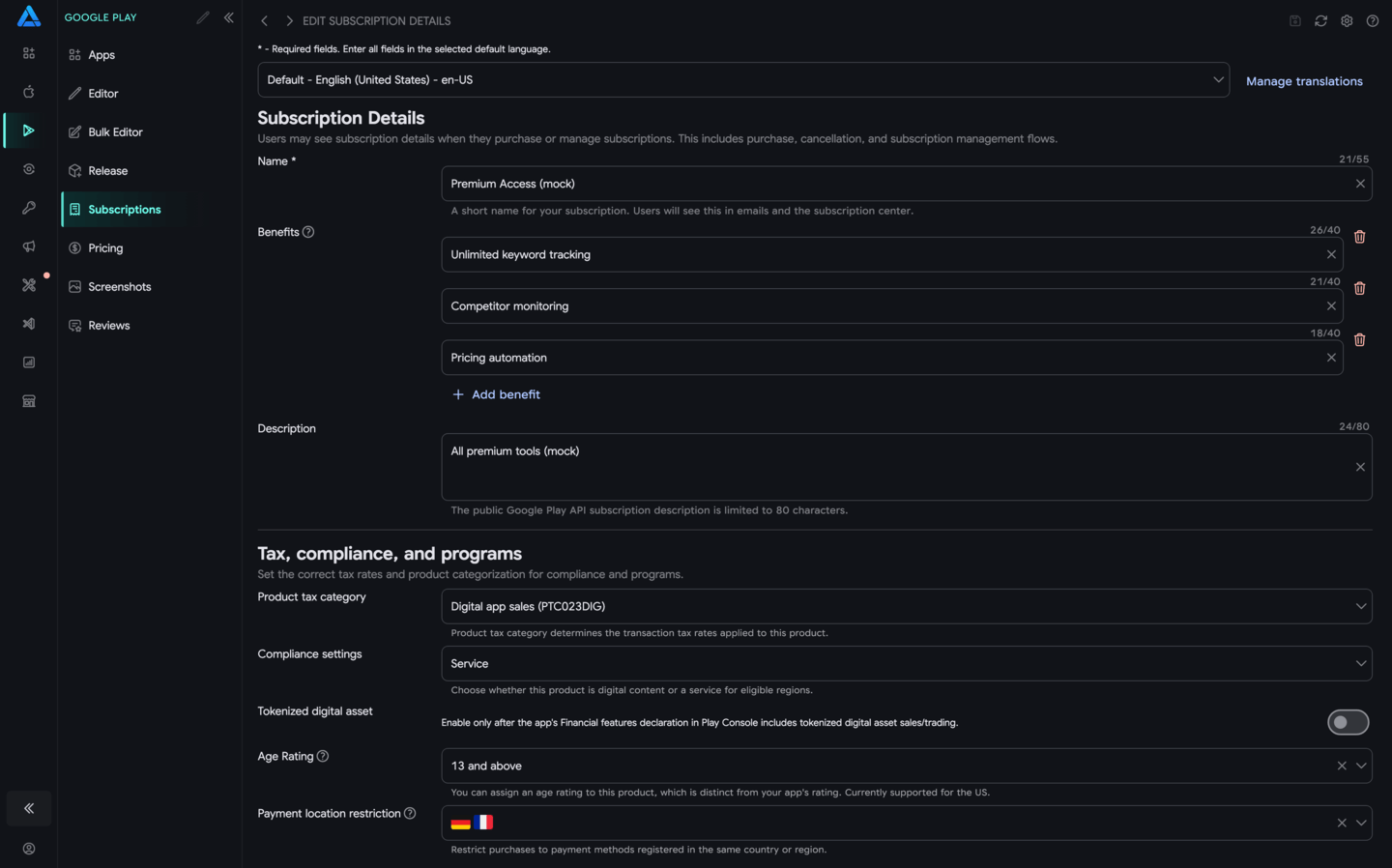
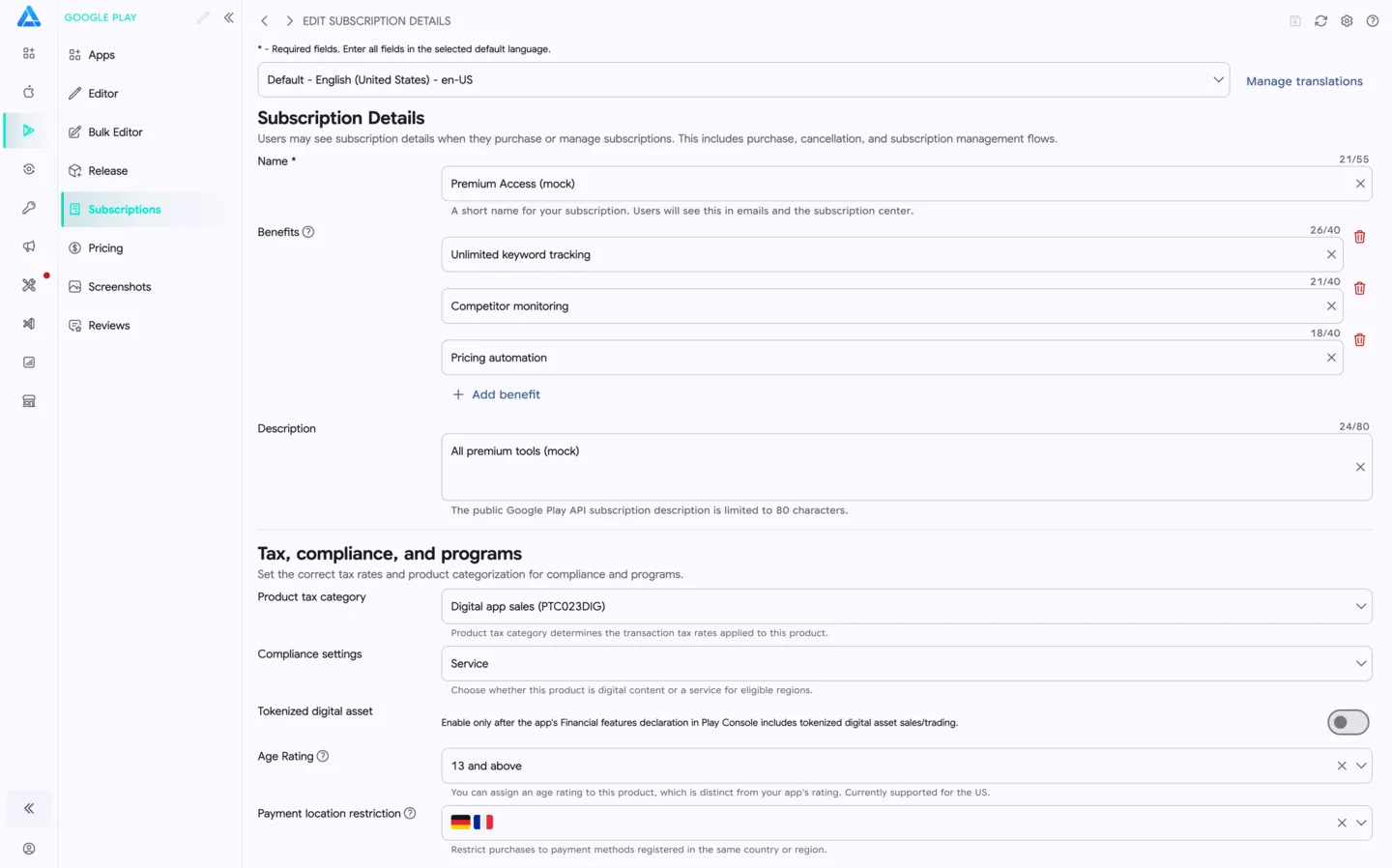
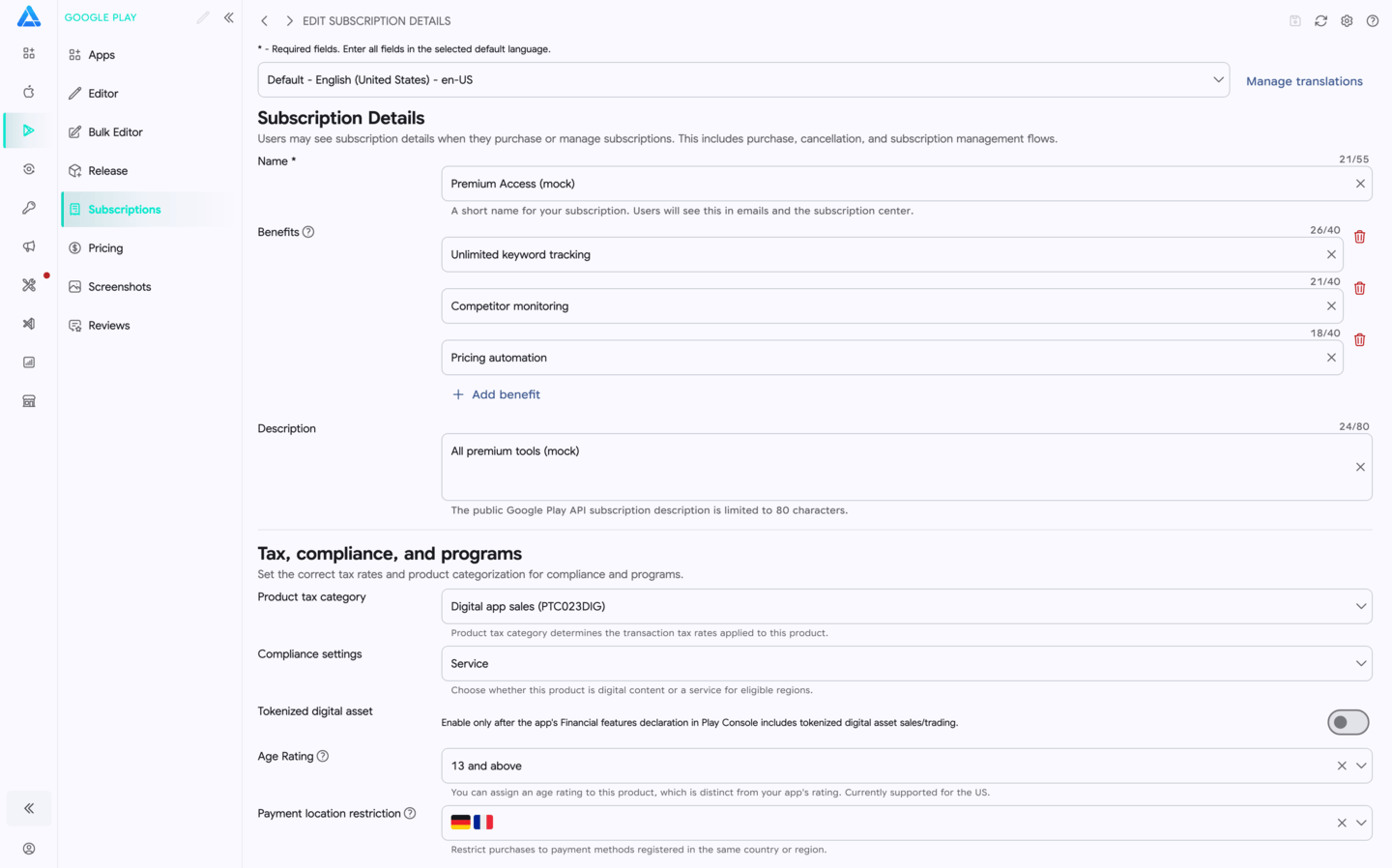
The details editor includes:
- Default language - the required language for base product metadata.
- Manage translations - edit localized names, benefits, and descriptions.
- Name - a short user-facing subscription name.
- Benefits - key subscription benefits shown to users.
- Description - subscription description used by Google Play APIs.
- Tax, compliance, and programs - tax category, compliance settings, tokenized digital asset flag, age rating, and payment location restriction.
Required fields must be filled in the selected default language before saving.
Base Plans
Section titled “Base Plans”Click Add base plan to create a sellable plan for a subscription.
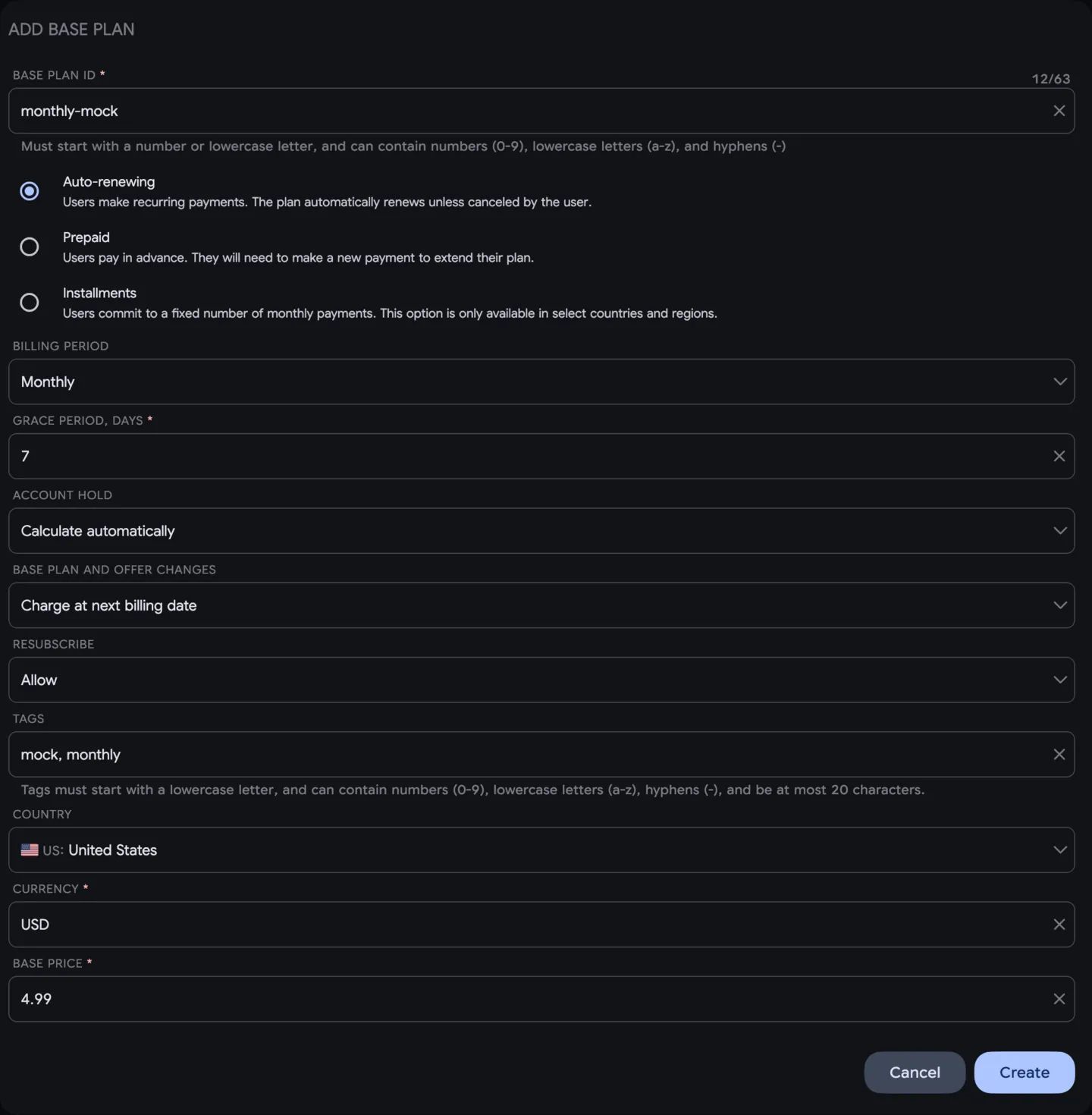
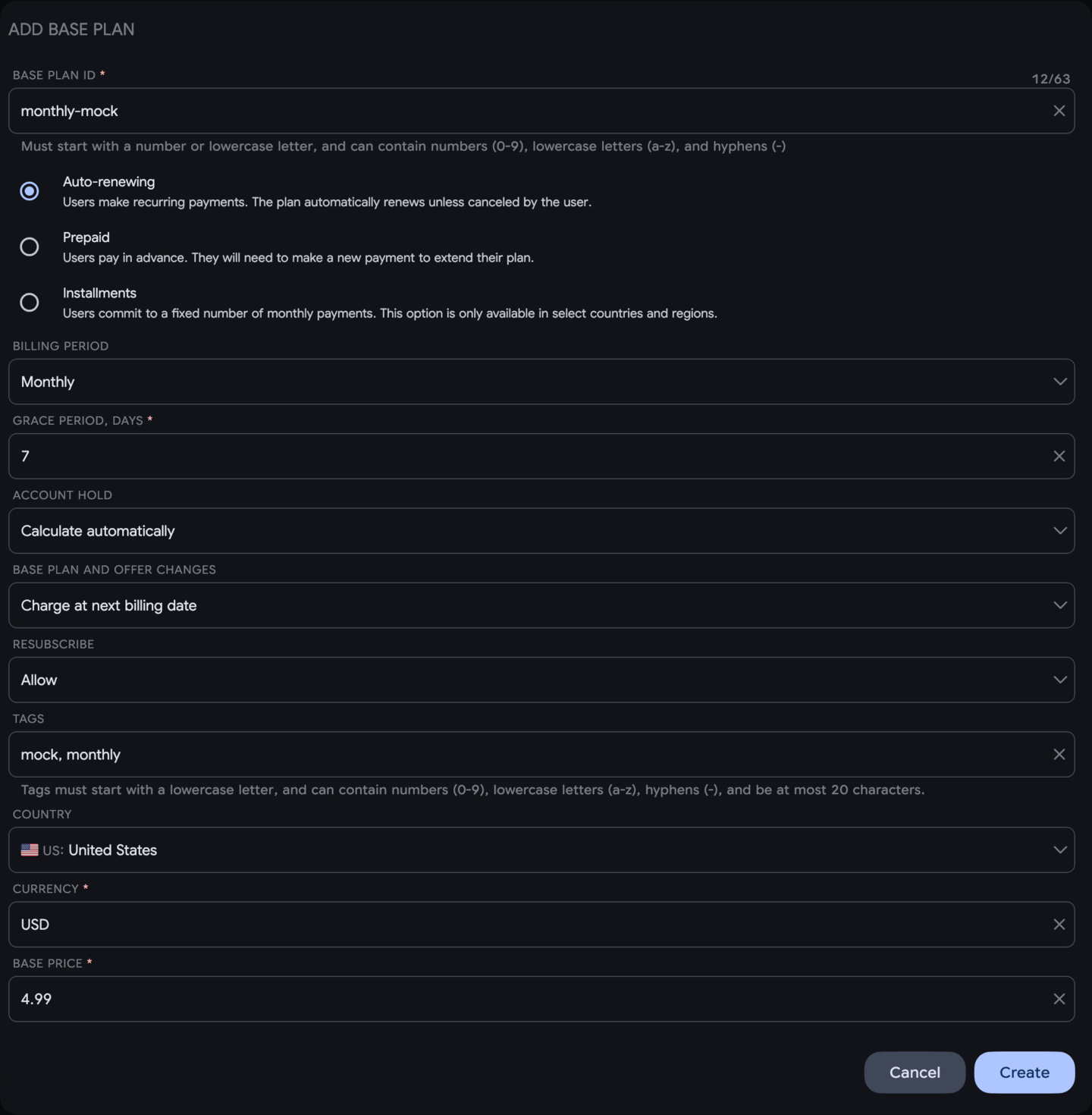
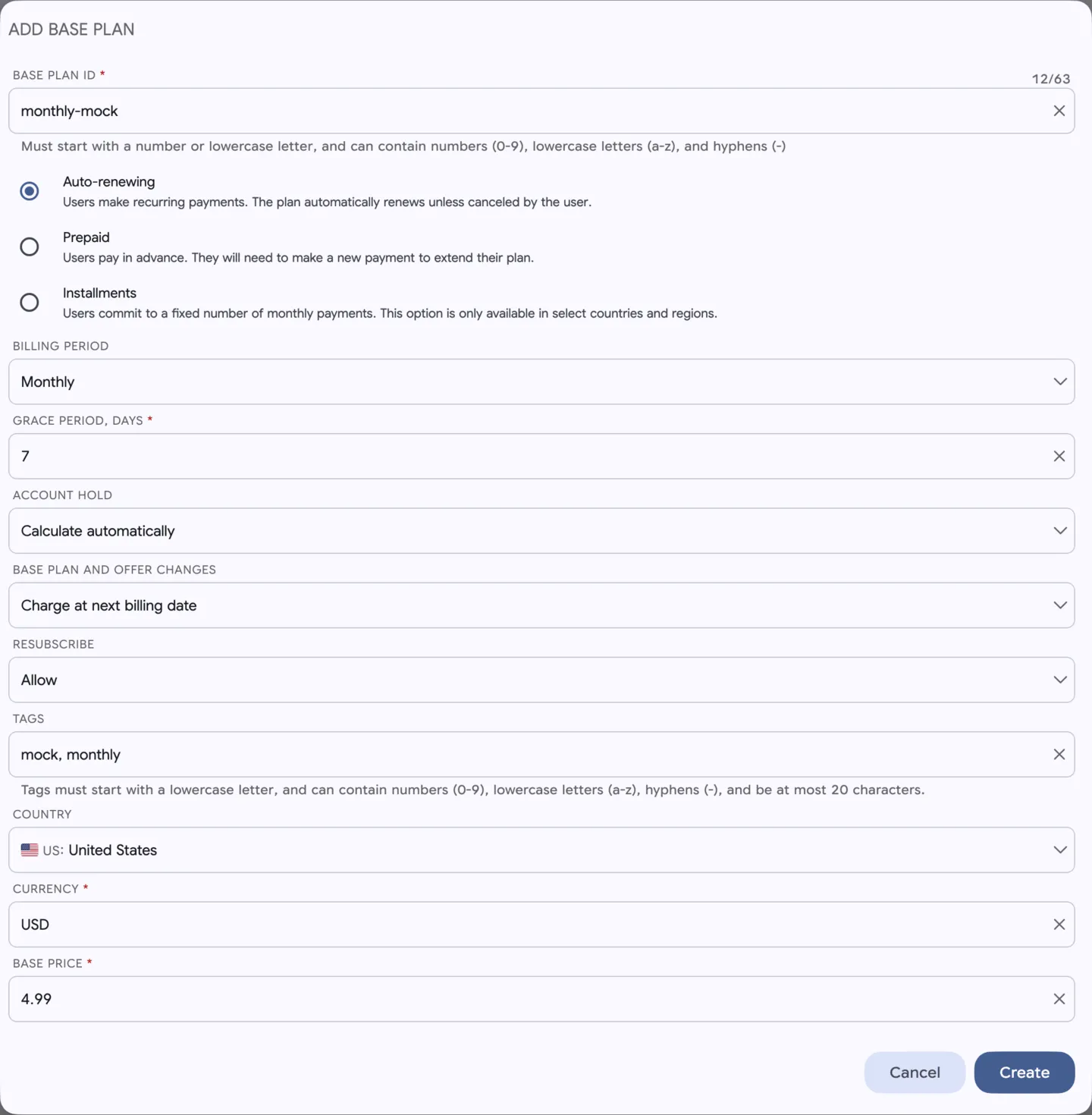
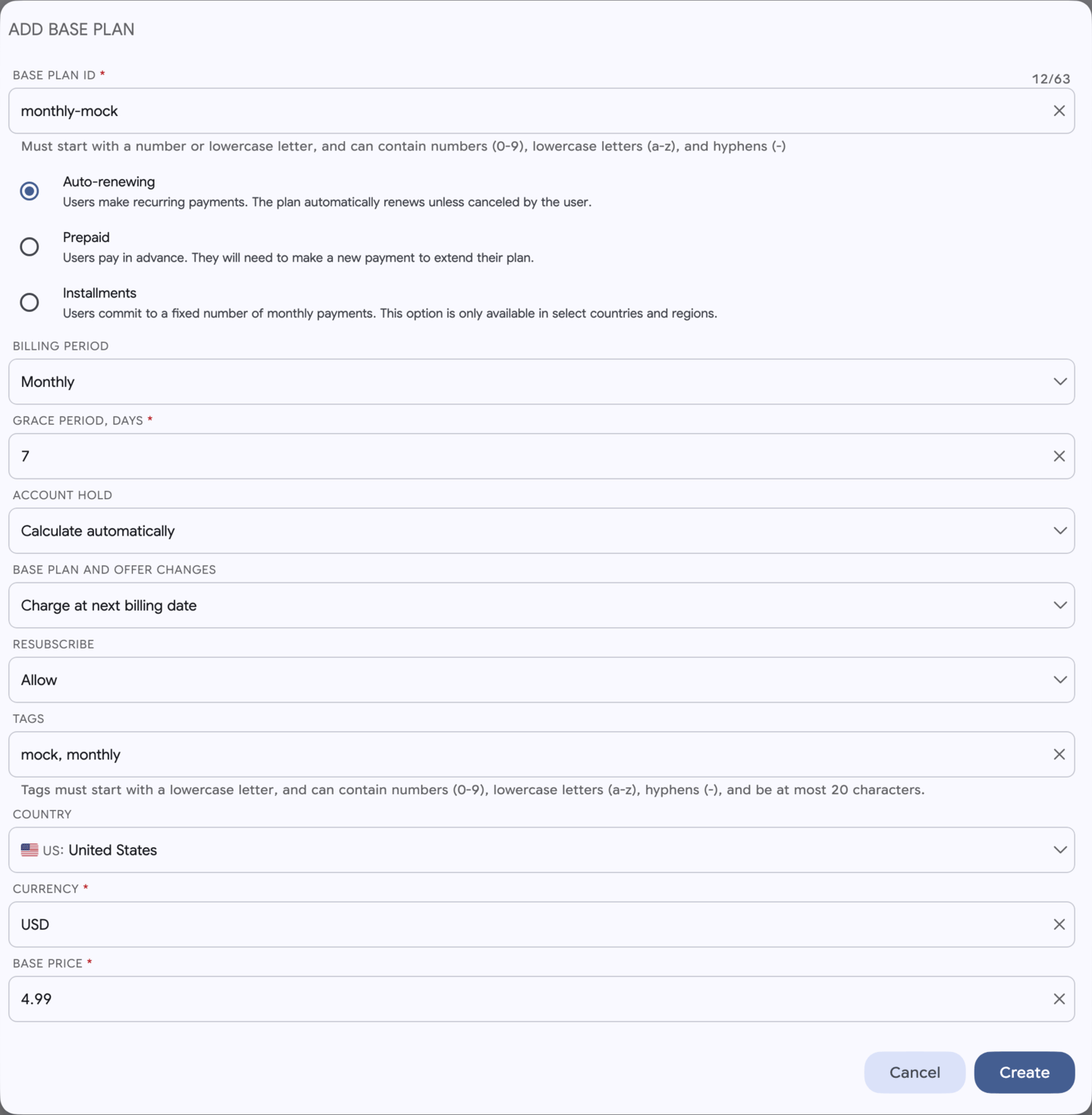
Base plan settings include:
- Base plan ID - identifier used by Google Play. It must start with a number or lowercase letter and can contain lowercase letters, numbers, and hyphens.
- Type - auto-renewing, prepaid, or installments.
- Billing period - monthly, yearly, or another supported period.
- Grace period - how long users keep access after a payment issue.
- Account hold - account hold behavior.
- Base plan and offer changes - how Google Play handles plan or offer changes.
- Resubscribe - whether users can resubscribe after canceling.
- Tags - optional labels for internal organization.
- Country, currency, and base price - initial price used to create the plan.
After creating a base plan, use Edit prices to open the country pricing editor.
Introductory Offers
Section titled “Introductory Offers”Introductory offers are attached to a base plan. They can be used for trials or discounted first periods, depending on Google Play configuration.
In the subscription list, click Introductory offer next to a base plan to create an offer. The offer appears under the base plan and has its own status, pricing, and Edit prices action.
In-App Purchases
Section titled “In-App Purchases”The In-App Purchases tab uses the same product-list approach for one-time products.
Use it to:
- create or edit Google Play in-app products
- update product metadata
- control availability
- open pricing for country-level prices
- save changes to Google Play
Saving
Section titled “Saving”All edits are prepared locally first. Review product details, base plans, offer data, and prices before saving.
Click Save to send changes to Google Play Console. If another teammate changed products in Google Play Console, click Refresh before editing.