
Meta Builder
Meta Builder connects your semantic core to the App Store metadata editor. Send it a set of search phrases, build a title, subtitle, and keywords from them, then check coverage before saving.
Metadata you can prepare
Section titled “Metadata you can prepare”For each selected locale, Meta Builder provides:
- Title — the app name in the App Store.
- Subtitle — the short text next to the title.
- Keywords — the word list used for indexing.
You can view fields for several locales on one screen, compare them, and switch between locales without losing the phrases you sent to the editor.
Send phrases from a table
Section titled “Send phrases from a table”Open any keyword table for the required app and select Meta Builder from the page menu. Choose the set to send:
- Selected — only rows marked with checkboxes.
- All — the whole table, regardless of selection.
- Filtered — rows remaining after the current filters are applied.
The editor receives the current phrases from the table. This lets you first narrow the semantic core by the metrics, country, or position that matter to you, then send only that selection.
Import and manual entry
Section titled “Import and manual entry”If the phrases are not in a table, upload an XLSX, XLS, CSV, or JSON file, drag it into the window, or paste phrases manually. Use line breaks, commas, or semicolons for manual input. You can add more phrases to a list already open in the editor.
What is on the screen
Section titled “What is on the screen”At the top, choose a country and locales, and add a brand if needed. The country determines phrase data, while available locales depend on the app’s primary locale and cross-localization settings.
The screen includes:
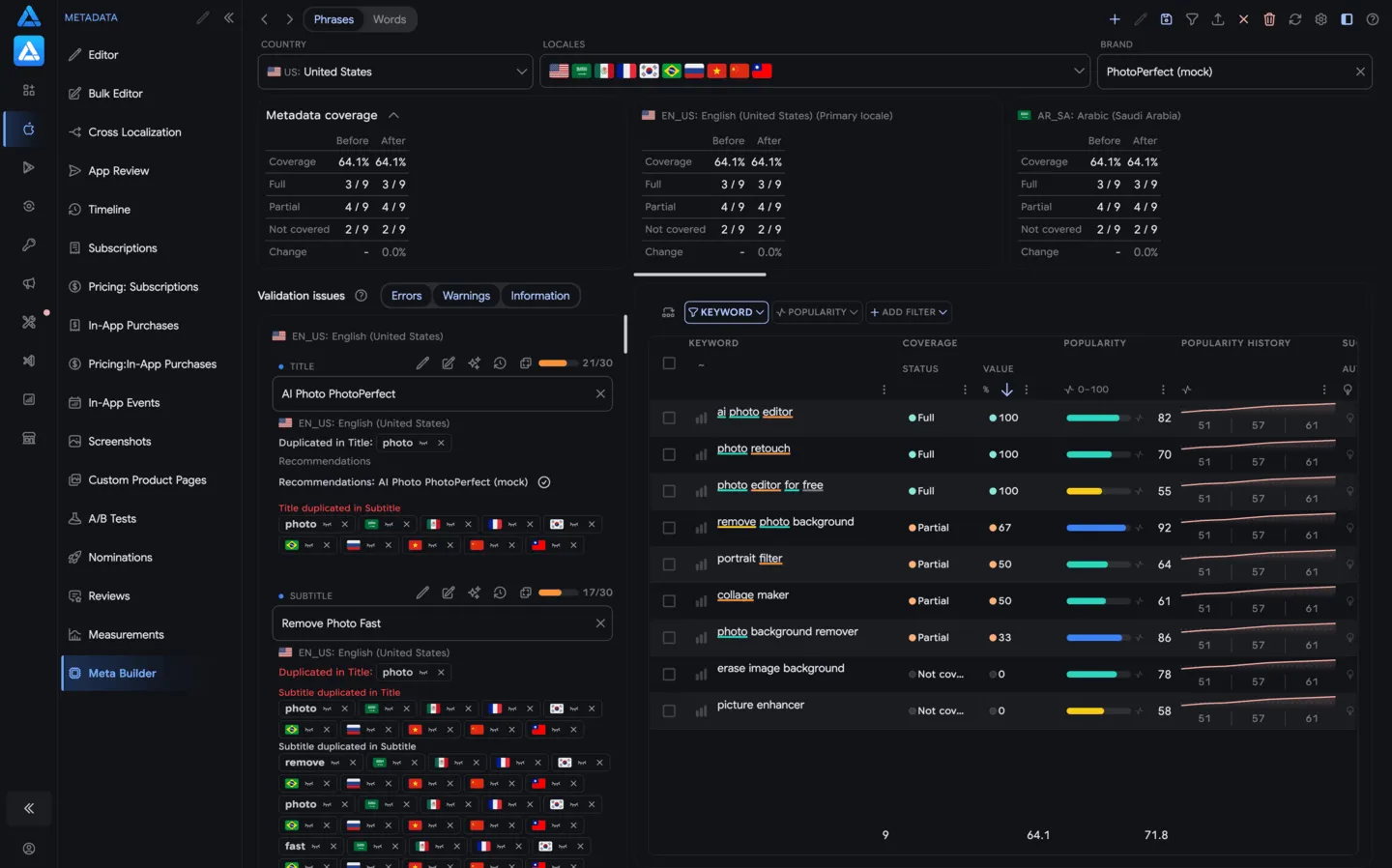
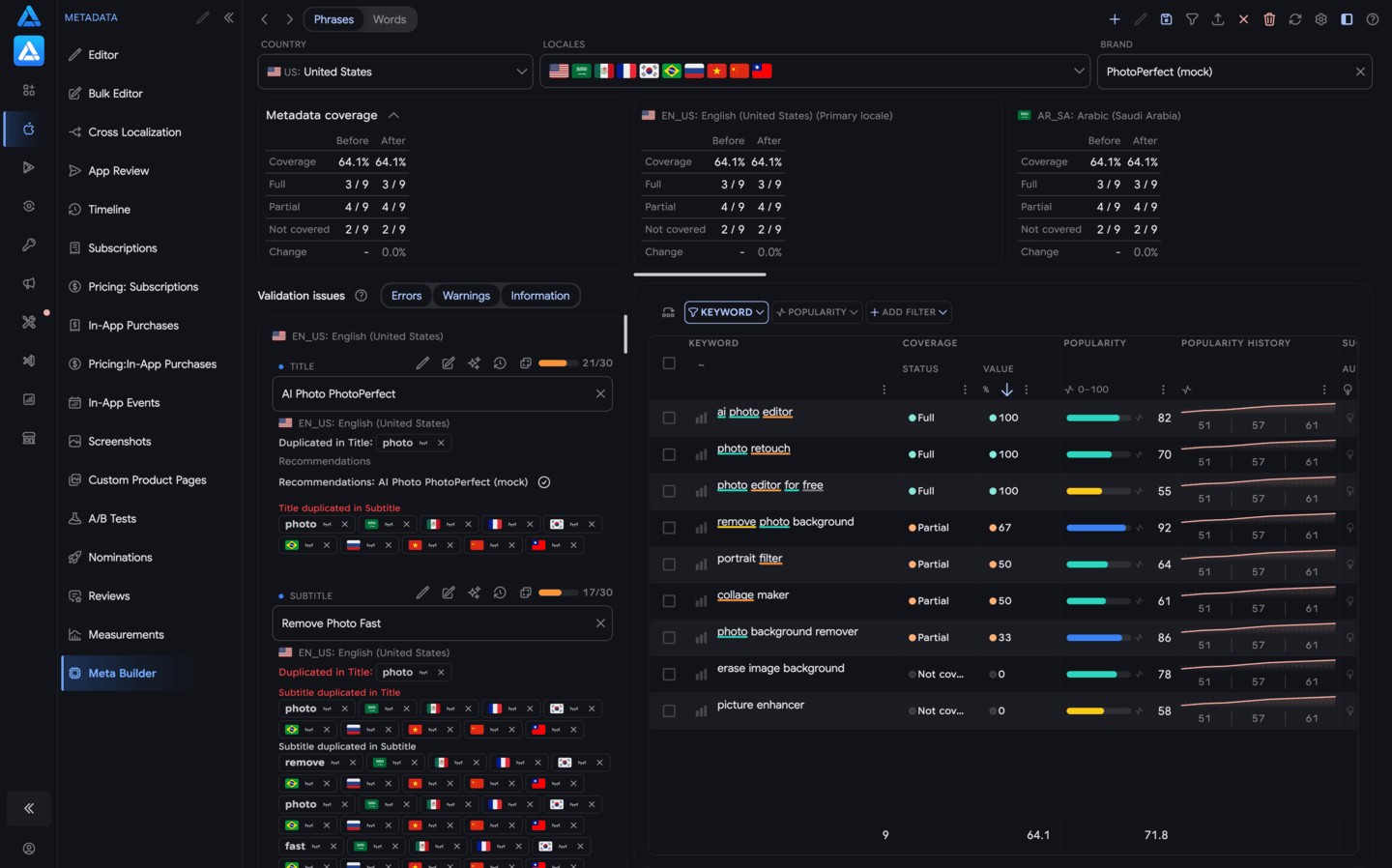
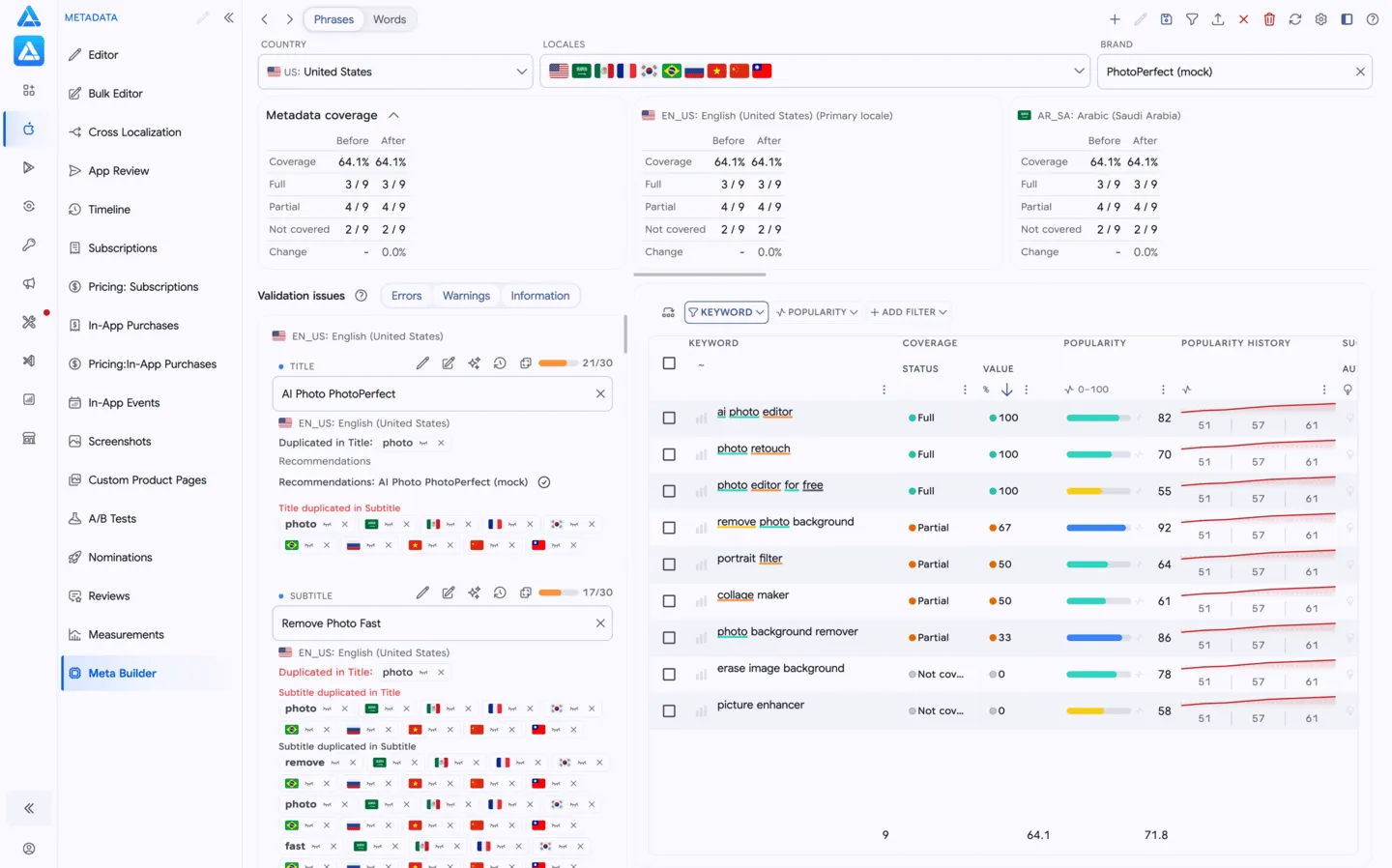
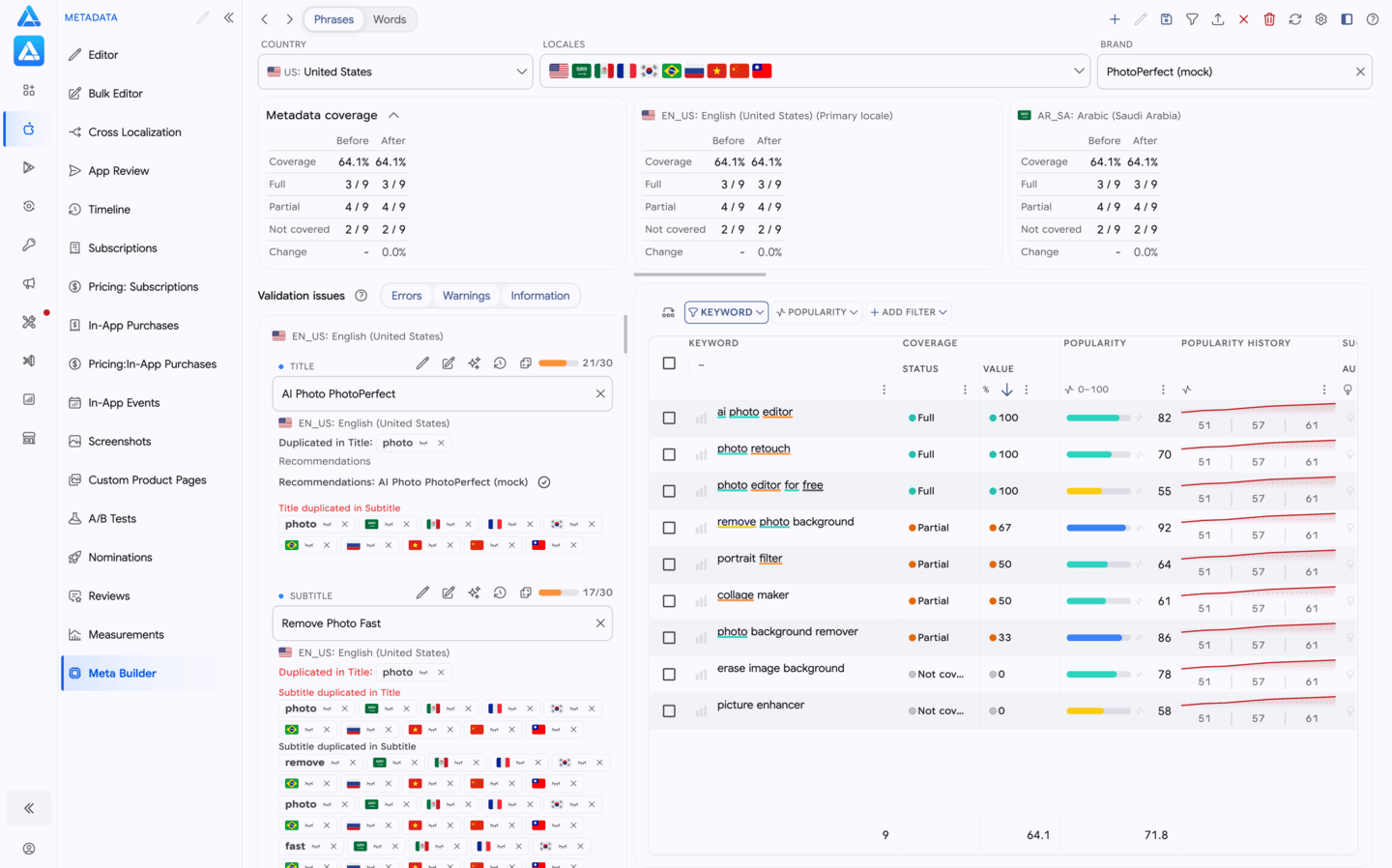
- Metadata coverage — an overall summary before and after editing.
- Locale cards — Title, Subtitle, and Keywords fields with character counters and validation messages.
- Phrases / Words — two ways to review the semantic core you sent.
- Phrase table — search, sorting, filters, and phrase or word selection.
- Add menu — sends a selected phrase or word to a field in a specific locale.
The coverage summary shows the overall percentage, fully and partially covered phrases, uncovered phrases, and the change after editing. You can view the same figures for all selected locales or for an individual locale.
Phrases and words
Section titled “Phrases and words”Phrases
Section titled “Phrases”Each row is one search phrase. You can see its coverage status, the number of matched words, the locale, and the metadata fields involved. Filter partially covered or uncovered phrases to find words worth adding.
This view splits the phrases you sent into individual words. It shows which phrases use a word and where it already appears in metadata. Use it to find one word that can improve coverage for several phrases.
How coverage works
Section titled “How coverage works”Meta Builder matches words in a search phrase against words in the Title, Subtitle, and Keywords fields.
| Metadata in one locale | Coverage for “photo editor” |
|---|---|
| “photo” in Title and “editor” in Keywords | Full |
| Only “photo” | Partial |
| “photo” in one locale and “editor” in another | Partial |
Words can be in different fields, but they must be in the same locale. A phrase is not fully covered when its words are split across locales.
When several locales are selected, the summary uses the best coverage for each phrase among them. Coverage applies only to the phrases you sent to the editor; it does not guarantee indexing or search rankings.
Build metadata
Section titled “Build metadata”Select a phrase or word in the table, open the add menu, then choose the destination locale and field. You can also edit every field directly in its locale card.
- Title — add the primary phrase and check the 30-character limit.
- Subtitle — add supporting words; its limit is also 30 characters.
- Keywords — add words that did not fit in the Title or Subtitle; the limit is 100 characters.
After each edit, phrase statuses and coverage are recalculated. When adding words, the tool combines them with the existing field value and avoids duplicates. Shorten the field manually if the new value exceeds its limit.
Use the Brand field to enter the brand name and its spelling variants. They are considered when checking repeated words across locales.
Validate and save
Section titled “Validate and save”Messages next to fields are grouped into errors, warnings, and information. Before saving, check:
- required fields and character limits;
- uncovered and partially covered phrases;
- the difference between the Before and After coverage;
- metadata for each selected locale.
Changes are saved in the shared metadata-editor draft, where you can continue editing them. Saving a draft does not publish a new App Store version.