
Google Play Screenshots
Google Play Screenshots lets you upload and organize store listing media for all Google Play locales.
Use it to manage the app icon, feature graphic, and screenshots for phones and tablets without opening each language separately in Google Play Console.
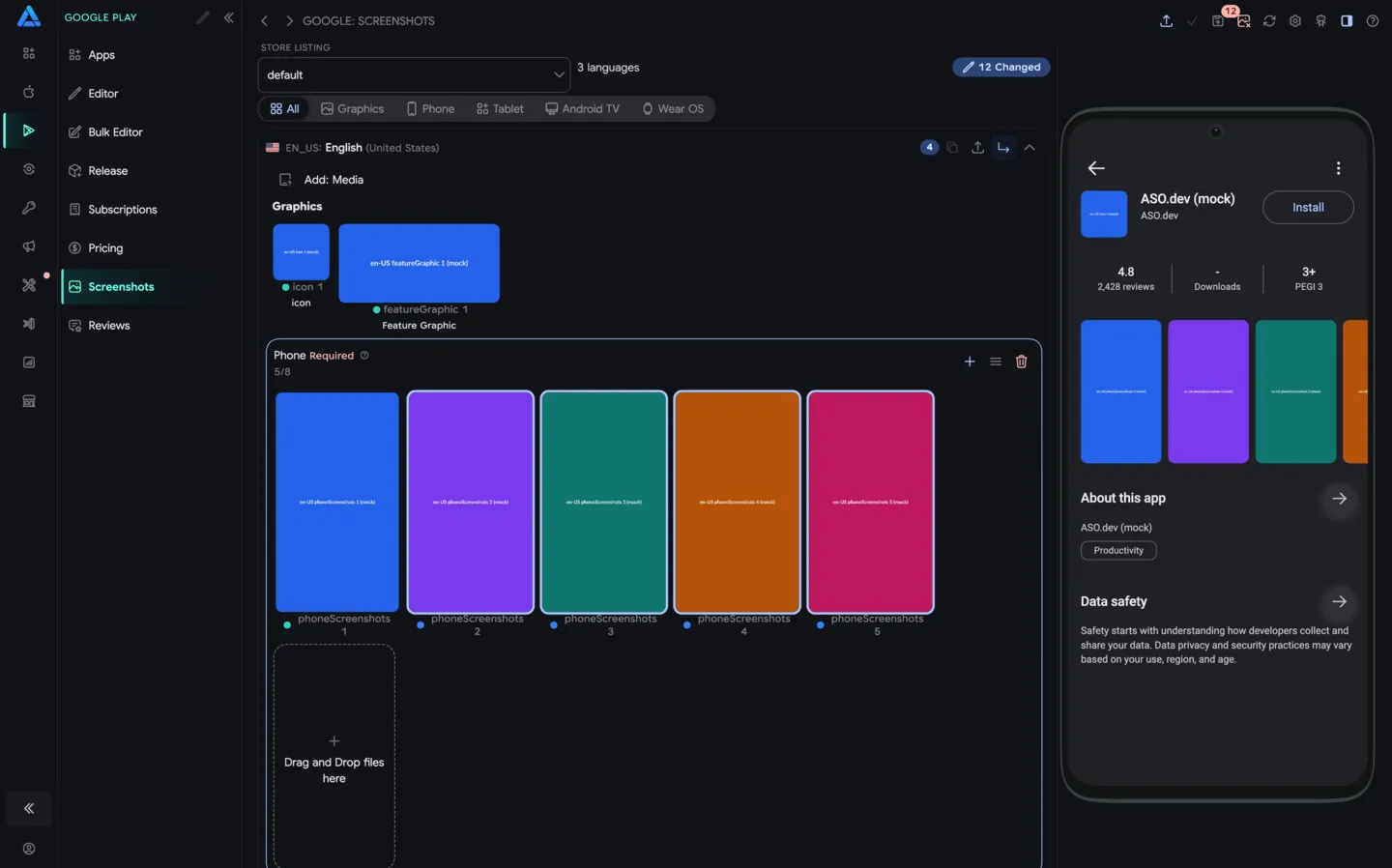
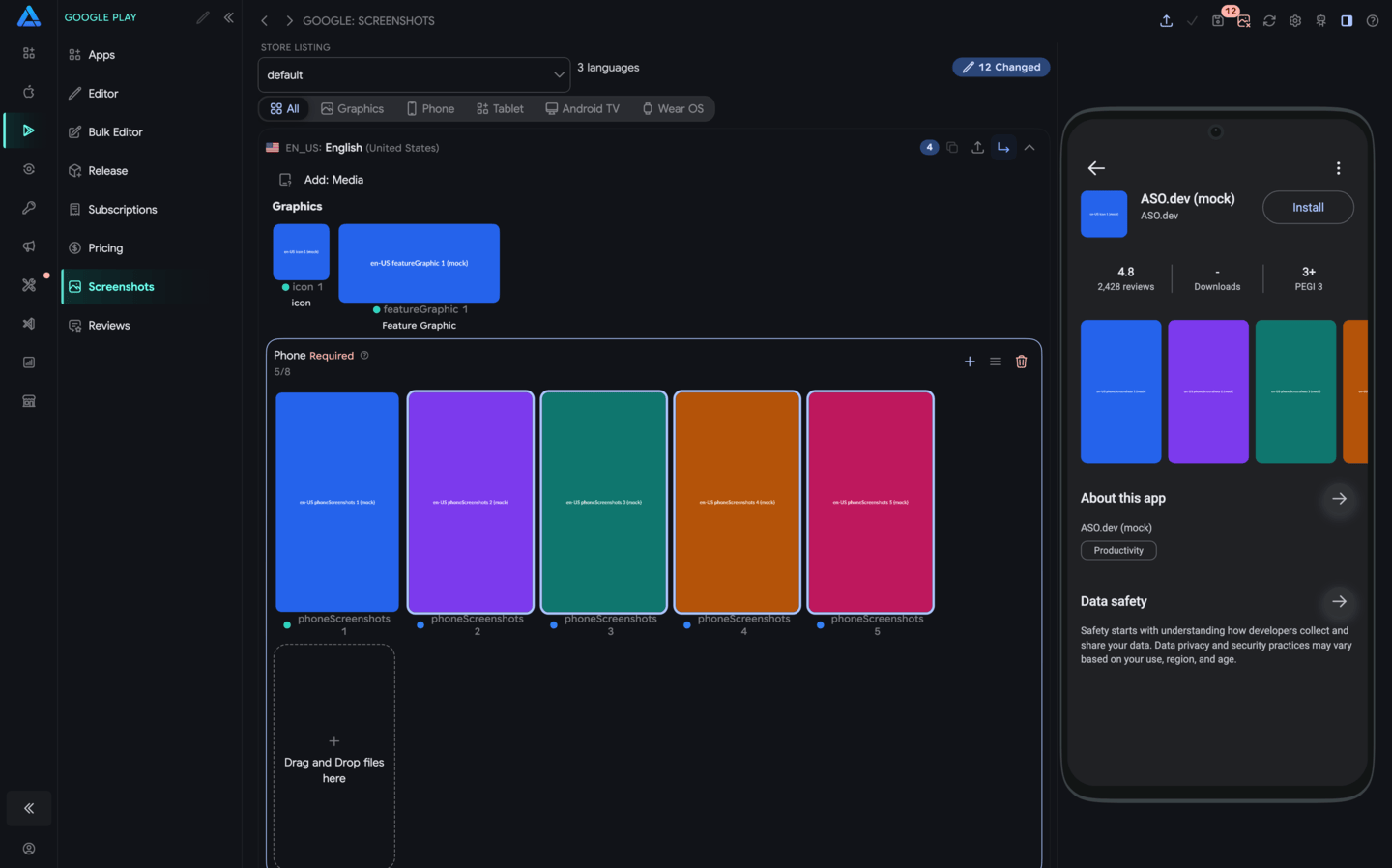
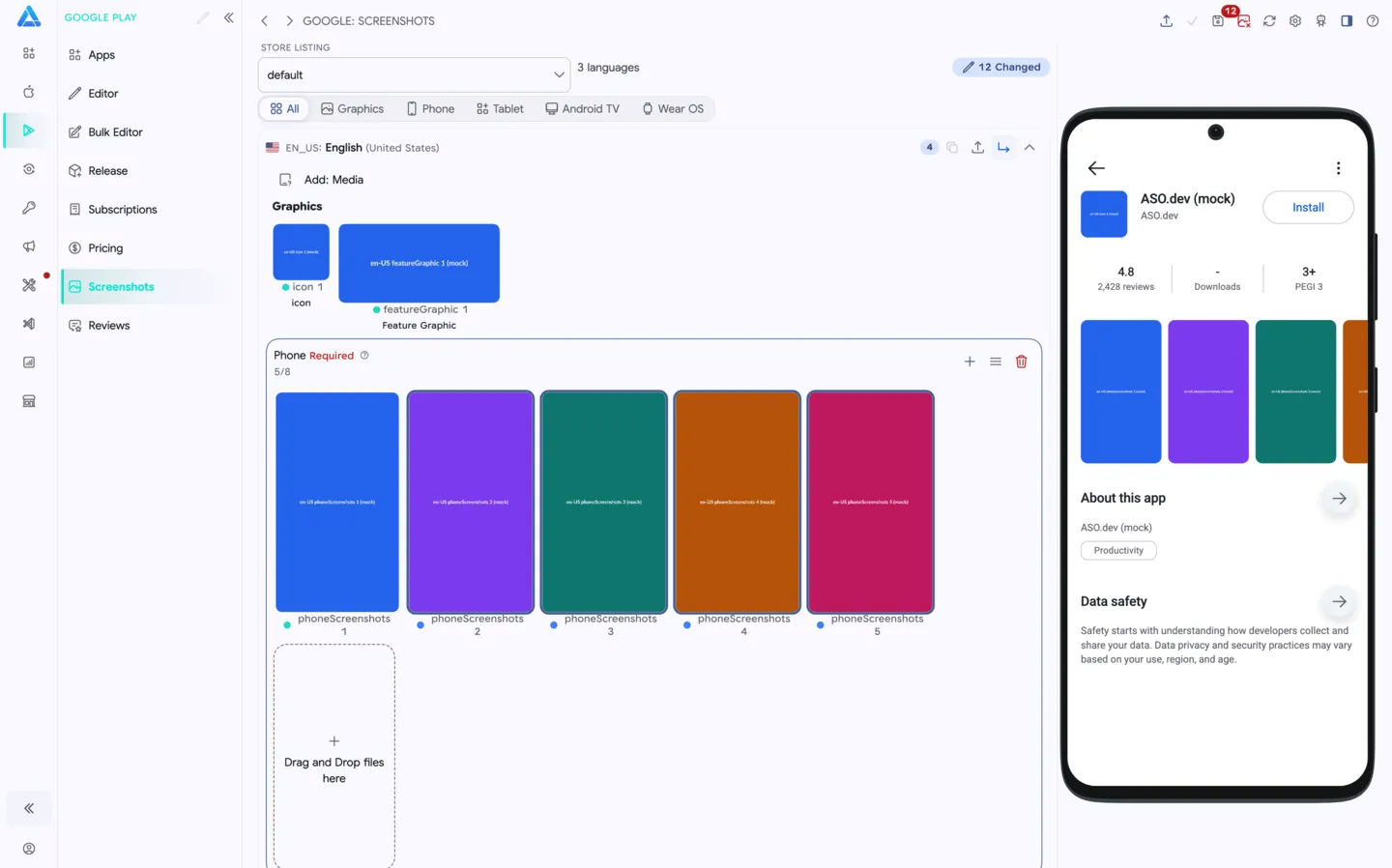
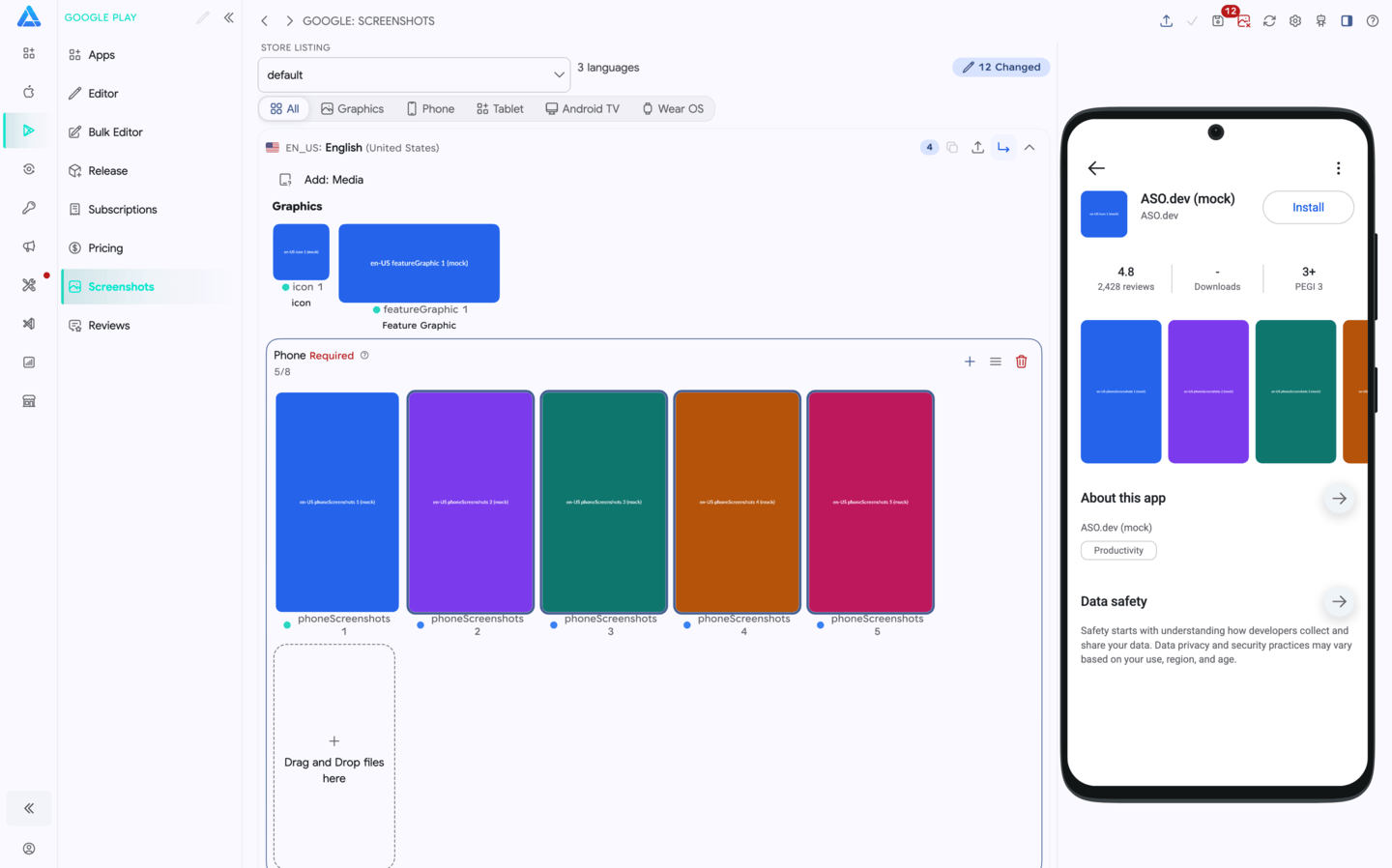
Screen Layout
Section titled “Screen Layout”The screen is organized by language. Each locale block contains the media attached to that Google Play store listing.
Inside a locale, ASO.dev shows:
- Graphics - app icon and feature graphic.
- Phone - phone screenshots. Google Play supports up to 8 screenshots for each device type.
- Tablet 7-inch - screenshots for 7-inch tablets.
- Tablet 10-inch - screenshots for 10-inch tablets, when available for the app.
Other Google Play device sections can appear depending on app configuration and available media.
Top Bar
Section titled “Top Bar”The top bar contains the main actions:
- Save - save prepared media changes to Google Play Console.
- Submit for review - send saved changes to Google Play review when required.
- Upload - upload media files or a folder.
- Refresh - reload the latest media from Google Play Console.
- Settings - open upload and editor settings.
- Help - open this documentation.
Below the summary, use the media filters to show only All, Graphics, Phone, Tablet, Android TV, or Wear OS assets. Filtering changes only what is displayed; it does not remove media from the draft.
Upload Media
Section titled “Upload Media”You can upload media in two ways:
- Drag files directly into the Drag and Drop files here area inside a device section.
- Use the upload action and select files or a folder for bulk upload.
Choose an Import Mode
Section titled “Choose an Import Mode”The upload menu separates the three common workflows:
- Media - import every recognized asset from the selected folder, including app icons, feature graphics, TV banners, and screenshots. Single-slot graphics replace the current asset for each matched locale; screenshots are appended up to the section limit.
- Icon - import only
512 x 512app icons and replace the current icon for each matched locale. Other media stays unchanged. - Feature Graphic - import only
1024 x 500feature graphics and replace the current feature graphic for each matched locale. Other media stays unchanged.
The same choices are available for a full folder and for a specific locale. When you start from a locale block, all selected files target that locale.
During bulk upload, ASO.dev can match media by:
- locale folder names such as
en-US,en_US,de-DE - Google Play asset folder names and hints such as
phoneScreenshots,7inch,tablet10,featureGraphic,appIcon, orwear - file dimensions and file order
- common names such as
iconandfeatureGraphic
After upload, review the matched locale and section before saving.
Locale Folder Names
Section titled “Locale Folder Names”A folder represents a Google Play locale, not just a country. Prefer the exact locale code shown for the store listing, for example:
en-US- English (United States)en-GB- English (United Kingdom)uk- Ukrainiande-DE- German (Germany)
Folder matching is case-insensitive and also accepts underscores, so en_GB matches en-GB. Common unambiguous names such as UK English, British English, and Ukrainian are recognized too, but the canonical Google Play locale code is the safest name for future imports.
If ASO.dev cannot recognize one or more locale folders, it opens a mapping dialog before inspecting or copying the images. For every unresolved folder you can:
- select one of the locales loaded from the current Google Play listing
- skip the folder without cancelling the rest of the import
- see and copy the recommended folder code for the selected locale
- view the file list, open the folder or an individual file, and copy all file paths
Only locales available in the current store listing can be selected.
Supported Folder and File Name Hints
Section titled “Supported Folder and File Name Hints”ASO.dev normalizes names before matching: spaces, dashes, and underscores do not matter. For example, phoneScreenshots, phone-screenshots, and phone screenshots are treated the same.
You can use these hints in folder names or file names:
| Target | Supported hints |
|---|---|
| App icon | appIcon, launcherIcon, icon |
| Feature graphic | featureGraphic, featureGraphics, featureImage, promo1024x500 |
| Phone screenshots | phoneScreenshots, phone, mobile, handset |
| 7-inch tablet screenshots | sevenInchScreenshots, 7inchScreenshots, 7inch, tablet7 |
| 10-inch tablet screenshots | tenInchScreenshots, 10inchScreenshots, 10inch, tablet10, tablet |
| TV banner | tvBanner, televisionBanner |
| TV screenshots | tvScreenshots, tvScreenshot, androidTV, television |
| Wear OS screenshots | wearScreenshots, wearOS, wear, watch |
ASO.dev also recognizes common device names. For example, iPhone is treated as phone screenshots, while iPad, Pixel Tablet, Galaxy Tab, Nexus 7, Fire 8, and similar names are treated as tablet screenshots.
If no hint is found, ASO.dev uses image dimensions:
512 x 512becomes an app icon.1024 x 500becomes a feature graphic.1280 x 720becomes a TV banner.- square images become Wear OS screenshots.
- everything else defaults to phone screenshots.
Locale Actions
Section titled “Locale Actions”Each language block has actions for working with localized media:
- Copy - copy or reuse media between locales.
- Upload - add files to the selected locale.
- collapse or expand the locale block to keep long language lists manageable.
This is useful when most localizations share the same screenshots, but some languages need localized text overlays or a localized feature graphic.
Screenshot Set Actions
Section titled “Screenshot Set Actions”Each screenshot section has its own controls:
- Add - add screenshots to this section.
- Apply order - apply the current order to matching sections or locales.
- Delete - clear screenshots from the section.
You can reorder screenshots by dragging them. The first screenshots matter most because Google Play may show them in search, recommendations, and on the app page before the user opens the full gallery.
Individual Assets
Section titled “Individual Assets”Each media item shows its current status and filename.
Useful actions:
- view the asset in full screen
- download the file
- remove the asset from the local draft
Changes stay local until you click Save.
Requirements
Section titled “Requirements”Google Play preview assets must follow Google Play Console rules:
- App icon: 512 x 512 px, 32-bit PNG with alpha, up to 1024 KB.
- Feature graphic: 1024 x 500 px, JPEG or 24-bit PNG without alpha.
- Screenshots: JPEG or 24-bit PNG without alpha.
- Screenshot dimensions: minimum 320 px, maximum 3840 px. The longest side cannot be more than twice the shortest side.
- Screenshots per device type: up to 8.
For larger-screen eligibility, Google recommends high-quality tablet screenshots and device-specific layouts.
Folder Structure
Section titled “Folder Structure”For bulk upload, use a folder structure close to Google Play / Fastlane naming. The images level is supported but optional; the locale folder and asset hints are what matter:
Directoryscreenshots
Directoryen-US
Directoryimages
icon.pngfeatureGraphic.pngtvBanner.pngDirectoryphoneScreenshots
1.png2.png
DirectorysevenInchScreenshots
1.png2.png
DirectorytenInchScreenshots
1.png2.png
DirectorywearScreenshots
1.png
DirectorytvScreenshots
1.png
Directoryde-DE
Directoryimages
icon.pngfeatureGraphic.pngDirectoryphoneScreenshots
1.png2.png
Directoryen-GB
icon.pngfeatureGraphic.pngDirectoryphoneScreenshots
1.png
Directoryuk
icon.pngfeatureGraphic.pngDirectoryphoneScreenshots
1.png
You can also drag files into a specific section if you want to control the target locale and device type manually.