
TestFlight builds
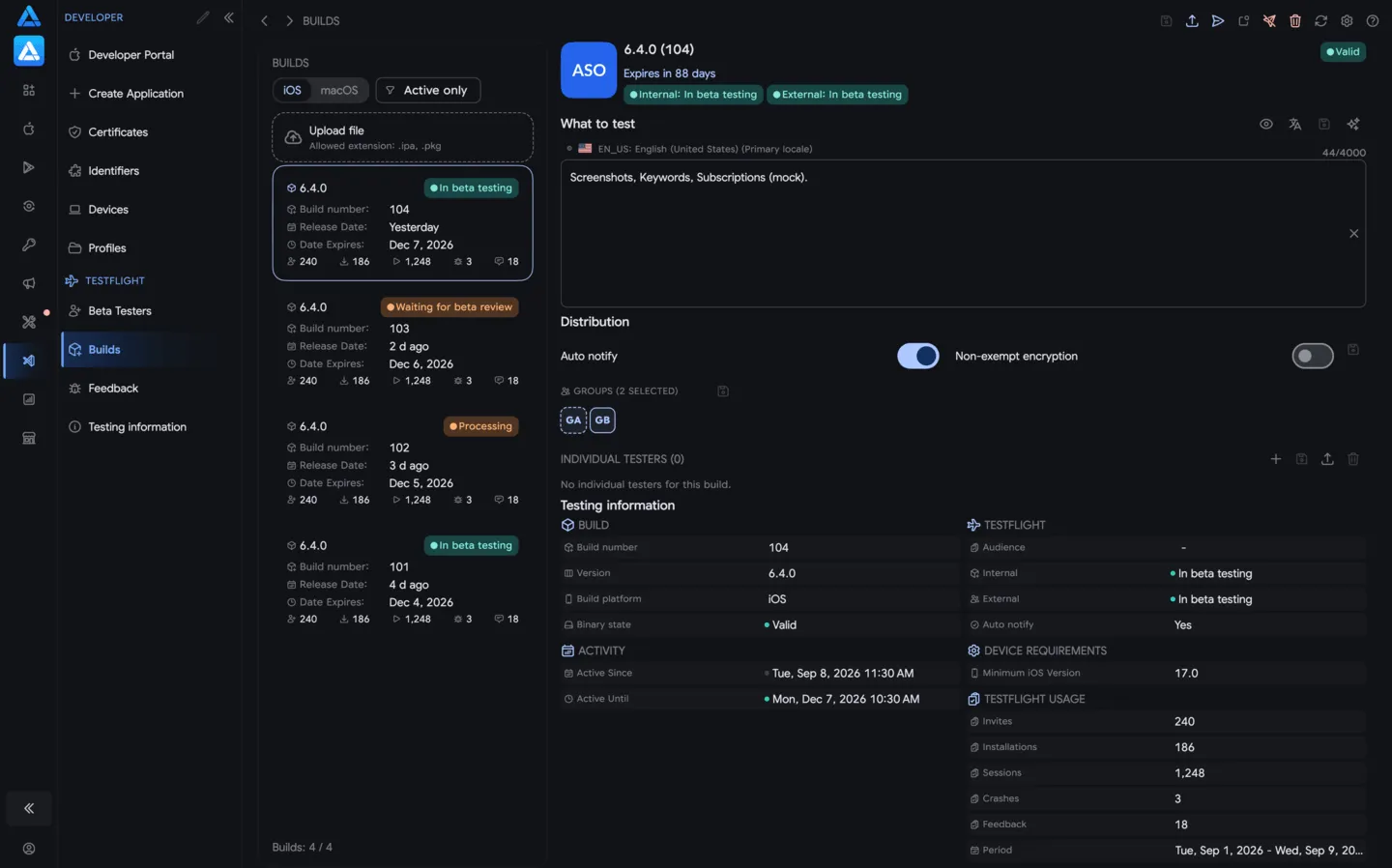
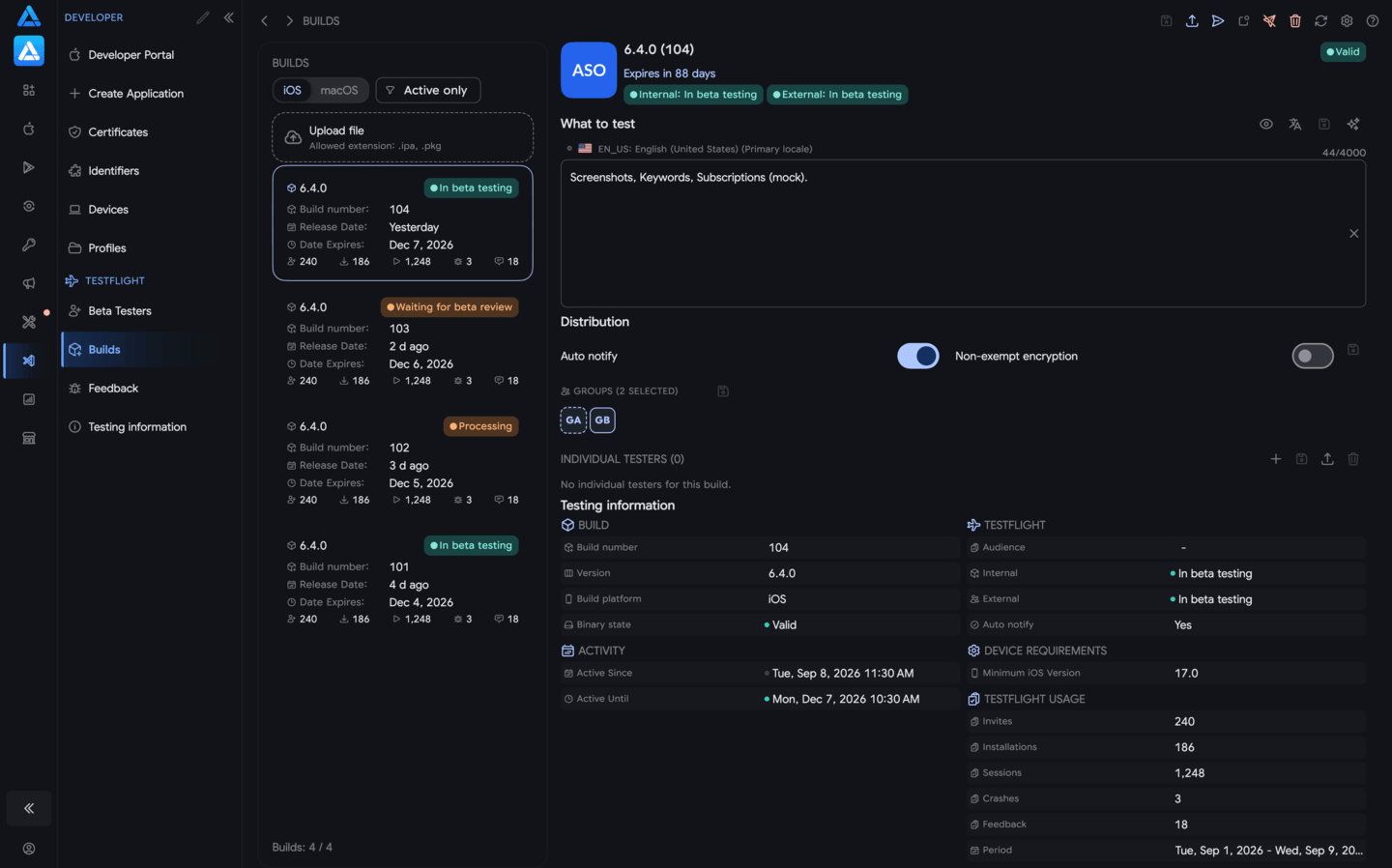
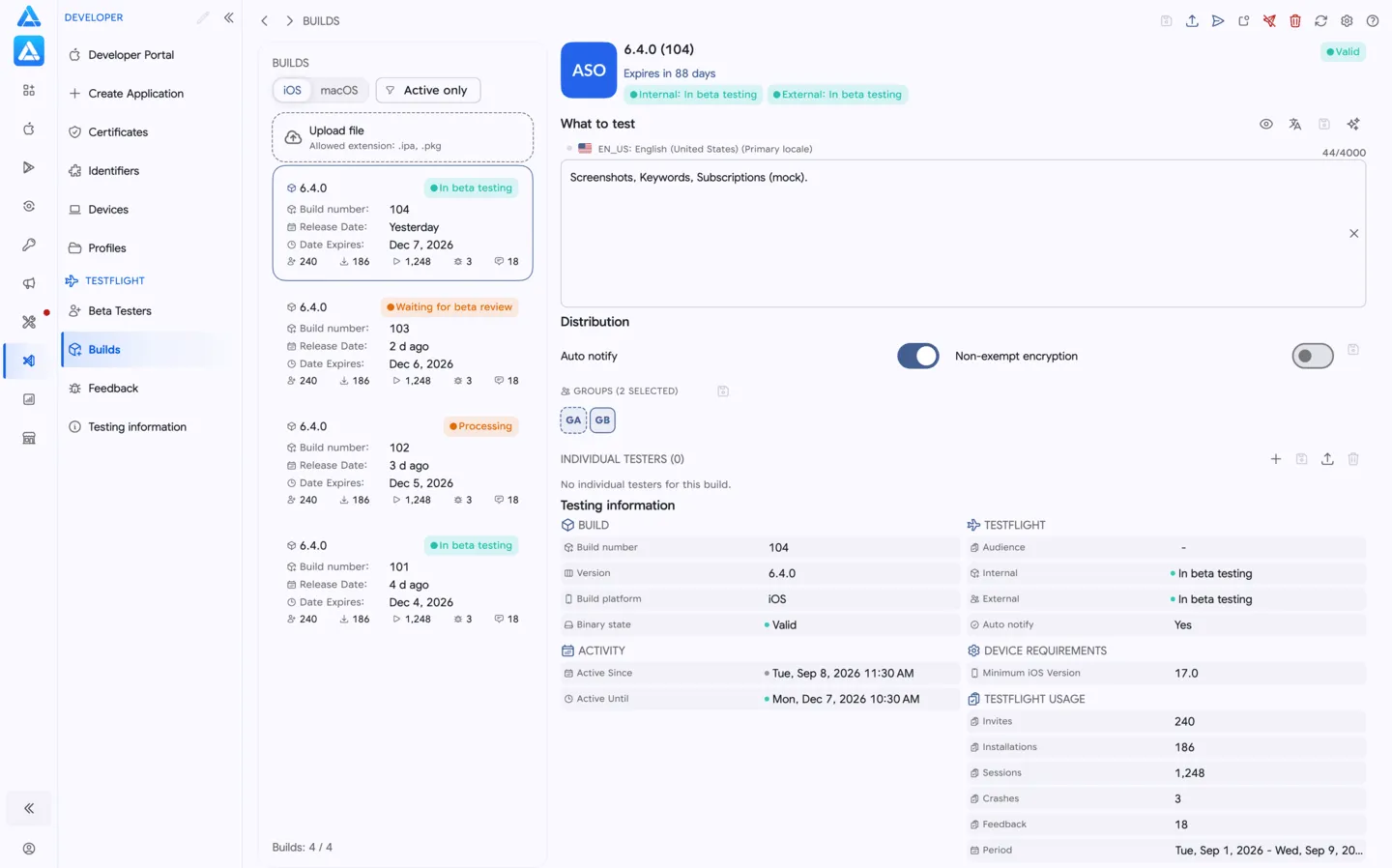
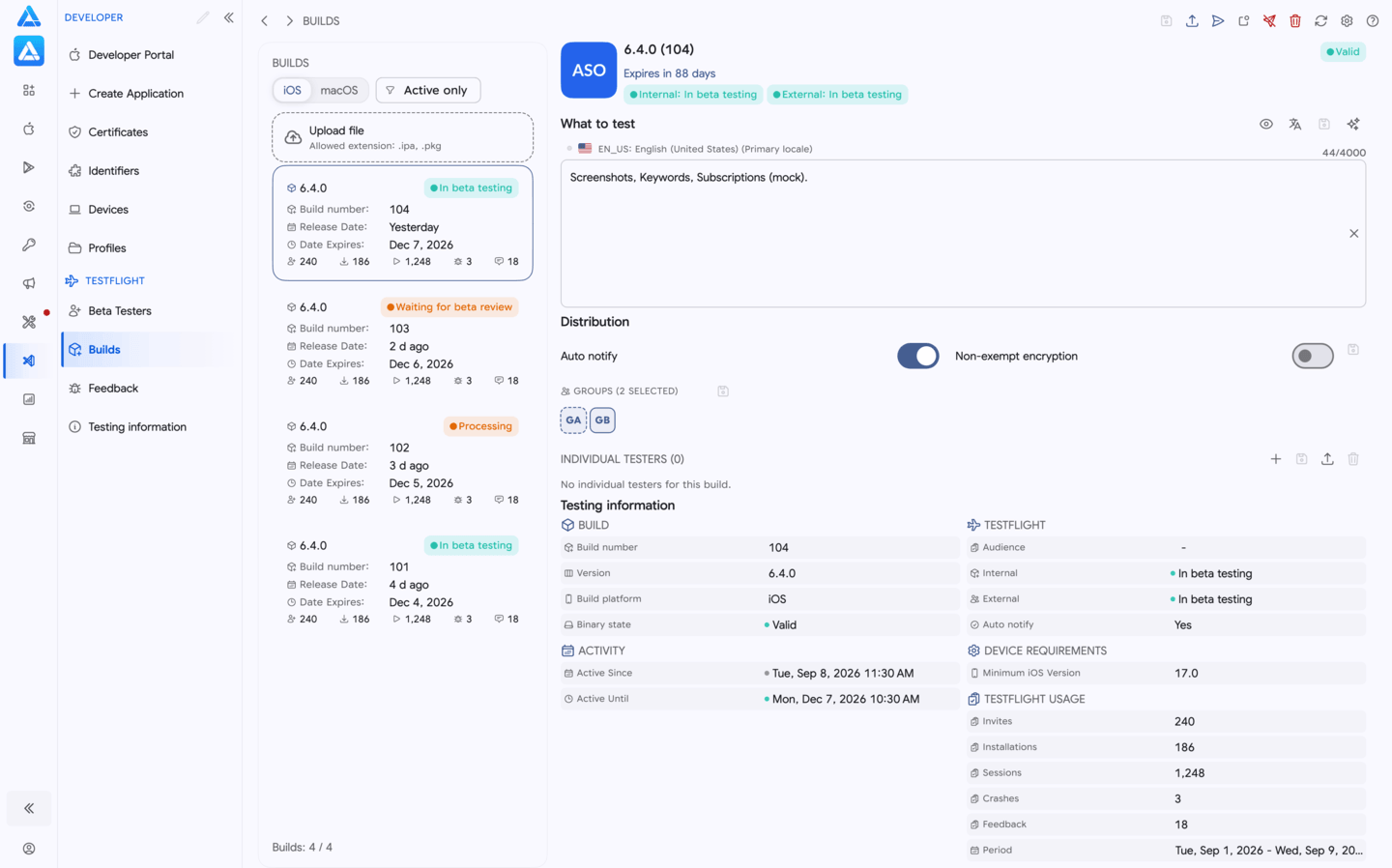
The Builds page is the TestFlight control screen for uploading and managing builds.
Upload an .ipa or .pkg file directly from this page, then use it to check build status, write localized What to Test instructions, choose the beta audience, save distribution changes, submit the build for Beta App Review when needed, notify testers, mark old builds inactive, or add a tested build to an editable App Store release.
When to Use It
Section titled “When to Use It”Use this page when you need to:
- upload an iOS
.ipaor macOS.pkgfile to App Store Connect; - check processing, activity, testing, and Beta App Review status;
- prepare localized What to Test text for testers;
- assign a build to internal or external beta groups;
- add individual testers outside the group flow;
- import individual testers from Excel or CSV;
- notify assigned testers after the build is available;
- mark a build inactive when it should no longer be tested;
- add a validated build to an editable App Store release;
- remove all build-specific individual testers before cleanup or app transfer.
Upload a Build
Section titled “Upload a Build”ASO.dev supports direct upload of .ipa and .pkg files from the Builds page.
You can start an upload in any of these ways:
- click Upload at the top of the page and select a file;
- drop a file onto the upload area in the first card of the build list;
- drag and drop a supported file anywhere onto the page - the entire screen works as a drop target.
The upload card in the version sidebar keeps this action close to the build history, while page-wide drag and drop is convenient when the file is already open in Finder or Explorer.
Build List
Section titled “Build List”The left sidebar shows the upload card first, followed by the list of app versions and their uploaded TestFlight builds. This keeps version navigation visible while you work with the selected build.
It is built for long build histories: you can work with active builds only, load the next page, or pull a larger archive for audit and cleanup.
Main controls:
- Upload - selects an
.ipaor.pkgfile for upload. - iOS and macOS - switch platform.
- Active only - hides inactive or expired builds.
- Filter - narrows the build list.
- Load more - loads the next page from App Store Connect.
- +1000 and Load all - load older build history.
- Reload - refreshes the list and selected build.
Each row shows the app version, build number, activity status, upload date, expiration date, and release marker when the build is already linked to a release.
Build Details
Section titled “Build Details”The details panel answers the questions that matter before distribution:
- Is the build processed and active?
- Is it available for internal or external testing?
- Does external testing require or already have Beta App Review status?
- Which App Store release version is it connected to?
- When does the build expire?
- Are there usage, crash, or feedback signals?
ASO.dev also shows minimum OS versions, encryption state, audience, groups, individual testers, and other TestFlight metadata when Apple returns those objects through the API.
Page Actions
Section titled “Page Actions”- Save - writes staged changes, including What to Test edits, group changes, tester changes, and build settings.
- Reload - loads fresh App Store Connect data. If there are unsaved changes, ASO.dev warns before discarding them.
- Submit to Beta Review - sends the selected build through Apple’s external beta review flow when required.
- Add to Release - assigns the build to an editable App Store version.
- Notify Testers - sends a TestFlight notification to all assigned testers when Apple allows it.
- Mark Inactive - marks the build inactive so it is no longer available for active testing.
- Remove All - removes loaded individual testers from the selected build.
Apple controls whether each action is available. Read-only access, missing review state, inactive builds, or the absence of an editable release can disable a button.
What to Test
Section titled “What to Test”What to Test is the localized instruction text testers see in TestFlight.
Use it to describe what changed, what needs verification, which account or data to use, and what feedback you expect from testers.
Useful actions:
- Edit - update the primary locale or any additional locale.
- Show localizations and Hide localizations - expand or collapse all beta testing localizations for this field.
- Copy previous - reuse the text from an earlier build.
- Translate - translate the base locale into every localization for this field.
- Translate overwrite - regenerate existing localized text.
- AI rewrite - turn rough text in any language into three polished English variants.
- Save - writes changed localizations to App Store Connect.
Use when the draft has the right meaning but needs cleaner tester-facing English. AI prompts can be customized to match your team’s preferred tone, structure, and level of detail.
Apple limits each What to Test localization to 4,000 characters. ASO.dev shows the counter, tracks unsaved edits, and warns before refresh or navigation would discard changes.
Beta Group Widget
Beta groups are shared across TestFlight screens. On the Beta Testers page they organize people. On the Builds page they decide which audience receives the selected build.
Use groups for stable testing cohorts:
- internal QA and developers;
- external customers;
- agencies or reviewers;
- press and launch partners;
- feature-specific beta rounds;
- public-link campaigns.
The widget can show the group name, internal or external type, tester count, linked build count, public link state, and group settings Apple exposes through App Store Connect.
Two-letter group avatars use a dashed border for internal groups and a solid border for external groups. Hover a group avatar to see the testing type and linked build count.
Main controls:
- Group selector - chooses the active group or the groups linked to the current build.
- Add - creates a new beta group.
- Delete - removes the selected group after confirmation.
- Save - writes staged group changes to App Store Connect.
- Public link - shows the TestFlight public link when public link access is enabled.
- Settings - opens group options when Apple returns editable settings.
When creating a group, ASO.dev asks for the group name and whether it should be internal. When editing an existing group, Apple can expose public link options, tester limits, feedback settings, iOS-on-Mac availability, and Apple Vision availability.
Group changes are staged first. Review the group membership or build assignment, then click Save to apply the changes.
Groups and Individual Testers
Section titled “Groups and Individual Testers”Groups are the default distribution layer. They are easier to audit, reuse, and remove after a beta round.
On the build page, the group widget controls which beta groups receive the selected build. Group changes are staged first and applied only after Save.
Individual testers are for exceptions: a stakeholder, reviewer, customer, or developer who should receive this specific build outside the normal group structure.
Individual tester actions:
- Add - enter email, first name, and last name.
- Import - add a list from
.csv,.xlsx, or.xls. - Save - creates or links testers and assigns them to the build.
- Revert changes - clears pending edits.
- Remove all - marks loaded individual testers for removal from this build.
When saving, ASO.dev checks whether each email already exists as a beta tester. Existing testers are linked to the build; new testers are created and then linked.
Remove all is useful before an app transfer, after a private beta, or before rebuilding a cleaner testing audience. It removes the build relationship, not necessarily the tester record itself.
Settings and Metrics
Section titled “Settings and Metrics”Build settings are saved separately from the testing audience:
- Auto Notify - controls automatic tester notification when Apple supports it.
- Non-Exempt Encryption - updates the build encryption flag.
When Apple returns TestFlight usage data, ASO.dev summarizes invitations, installs, sessions, crashes, feedback, and first or last usage dates.
Use these signals before release: a build with little usage, repeated crashes, or unresolved feedback usually needs another test pass.
Practical Workflow
Section titled “Practical Workflow”Prepare External Testing
Section titled “Prepare External Testing”- Select the newest active build.
- Check processing, expiration, internal testing, external testing, and Beta App Review status.
- Write or copy localized What to Test text.
- Assign the right beta groups.
- Add individual testers only for exceptions.
- Save distribution and text changes.
- Use Submit to Beta Review if external testing requires Apple review.
- Use Notify Testers after Apple allows testing.
Move a Build Toward Release
Section titled “Move a Build Toward Release”- Review usage, feedback, and crash count.
- Confirm that the build is active.
- Check that the release version is editable.
- Use Add to Release.
Clean Up Before an App Transfer
Section titled “Clean Up Before an App Transfer”- Export or record the active testing audience if you need an audit trail.
- Select each active build that has individual testers.
- Use Remove all for individual testers linked to the build.
- Mark builds inactive when they should no longer be available for testing.
- Reload and verify the old testing audience is no longer linked.
Permissions and Limits
Section titled “Permissions and Limits”Reading builds requires App Store Connect API access to builds and related TestFlight resources.
Beta review submission, notification, group assignment, individual tester assignment, encryption changes, adding a build to a release, and marking a build inactive require write permissions.
Important limits:
- normal build pages load 200 builds;
- bulk loading adds up to 1,000 builds per request;
- What to Test is limited to 4,000 characters per localization;
- inactive or expired builds are read-only for most distribution actions.