
App Review
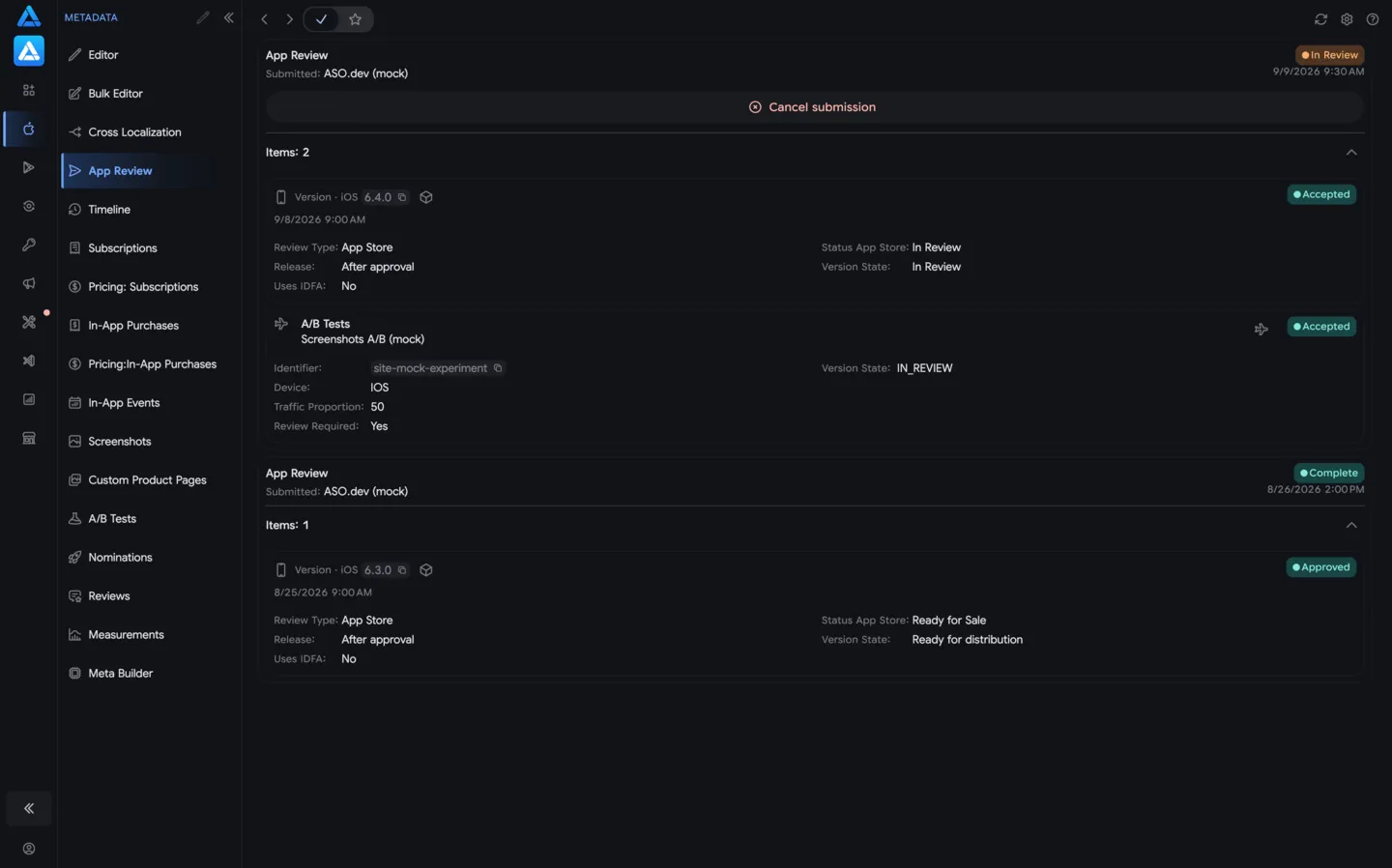
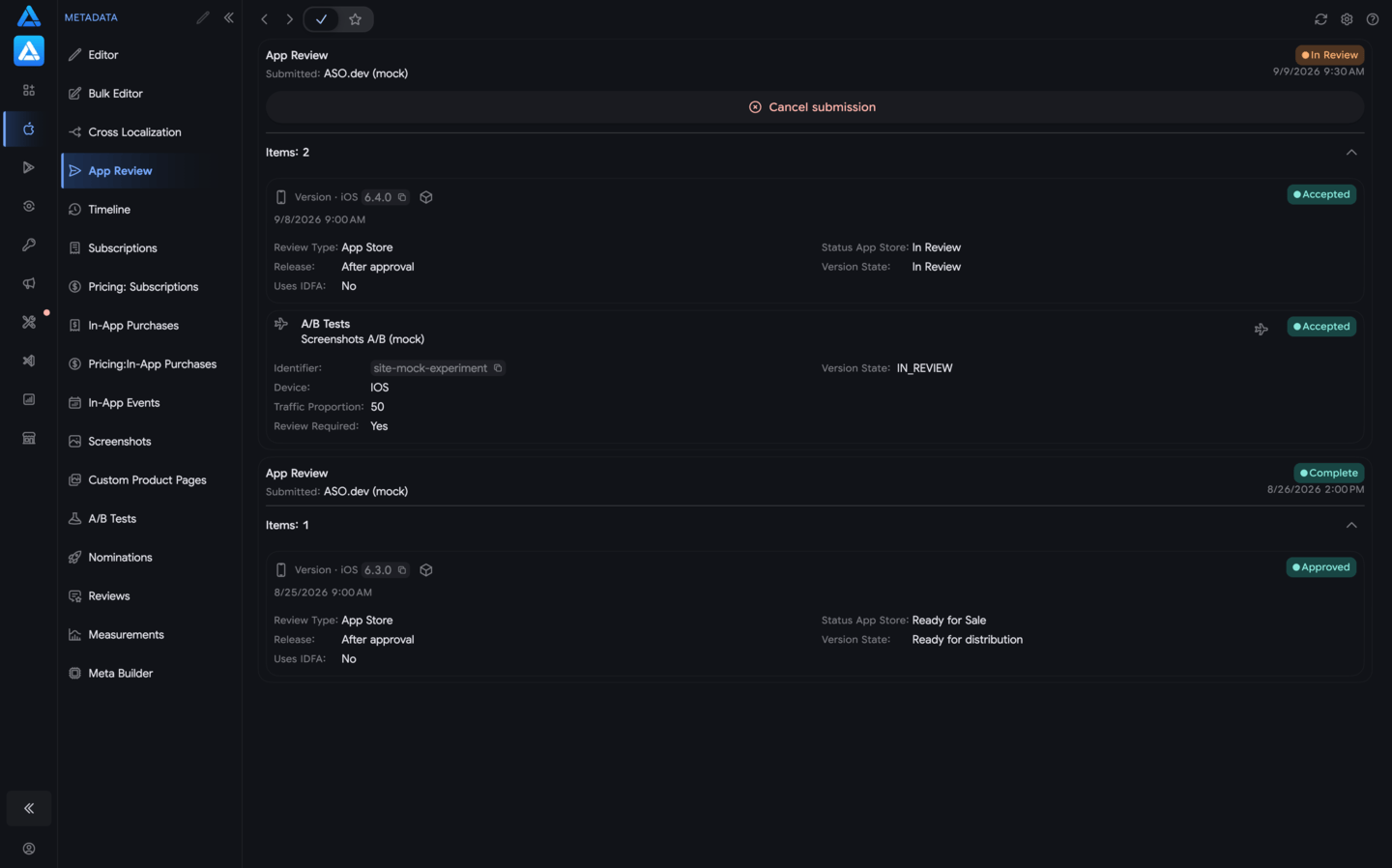
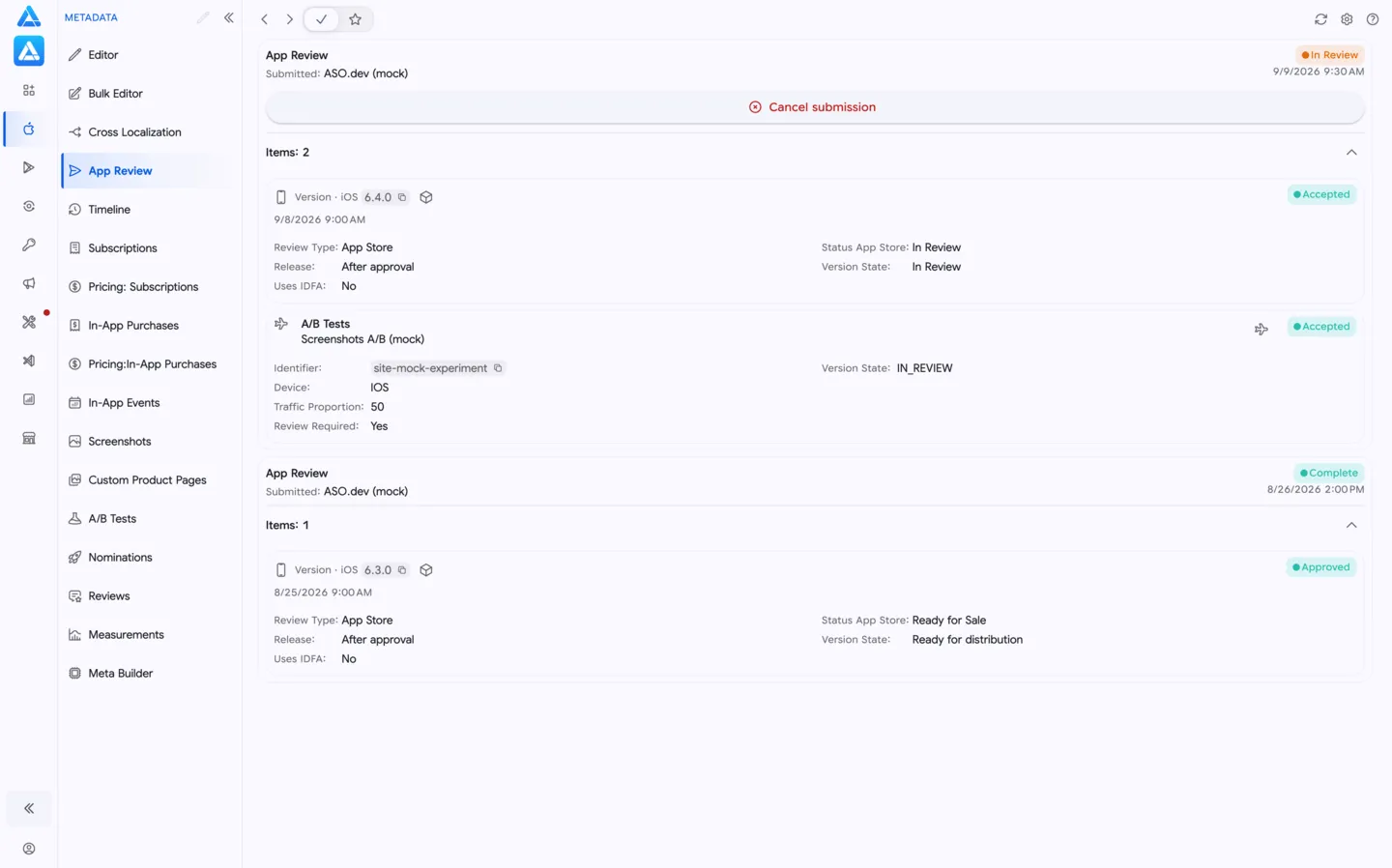
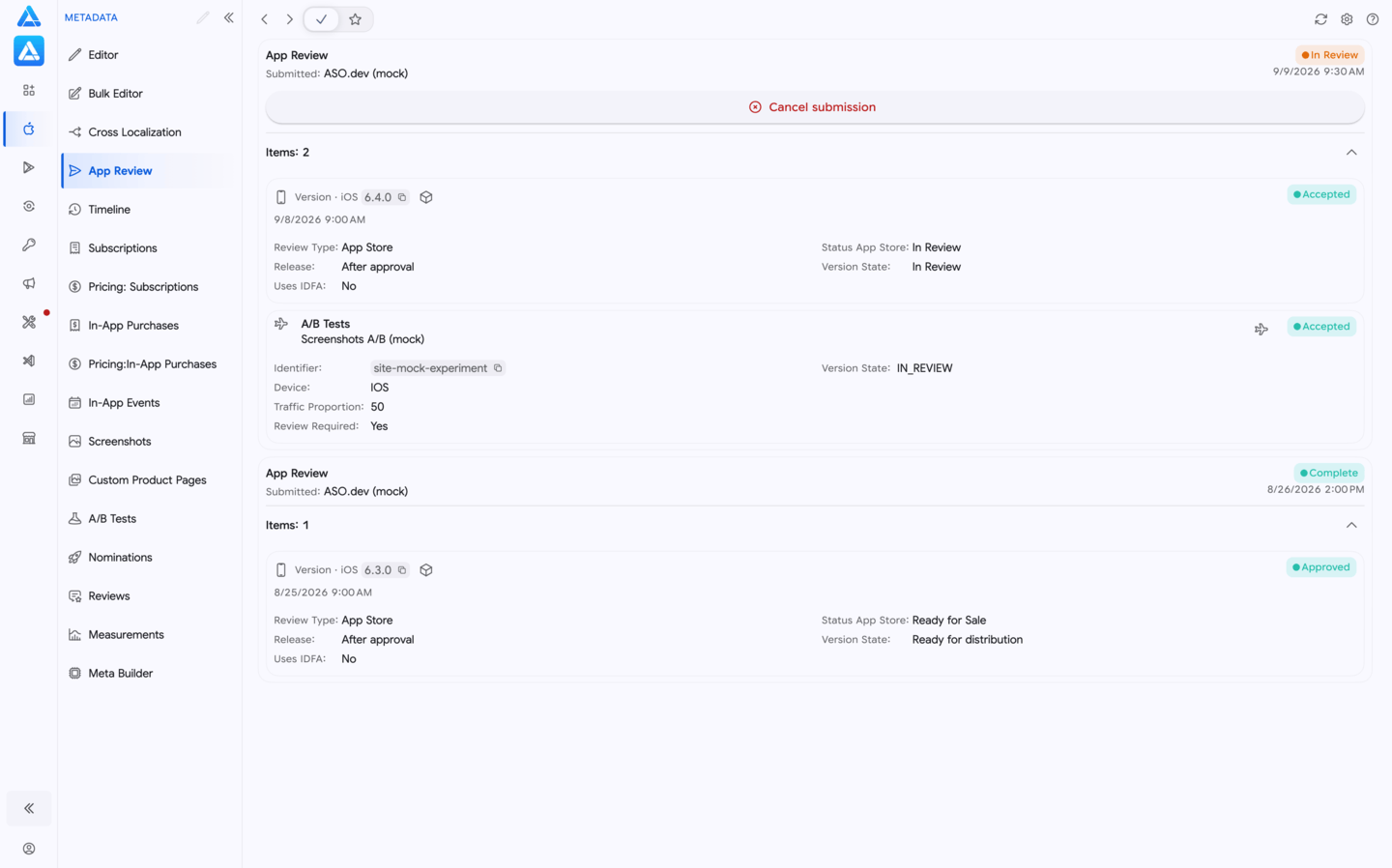
The App Review screen (Metadata → App Review) collects your App Store review submissions and your conversations with the Apple App Review team. Use it to check review statuses, manage submission items, send or cancel a submission, and reply to Apple without opening App Store Connect.
The screen has three tabs:
- Submissions — review submissions and their items.
- Messages — App Review conversations for the selected app.
- Details — the conversation you opened. This tab appears after you open a conversation.
Submissions
Section titled “Submissions”Choosing apps
Section titled “Choosing apps”Use the selector in the page header to choose which apps are included:
- — the app selected in the workspace, on all of its platforms (iOS and macOS).
- — the favorite apps of the workspace.
- ∞ — all apps in the App Store Connect account. Apps added manually are not included.
Each option keeps its own loaded list, so you can switch between them without losing your place.
Submission list
Section titled “Submission list”Submissions are divided into two groups:
- Active submissions — every submission that is not complete. Submissions with unresolved issues are shown first.
- Submission history — completed submissions.
Within each group, submissions are sorted by submission date, newest first. More submissions load as you scroll. The list is not refreshed on a timer: changes made in App Store Connect and status updates from Apple appear after you reload the page or the submission card.
Each submission card shows:
- the submission status;
- the platform, app version and build number;
- Includes an app version or Additional content, depending on whether the submission contains an app version;
- Submitted — who sent the submission (a team member, an API key or Apple) and when; Modified — who changed it last;
- the app and its App ID;
- Messages — opens the App Review conversations linked to this submission, if there are any;
- Items — the number of items. Expand it to see every item with its own status.
Items can be app versions, custom product pages, product page optimization tests, in-app events, in-app purchases, subscriptions and subscription groups, and other content Apple includes, such as background assets or Game Center components. From most items, you can open the related editor. An app version item shows the selected build and opens it in the Builds section.
Statuses
Section titled “Statuses”| Submission status | Meaning |
|---|---|
| Ready for review | A draft. You can add or remove items and send it. |
| Waiting for review | Sent and waiting for App Review. |
| In review | Apple is reviewing the submission. |
| Unresolved issues | Apple rejected at least one item. |
| Canceling, Completing | Apple is processing a cancellation or the end of the review. |
| Complete | The review is finished. The submission moves to the history. |
Items have their own statuses: Ready for review, Accepted, Approved, Rejected and Removed. For app version statuses in App Store Connect, see Application statuses.
Actions
Section titled “Actions”- Submit to App Review — sends a submission in Ready for review or Unresolved issues when every remaining item is ready for review or accepted. It is unavailable while App Review is still processing another submission of the same kind: one with an app version, or one with other content only. For purchases and subscriptions, ASO.dev checks their requirements again before sending.
- Cancel submission — withdraws a submission that is waiting for review or in review.
- Mark as corrected — available for a rejected item when the submission has unresolved issues. Save your changes in the editor first, then confirm.
- Remove from review — removes one item from a draft or from a submission with unresolved issues.
- Delete all: Items — empties a draft when every item in it can be removed.
- Reload — reloads the submission, its items and the linked conversations.
Each action opens a confirmation with the current contents of the submission and its own reload button. If the submission has changed and the action no longer applies, the confirmation is disabled.
Messages
Section titled “Messages”Open the Messages tab, or press Messages on a submission card to see only the conversations linked to that submission; if there is only one, it opens directly. Conversations are sorted by their latest activity.
Connecting your Apple ID
Section titled “Connecting your Apple ID”Messages are loaded through your App Store Connect account, not through the API key. If no account is connected, the tab shows a sign-in form: enter your Apple ID email and an app-specific password, then press Check. The Apple ID must have access to the team that owns the app. The password is stored on your device.
To change the account later, use App Store Connect Account in the page header.
Conversation list
Section titled “Conversation list”Each conversation card shows:
- the type: Review issues for a rejection, or Messages for other correspondence;
- the conversation status (open, active or closed) and the status of the current submission;
- the related app version and build;
- the date of the last update or, for a new conversation, the creation date.
Reading a conversation
Section titled “Reading a conversation”Open a conversation to switch to the Details tab. It shows:
- a summary with the related version and build, the rejection reasons with their guideline numbers, and Copy ID;
- the submission with its status, Open submission and Current submission contents — the items and their statuses;
- every message with its author (Apple or the developer), date, text, rejection reasons and attachments. Download file saves an attachment, and Preview opens images and videos.
Replying to Apple
Section titled “Replying to Apple”Use the Reply draft block at the end of the conversation:
- Type your reply, or prepare one with AI · Generate.
- Attach files with Add attachment. Attachments already saved in the draft can be removed with Delete.
- Press Save to store the reply and attachments as a draft in App Store Connect, or Send Reply to send them to App Review.
Discard reverts unsaved changes. Delete draft on save removes the saved draft when you save next time. If you leave the conversation with an unsaved reply, ASO.dev asks whether to Save it, Discard it or Stay.
If Apple no longer accepts replies in the conversation, the reply field becomes read-only. If the draft was changed in App Store Connect while you were editing, your local text is kept. Copy it before you discard local changes and load the server draft.
AI reply draft
Section titled “AI reply draft”AI · Generate prepares a suggested reply based on:
- the conversation and Apple’s rejection reasons;
- the app, platform, version and submission status;
- the text you have already typed in the reply field;
- relevant metadata from the Editor if it is already loaded for the app: name, subtitle, description, What’s New, promotional text and review notes.
The suggestion appears separately from your reply. Apply inserts it into the reply field, and Discard closes it.
Adding items to a submission
Section titled “Adding items to a submission”Items are added from the editors. The review action (the paper plane button) is available in:
- the Editor and the Screenshots and Video Mass Uploader — for the app version;
- custom product pages and product page optimization — for a page version or a test;
- In-App Events — for an event;
- In-App Purchases and Subscriptions — for products and subscription groups. To add several products at once, use Add products to a review submission.
The action menu contains:
- Submit For Review — for an app version that is not in any submission: creates a submission, adds the saved version and sends it after confirmation. It also appears for a draft that already contains the version.
- Add for Review — opens the draft picker.
- the submissions that contain the item, with their status — open the submission on the App Review screen;
- Remove from review — removes the item from its submission;
- App Review — opens the App Review screen.
Choosing a draft
Section titled “Choosing a draft”The Choose a submission dialog lets you select a draft (a submission in Ready for review) for the same app and platform, or New submission. For purchases and subscriptions, ASO.dev recommends a draft that already contains the same subscription group, another subscription from that group, or a compatible app version.
The dialog shows:
- Already in draft — items that are already in the selected draft;
- Will be added — the selected items and the related items they need, marked Required with the selected products, such as a subscription group or an app version;
- Before adding for review — problems that block adding. A blocked item has an edit button that opens the related editor.
Confirm with Add to draft for purchases and subscriptions, or Add for Review for other content. If the item is already in the selected draft, the button changes to Open submission. After adding, the editor stays open and a notification Added to review draft offers Open App Review.
Only saved content is added. Save your changes in the editor before opening the dialog.
What ASO.dev checks
Section titled “What ASO.dev checks”For every submission:
- a submission can contain up to 200 items;
- a submission can contain only one app version;
- items can be added only to a draft.
For an app version:
- a build is selected, and the version status allows review;
- What’s New is filled in for every localization of an update;
- metadata and screenshots are saved, and screenshots pass validation.
For in-app purchases and subscriptions:
- only a saved version in Prepare for Submission can be added;
- the product has the required metadata and review information;
- a subscription group has at least one saved localization;
- if the app or this purchase type has not been approved yet, the submission must also include an app version;
- a subscription from a group that has not been approved yet must be submitted together with that group, and a new group needs at least one of its subscriptions;
- each product or subscription group can appear only once;
- purchases with content hosting cannot be added: Apple no longer accepts them for review;
- purchases and subscriptions cannot be submitted with an Apple Watch app version.