
ASO.dev Team Management: Seats and Project Sharing
Profile → Team Management lets you invite colleagues, appoint administrators, share projects, and assign subscriptions.
Subscriptions and project access are managed independently: a colleague can keep their own subscription and work with team projects.
Members and permissions
Section titled “Members and permissions”The team Owner manages membership and assigns member permissions. They can delegate project and subscription management to different people or give both permissions to one administrator.
| Role or permission | What it allows |
|---|---|
| Owner | Manage the team, billing, and subscription seats; appoint administrators. |
| Project administrator | Configure team access to workspaces that members have allowed the team to manage. This permission does not grant seat management. |
| Can manage subscriptions | Invite members, assign and reassign Stripe seats, and remove seat assignments. |
| Member | Receive access to team projects and work with them within the granted permissions. |
Project administrator and Can manage subscriptions are separate permissions. A project administrator can assign subscriptions only if they also have subscription management permission.
Members receive access to the workspaces they need to work with team projects. Administrative permissions cover managing the team, subscriptions, and shared access.
Invite a member
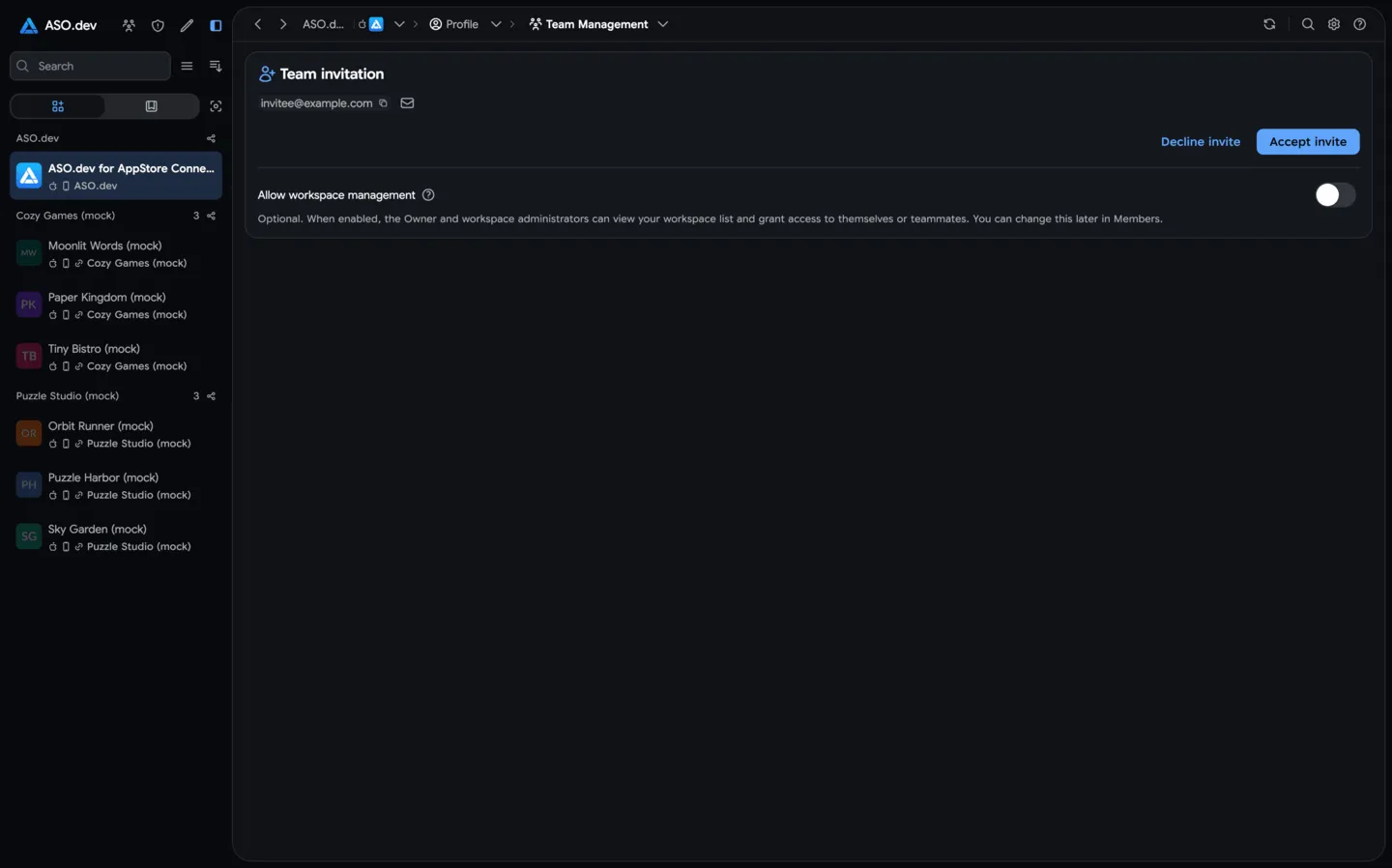
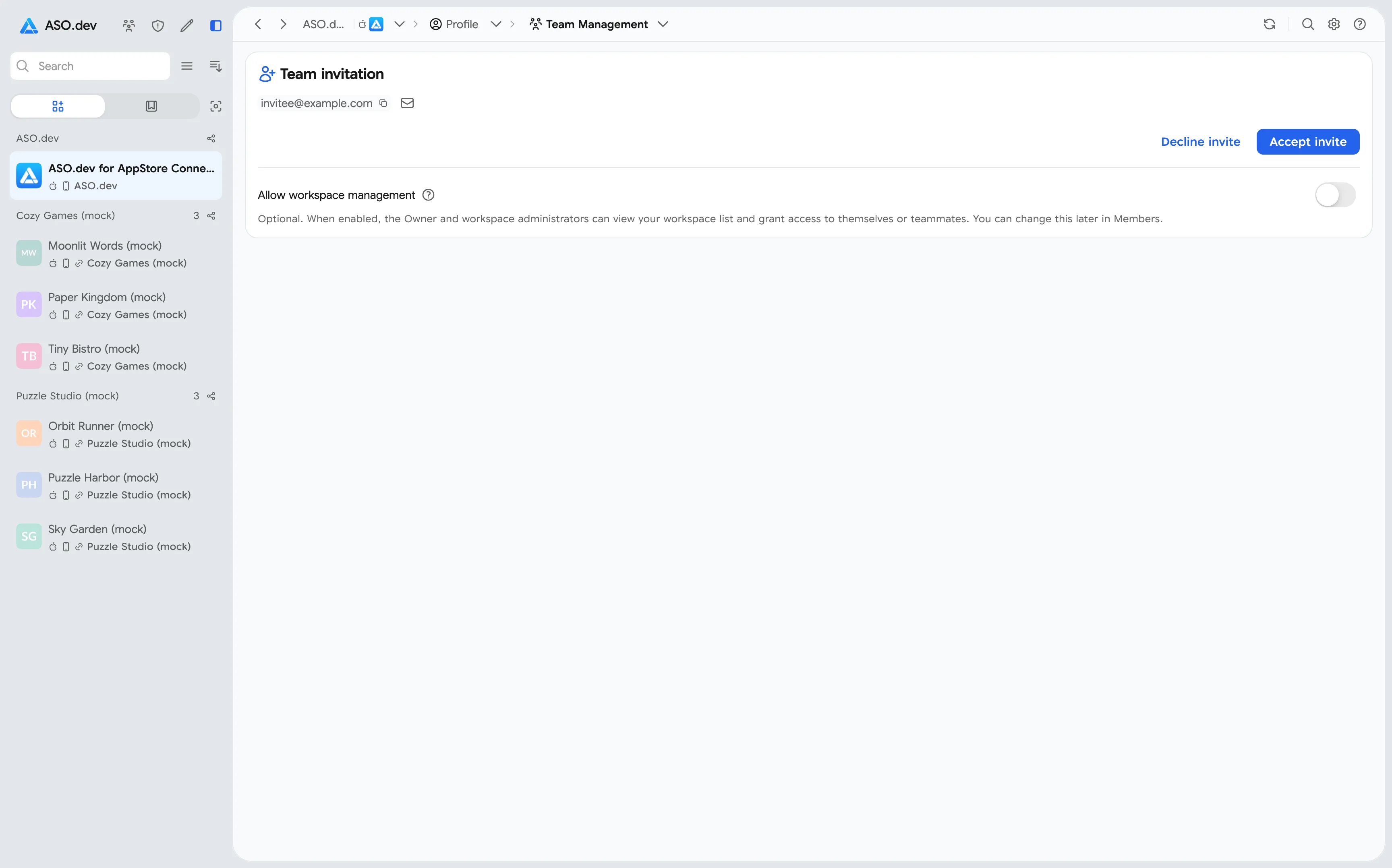
Section titled “Invite a member”The Owner or an administrator with Can manage subscriptions permission sends an invitation through Members → Invite. The colleague accepts it using their ASO.dev account. A team subscription seat is optional for joining team projects.
A user can belong to only one team. If they already belong to another, they need to leave it first.
Assign permissions
Section titled “Assign permissions”- The team Owner opens Profile → Team Management → Members and finds the colleague’s card.
- To delegate project sharing management, enable Project administrator.
- To delegate subscription assignments, grant Can manage subscriptions permission. You can set it when inviting a member or change it through their member menu.
Save and confirm project management permission changes on the main page. Project administrator permission itself does not open workspace content; workspace access is configured separately.
Team Projects Sharing
Section titled “Team Projects Sharing”A team can work with shared App Store Connect and Google Play projects. Automatic sharing is useful for a permanent team that needs existing and future workspaces. For specific tasks, you can assign access to an individual project.
Allow management of owned projects
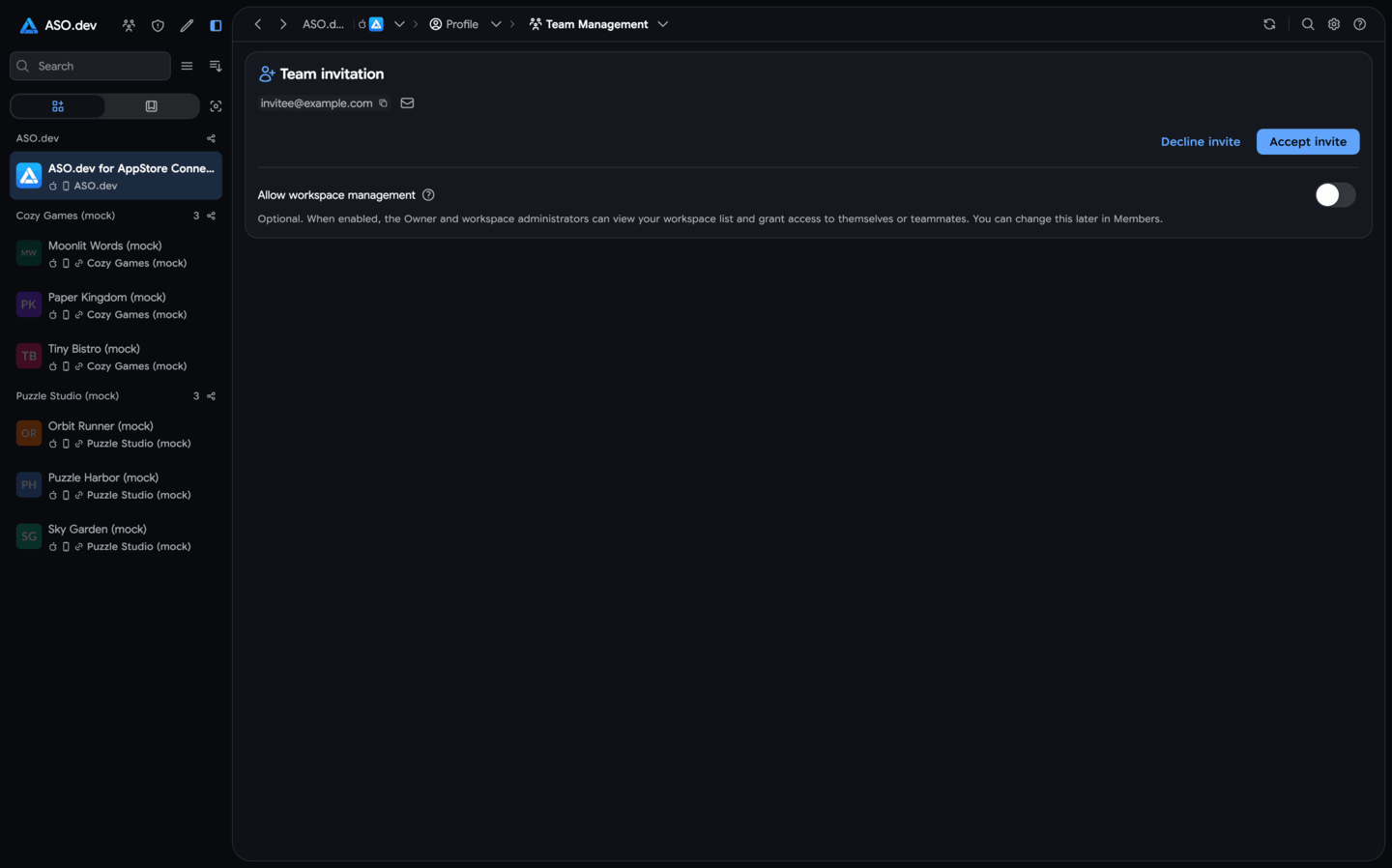
Section titled “Allow management of owned projects”When accepting an invitation, the member chooses whether to allow management of their own workspaces. They can change this permission later in Members and save it. The team Owner does not need separate consent for their own workspaces.
Enable automatic sharing
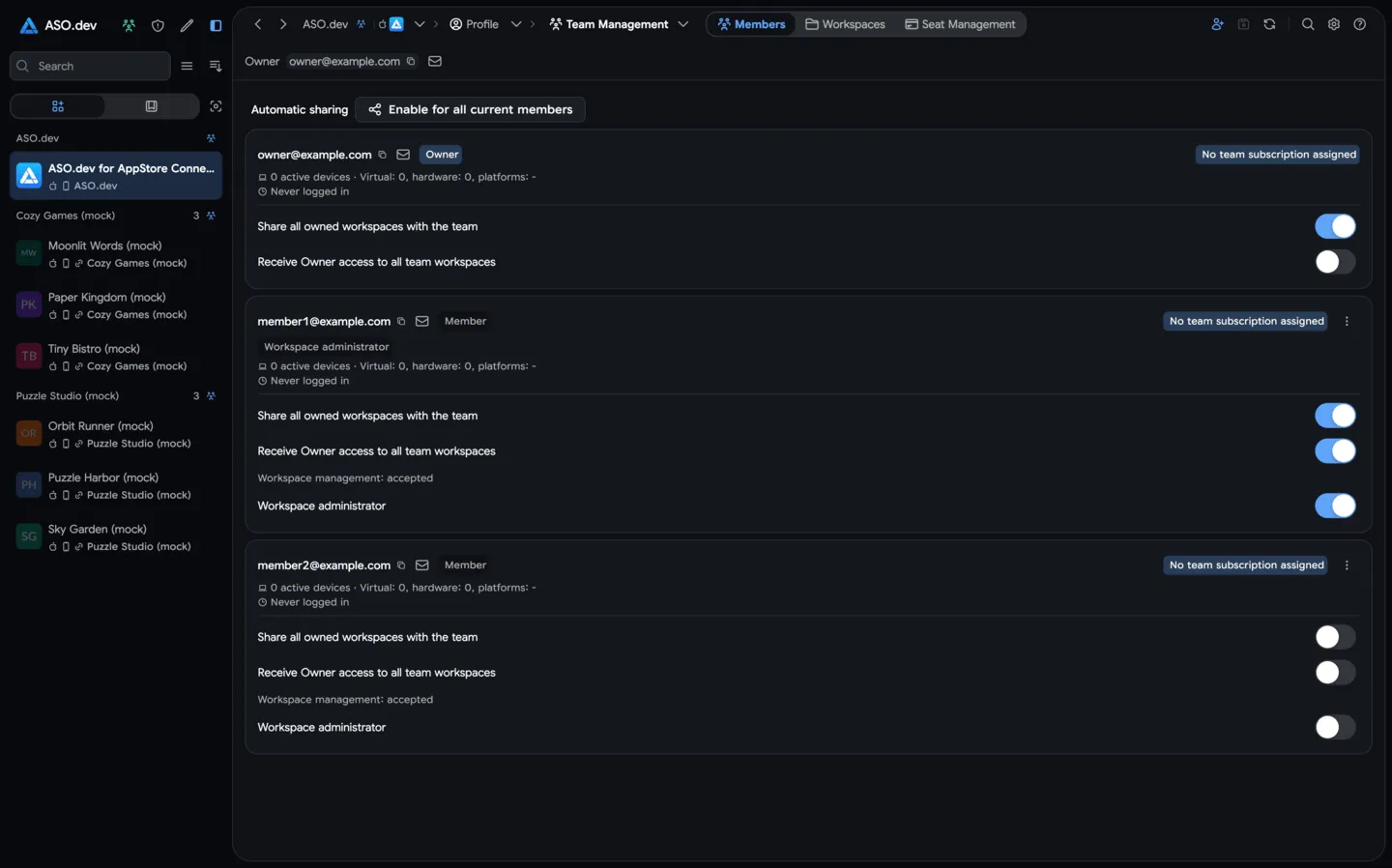
Section titled “Enable automatic sharing”The Owner or a Project administrator configures automatic sharing in Members. Each person has two independent settings:
| Setting | What it does |
|---|---|
| Share all owned projects with the team | Shares the member’s existing and future owned workspaces, provided they have allowed workspace management. |
| Receive Owner access to all team projects | Gives the member Owner access to workspaces that other members share with the team. |
To share your workspaces with a colleague, enable sharing for yourself and receiving for them. Receiving covers workspaces from every member who has enabled sharing.
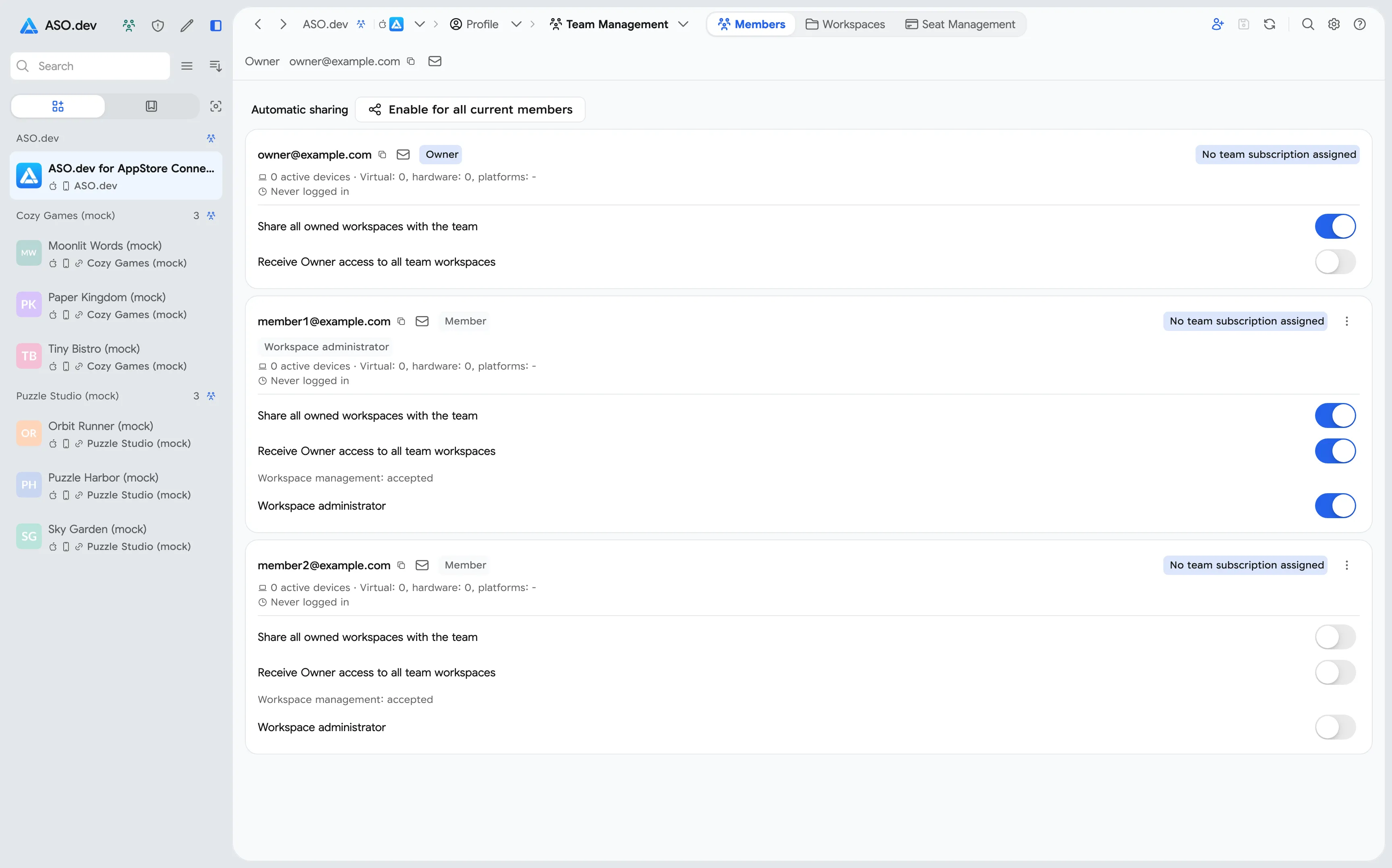
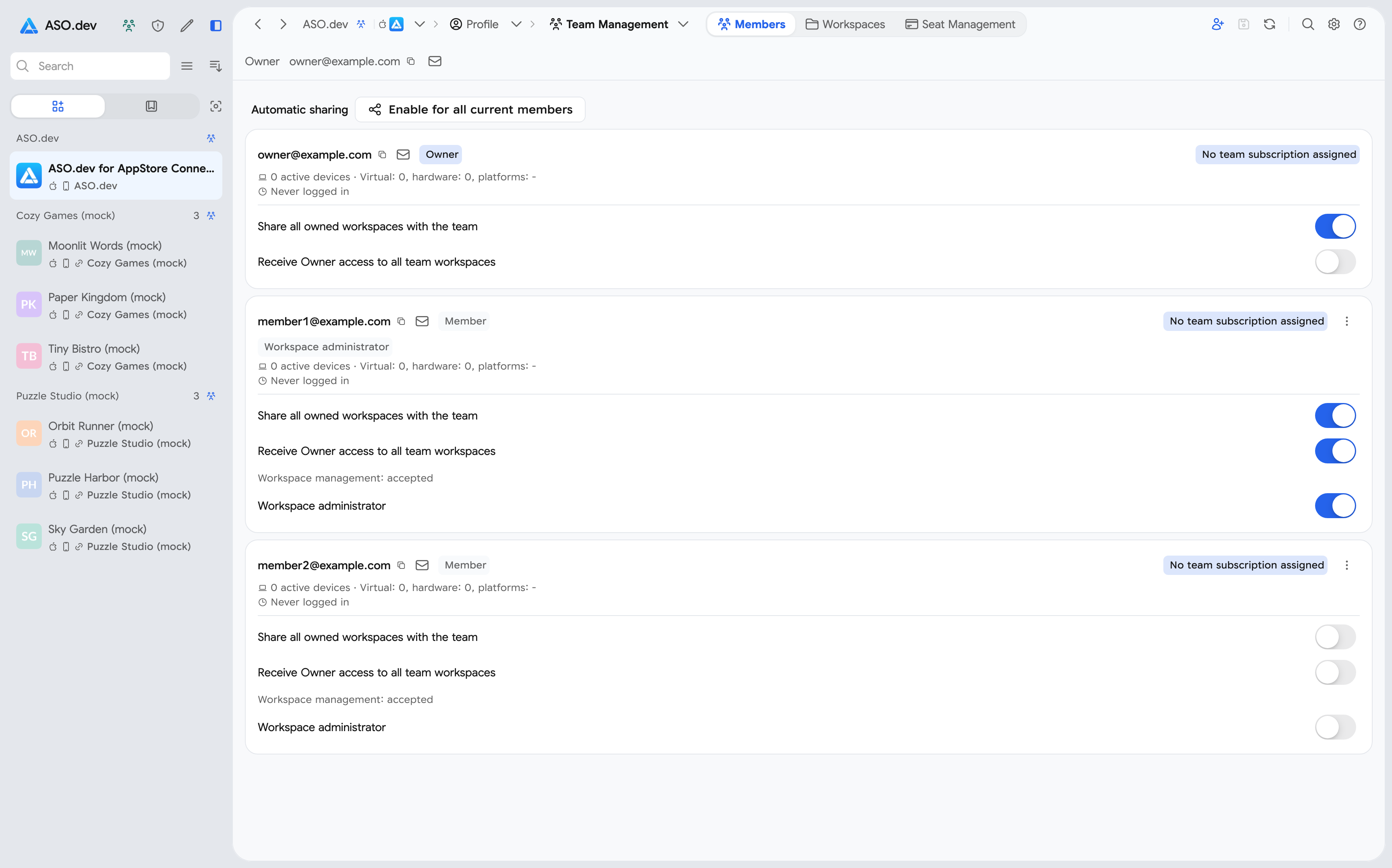
The same settings cover new workspaces. Configure sharing and receiving separately for new members. Workspaces received from users outside the team are not automatically shared onwards.
Check projects and permissions
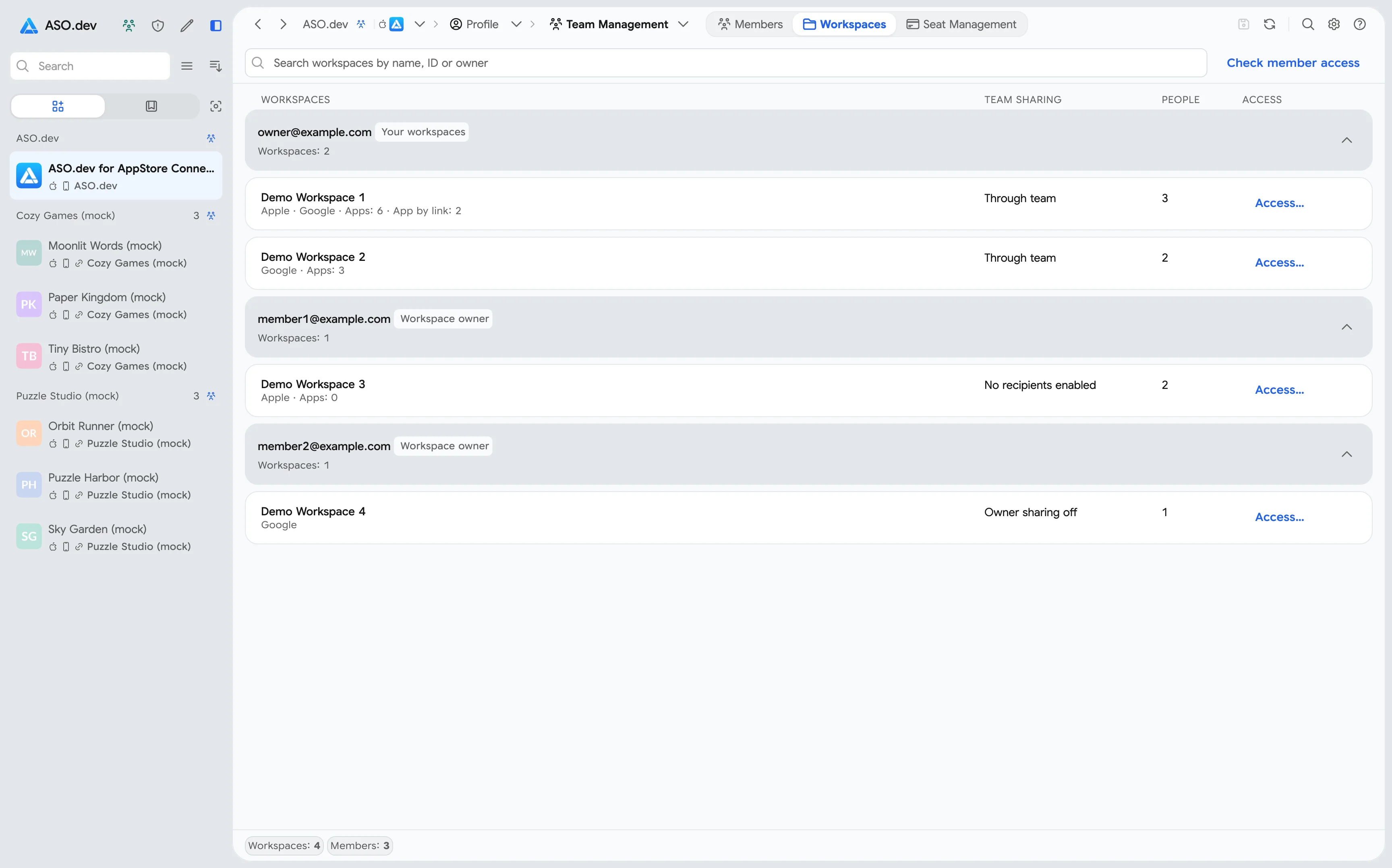
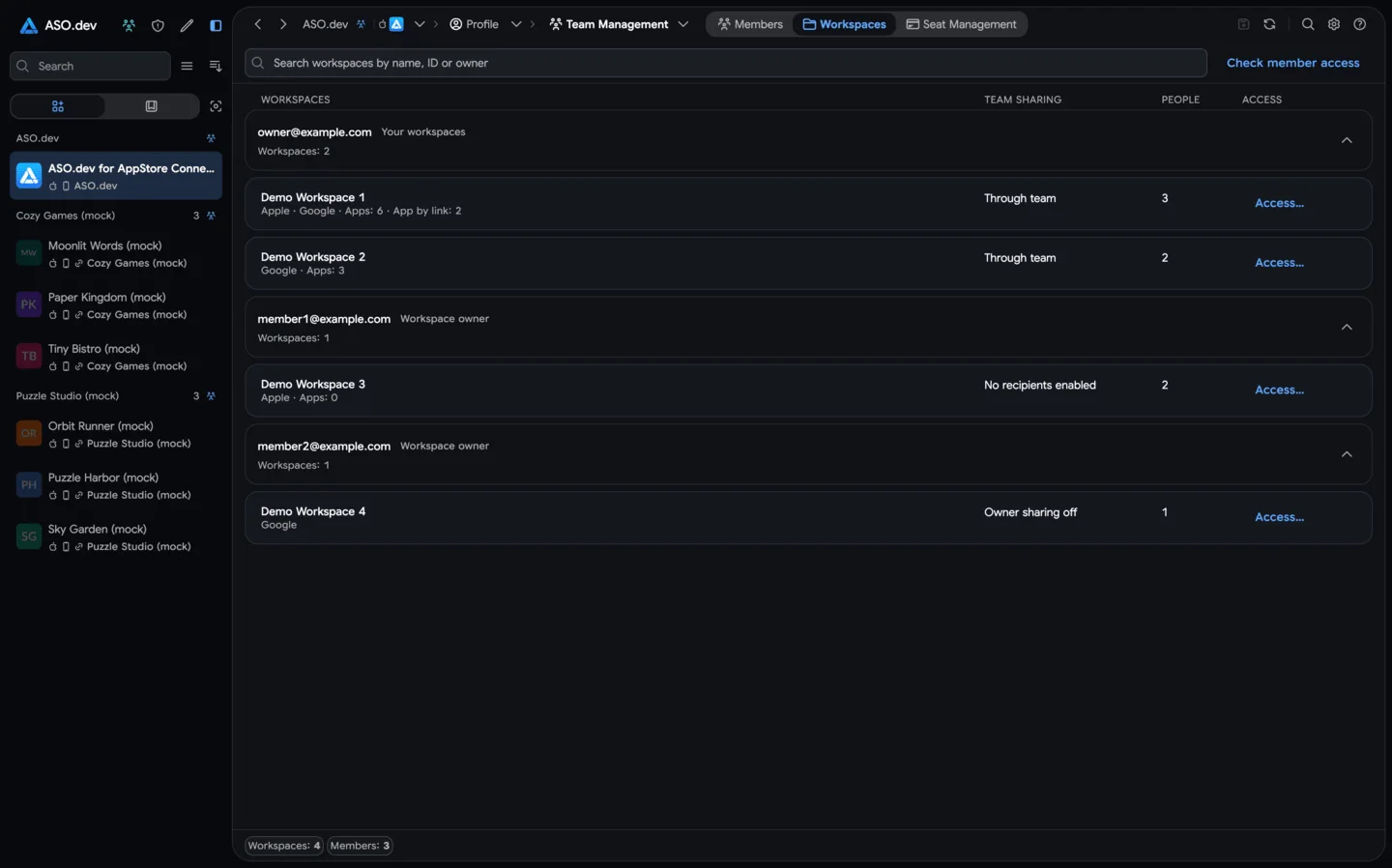
Section titled “Check projects and permissions”The Workspaces tab groups projects by their original owners. Collapse groups or search by workspace name, ID, or owner email. Members who have not allowed management show a pending-consent status.
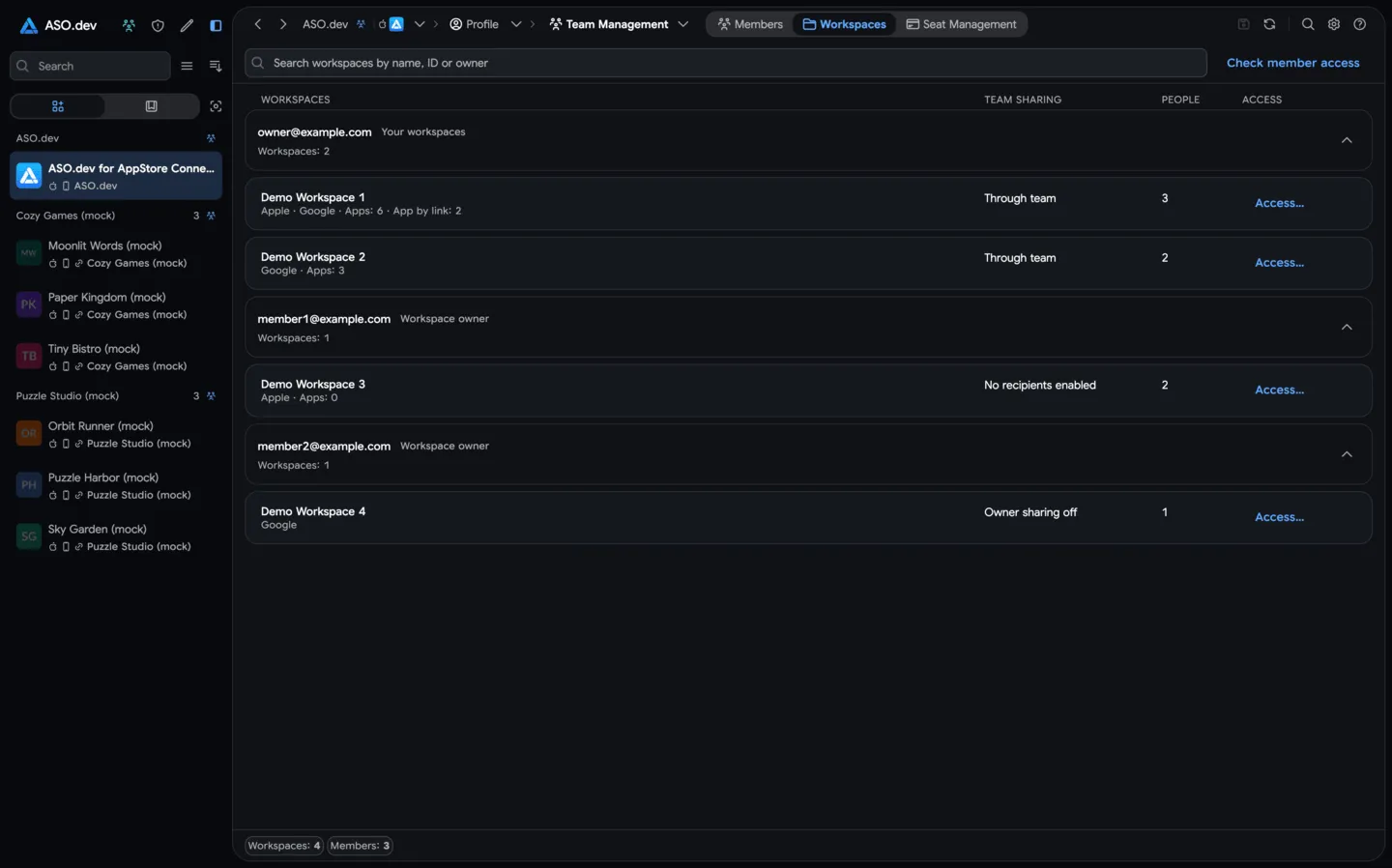
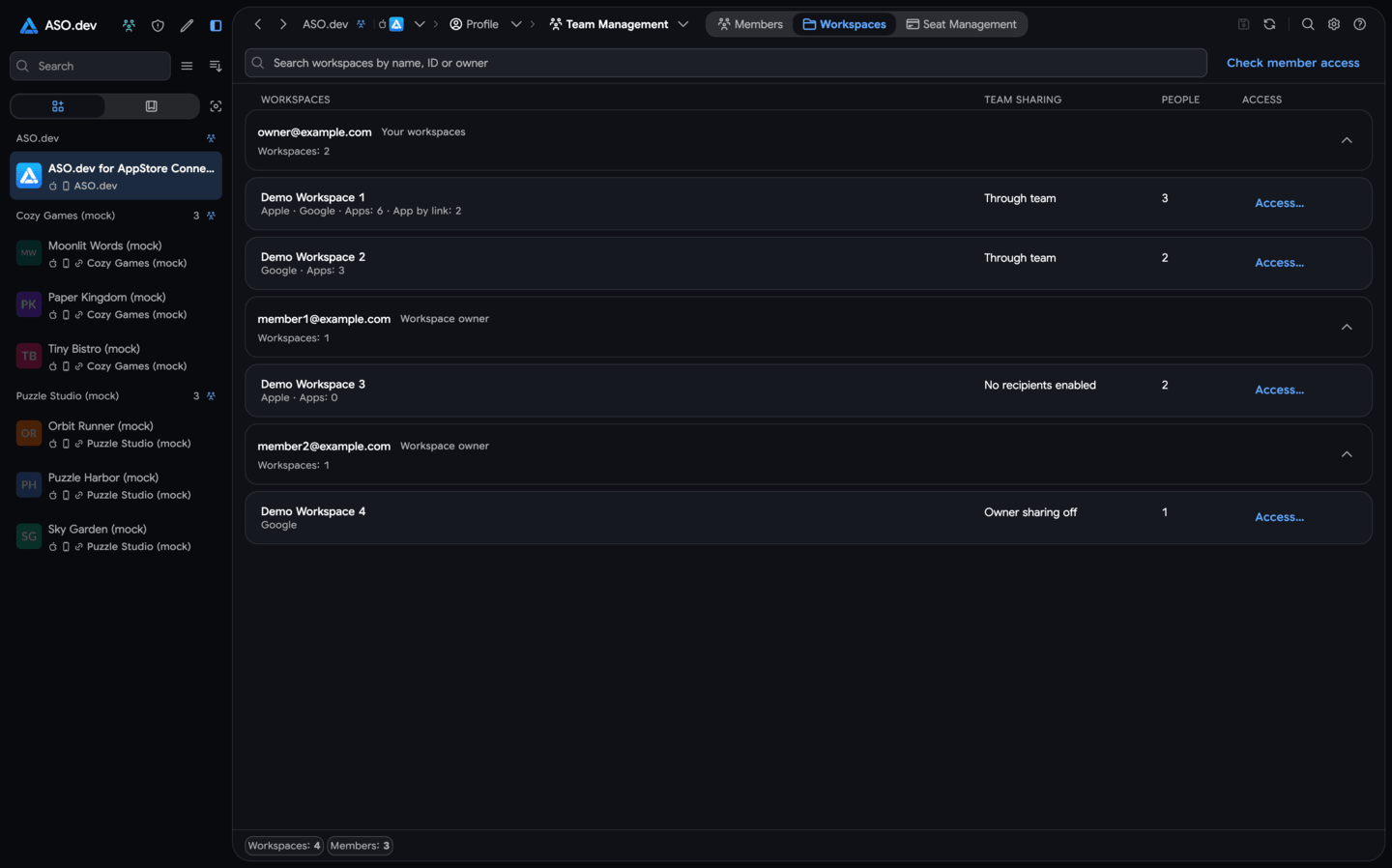
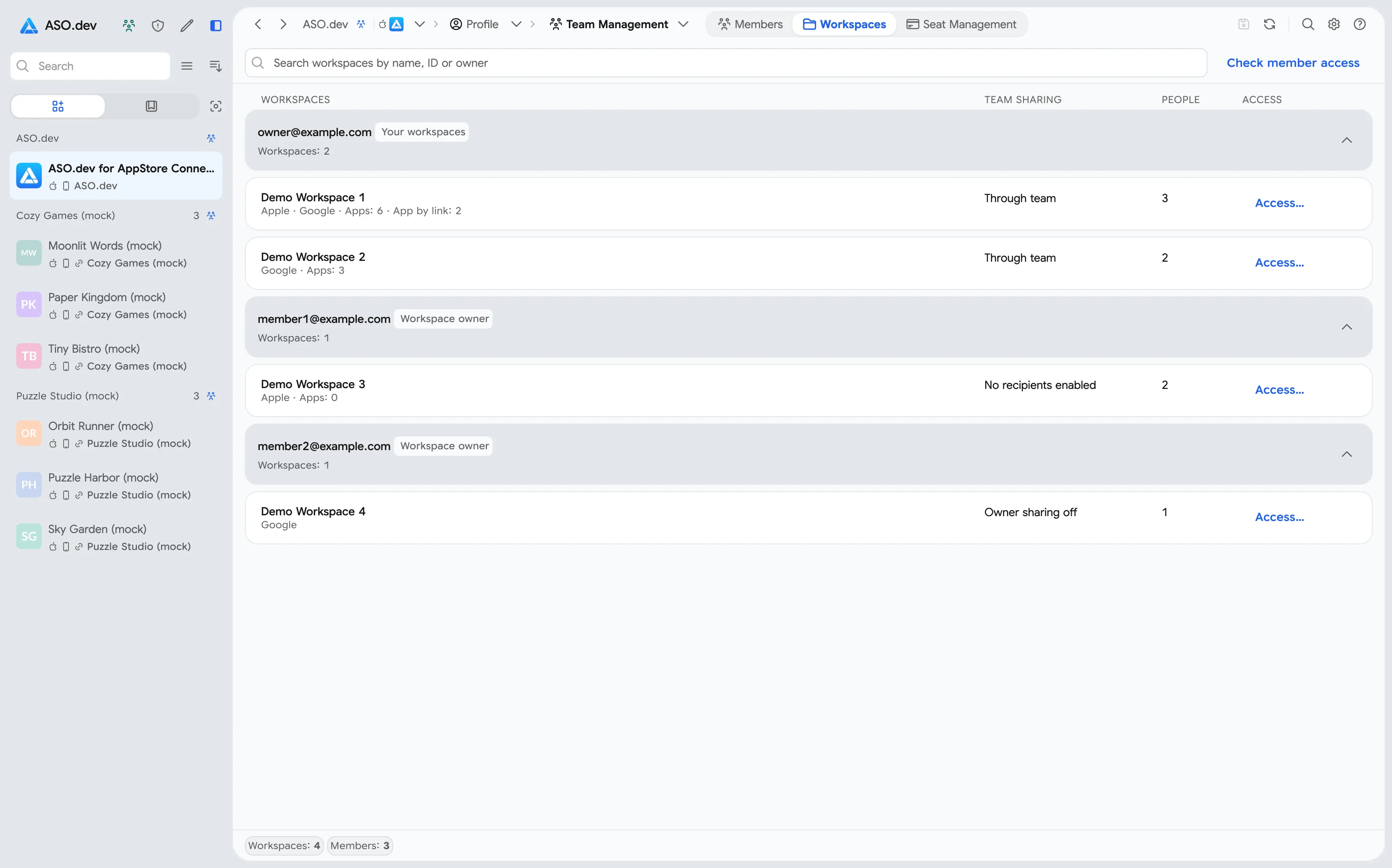
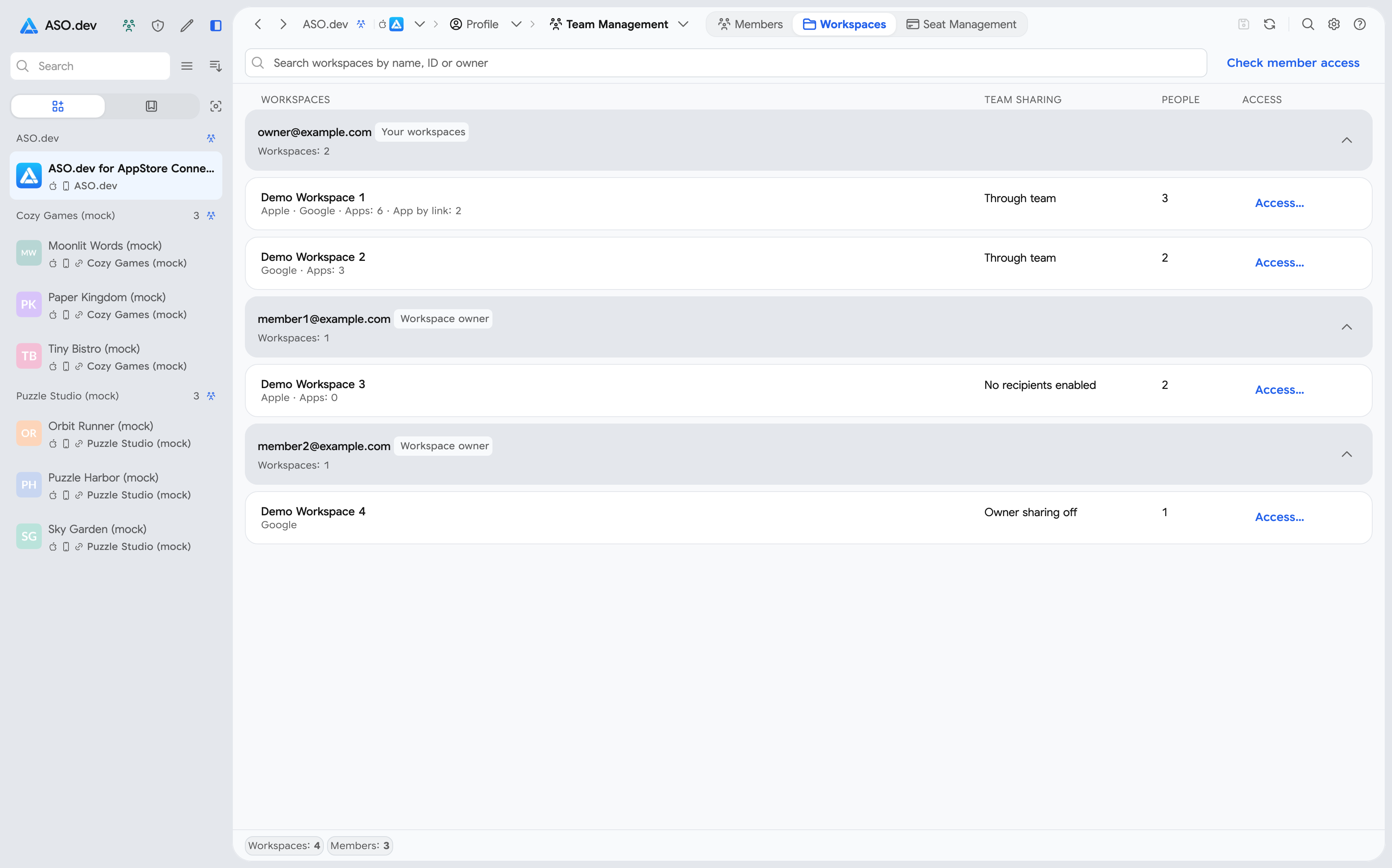
Click Access next to a workspace and select Owner, Read, or No access for each member. These are simplified permissions for the selected workspace.
Project access levels
Section titled “Project access levels”A team member can receive full project access, read-only access, or permissions for specific sections:
| Level | What the user receives |
|---|---|
| Owner | Full project access, including managing other users’ permissions. |
| Read | View the project without making changes. |
| No access | This setting does not grant access to the project. |
| Custom | Separate section permissions: Full, Read Only, or No Access. |
Select Owner, Read, or No access in Team Management → Workspaces → Access. For Custom permissions, open Tools → Access Rights in the selected workspace.
For example, give an analyst Read access to the whole project and an editor Custom access to the required sections. See the Access Rights guide for details.
Team roles and project access are assigned separately. Owner in Access Rights applies to the selected workspace; team membership and billing management depend on team roles and permissions.
Exclude a project or restrict access
Section titled “Exclude a project or restrict access”To stop automatically sharing one workspace, enable Exclude this workspace in its access settings. The project editor also offers this setting when the user belongs to a team.
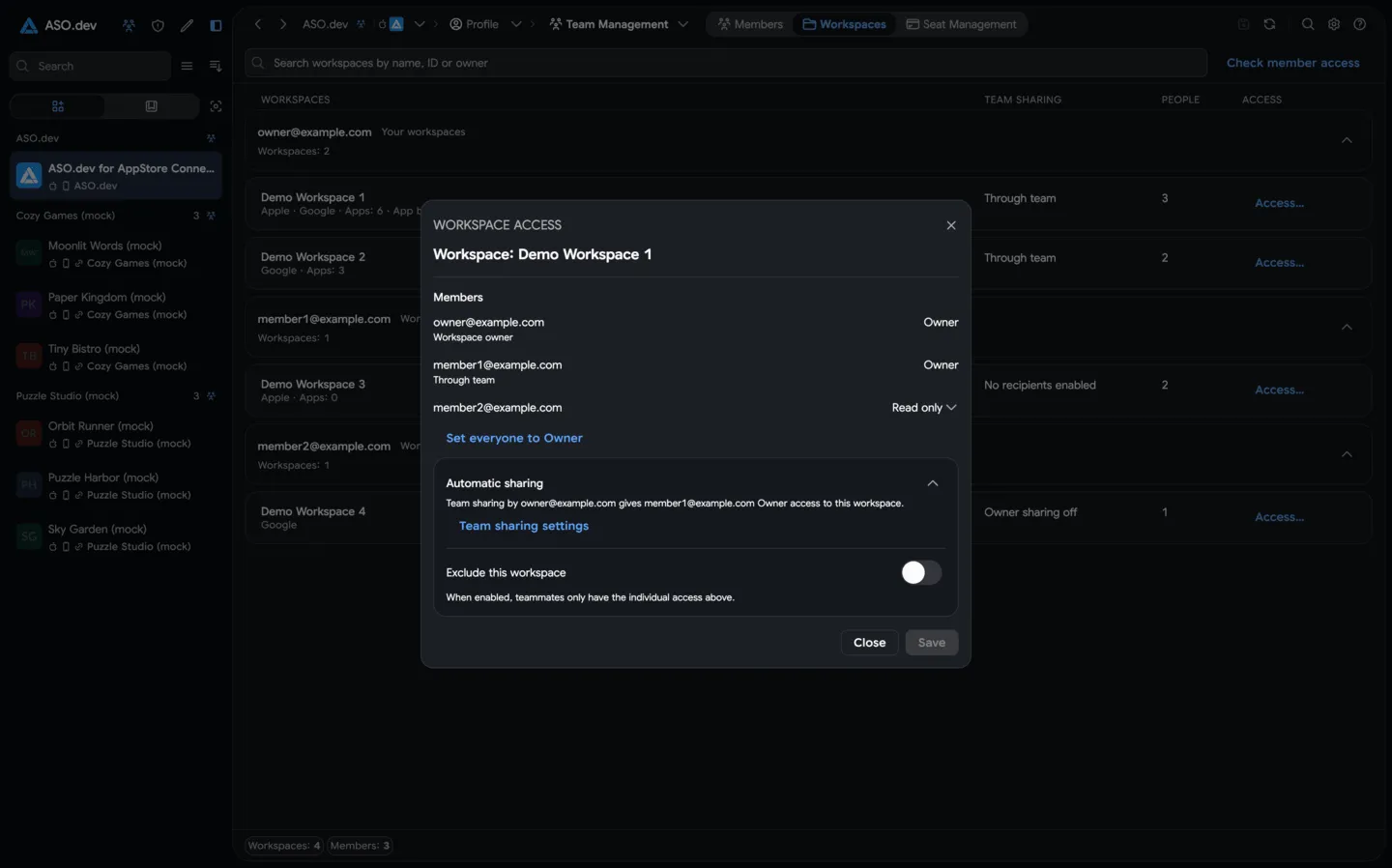
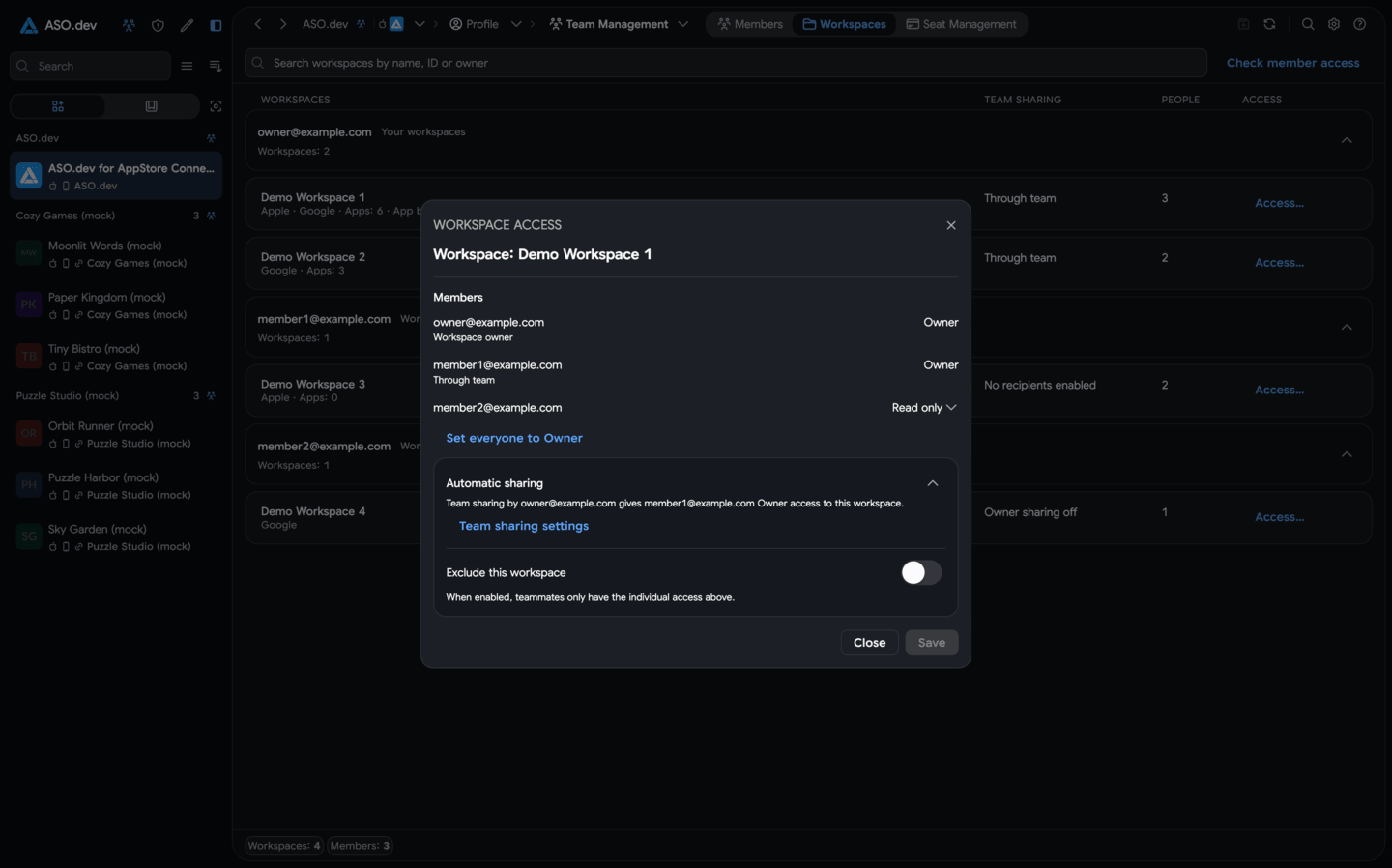
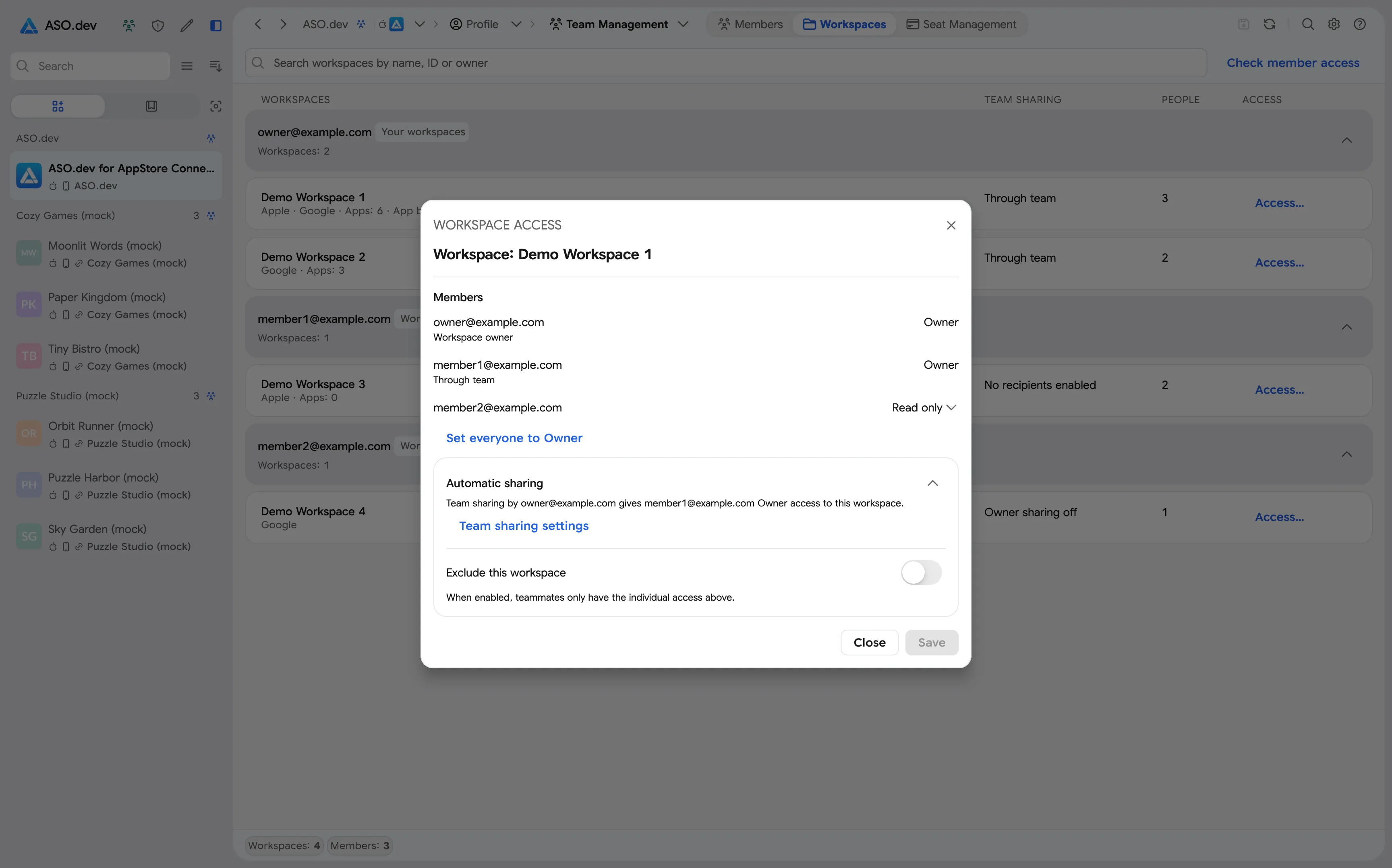
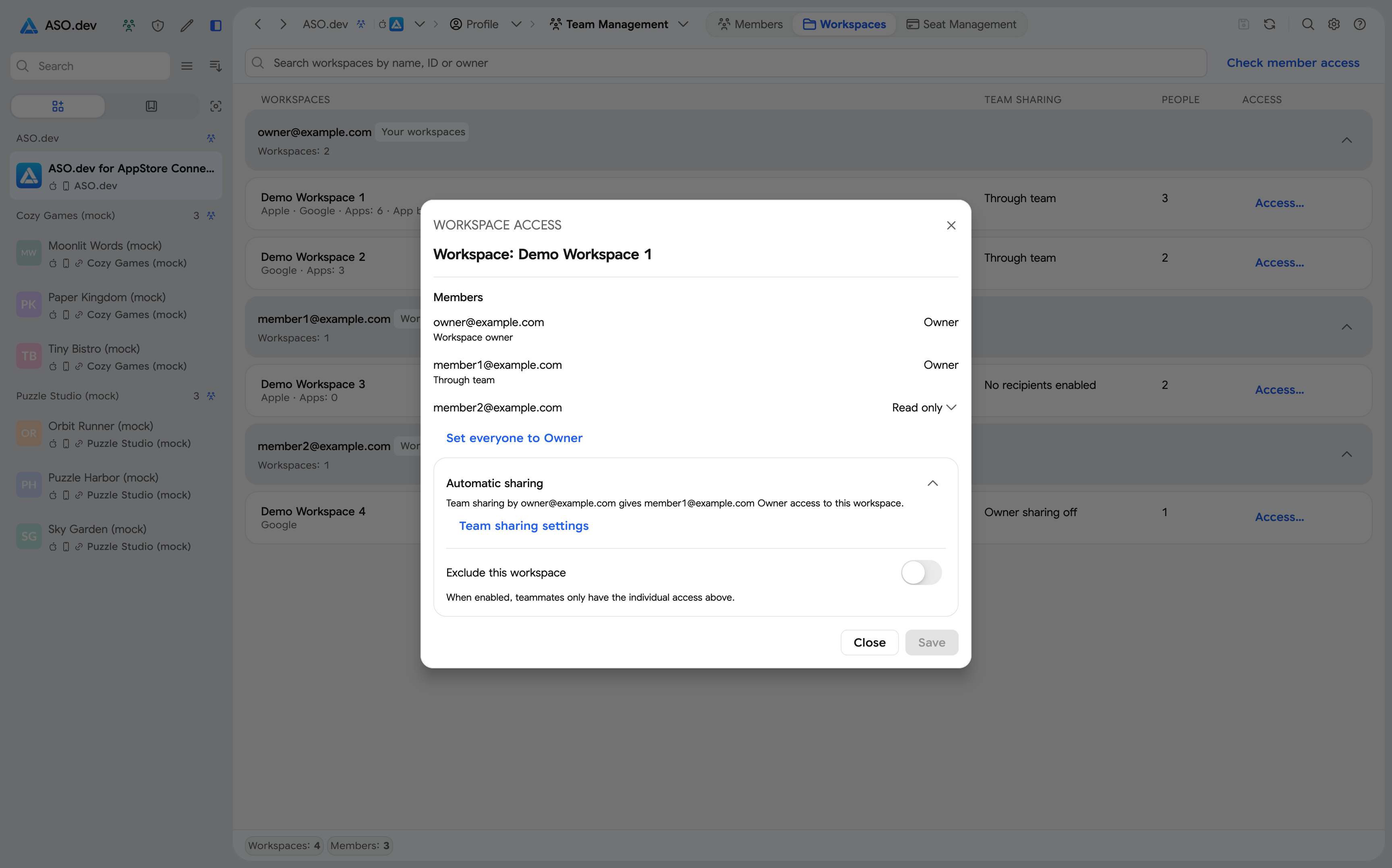
Exclusion preserves individual permissions. The workspace remains visible for management by the team Owner and project administrators if the member has allowed management of their workspaces.
If the user receives Owner access through the team, individual Read access will not restrict it. First exclude the workspace from automatic sharing or disable receiving team workspaces for the user, then set individual permissions.
Click Save on the main page and confirm your project sharing changes. Closing the access window alone does not apply them.
Find team projects
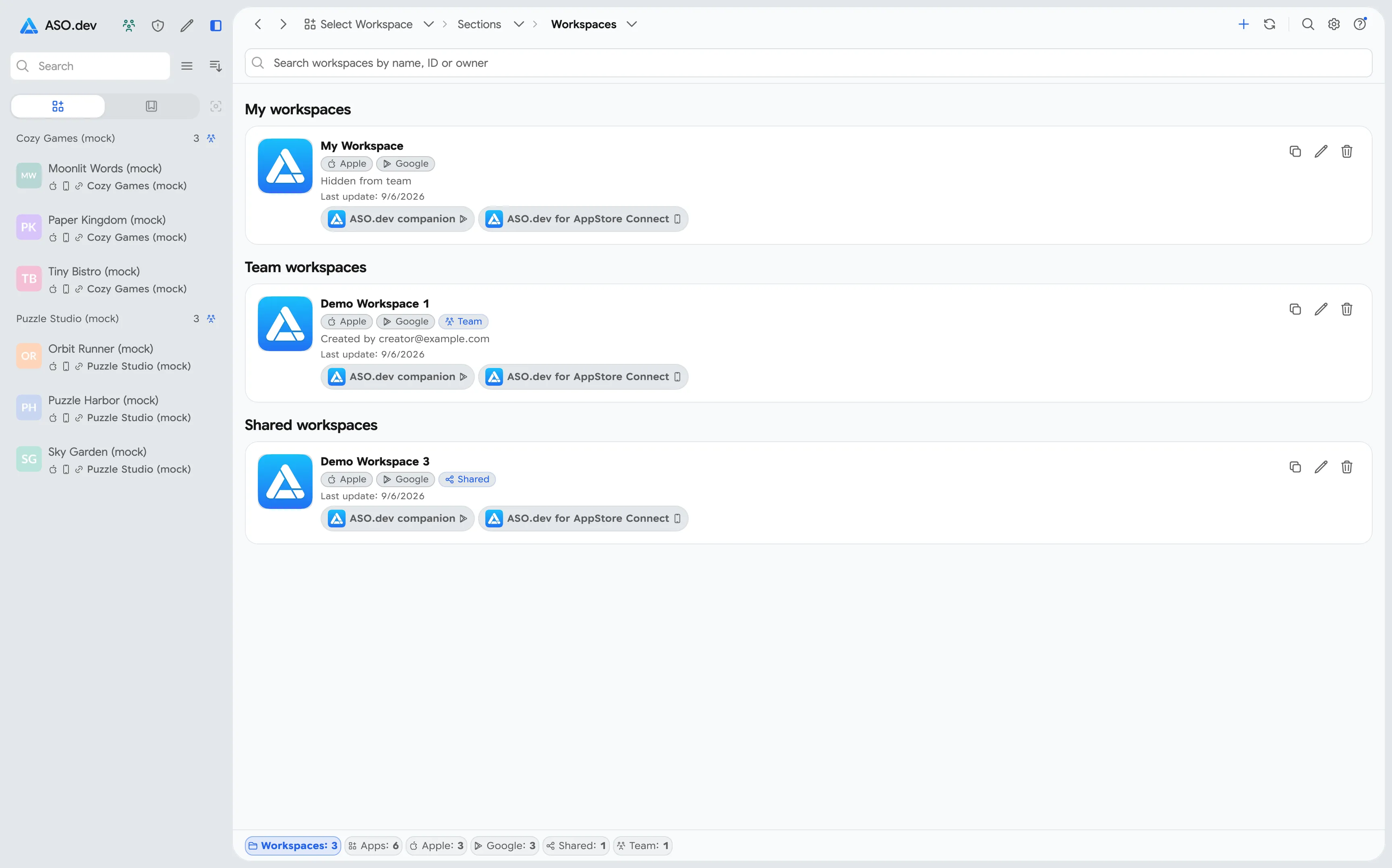
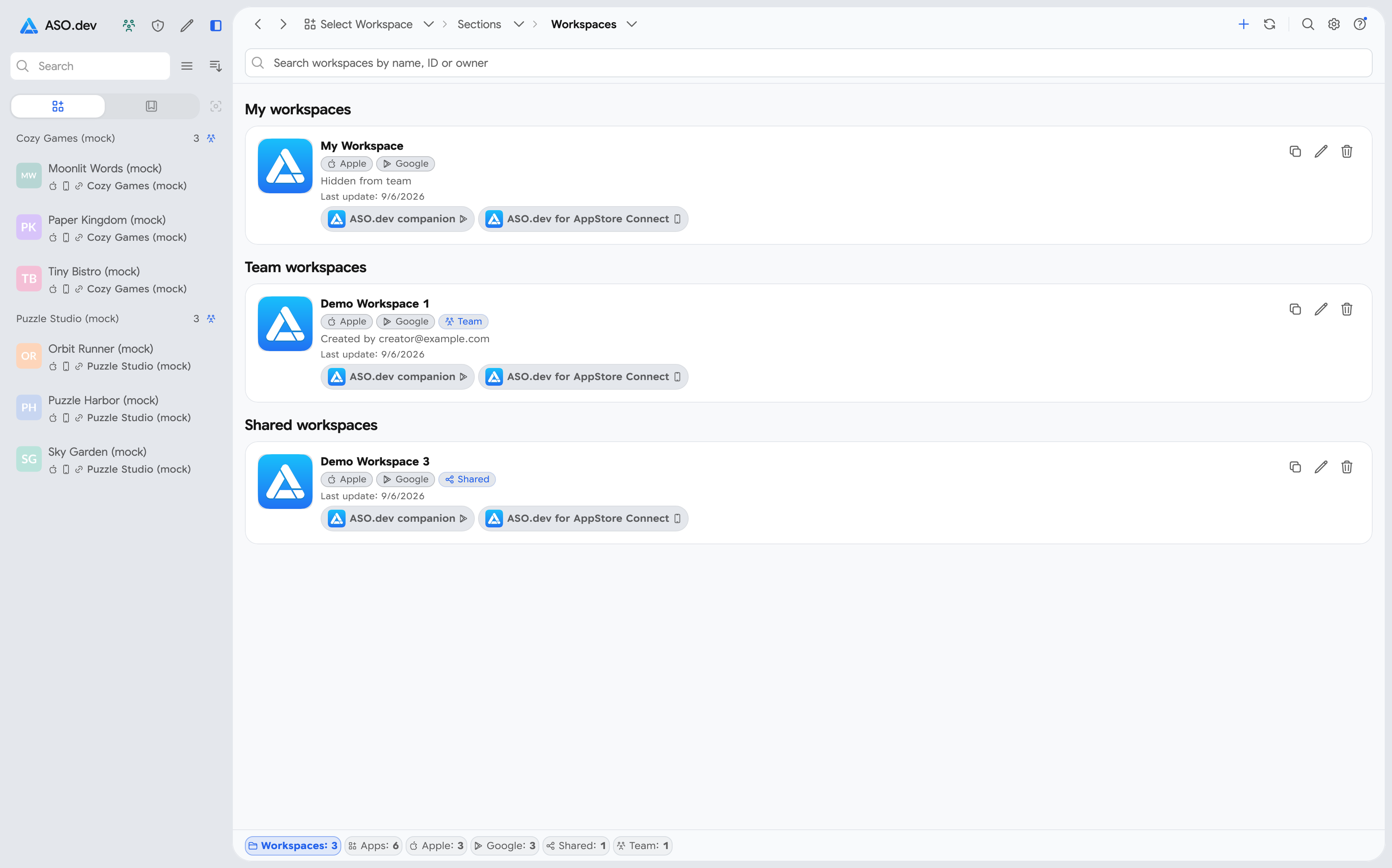
Section titled “Find team projects”In the regular project list, team workspaces have a separate label and show the creator’s email. Use the Team filter to find them among owned and individually shared workspaces.
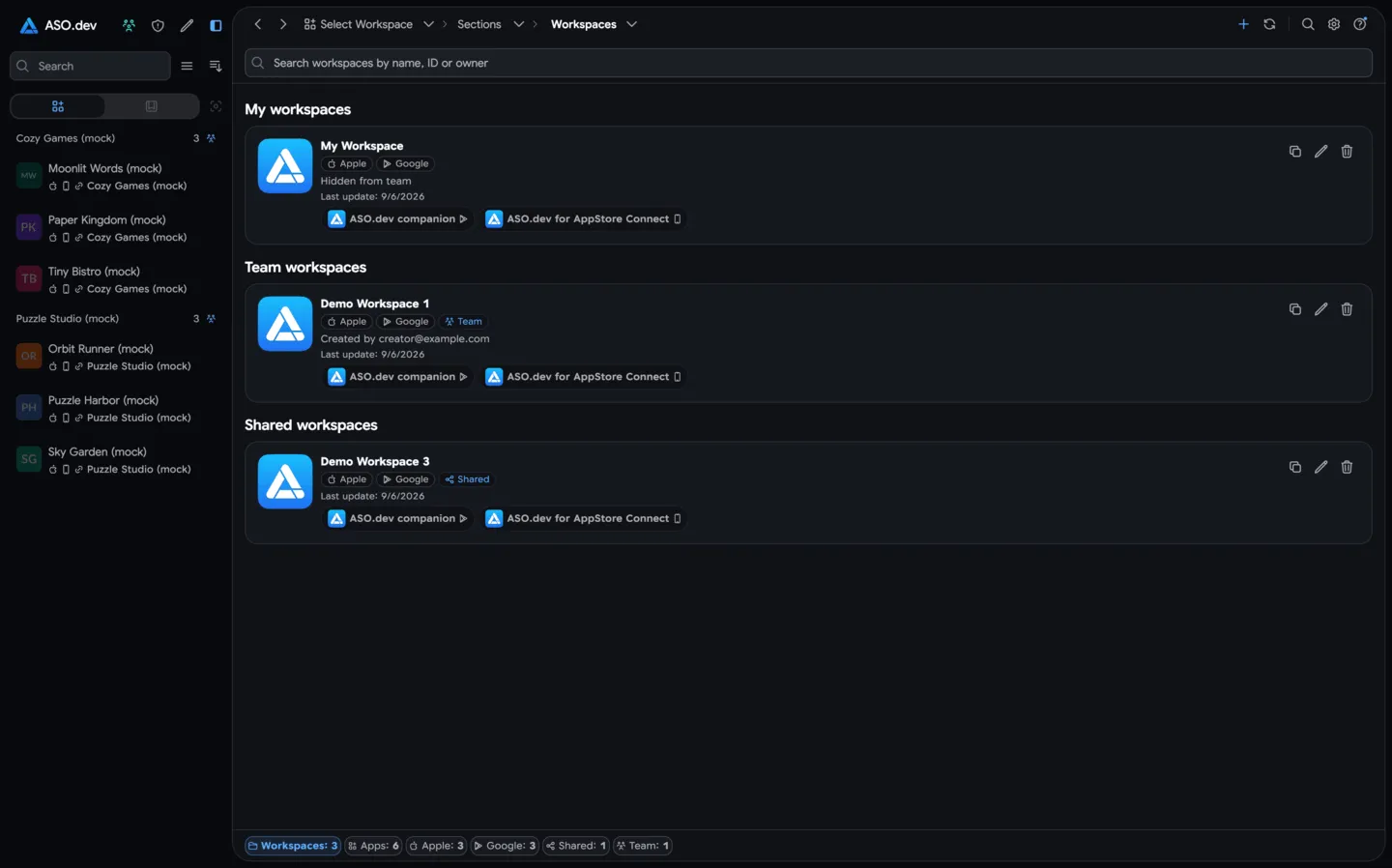
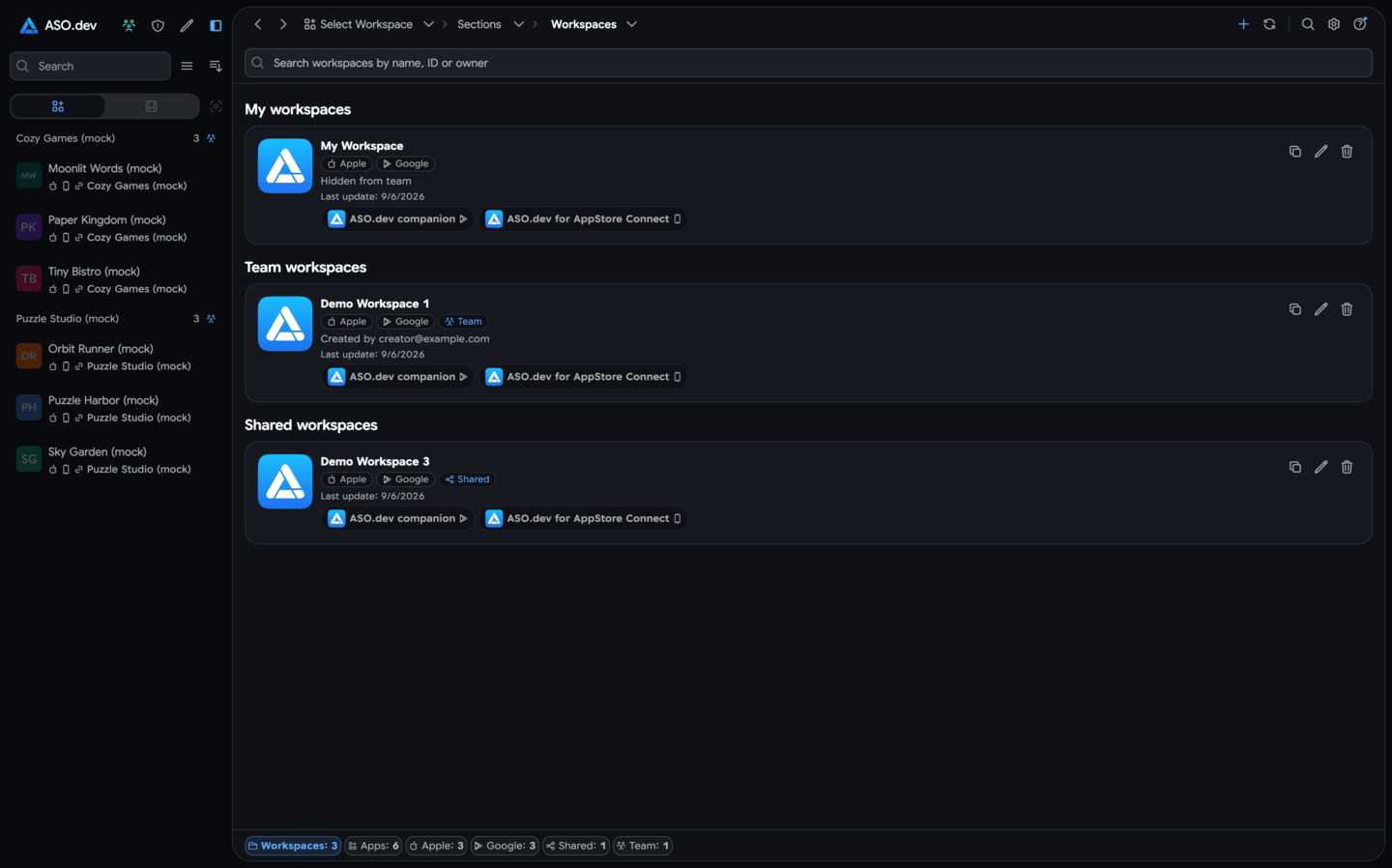
When a member leaves the team or automatic sharing is disabled, the corresponding team access ends. Individual permissions remain active until they are separately changed or revoked.
Members work in the same workspace. Team sharing does not create copies, merge duplicates, or move data between projects.
Seat Management
Section titled “Seat Management”Assign or reassign subscriptions purchased through Stripe to team members here.
Which subscriptions can be assigned
Section titled “Which subscriptions can be assigned”| Where the ASO.dev subscription was purchased | How it works in a team |
|---|---|
| Stripe | Assign seats to members, reassign them, or remove an assignment. |
| App Store or Google Play | The user keeps their personal subscription and can join team projects. These subscriptions cannot be assigned or reassigned through Seat Management. |
If a colleague already has a personal App Store or Google Play subscription, invite them without assigning a Stripe seat. Then configure access to the projects they need.
Subscription billing
Section titled “Subscription billing”The Owner’s account is linked to the Stripe billing profile. The Owner does not need a subscription seat assigned to their own ASO.dev account to pay for colleagues’ seats and manage the team. They need an active subscription to use paid features themselves.
For example, the Owner can purchase two seats and assign them to two employees while handling only team management and billing.
Assign or reassign a seat
Section titled “Assign or reassign a seat”You can assign an available seat when inviting a colleague through Members → Invite. To assign it later or transfer it to someone else:
- Open Seat Management and select a seat.
- Click Reassign and choose a member or pending invitation.
- Confirm the assignment.
The seat card shows the plan, status, recipient, and whether reassignment is available. To free a seat, use Unassign subscription.