
Timeline
Available only for the Pro and Marketing memberships.
Timeline shows how apps change in the App Store: releases, metadata, media, events, and featuring. Select your app or competitors, choose a locale and date range, then switch to the view you need.
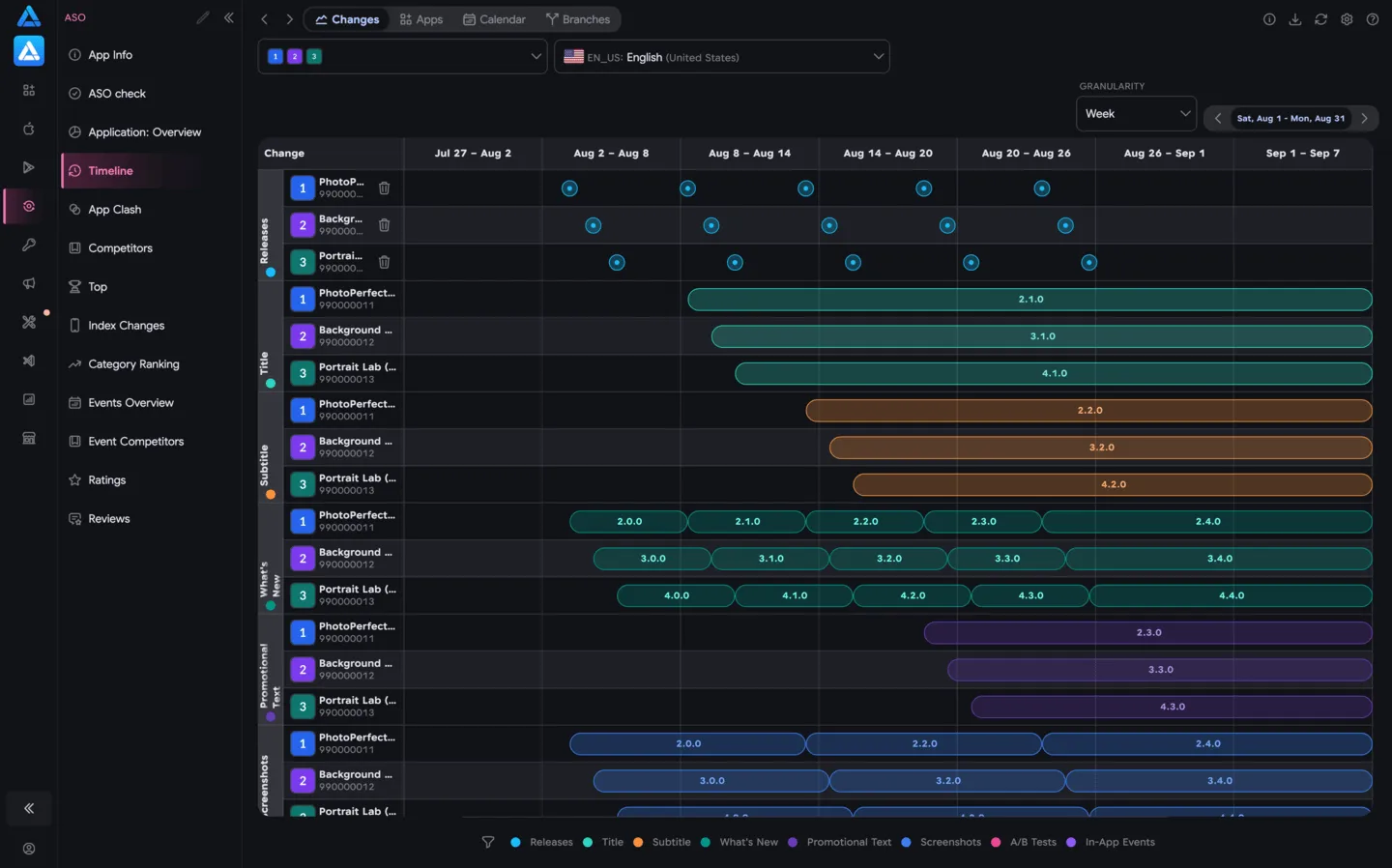
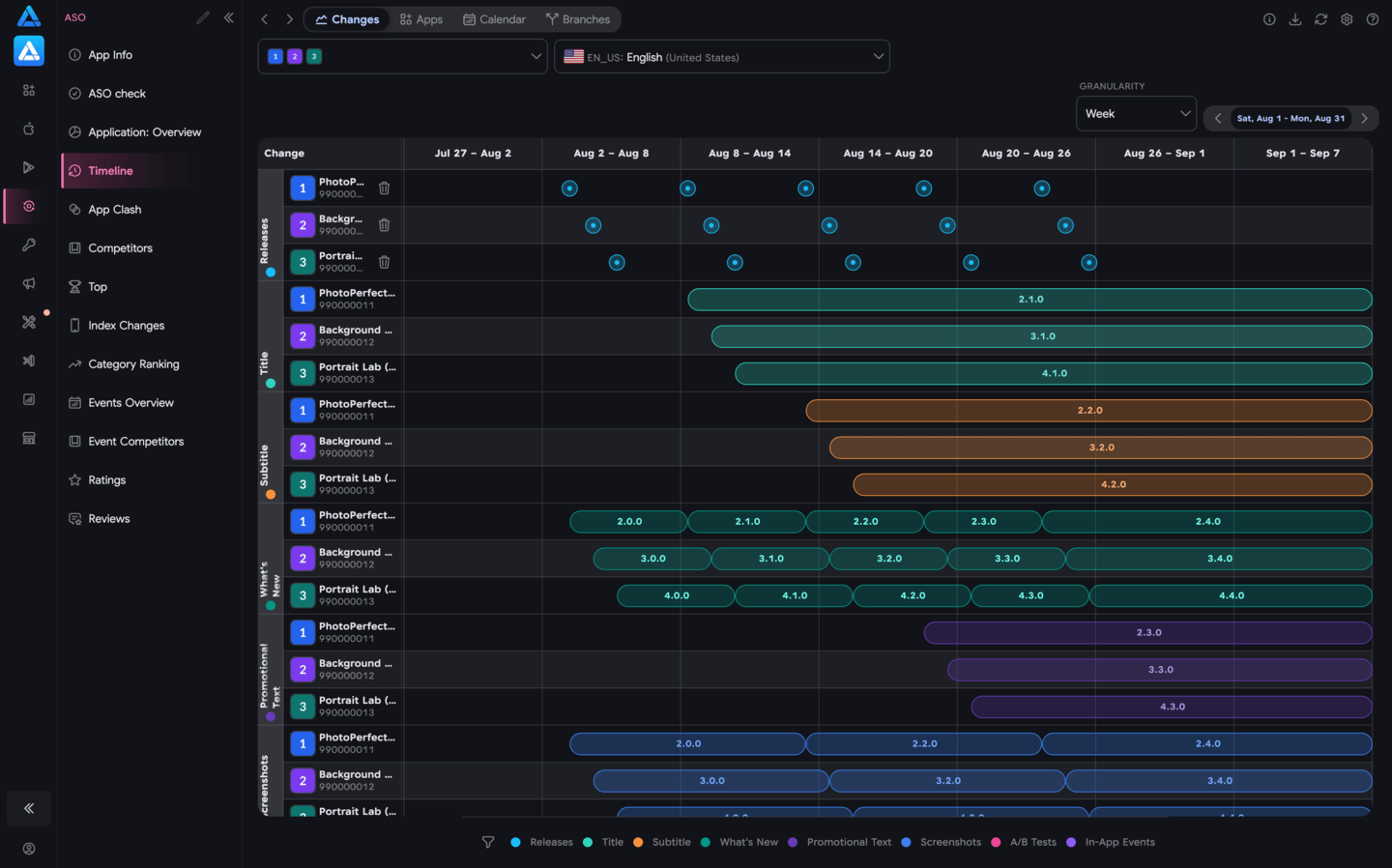
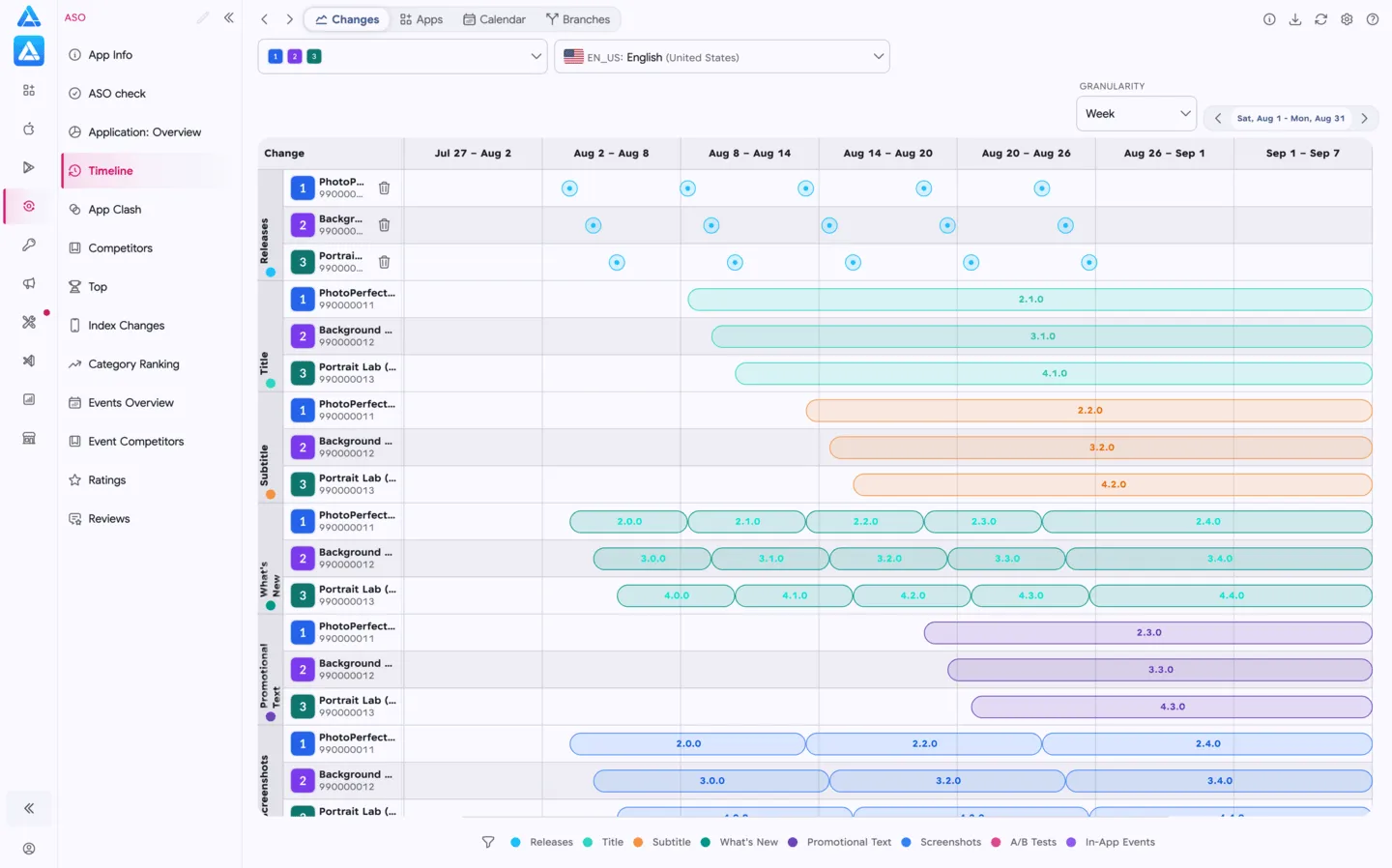
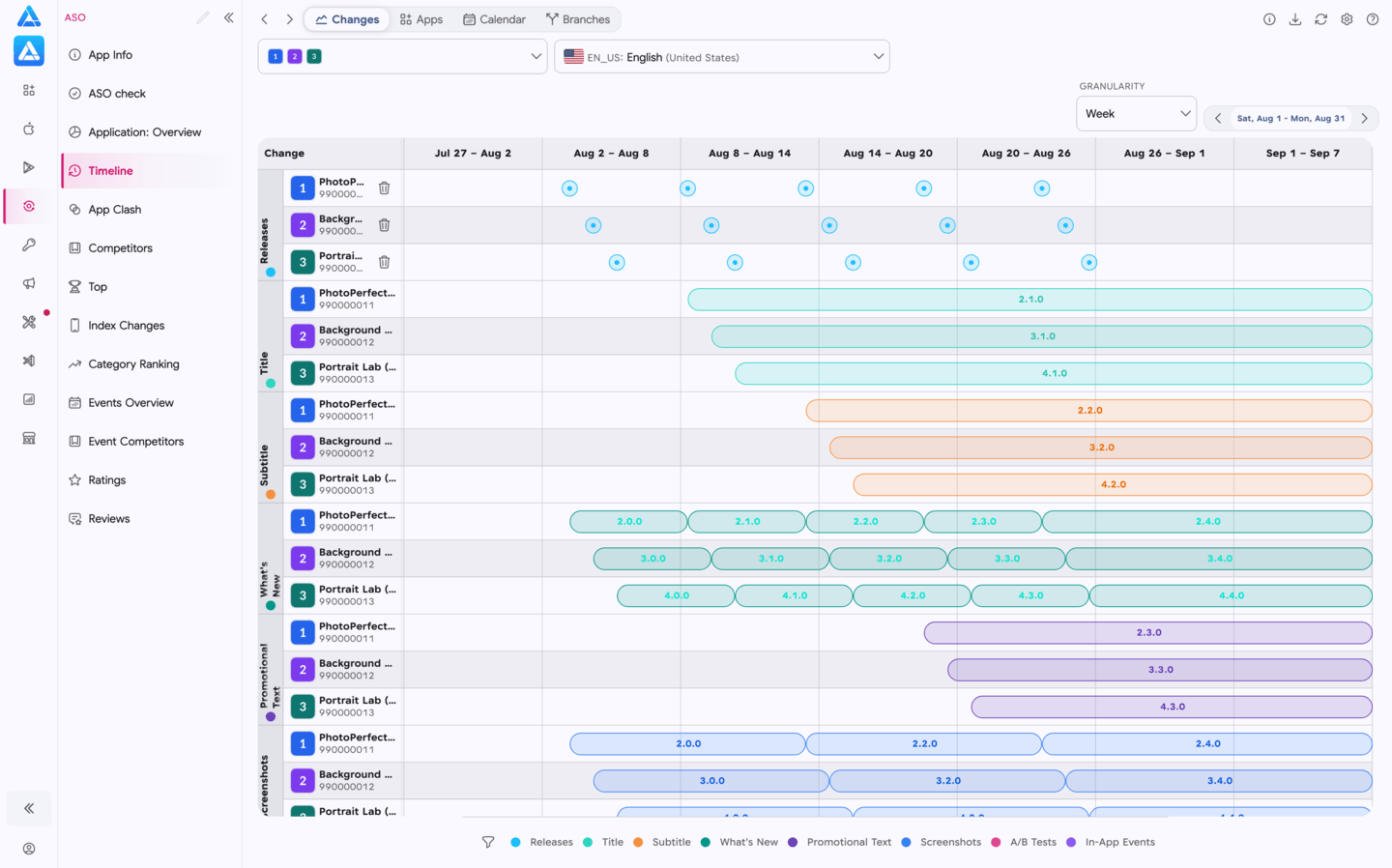
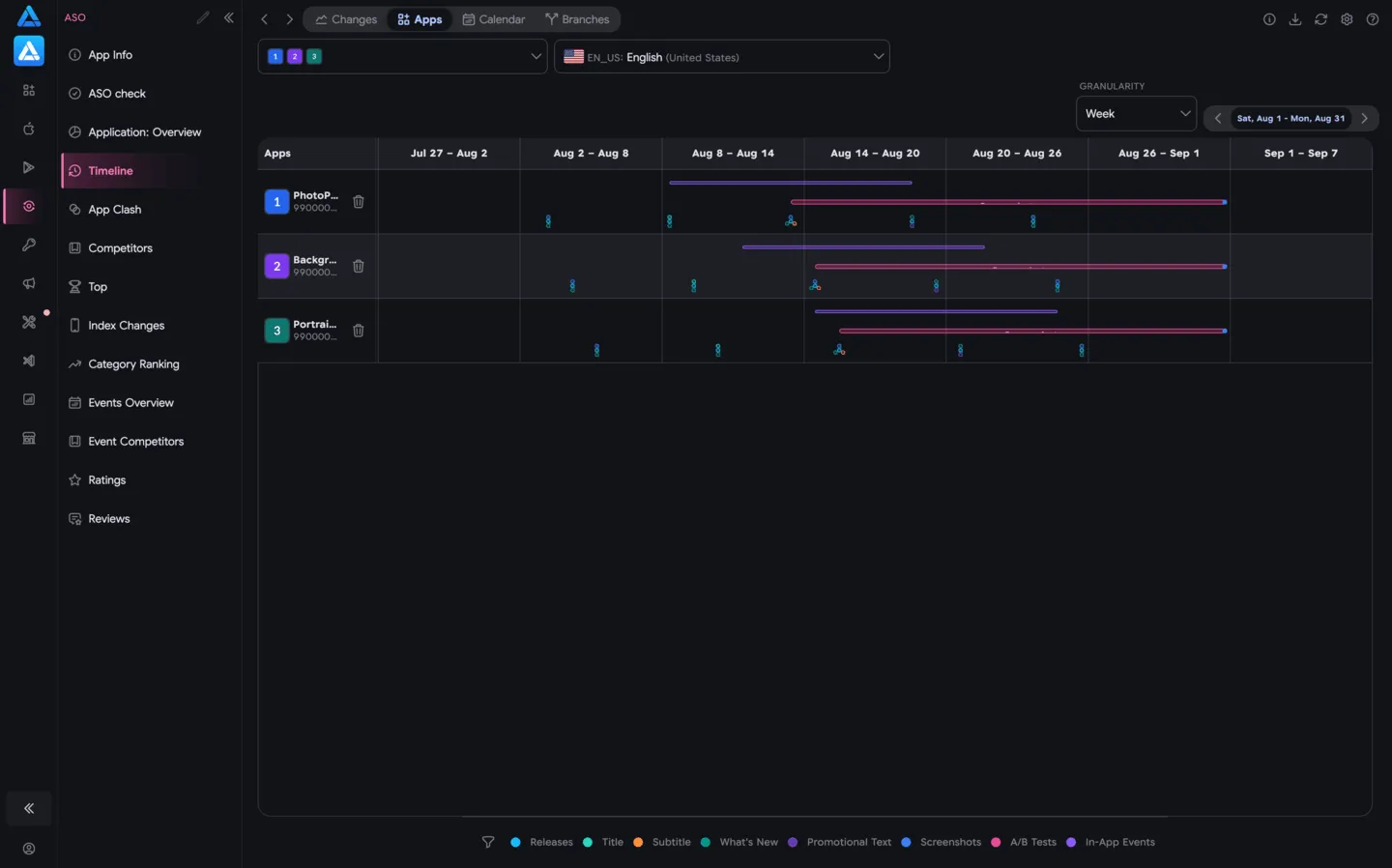
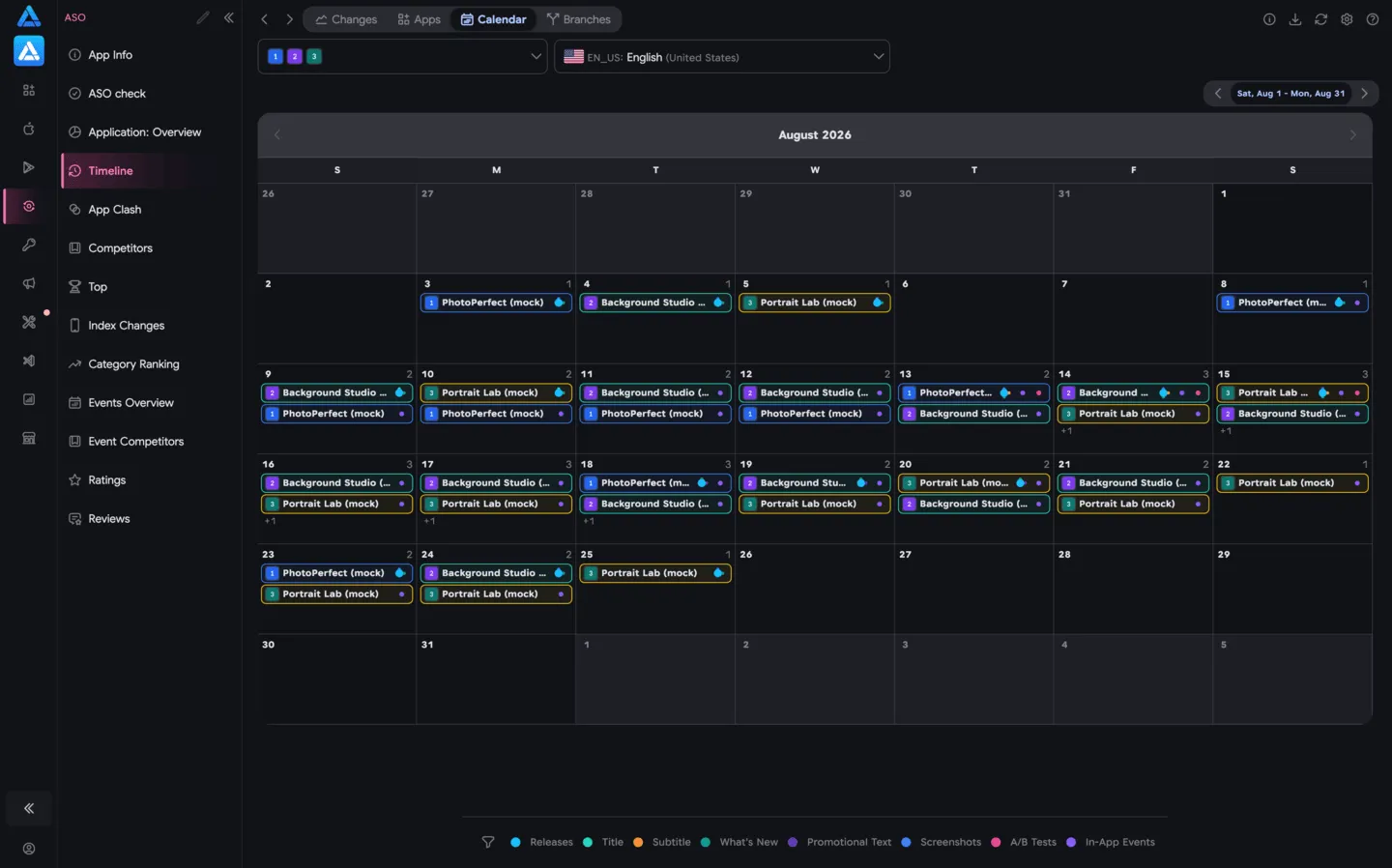
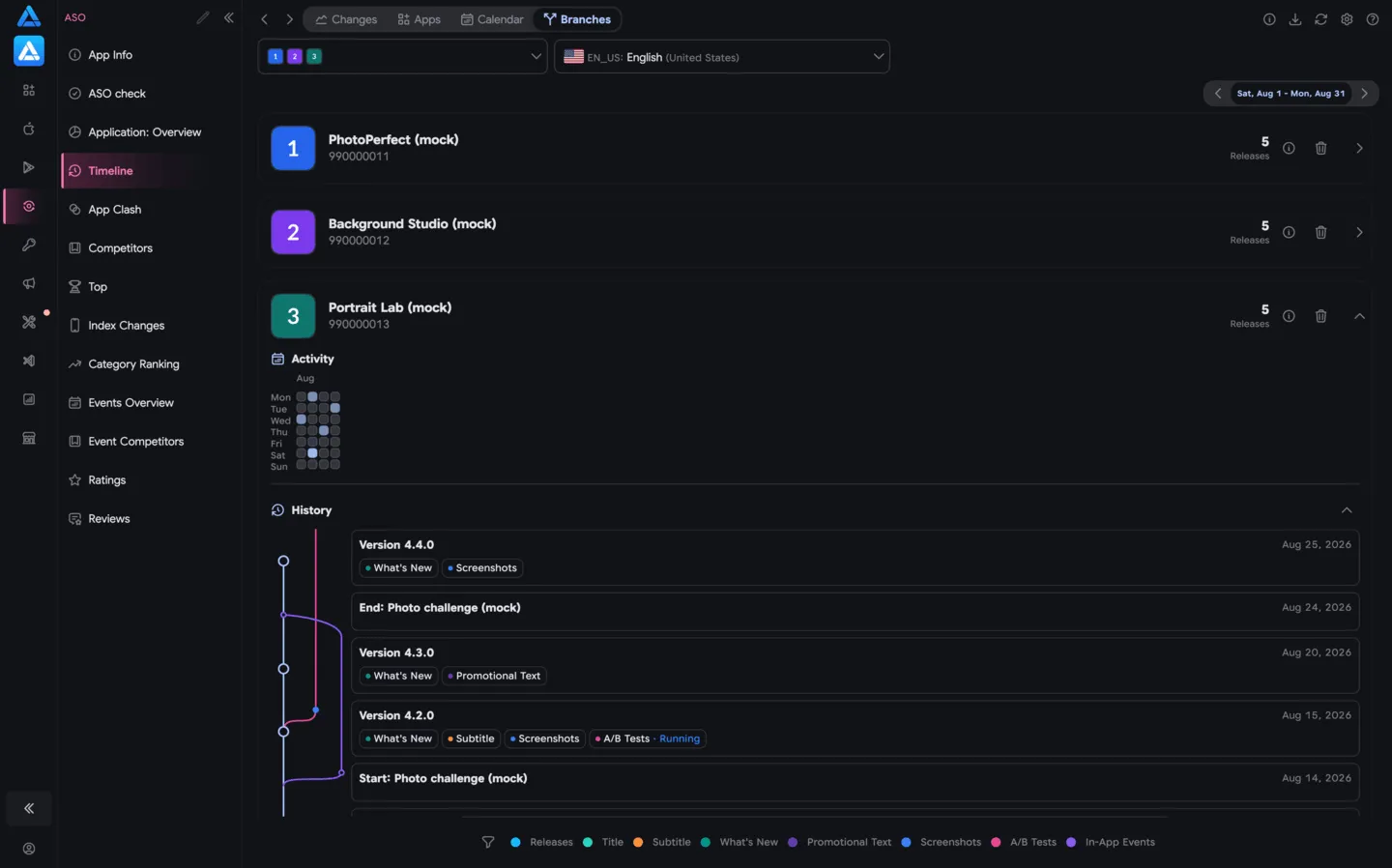
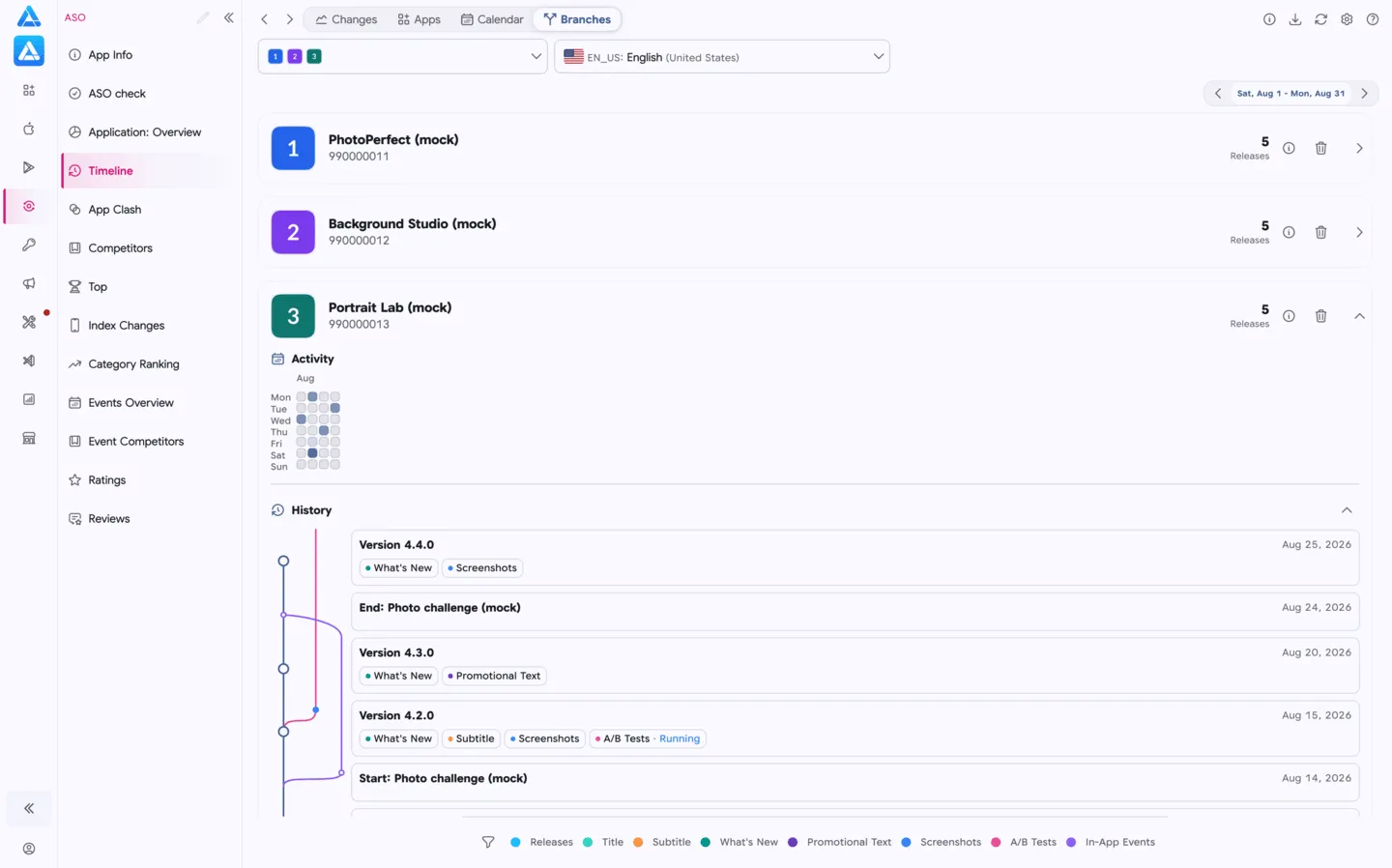
The screenshots show three fictional apps and mock data.
What you can view
Section titled “What you can view”The service records changes made during the selected period:
- Releases — version number and release date.
- Metadata — app name, subtitle, description, What’s New, and promotional text.
- Media — app icon and screenshots for each locale.
- Events and activities — A/B tests, in-app events, and App Store featuring.
When a value differs from the previous version, it appears in the history. Fields without changes are not shown in a version card.
Set up the view
Section titled “Set up the view”- Apps — select one or more apps. When you select several apps, their events appear on the same timeline or calendar.
- Locale — choose the metadata locale whose changes you want to inspect.
- Granularity — set the timeline scale, such as weeks, to control the density of events.
- Period — select a date range and move to adjacent periods.
- View — switch between Changes, Apps, Calendar, and Branches.
- Legend — include or exclude event types from the display.
Color-coded changes
Section titled “Color-coded changes”The color of a marker on the timeline identifies its change type:
- blue — a new release;
- green — an app name change;
- orange — a subtitle change;
- pink — an app icon update;
- purple — a screenshot update.
This makes it easy to distinguish releases from text and media changes.
Bottom legend
Section titled “Bottom legend”The legend at the bottom is an additional filter, so it does not list every field shown in a version card. Its colored markers cover:
- releases;
- subtitles;
- What’s New;
- promotional text;
- screenshots;
- A/B tests;
- in-app events;
- App Store featuring.
Select a type in the legend to hide or keep its events on the timeline.
Changes
Section titled “Changes”Groups events by change type. Rows contain releases, texts, screenshots, events, and other categories, with changes from all selected apps displayed within the period. Use this view to compare one change type across apps, such as screenshots or promotional text.
Groups events by app. Each app has a separate row on a shared timeline, with events placed by date. Hover over an event to see its name, release date, end date, and duration when that information is available.
Calendar
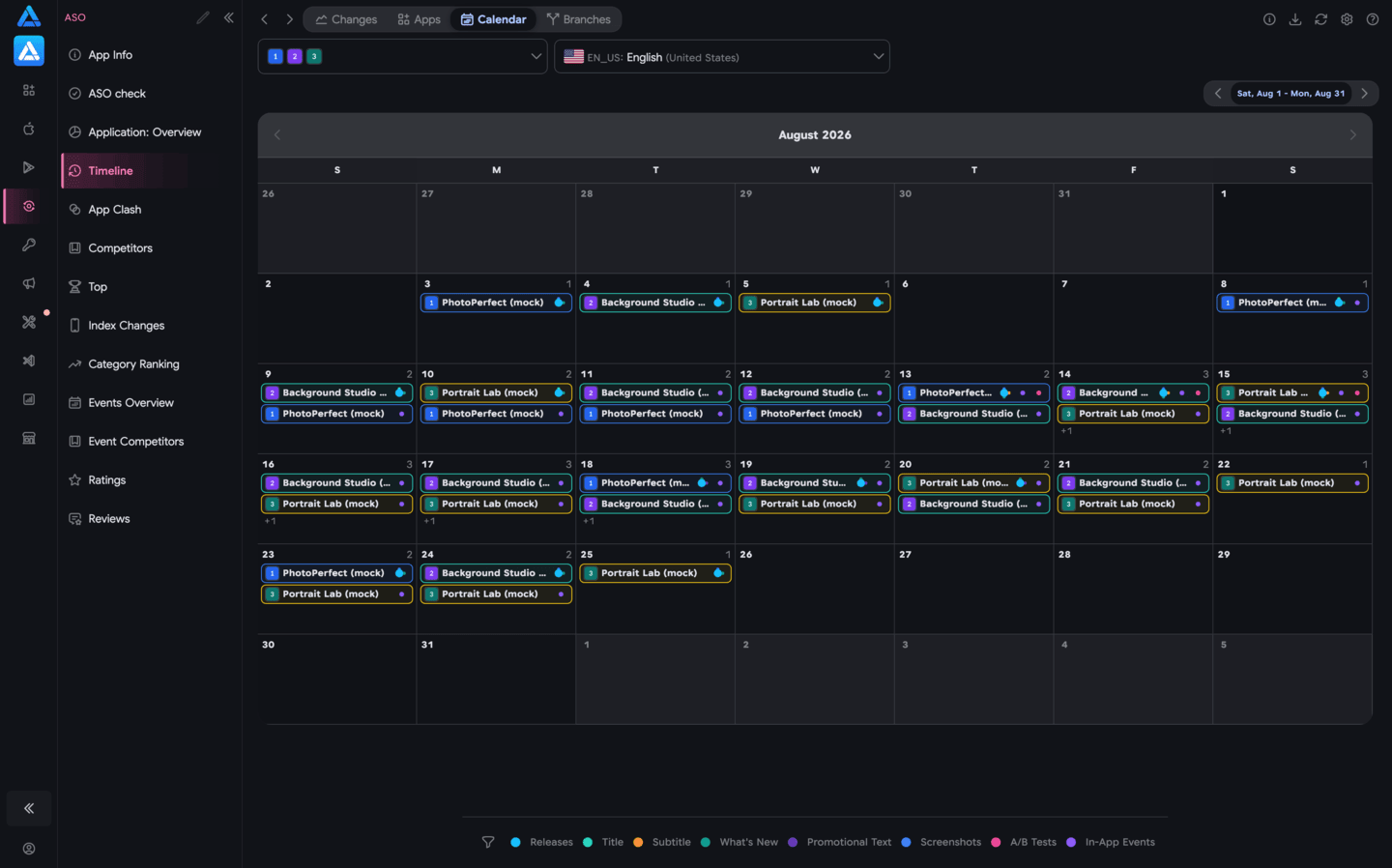
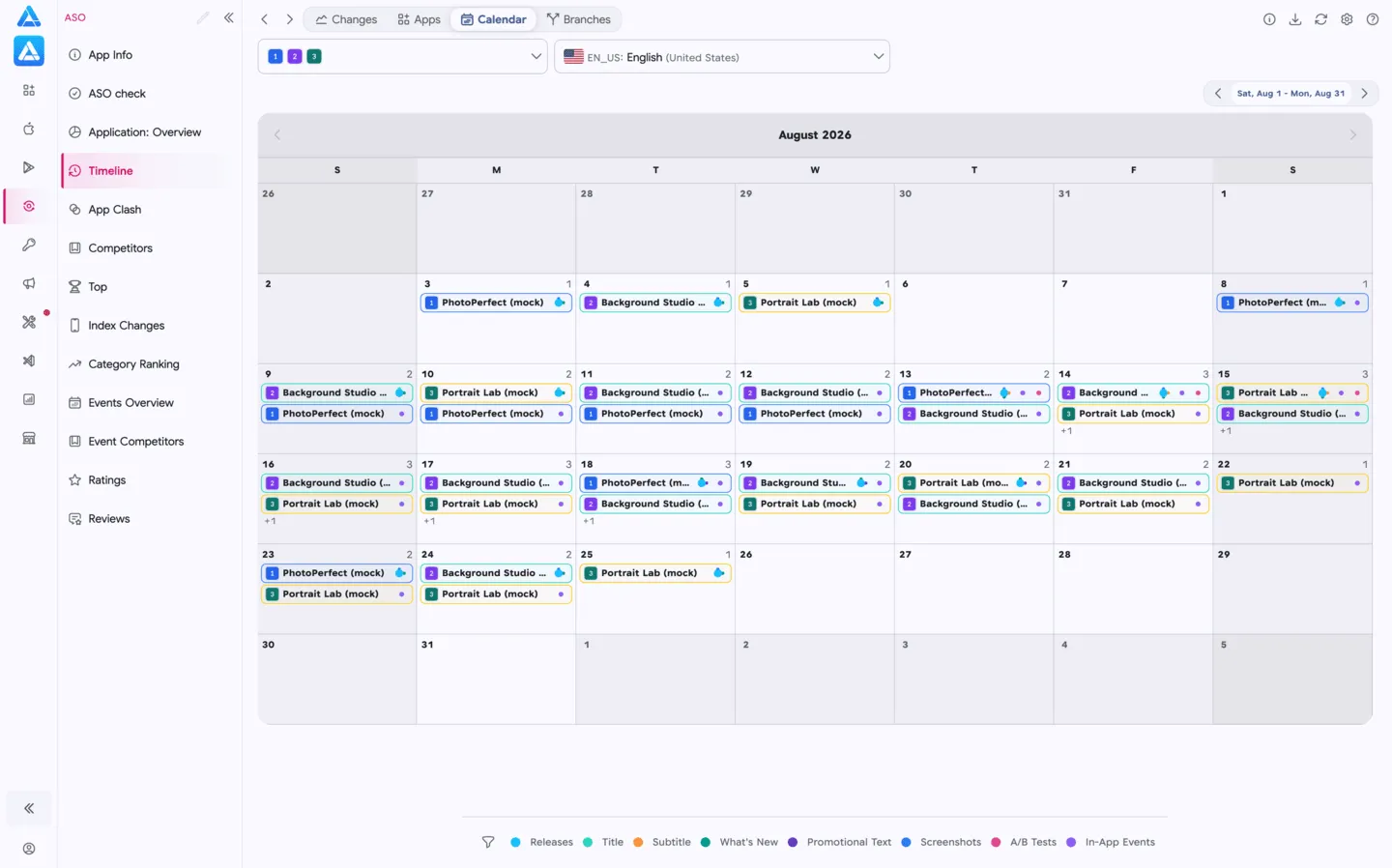
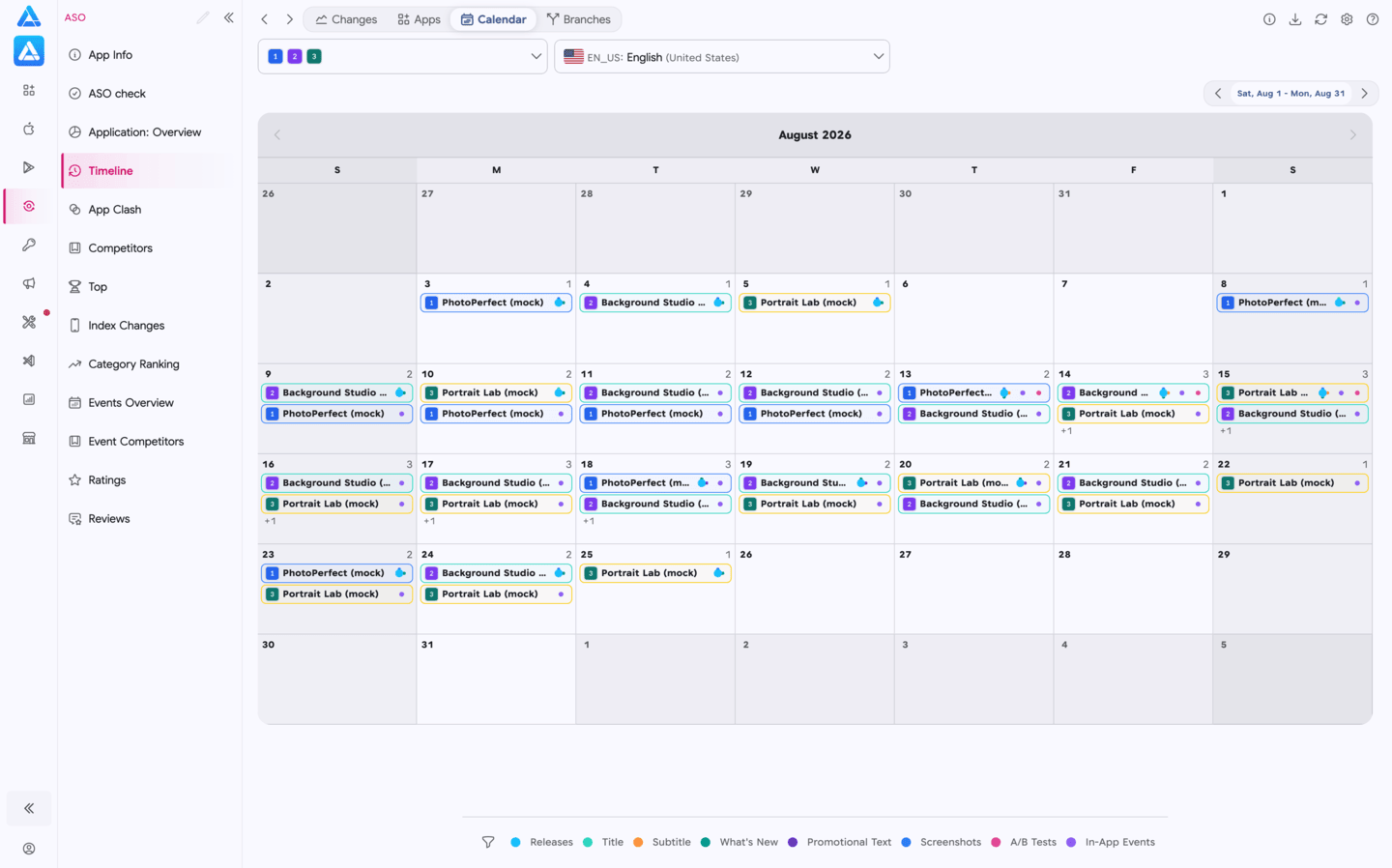
Section titled “Calendar”Shows events by day of the month. A day cell lists apps with changes, and the colored marker indicates the event type. Use the calendar to spot updates and activities that occurred on the same dates for your app and competitors.
Branches
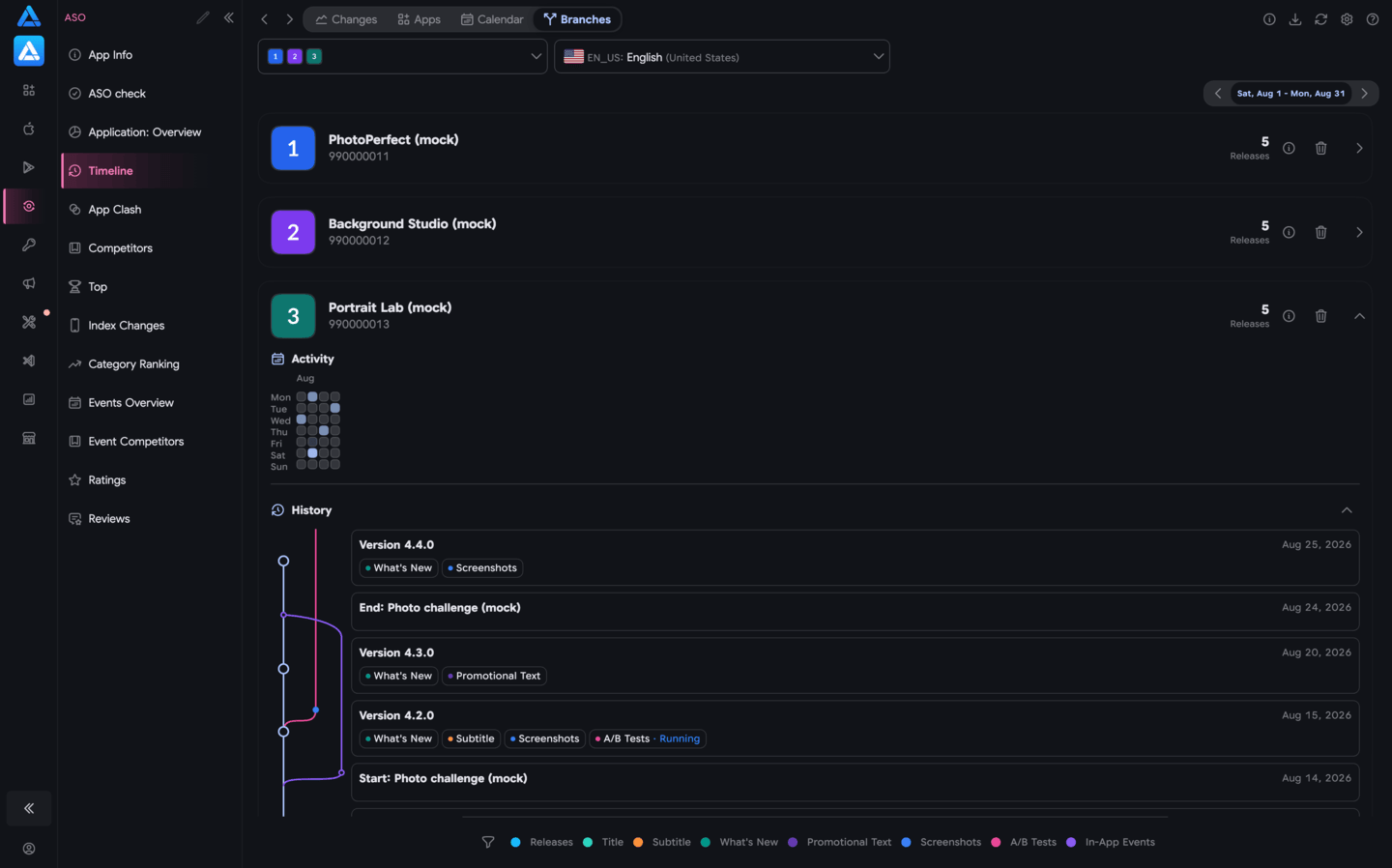
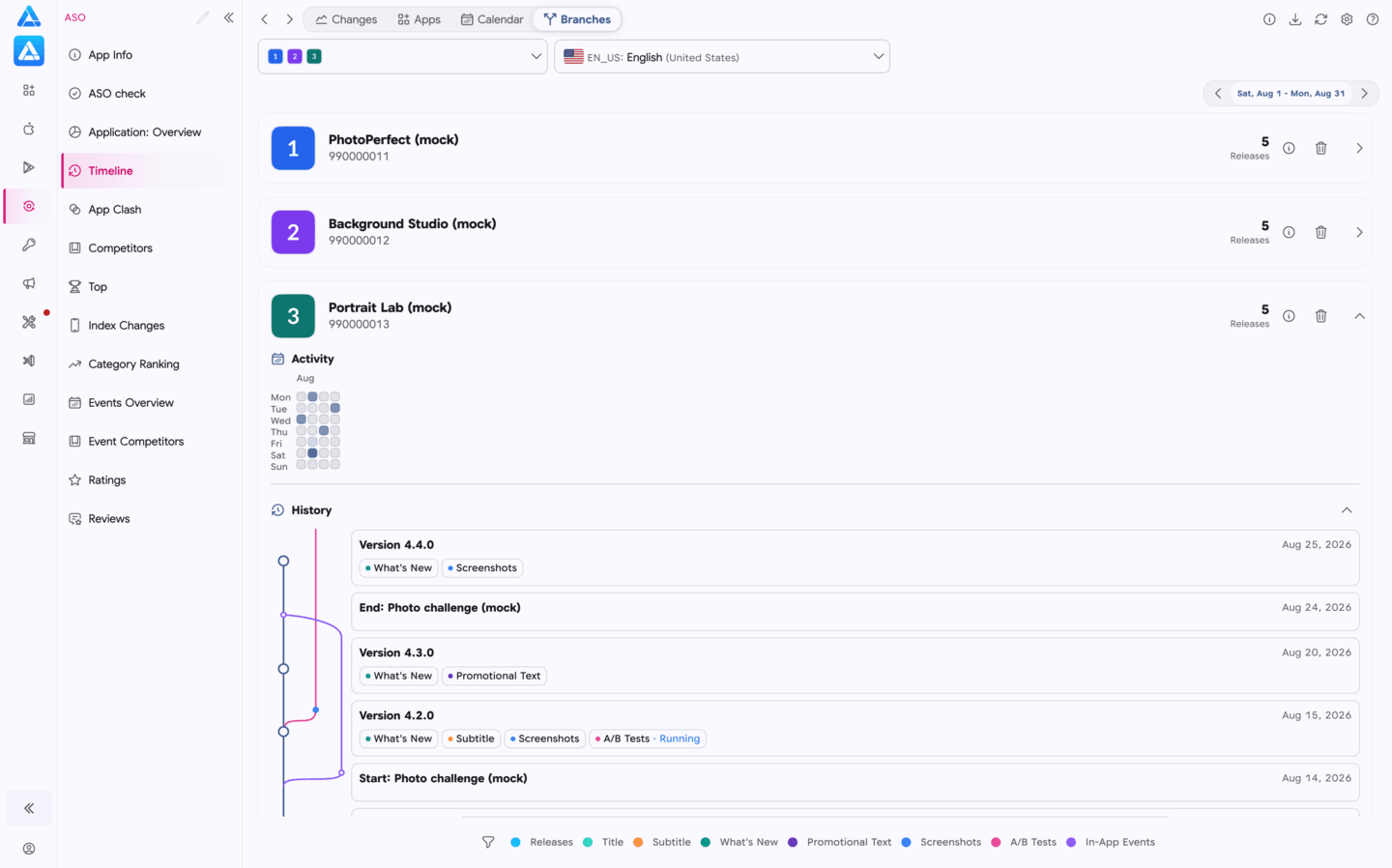
Section titled “Branches”Shows versions and related events as connected lines. You can follow the release sequence, event duration, and the relationship between updates for one app. This view is useful for a long version history.
Event details
Section titled “Event details”Select a release, text, screenshot, or another event to open the details window. It can show:
- the date and version of the change;
- the affected locale;
- current and previous text values;
- media before and after an update;
- related events in the same version.
The switch in the details window changes the data set:
- All changes in the version — every event included in the selected version.
- Changes of this type — one change type across all versions of the selected app.
Export
Section titled “Export”Export the history to PDF or CSV. Before exporting, choose how to group it:
- By release — events inside their corresponding versions.
- By change type — separate groups for releases, texts, media, and events.
The export uses the selected apps, locale, period, and filters, so configure the view before downloading.