
Keyword SERP Overview: Top Ranking Apps Analysis
For memberships with access to the ASO analysis: Indie, Pro and Marketing
Keywords Overview allows you to quickly evaluate which apps hold top positions for the keywords you’re interested in on the App Store.
Why You Need It
Section titled “Why You Need It”- Analyze competitors and discover apps that dominate search results.
- Select effective keywords to promote your app.
- Compare metrics and evaluate competition for each keyword.
- Discard irrelevant keywords and add new ones to your tracked list.
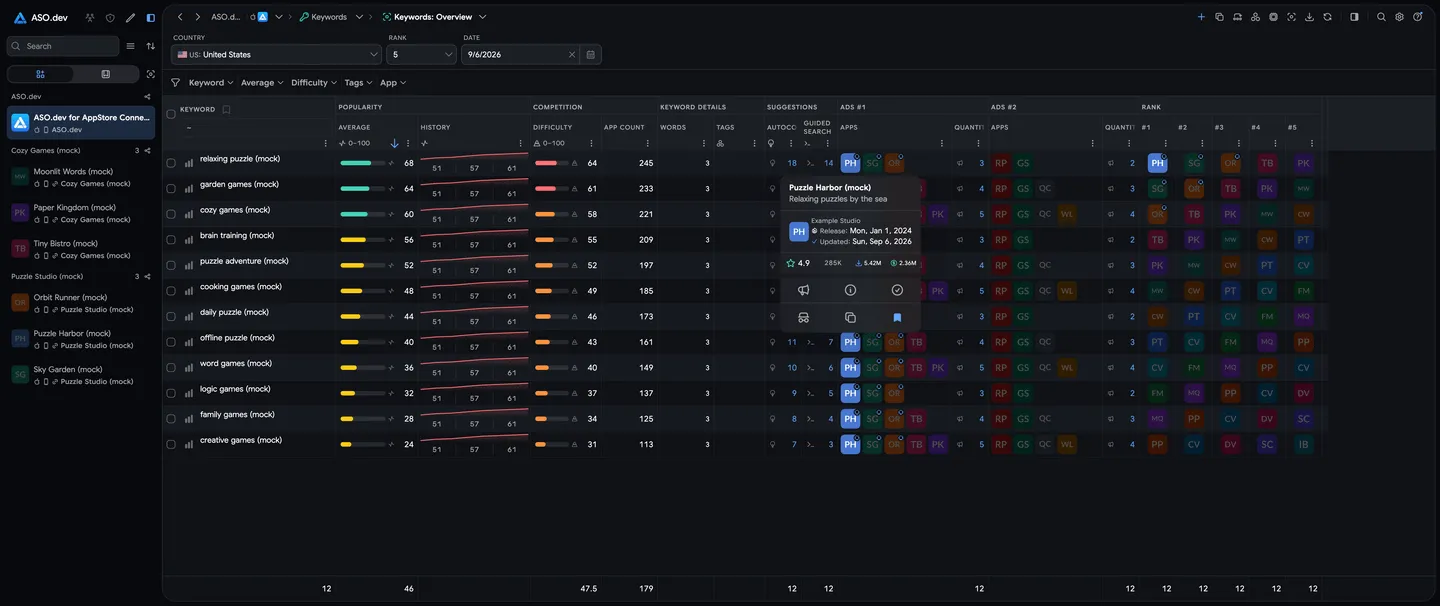
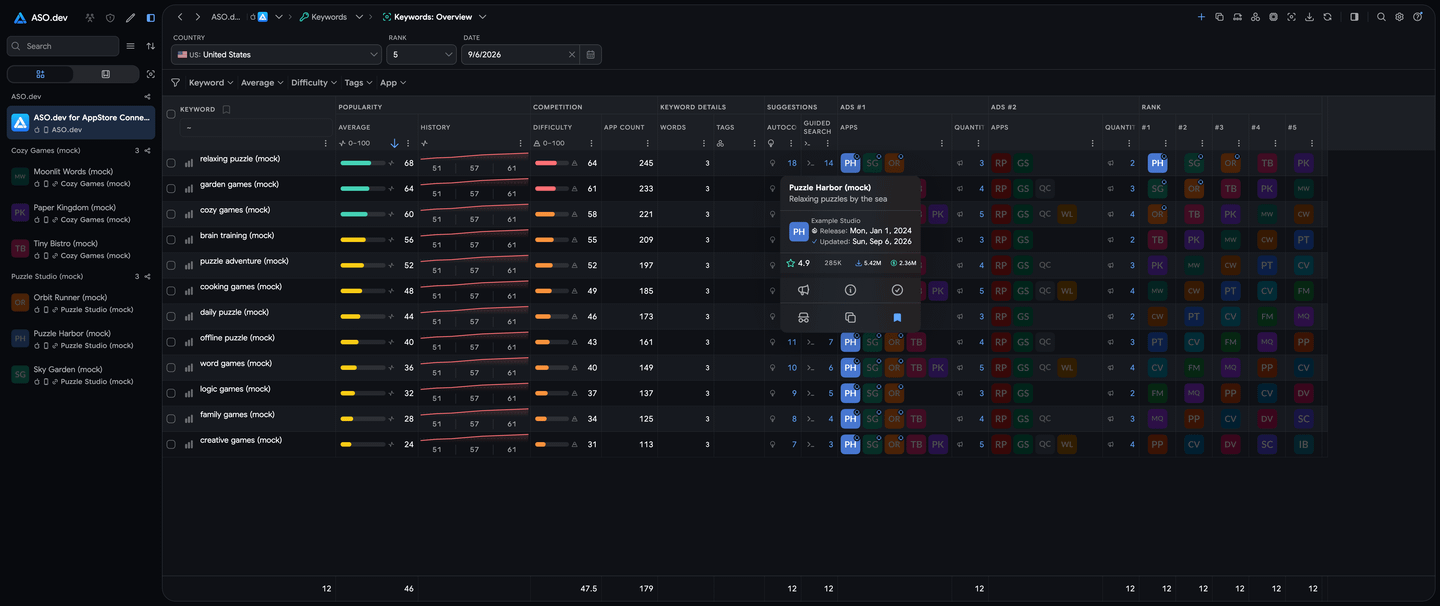
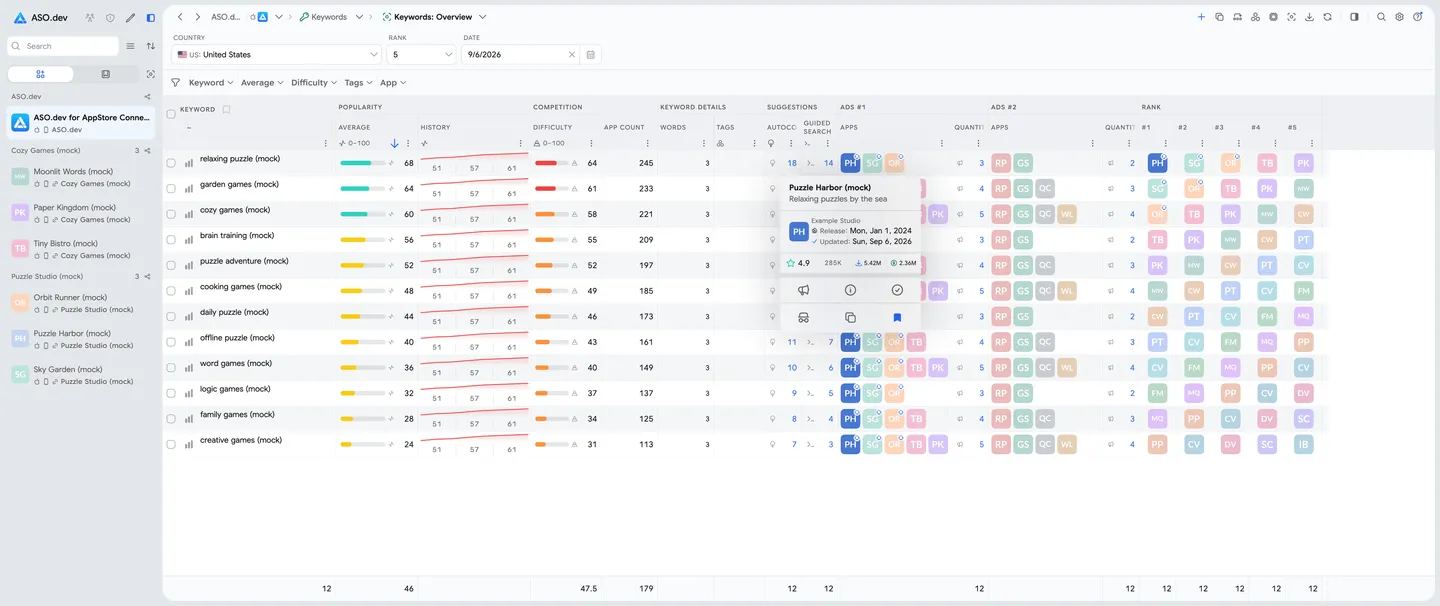
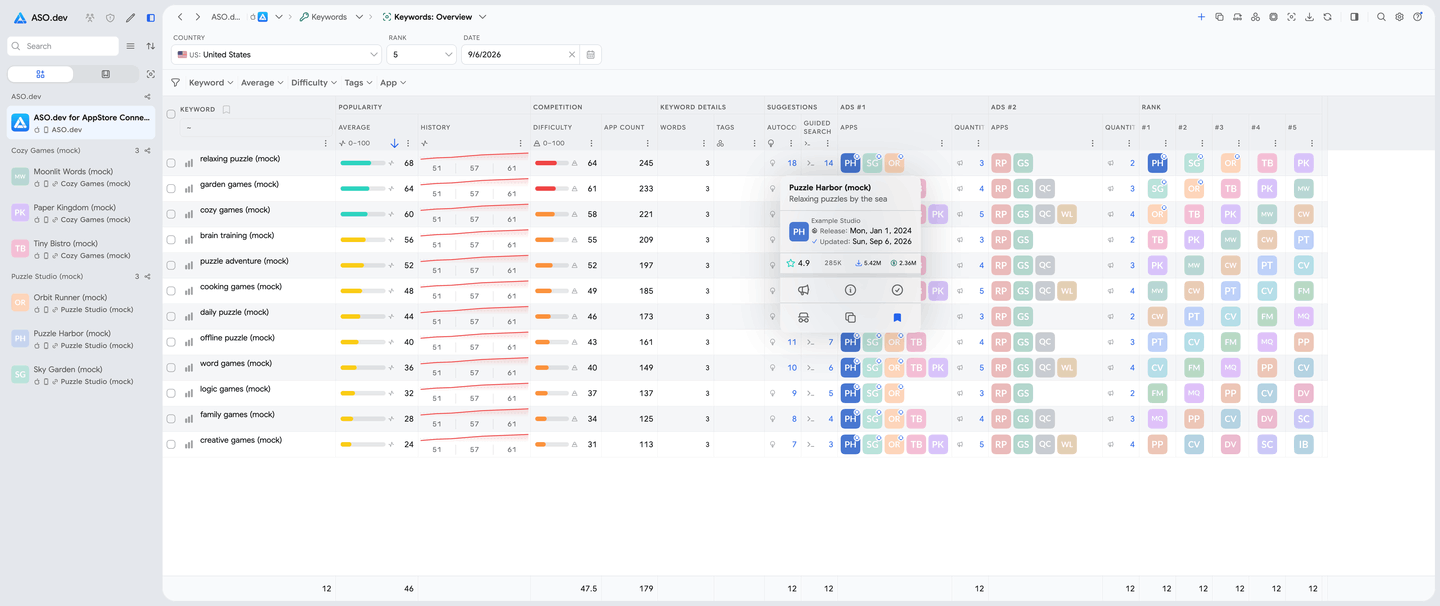
Getting Started
Section titled “Getting Started”- Select Keywords - By default, keywords you’re already tracking are displayed.
When you navigate from another keywords data table via icon button, the selected keywords will be displayed. - Choose a Country - Specify the country for which you want to see results.
- Number of Apps - By default, the top 10 apps are displayed, but you can choose a different number.
- Analyze Apps - Hover over any app icon to see a detailed information card and quickly add the app to your competitors.
- View Top Apps for each keyword using the chart button .
- Mark New Competitors - Add apps to your competitor list to track them later using the bookmark button .
- Add Keywords - Click the button to add new keywords to the table.
- You can also view data for selected keywords or suggestions using the button.
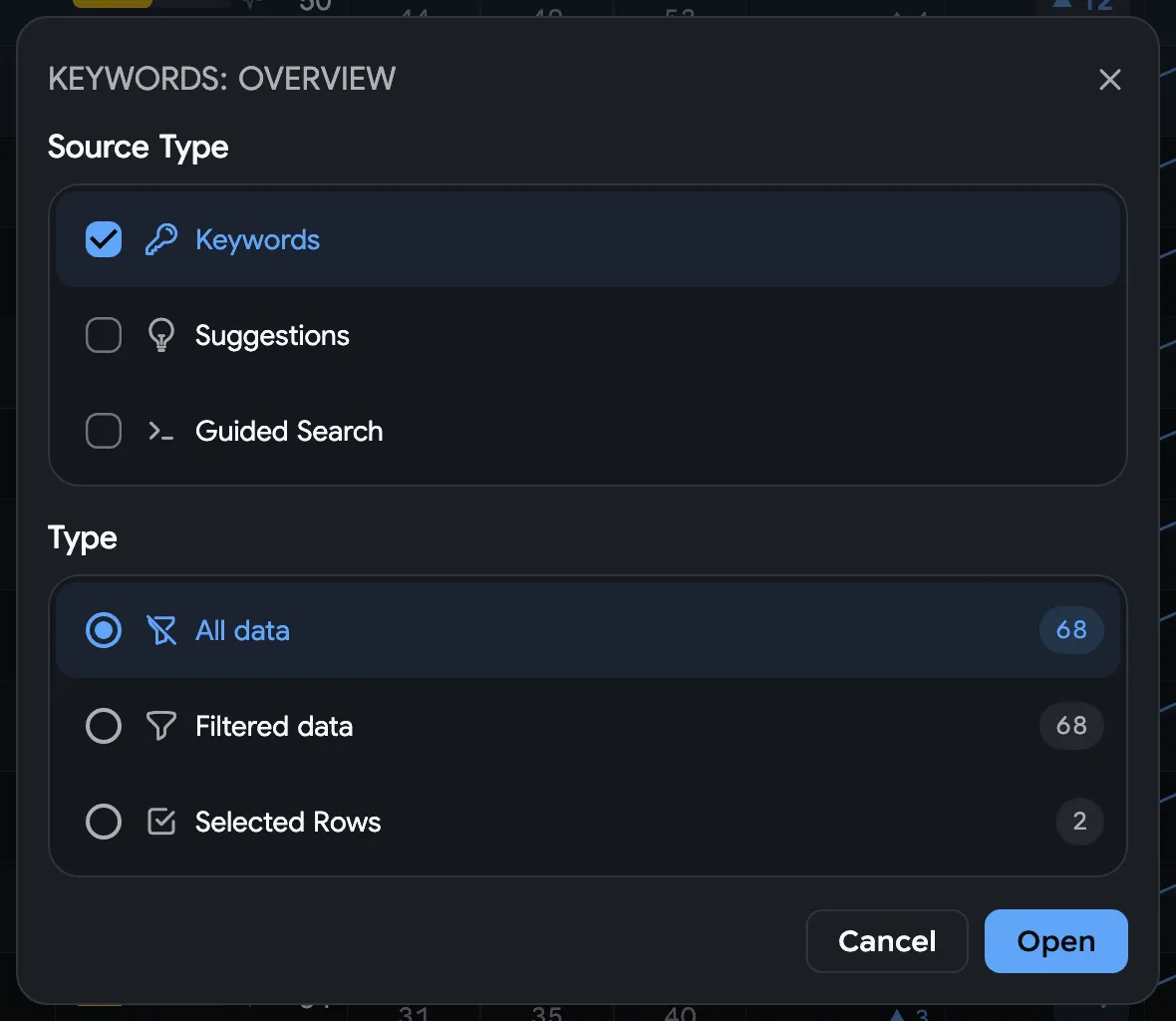
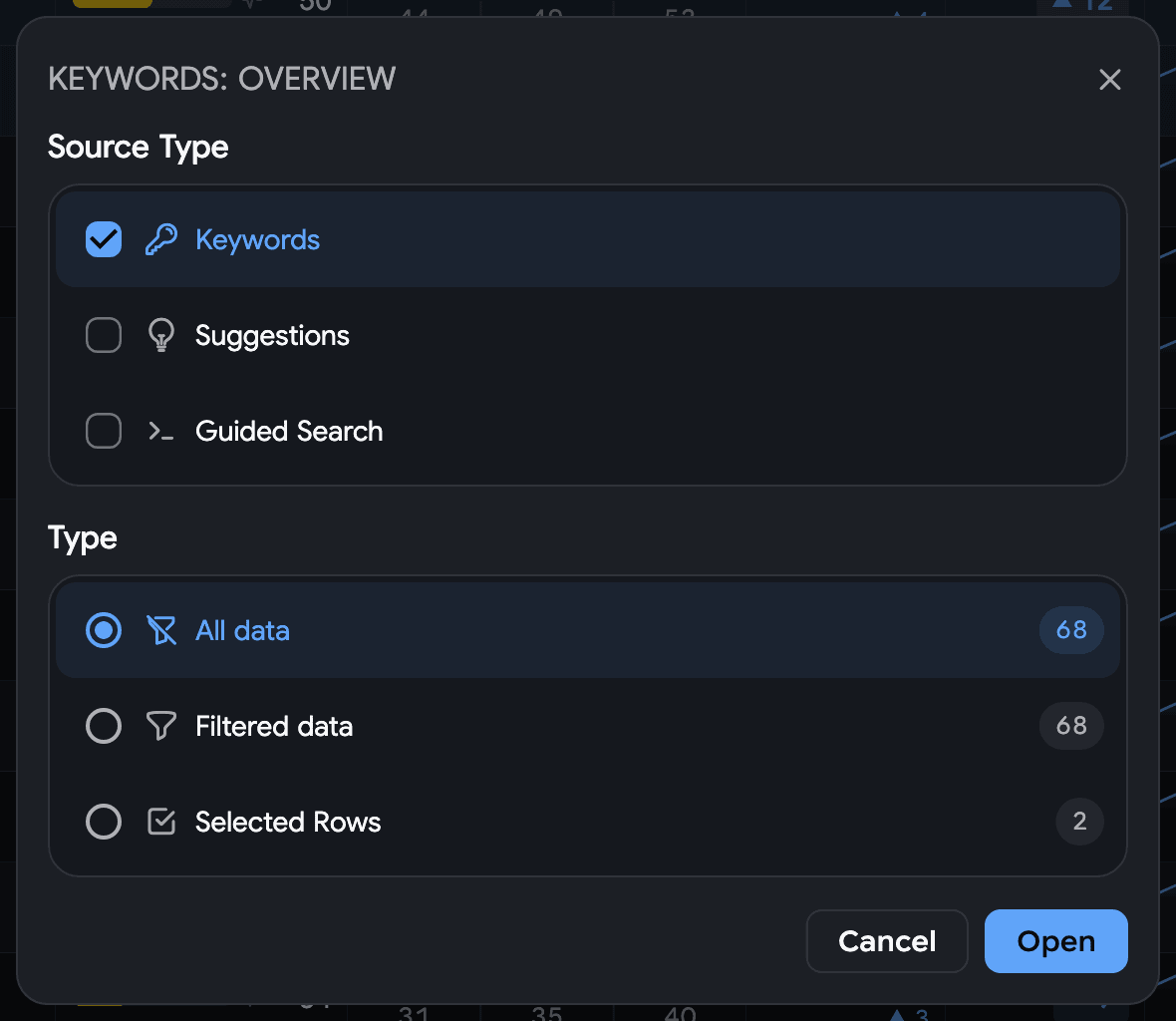
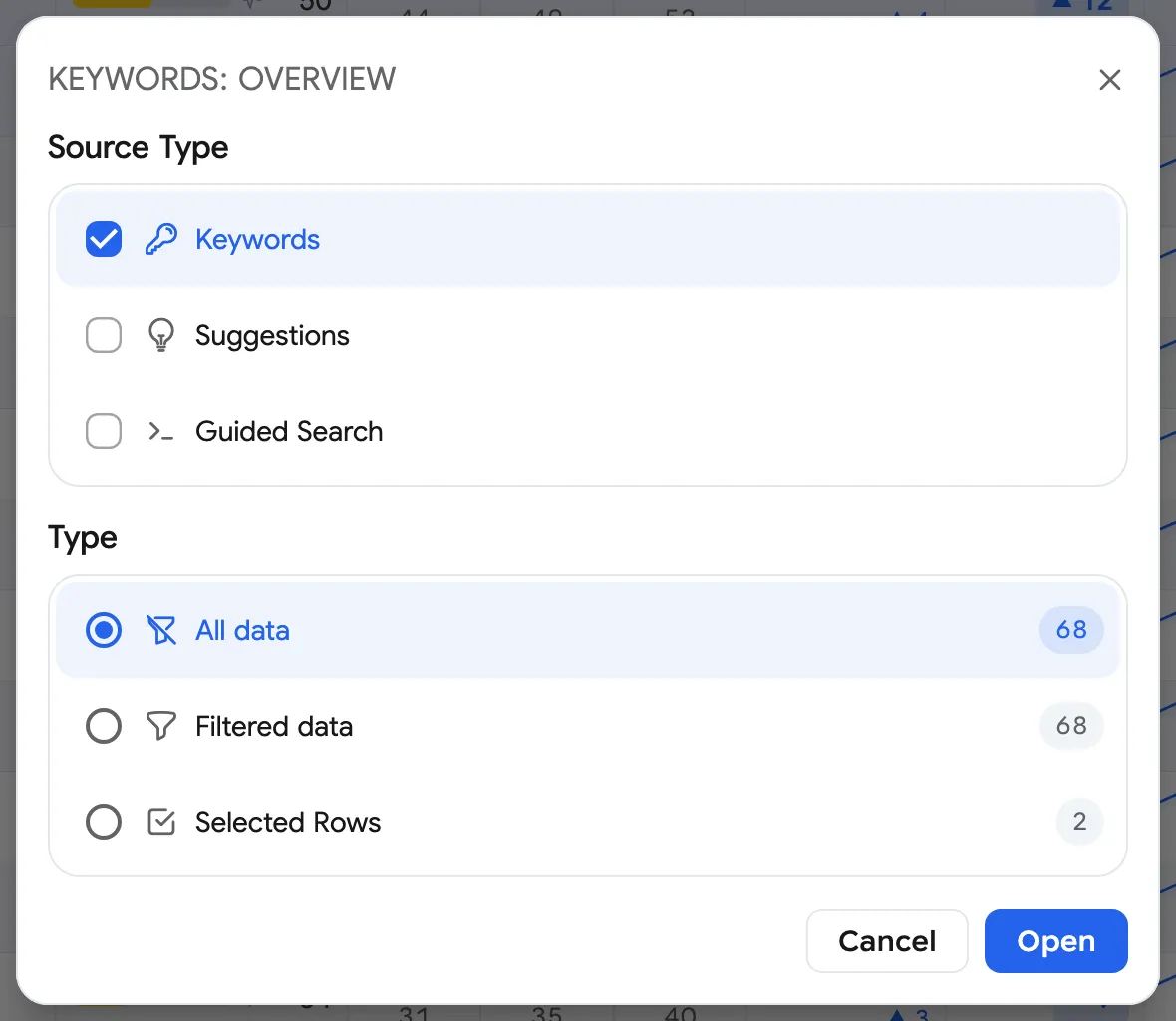
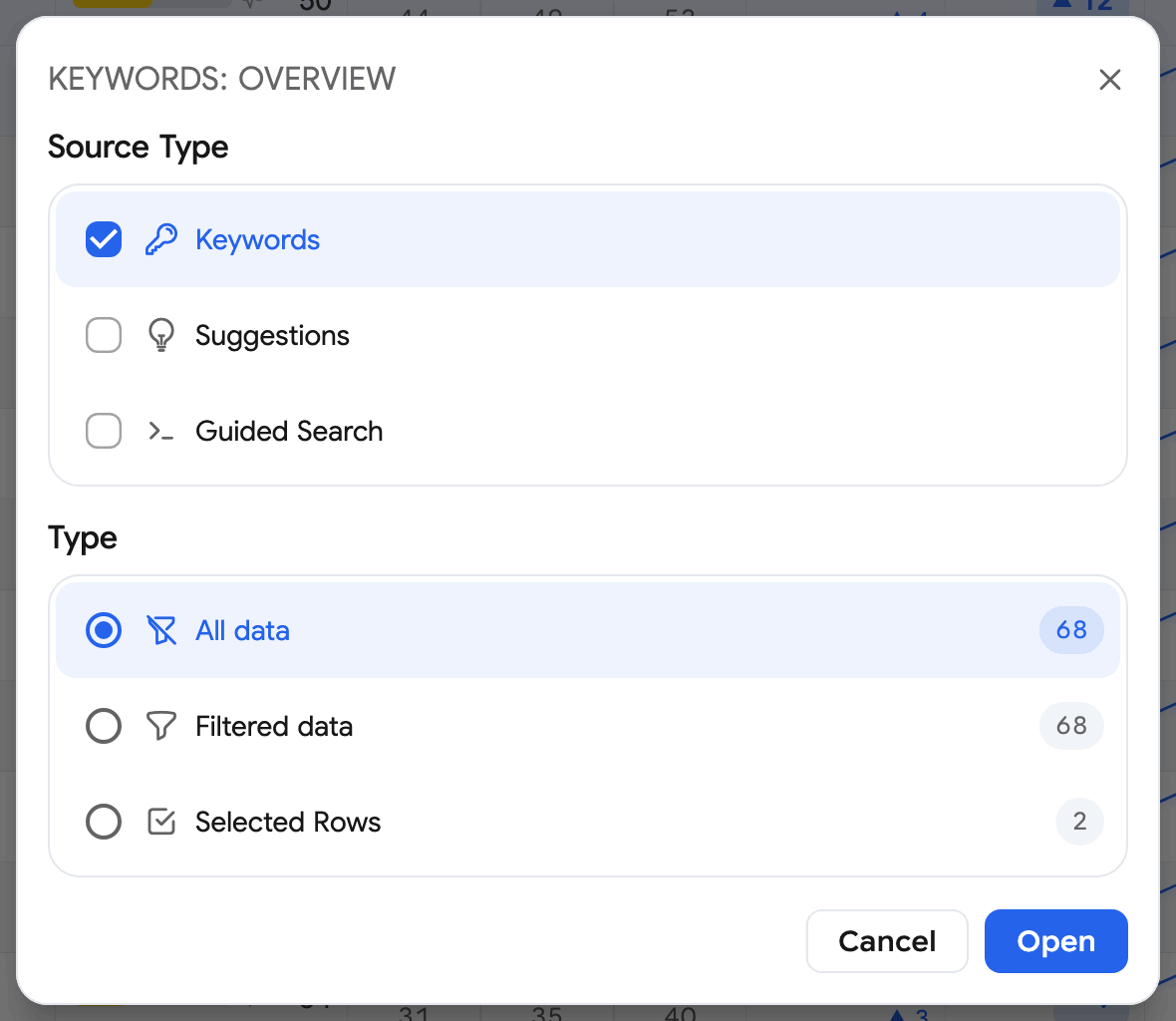
You can choose between three display modes:
- Selected Keywords – view data only for the keywords you’ve manually selected.
- Selected Keyword’s Suggestions – view suggestions generated based on your selected keyword(s).
- ∞ Both Selected Keywords & Selected Keyword’s Suggestions – view your selected keywords alongside their search suggestions for broader insights.
Information Displayed
Section titled “Information Displayed”- Apps ranking at the top positions for your selected keywords and country.
- Metrics to evaluate competition and promotional potential:
- Keyword Popularity - Indicates how frequently users search for apps by this keyword.
- Keyword Difficulty - Shows how challenging it is to rank for this keyword, based on popularity and the number of competing apps.
- Total Apps Count - Displays how many apps appear in search results for this keyword.
- Your app’s position in search results for the keyword and a comparison with the previous date to understand trends.
- Detailed app information displayed when hovering over icons.
Your app will be highlighted in the table with a light blue color to help you quickly spot it in the results.



