
Too Many Verification Codes
The Apple verification code bug, when SMS codes do not arrive on your phone or device, can put your Apple Developer Membership at risk. Sometimes the code does not arrive for a few hours, but for several days. There was a case where App Store Connect could not be accessed for a whole week.
Below are options developers have tried. The main idea is to stop depending on SMS as soon as possible: get a code through any method that works and add a trusted device. An API key and aso.dev are an additional backup for releases, metadata, and regular work.
The Issue
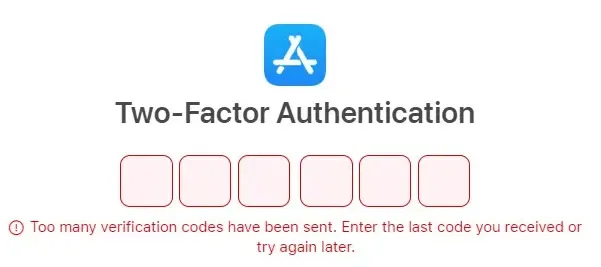
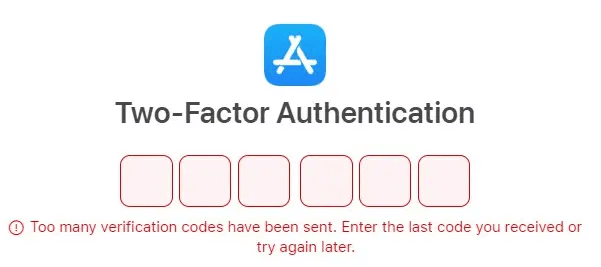
Section titled “The Issue”Error messages:
- “Too many verification codes have been sent. Enter the last code you received or try again later.”
- “Verification codes cannot currently be sent to this phone number. Please try again later.”
What Often Does Not Help
Section titled “What Often Does Not Help”- Waiting between login attempts - developers tried waiting 2 hours, 4 hours, 8 hours, 12 hours, 24 hours, and even more than 48 hours.
- Requesting new codes over and over - this can only make the limit worse.
- Using the Apple Developer account holder’s Apple ID - if the problem is tied to the holder’s Apple ID, creating a new user will not always solve it.
- Writing to Apple Support without the right route - they may promise a call from an Apple Support Advisor, but the call may never happen.
- Creating Apple Support tickets - tickets may stay unanswered for a long time.
- Calling Apple Support - sometimes they say the issue is with your carrier, not Apple.
- Contacting the Apple Developer Relations Manager - if you have a contact, you can try, but a quick reply is not guaranteed.
What Helps More Often
Section titled “What Helps More Often”- Add a trusted device - iPhone, iPad, or Mac, so codes can arrive there and not only by SMS.
- Get a code through another Apple service - sometimes SMS does not arrive in App Store Connect, but does arrive in Apple Ads, Apple TV, Apple Developer, or Apple Music.
- Register the trusted phone number in WhatsApp - Apple may deliver the verification code there instead of a regular SMS.
- Try another browser - for example, open Safari instead of your usual Google Chrome.
- Log in through a second user on the account - if that user has the right permissions.
- Reach Apple Support Chat through Creating an Apple Account - this route often shows Chat even when other topics offer only a call or ticket.
- Request a trusted phone number change through Forgot Password - in one reported case, starting a change to a number in another country or region made codes start arriving on the original number again.
- Use an App Store Connect API key - if the key has already been created, you can work with the app without logging into the web console.
Option #1: Add a Trusted Device
Section titled “Option #1: Add a Trusted Device”If you manage to get a code even once, add a trusted device to your Apple ID right away. It can be an iPhone, iPad, or Mac.
What to do:
- sign in to your Apple ID on a device you trust;
- make sure the device appears in the list of trusted Apple ID devices;
- on the next sign-in, try receiving the code on that device instead of SMS;
- if you have a Mac, add it too - it is convenient for receiving codes while working in App Store Connect.
This is the first step after any successful sign-in. Otherwise, you can end up again in a situation where the only way to get a code is an SMS that never arrives.
Option #2: Sign In Through Apple Ads
Section titled “Option #2: Sign In Through Apple Ads”A new option that may help. Sometimes App Store Connect does not send an SMS at all, while Apple Ads sends the code immediately. After that, trying App Store Connect again may start working too.
What to do:
- open Apple Ads in a browser;
- sign in with the same Apple ID that cannot access App Store Connect;
- request an SMS code;
- if the code arrives, complete the Apple Ads sign-in;
- right after that, try signing in to App Store Connect again and request the code there.
This method worked in a case where App Store Connect could not be accessed for a week because of SMS delivery.
Option #3: Register the Phone Number in WhatsApp
Section titled “Option #3: Register the Phone Number in WhatsApp”Apple may send Apple ID verification codes to WhatsApp for some phone numbers. If the trusted phone number is not registered in WhatsApp, you can miss the code even when Apple uses that delivery channel.
What to do:
- install WhatsApp on a phone that can complete registration for the trusted phone number;
- register and verify the same phone number that is attached to the Apple ID;
- keep WhatsApp open and connected;
- request the Apple verification code once;
- check WhatsApp chats and notifications before requesting another code.
If the code arrives in WhatsApp, use it to complete sign-in and then add a trusted device so future codes do not depend on one delivery channel.
Option #4: Try Safari or Another Browser
Section titled “Option #4: Try Safari or Another Browser”If you always sign in through Google Chrome, try Safari. Sometimes a different browser or a fresh session is enough.
What to try:
- open a private window;
- temporarily disable VPN, proxy, and blockers;
- enter your Apple ID and password manually;
- do not use an old App Store Connect tab where the error was already stuck;
- request the code once and wait.
If you usually use Safari, try a fresh Chrome or Firefox session instead.
Option #5: Get a Code Through Apple TV
Section titled “Option #5: Get a Code Through Apple TV”- Download the Apple TV app on another device - for example, Xbox or Playstation. You can also use the Apple TV app on an Android Smart TV.
- Make sure you are not signed in on this device.
- Enter the Apple Account email and password manually - QR Code and link.apple.com methods may not work.
- Receive a call with the code - the phone number may receive a call with the code without errors.
- Save the code - do not enter this code on the device; just write it down or save it.
- Sign in to App Store Connect - use this code to sign in to App Store Connect, DevCenter, and other Apple services.
- Try linking the device - this used to work sometimes if you linked the Apple ID to the device and entered the code at that exact moment.
Option #6: Try Apple Developer
Section titled “Option #6: Try Apple Developer”- Download the Apple Developer app.
- Install the app on your device.
- Authorization:
- Go to the Account tab.
- Enter your login credentials.
- Verification:
- Enter the verification code received on your phone.
- Use this code wherever it is required.
- Agreement acceptance:
- After signing in, select your company (if applicable) and accept the new agreement.
Option #7: Accept the Agreement on iPhone or iPad
Section titled “Option #7: Accept the Agreement on iPhone or iPad”If the issue is caused by a new Apple Developer Program agreement, you can try accepting it through App Store Connect and Apple Developer on iPhone or iPad.
- Install the App Store Connect app if it is not already on the device.
- Open App Store Connect and sign in with the account holder’s Apple ID.
- If the app asks for a two-factor code, try receiving it on a trusted device or by SMS.
- After signing in, accept the new agreement if the app shows that screen.
- Then open Apple Developer and sign in with the same Apple ID.
- If App Store Connect has already passed verification, Apple Developer may not request the code again.
- In Apple Developer, go to the Account tab, select the company, and confirm the agreement.
After that, the agreement will be accepted and the required account updates will be completed.
Option #8: Activate the Apple ID Through Apple Music
Section titled “Option #8: Activate the Apple ID Through Apple Music”Signing in to Apple Music with the problematic Apple ID sometimes helps, especially if the account was not used with Apple media services before.
Step 1. Sign in to Apple Music on your computer with the problematic Apple ID:
- Open Apple Music on your Mac or PC.
- Try signing in with the Apple ID that returns the error.
- On first sign-in, you may see: “This Apple ID has not been used with Apple Music before.”
- Click “Continue,” then re-enter your login and password if prompted.
- Go through the sign-in process 2-3 times, even if it loops.
Step 2. Sign in to Apple Music with another main Apple ID:
- Sign in with your main Apple ID that has already been used on this computer.
- Make sure the sign-in succeeds.
Step 3. Try signing in to Apple Developer or App Store Connect again:
- After these steps, try signing in to Apple Developer again.
- Then try App Store Connect.
This time, the verification code should arrive correctly, even if you previously had SMS issues.
Option #9: Ask Apple Support to Reset the Code Limit
Section titled “Option #9: Ask Apple Support to Reset the Code Limit”This route can help you reach a person, but it does not guarantee a reset. Go through Apple Support for Apple Account creation rather than general Developer Support. The Creating an Apple Account route often shows Chat. If you choose another topic, Chat may not appear.
The detailed route with screenshots is in Create an Apple Account for Apple Developer. In short:
- Open Apple Get Support.
- Choose Apple Account.
- Choose Other Apple Account Topics.
- Choose Creating an Apple Account. If Apple shows another Other Apple Account Topics option, choose it and continue.
- Click Continue and choose Chat.
What to write in chat:
Hello. I need to access my Apple Account for App Store Connect / Apple Developer, but I keep getting "Too many verification codes have been sent" and cannot receive a working verification code.
Could you please check whether there is a verification code limit on this Apple Account or trusted phone number and reset it if possible?
Support usually asks:
- when you last signed in successfully;
- where you tried to sign in: App Store Connect, Apple Developer, account.apple.com, Apple Ads, etc.;
- what exactly you did before the error appeared;
- whether SMS or phone calls with codes arrived;
- whether the code was requested many times and whether there was a password reset or account recovery attempt;
- which device, browser, network, VPN, or proxy you used.
Answer briefly and ask specifically whether they can reset the verification code sending limit. The chat can take 30-50 minutes. Apple Support may say that they have no way to reset the limit. If that happens, continue with the trusted phone number change below instead of repeatedly requesting more codes.
Option #10: Second User or Phone Number Recovery
Section titled “Option #10: Second User or Phone Number Recovery”If the account already has a second user with the required permissions, try signing in through that user. You can also contact Developer Support, explain the situation, and ask them to forward the ticket to the primary email so the account owner can send the request.
Request a Trusted Phone Number Change Through Forgot Password
Section titled “Request a Trusted Phone Number Change Through Forgot Password”If Support cannot reset the code limit and none of the other methods work, start the Apple Account recovery flow and request to change the trusted phone number:
- On the Apple Account sign-in screen, choose Forgot password?
- Enter the affected Apple Account and continue until Apple offers recovery for a trusted phone number you cannot use.
- Request to replace the trusted number with another number that you control and can keep using.
- If delivery to a Russian number appears to be the problem, try a number from another country or region.
- After submitting the request, wait before trying the original trusted number again. Do not request many codes in a row.
In one reported case, Apple Support said that it was unable to reset the code limit, and all the other methods failed. The account owner then requested a change from a Russian trusted number to a non-Russian number through Forgot password? Before the number change was completed, verification codes started arriving on the old number again.
This behavior is not documented by Apple and is not guaranteed. The recovery request may have caused Apple to re-check code delivery, but that is only a possible explanation. Use a permanent number you control, not a temporary or borrowed number.
If codes do not resume on the original number, you may need to complete the phone number recovery process. This can take many days, so it is not a good emergency option if the subscription is about to expire or you need to release urgently.
Bonus: If an API Key Was Already Created
Section titled “Bonus: If an API Key Was Already Created”If you already have an App Store Connect API key, you can use aso.dev as a backup path for work tasks. It does not fix Apple ID two-factor authentication itself, but it helps you avoid stopping a release or metadata work while you restore normal access.
Where such a key is often already used:
- Fastlane - for example, for
deliver,pilot,upload_to_app_store,app_store_connect_api_key. - CI/CD - GitHub Actions, GitLab CI, Bitrise, Codemagic, Jenkins, and other release pipelines.
- Automatic build uploads - when a build is automatically sent to TestFlight or App Store Connect.
- Project secrets - look for a
.p8file,Key ID, andIssuer ID, often in variables likeAPP_STORE_CONNECT_API_KEY,ASC_KEY_ID,ASC_ISSUER_ID. - Release scripts - if the project already has commands for publishing without manually signing in to App Store Connect.
If this sounds like your setup, the key probably already exists and can be connected to aso.dev.
With an API key you can:
- update metadata;
- select a build for publishing;
- prepare a release;
- work through CI/CD or Fastlane.
After You Get Back In: Reduce SMS Dependence
Section titled “After You Get Back In: Reduce SMS Dependence”- Add a trusted device or Mac - so codes can arrive somewhere other than SMS.
- Add a second user with the required roles, so access does not depend on one Apple ID.
- Create an App Store Connect API key - you can get a new key in App Store Connect after access is restored.
- Connect the key to aso.dev - this is an additional backup for releases and metadata if SMS breaks again.
If SMS starts arriving again, add a trusted device and backup access right away. An API key is also worth setting up, but as an additional backup for work tasks.