
Image Optimizer
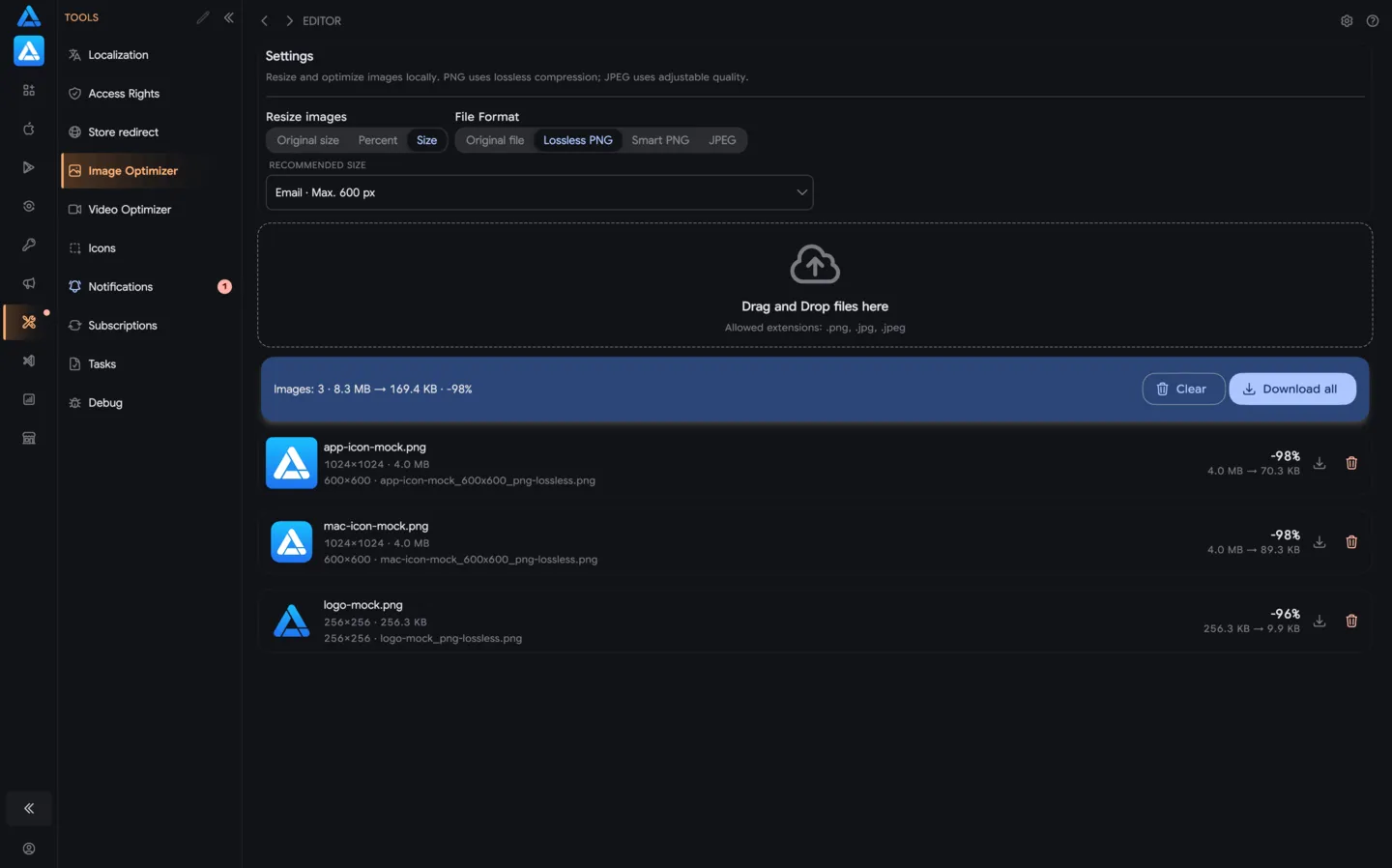
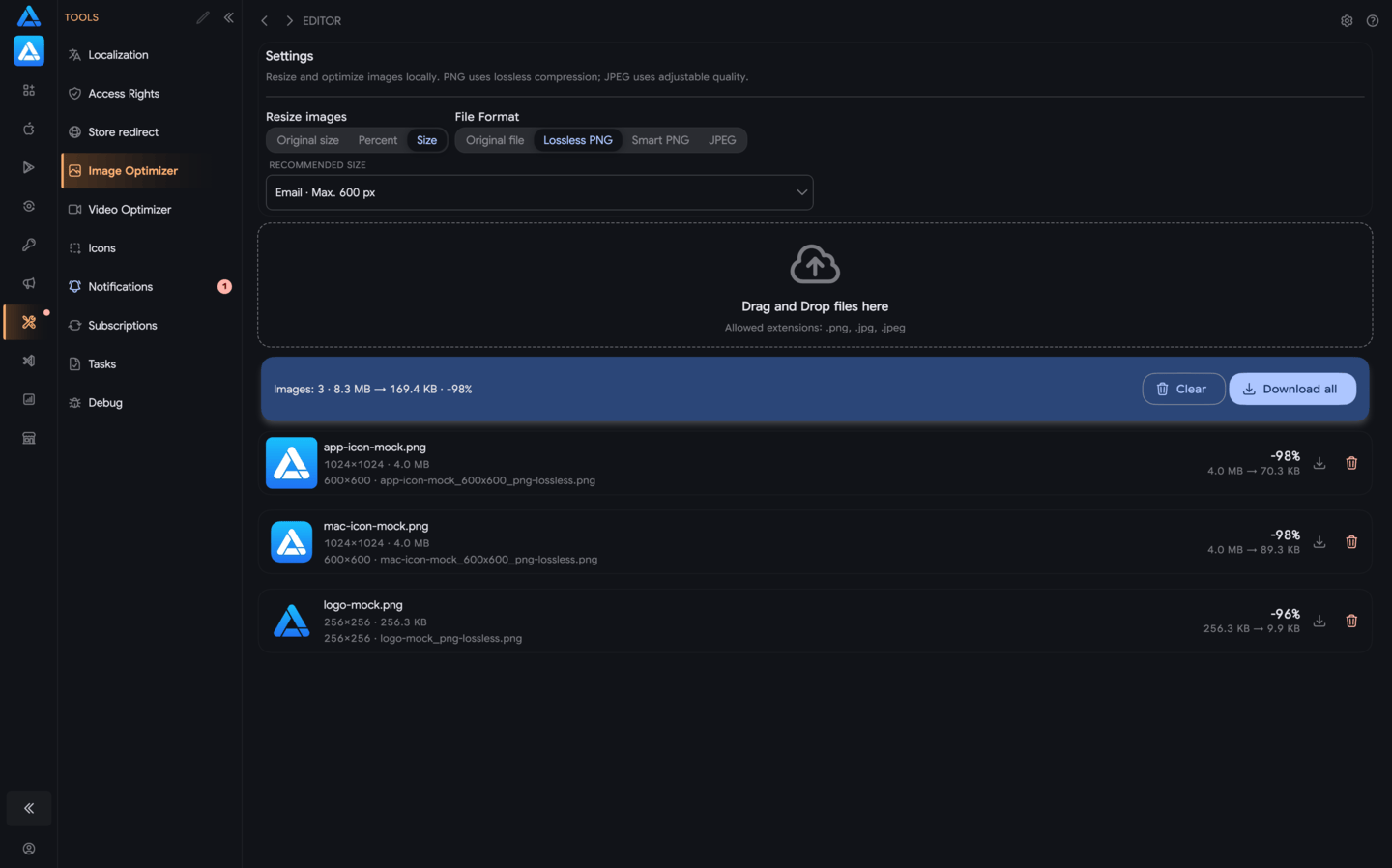
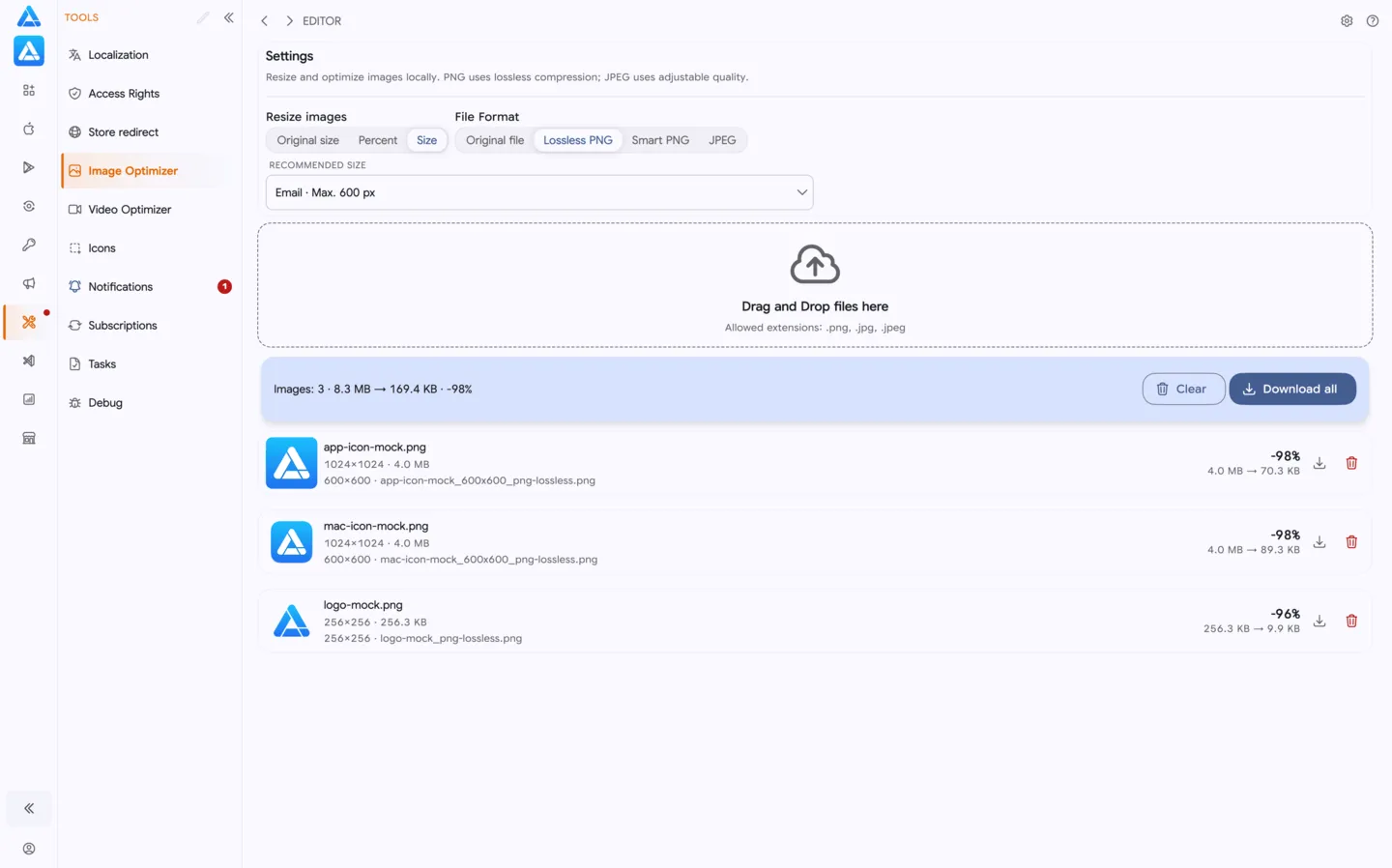
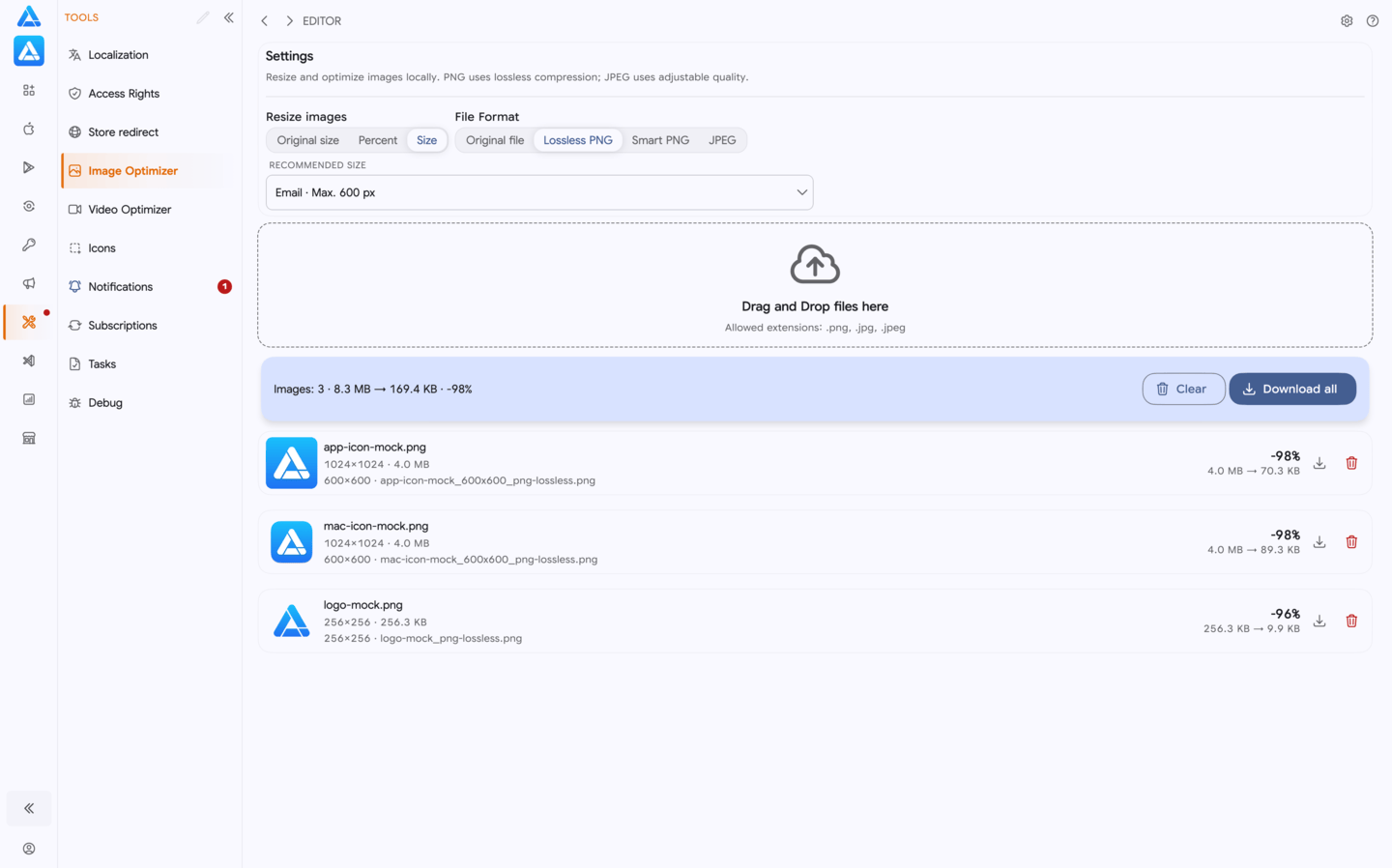
Image Optimizer is a tool for reducing the size of multiple PNG and JPEG images at once. All files are processed locally on your device and optimized automatically as soon as they are added.
Use Image Optimizer to prepare images for a website, mobile app, or the App Store, reduce loading times, and download the processed files individually or in a single ZIP archive.
Adding images
Section titled “Adding images”Drag files into the upload area. Supported formats:
.png.jpg.jpeg
You can add multiple images at once. The following information is shown for each file:
- file name;
- dimensions;
- original file size;
- processing status;
- final savings.
Processing starts automatically. You do not need to upload the images to a server or start optimization manually.
Optimization modes
Section titled “Optimization modes”Choose a format based on whether preserving the original image data or reducing the file size further is more important.
Lossless PNG
Section titled “Lossless PNG”Preserves the original colors without reducing quality. This mode is suitable for interfaces, illustrations, screenshots, and other graphics where accurate color reproduction is important.
If high-quality resizing produces a file larger than the original, Image Optimizer automatically applies simplified scaling without adding intermediate color shades.
Smart PNG
Section titled “Smart PNG”Uses palette optimization and the selected quality level. This mode can reduce PNG files further when a small reduction in the number of color shades is acceptable.
Quality can be adjusted from 40% to 100%.
Converts the image to JPEG using the selected quality level. This mode is best suited to photographs and images with many colors and smooth gradients.
Quality can be adjusted from 40% to 100%.
Resizing images
Section titled “Resizing images”Enable Resize images to reduce image dimensions before optimization.
The following presets are available:
| Preset | Dimensions |
|---|---|
| Web Hero | 1920×1080 |
| Web Content | 1200×800 |
| Mobile | 1080×1920 |
| Tablet | 1536×2048 |
| App Store | 1242×2688 |
| Custom size | Set manually |
The original aspect ratio is preserved. If a file is smaller than the selected dimensions, Image Optimizer does not enlarge it.
If you change the format, quality, or dimensions after processing is complete, the screen offers to optimize the added images again.
Optimization results
Section titled “Optimization results”After processing, each file row shows:
- savings as a percentage;
- original and optimized file sizes;
- a download button;
- a button to remove the file from the list.
The summary above the list shows the number of processed images, their total original size, and the overall savings percentage. This makes it easy to evaluate the entire batch without comparing files manually.
Downloading files
Section titled “Downloading files”To download a single image, select the download button in its row. The _optimized suffix is added to the file name.
To download all processed images in one ZIP archive, select Download All:
- in the results summary;
- in the top toolbar;
- or use the ⌘D keyboard shortcut.
Inside the ZIP archive, the -optimized suffix is added to file names.
Clearing the list
Section titled “Clearing the list”The refresh button in the top toolbar removes all added images and processing results. The selected format, quality, and resizing settings are preserved.
You can also use the ⌘R keyboard shortcut to clear the list.