
Retention Messages: Create, Edit and Submit for Review
A retention message is the card the App Store shows to subscribers on the cancellation confirmation screen. It contains a header and a body, and optionally an image or a retention offer. In ASO.dev you create messages, write their texts in every language of the app, choose the subscriptions and offers they are shown with, preview the cancellation sheet and add the message for review without opening App Store Connect.
Select an App Store app, then open Metadata → Monetization → Retention Messages.
For advice on writing messages and choosing offers, see Retention messages in the App Store.
Why it matters for ASO
Section titled “Why it matters for ASO”- Protect revenue from users you already acquired. ASO, featuring and Apple Ads bring installs and trials, but revenue depends on how long subscribers keep paying. The message works at the moment of cancellation, the last step of the funnel.
- Raise LTV. Every subscriber who changes their mind renews, so the average revenue per user grows. A higher LTV lets you pay more per install in Apple Ads for the same keywords and still break even.
- Continue the product page story. Repeat the benefits that convert best in your subtitle and screenshots, so subscribers recognize what made them subscribe.
- Match the product page localizations. When you add languages, ASO.dev offers the app’s App Store localizations, so the message is easy to translate for every country where the subscription is sold.
- Test wording without touching rankings. The message appears only in the cancellation flow and isn’t part of the product page metadata, so you can change the copy without risking keyword positions.
Message list
Section titled “Message list”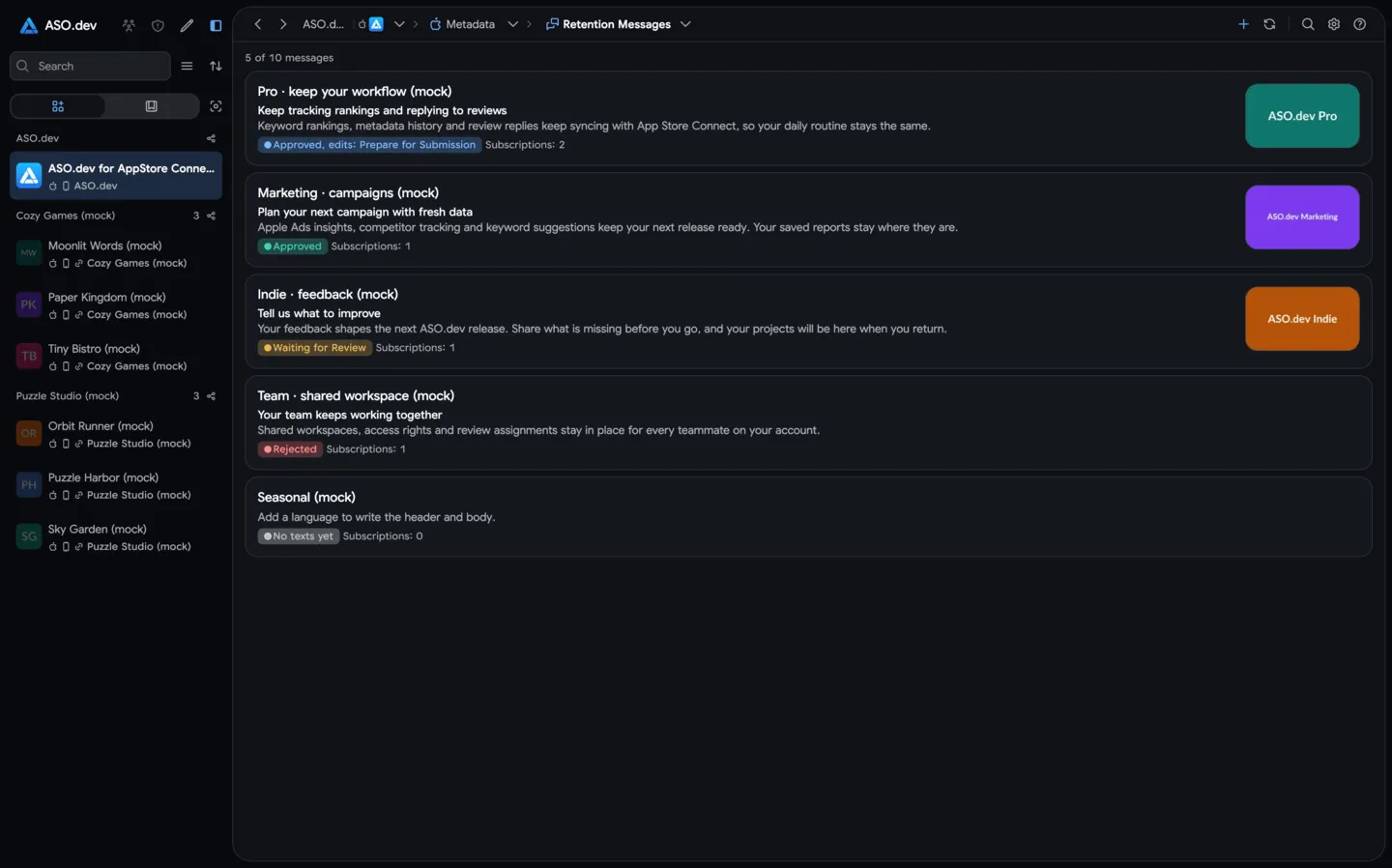
Header buttons
Section titled “Header buttons”- Create retention message (⌘N / Ctrl+N) asks for a reference name and creates the message. The button is disabled when the app already has 10 messages; the tooltip explains the limit.
- Reload (⌘R / Ctrl+R) loads the messages from App Store Connect again, including changes made outside ASO.dev.
Message cards
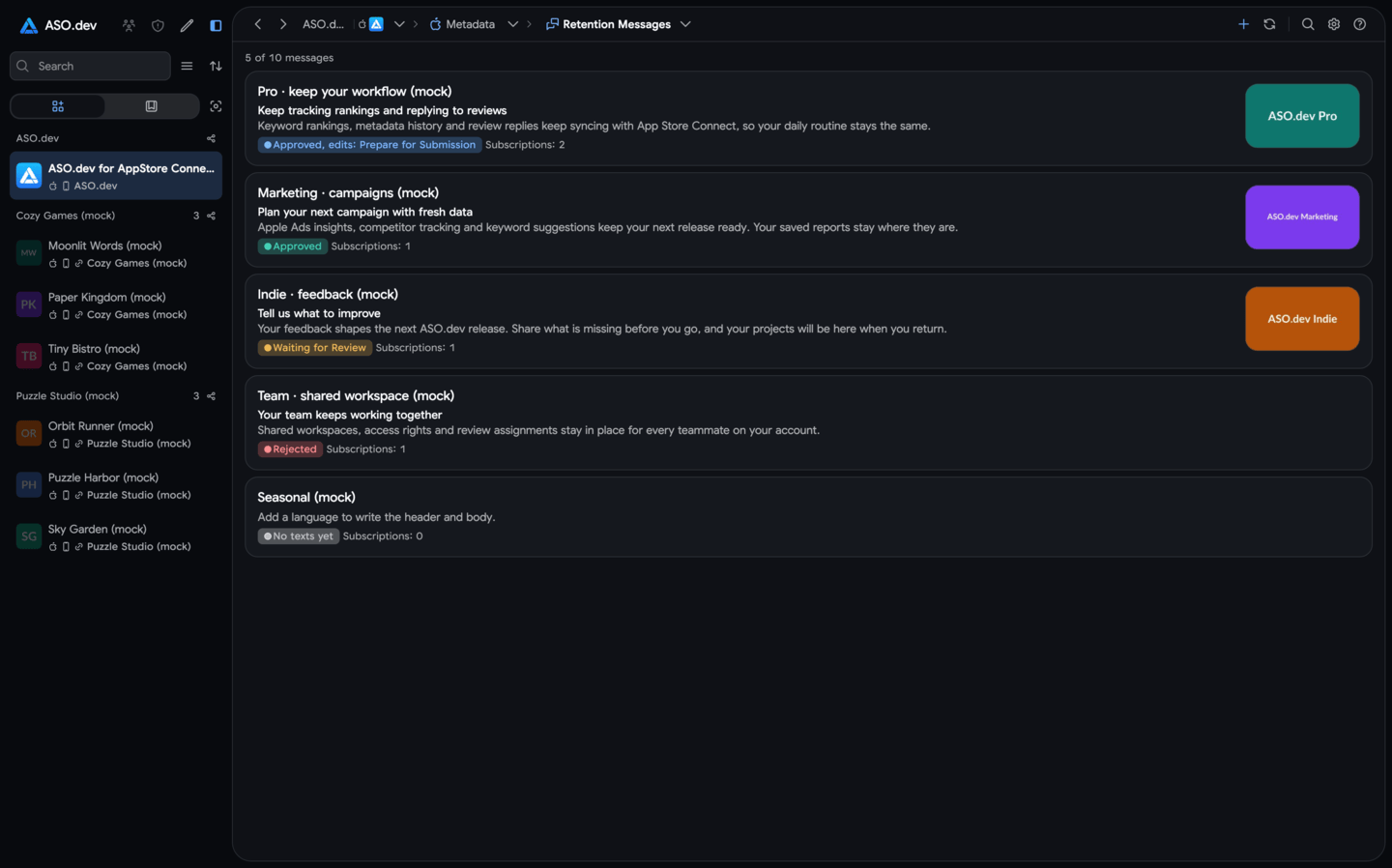
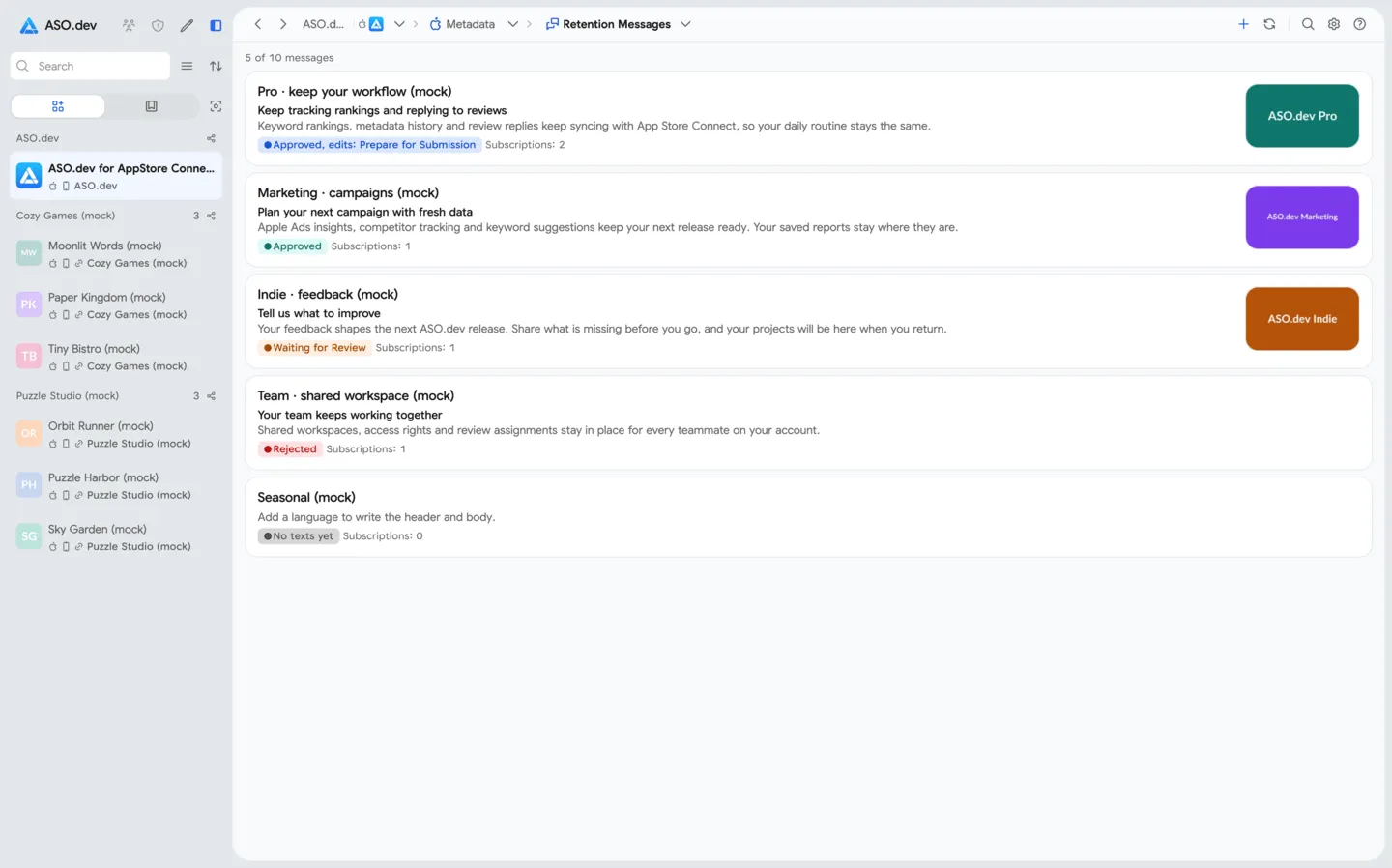
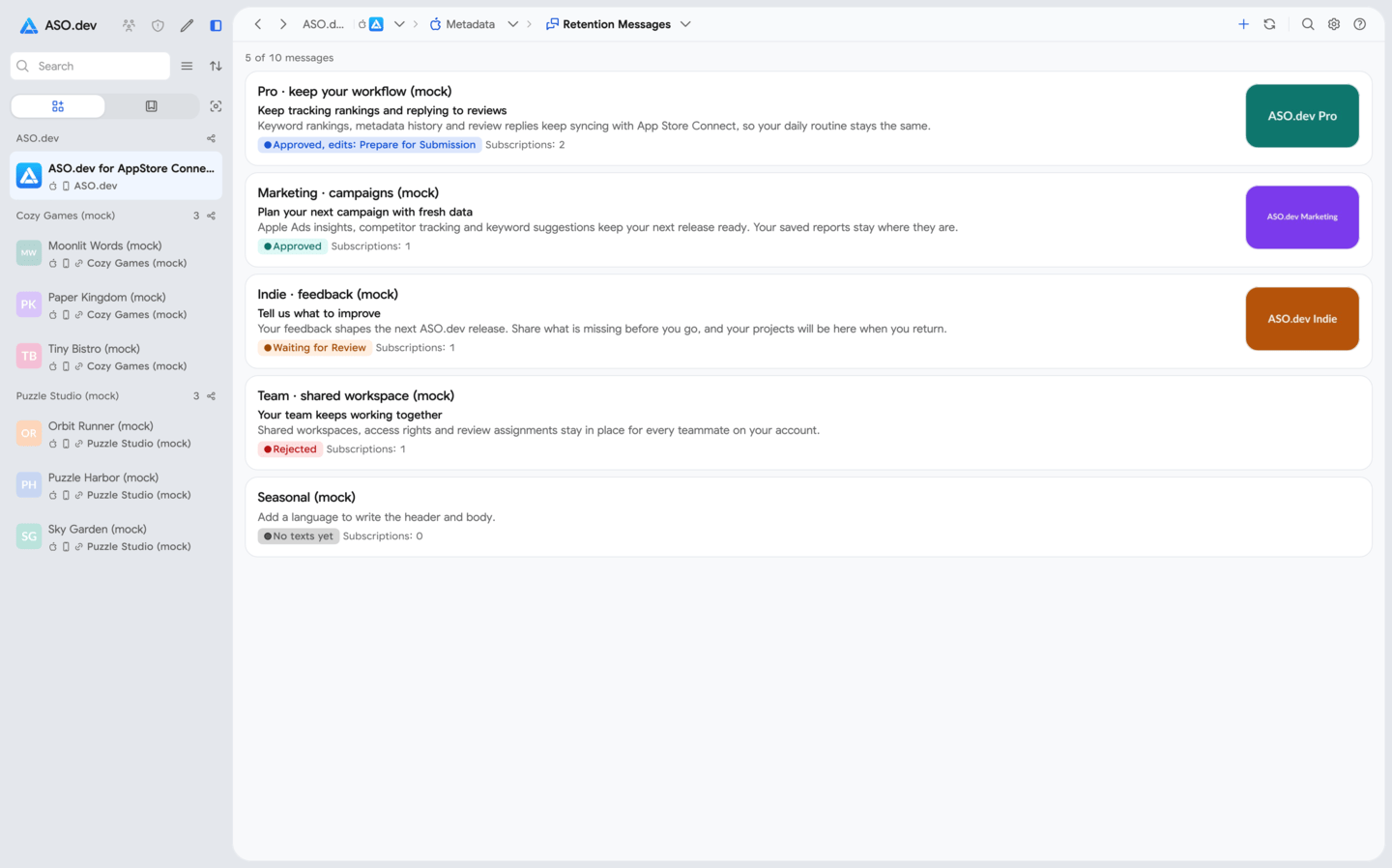
Section titled “Message cards”The line above the list shows how many messages the app has out of the 10 that App Store Connect allows. Each card shows:
- the reference name;
- the header and the body in the app’s primary language, or Add a language to write the header and body when there are no texts yet;
- the image thumbnail, if the message has an image;
- the review status;
- Subscriptions: the number of subscriptions the message is shown for.
Click a card to open the message editor.
| Status | Meaning |
|---|---|
| No texts yet | The message has no version yet. Add a language and save to create one. |
| Prepare for Submission | A draft you can edit and add for review. |
| Ready for Review | The draft is in a review submission that hasn’t been sent yet. |
| Waiting for Review, In Review | The draft is with App Review. Texts and the image can’t be changed until the review ends. |
| Rejected, Developer Rejected | App Review rejected the draft, or you removed it from the submission. Fix the texts and add it again. |
| Approved | Subscribers see this version. |
| Approved, edits: … | Subscribers see the approved version; the status after the comma is the state of the new draft. |
Creating a message
Section titled “Creating a message”- Click Create retention message in the page header. If the app has no messages yet, use the button on the empty screen.
- Enter a Reference Name of up to 64 characters. Only your team sees it, and it can’t be changed after the message is created, so describe the audience or the idea, for example
Pro · keep your workflow. - Confirm. The message appears in the list with the No texts yet status. Open it to add texts.
Message editor
Section titled “Message editor”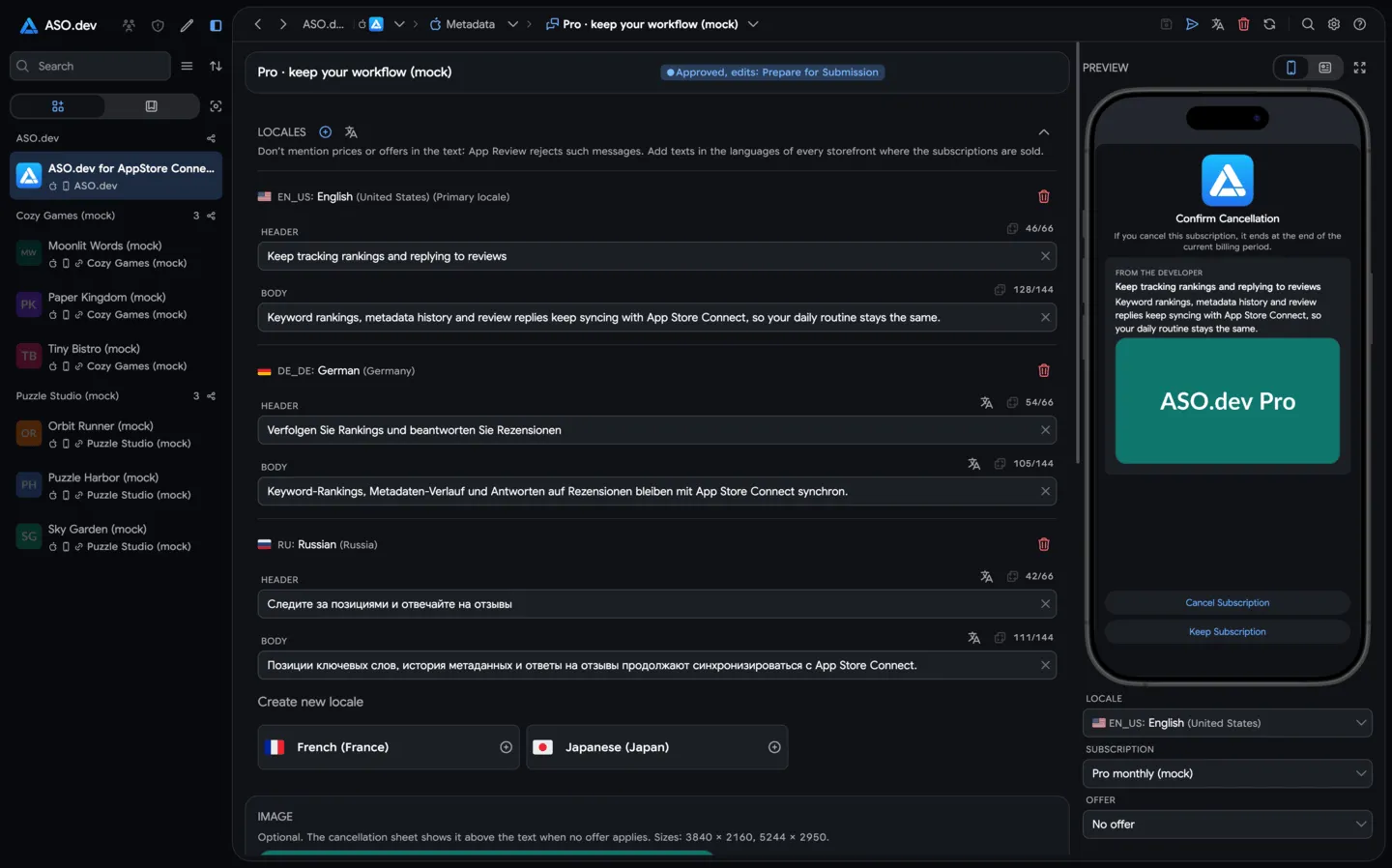
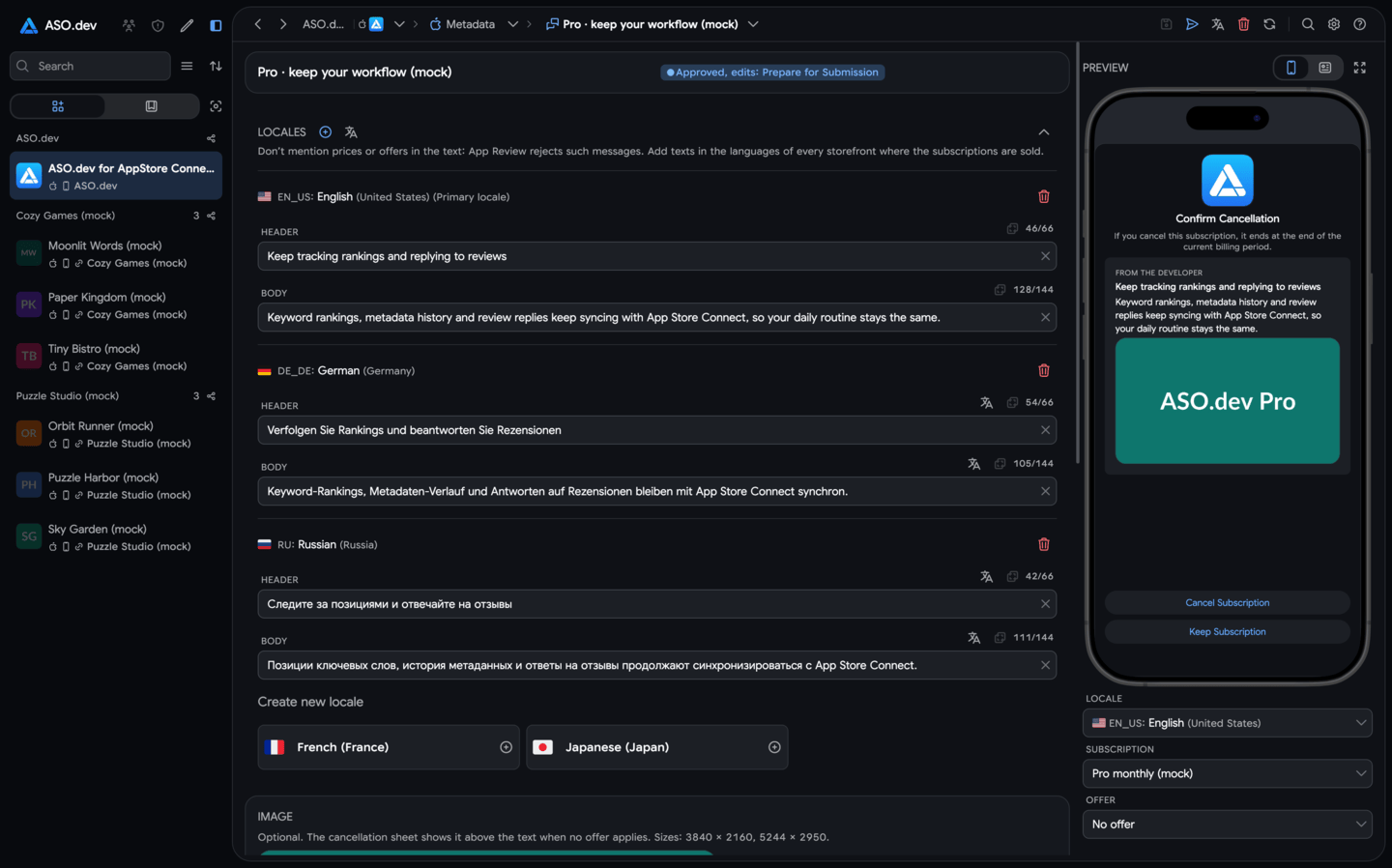
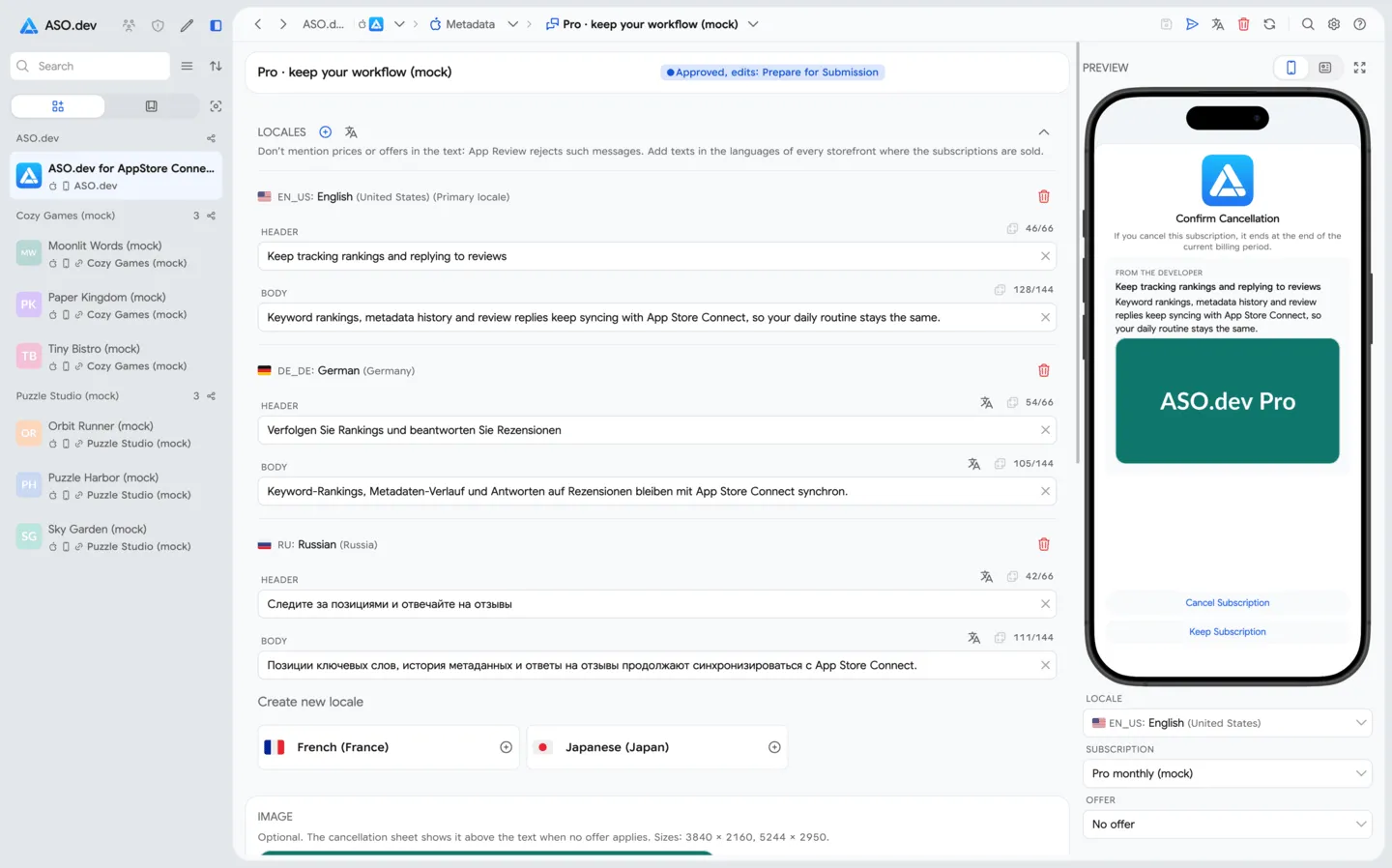
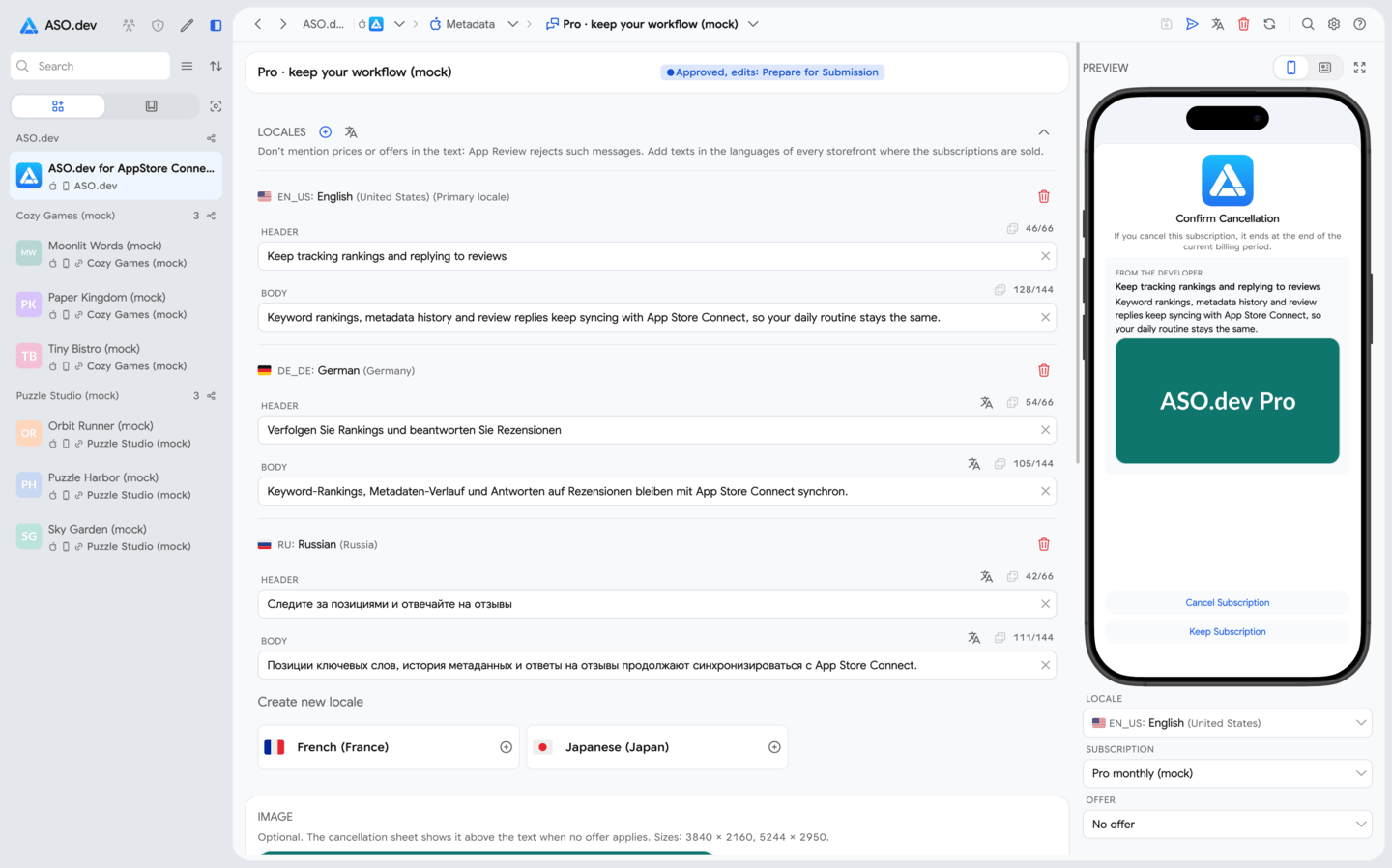
The editor has four cards (status, texts, image, subscriptions and offers) and a preview. On a wide window the preview stays on the right; on a narrow window it is shown below the cards.
Header buttons
Section titled “Header buttons”- Save (⌘S / Ctrl+S) writes every change of the page to App Store Connect: texts, image, subscriptions and offers. The progress bar names the step in progress.
- Add for Review (⌥⌘S / Ctrl+Alt+S) opens the review menu. The button appears when the message has a draft version. If the draft can’t be added, the tooltip names the reason: unsaved changes, a language without a header or body, or a draft already with App Review.
- Translate (⌘T / Ctrl+T) translates the header and the body from the primary language into the other languages of the message. Choose Translate if empty to fill only empty fields, or Translate and overwrite to replace existing texts. The button appears when the message has at least two languages.
- Delete retention message (⌘⌫ / Ctrl+Backspace) deletes the message in App Store Connect after confirmation and returns to the list. Subscribers stop seeing it, and this can’t be undone.
- Reload (⌘R / Ctrl+R) loads the message again. If you have unsaved changes, ASO.dev warns that they will be lost.
The review menu contains:
- Add for Review: opens the Choose a submission dialog, where you pick a draft submission of the app or create a new one. See App Review for details.
- the submissions that contain the message, with their status: opens the submission on the App Review screen;
- Reply to App Review and Resubmit for Review: appear when App Review rejected the message;
- Cancel submission: withdraws a submission that is waiting for review or in review;
- Remove from review: removes the message from its submission;
- App Review: opens the App Review screen.
Status card
Section titled “Status card”The first card shows the reference name and the review status. Below it, a hint explains what you can change:
- This version is with App Review: texts and the image are locked until the review ends. Subscriptions and offers can still be changed.
- Saving texts creates a new version: the message is approved and has no draft. After saving, subscribers keep seeing the approved version until App Review approves the new one.
The Locales card holds the header and the body for each language. The primary language of the app comes first, and the other languages show its text as a reference.
- Add languages:
- next to Locales (Create all locales) adds the app’s App Store localizations that the message doesn’t have yet;
- a language in Create new locale at the end of the card adds that language.
- Fill in the Header (up to 66 characters) and the Body (up to 144 characters). The counter above each field shows the remaining length.
- To translate a single field, use above it. next to Locales works like Translate in the page header.
- To remove a language, click next to its name. The language is deleted in App Store Connect when you save.
The image is optional. The cancellation sheet shows it under the text when no offer applies to the subscriber. App Store Connect accepts 3840 × 2160 and 5244 × 2950 pixels; the card lists the sizes Apple currently accepts.
- From library opens the Asset Library with filters for images of the accepted sizes.
- Upload file selects an image on your computer. It is uploaded to the Asset Library when you save.
- Delete removes the image from the message when you save.
- Undo brings back the image the message had before your change.
Until you save, the card shows Placed on save or Removed on save.
Subscriptions and offers
Section titled “Subscriptions and offers”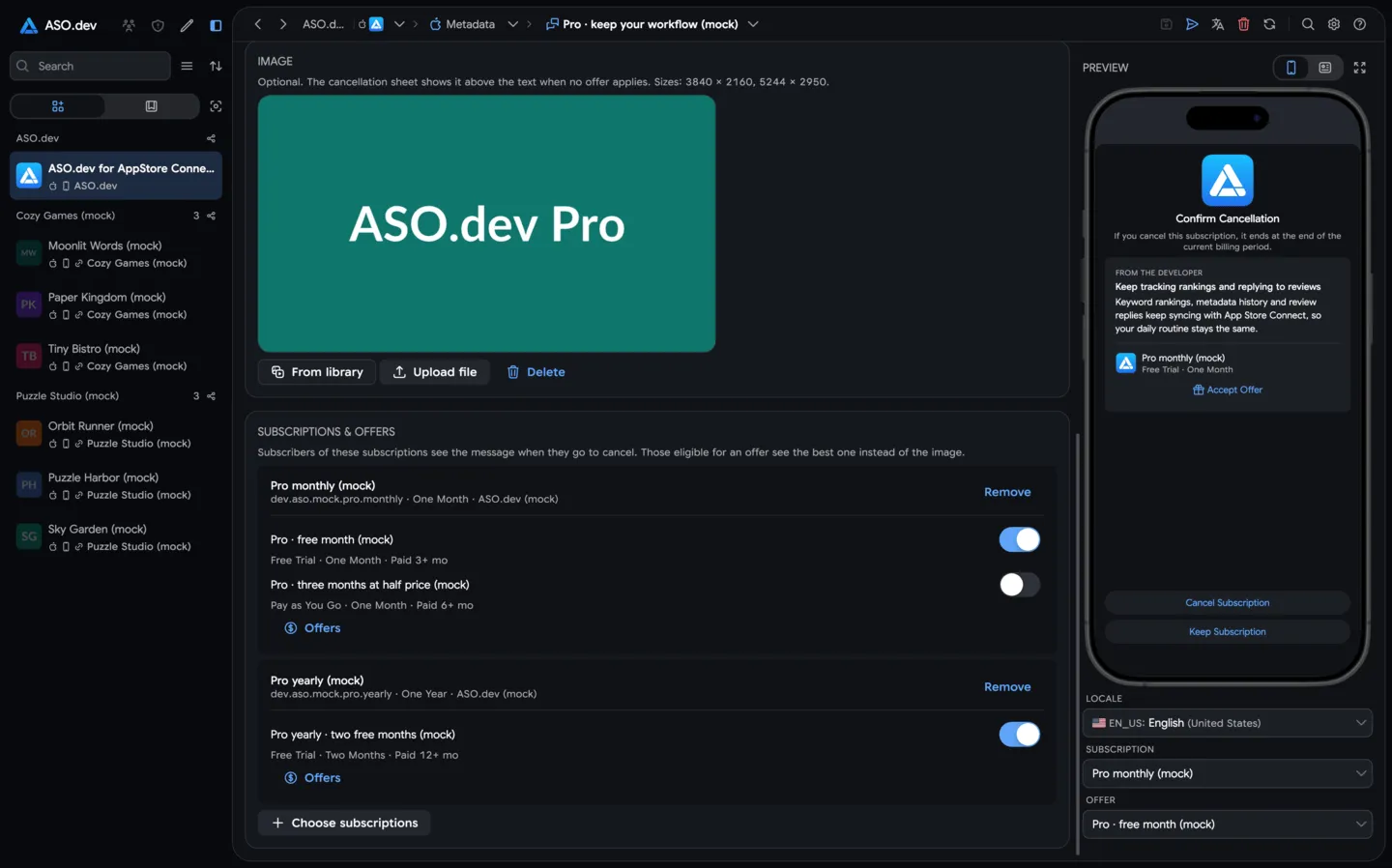
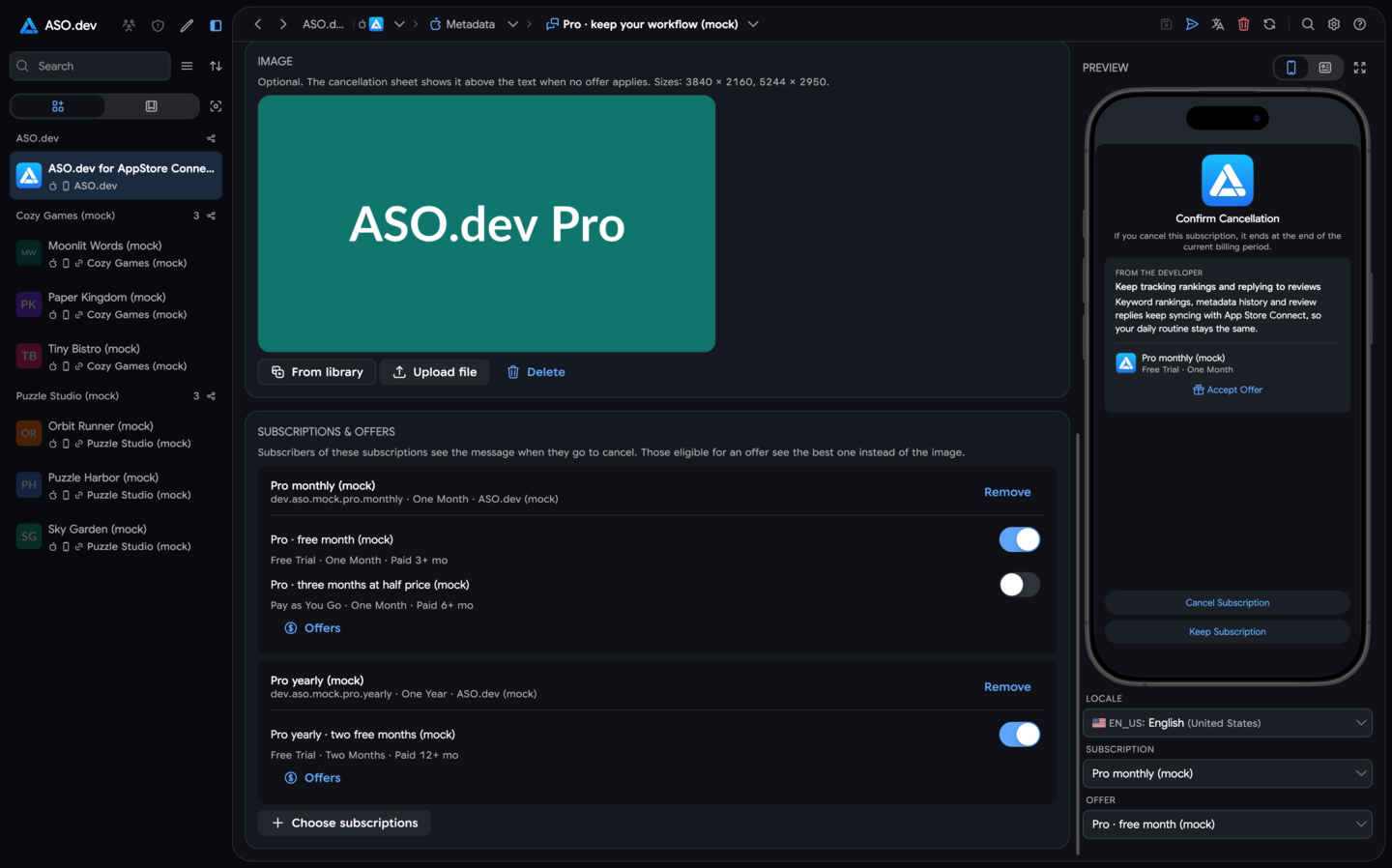
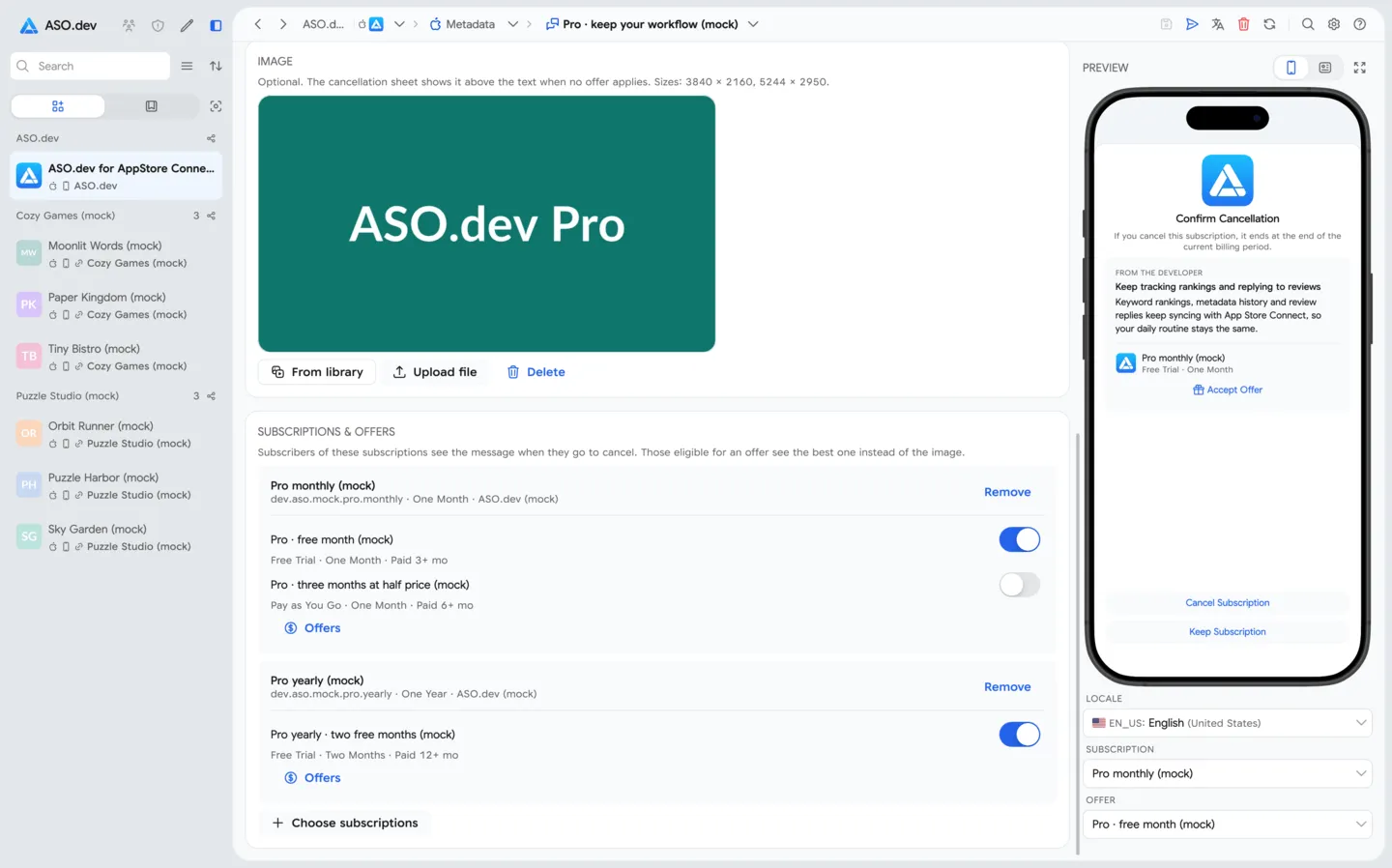
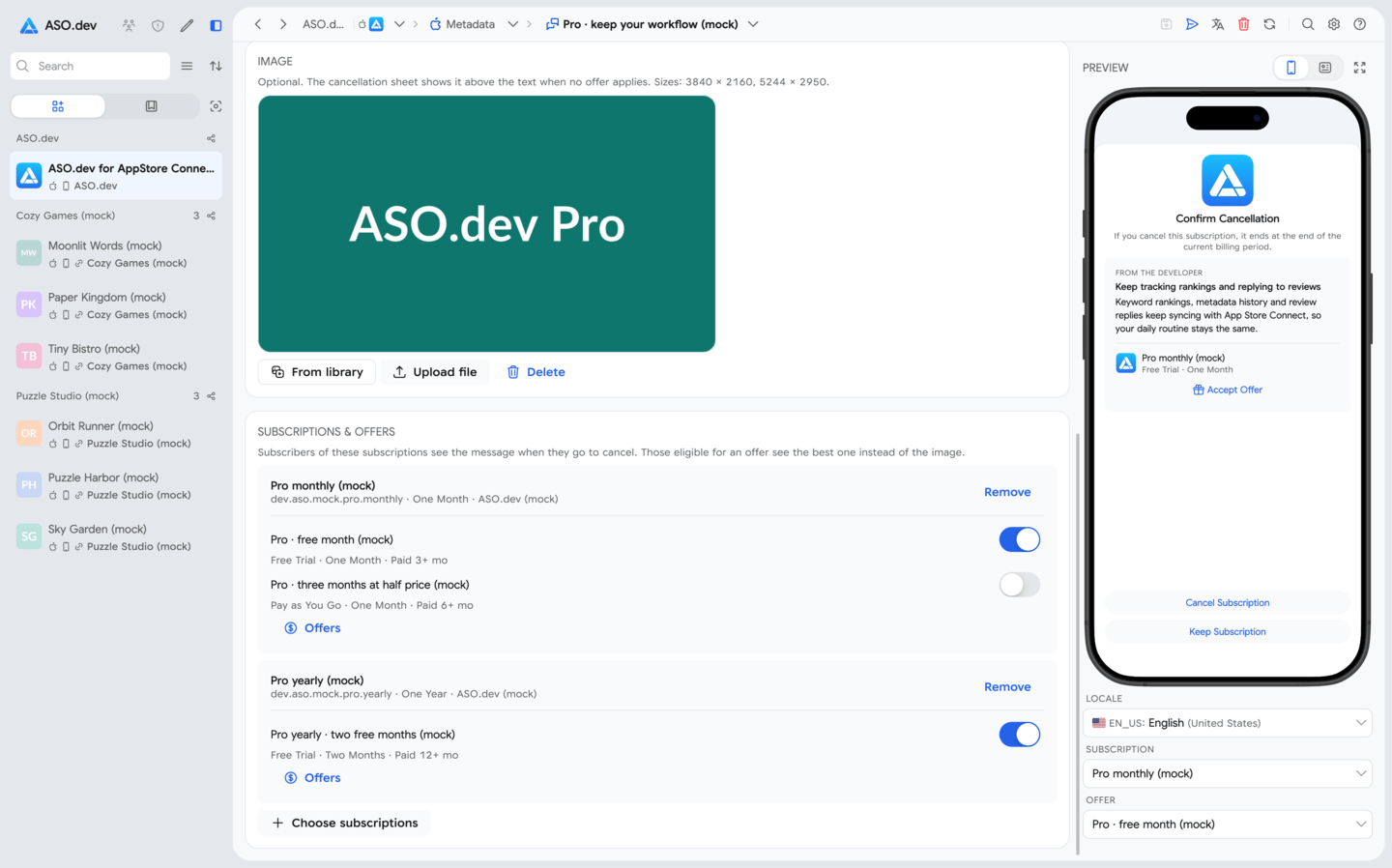
The Subscriptions & offers card lists the subscriptions the message is shown for. Each subscription shows its product ID, period and group, and its retention offers:
- turn on the switch next to an offer to show it with this message. Under the offer name you see its type, duration and the required paid subscription period;
- No offer is shown means subscribers of this subscription see the text and the image;
- Create offer (or Offers, when the subscription already has offers) opens the subscription’s pricing editor on its retention offers;
- Remove stops showing the message for this subscription.
Offers are created in the pricing editor; the message editor only chooses which of them are shown. After you save offers in the pricing editor, the open message editor updates its list of offers and keeps your unsaved changes.
Choosing subscriptions
Section titled “Choosing subscriptions”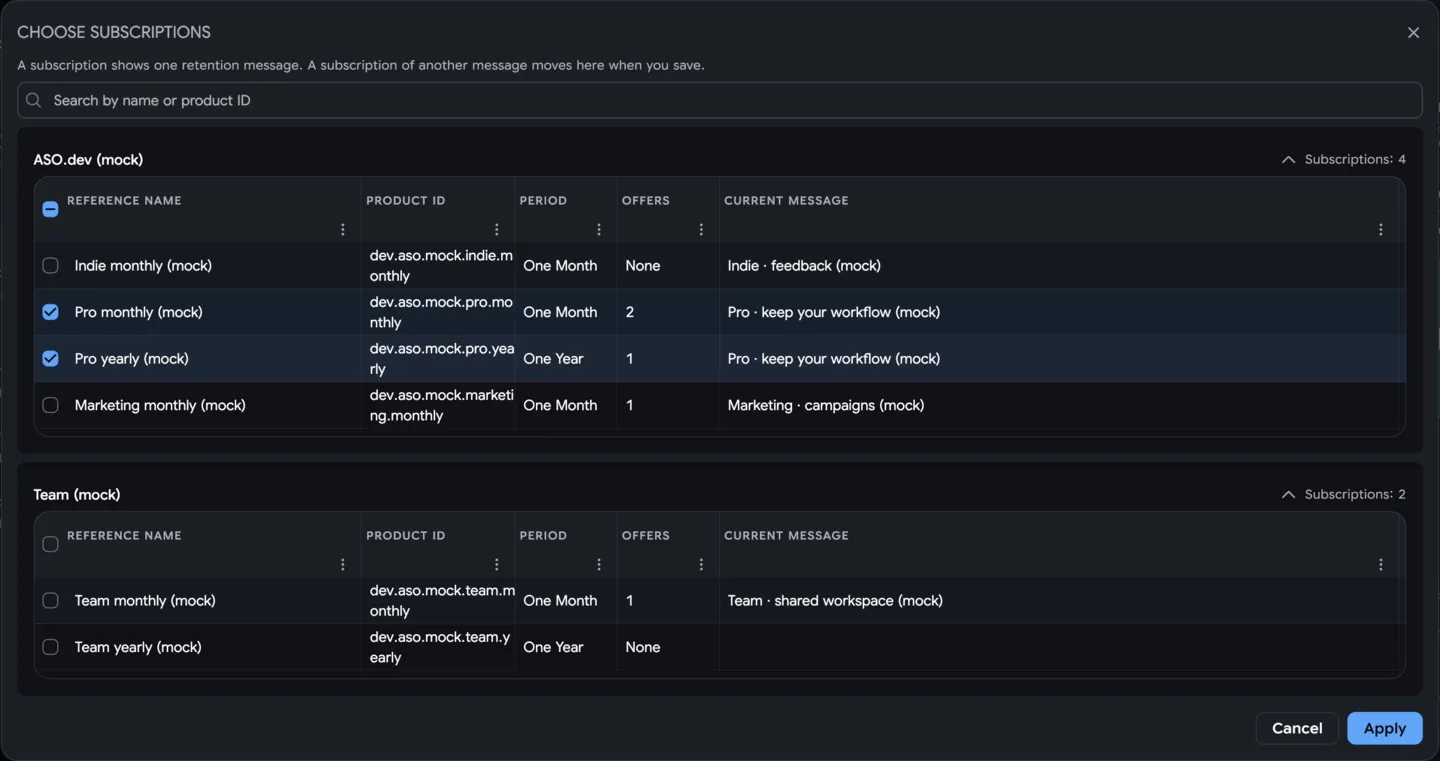
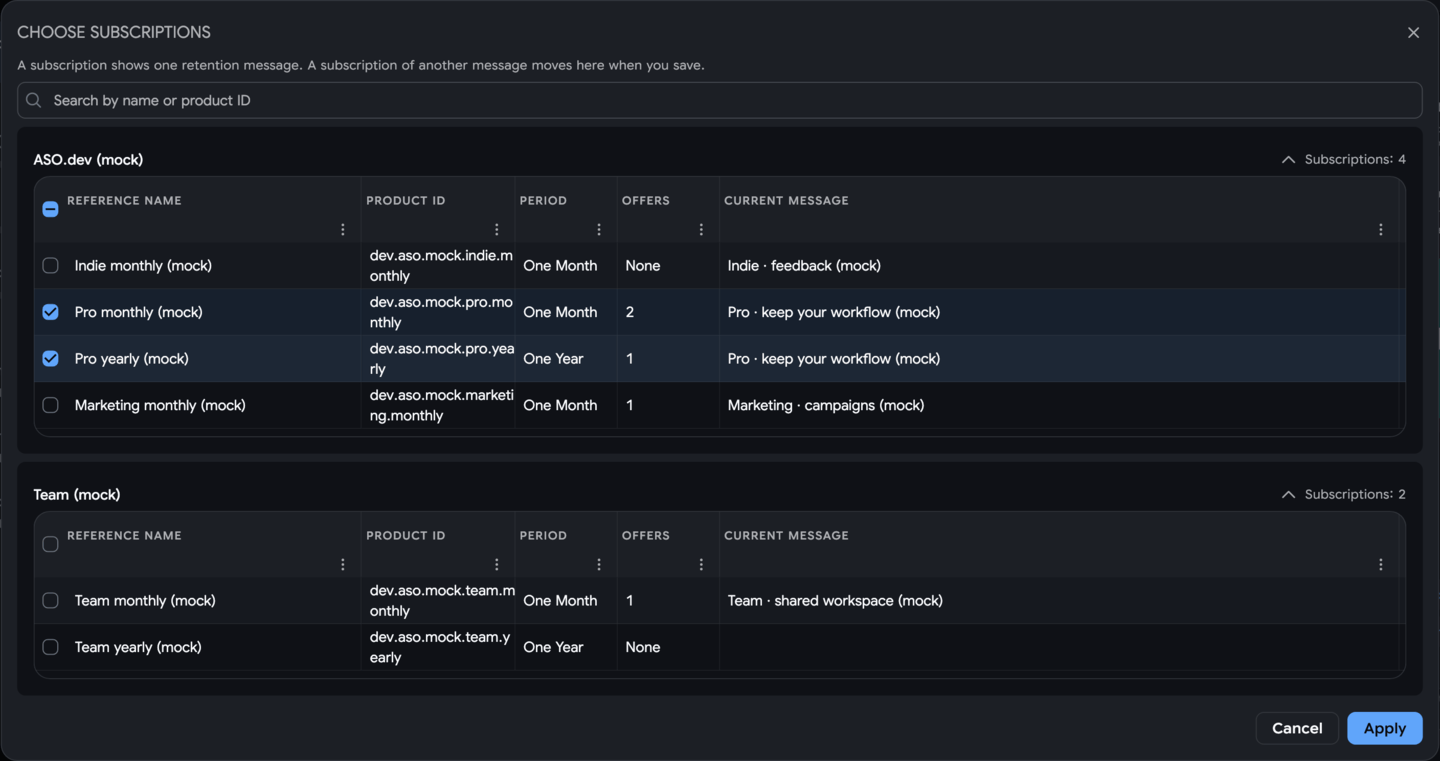
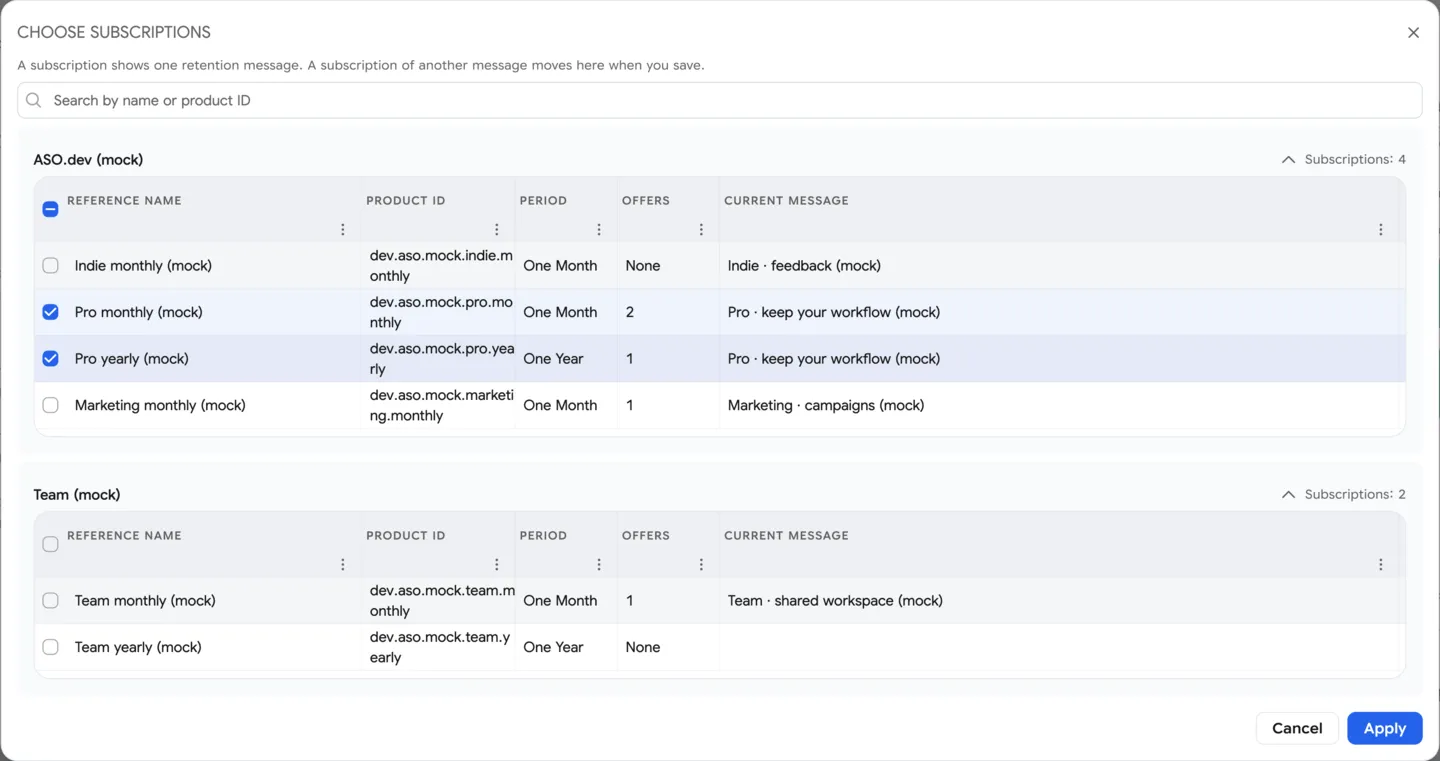
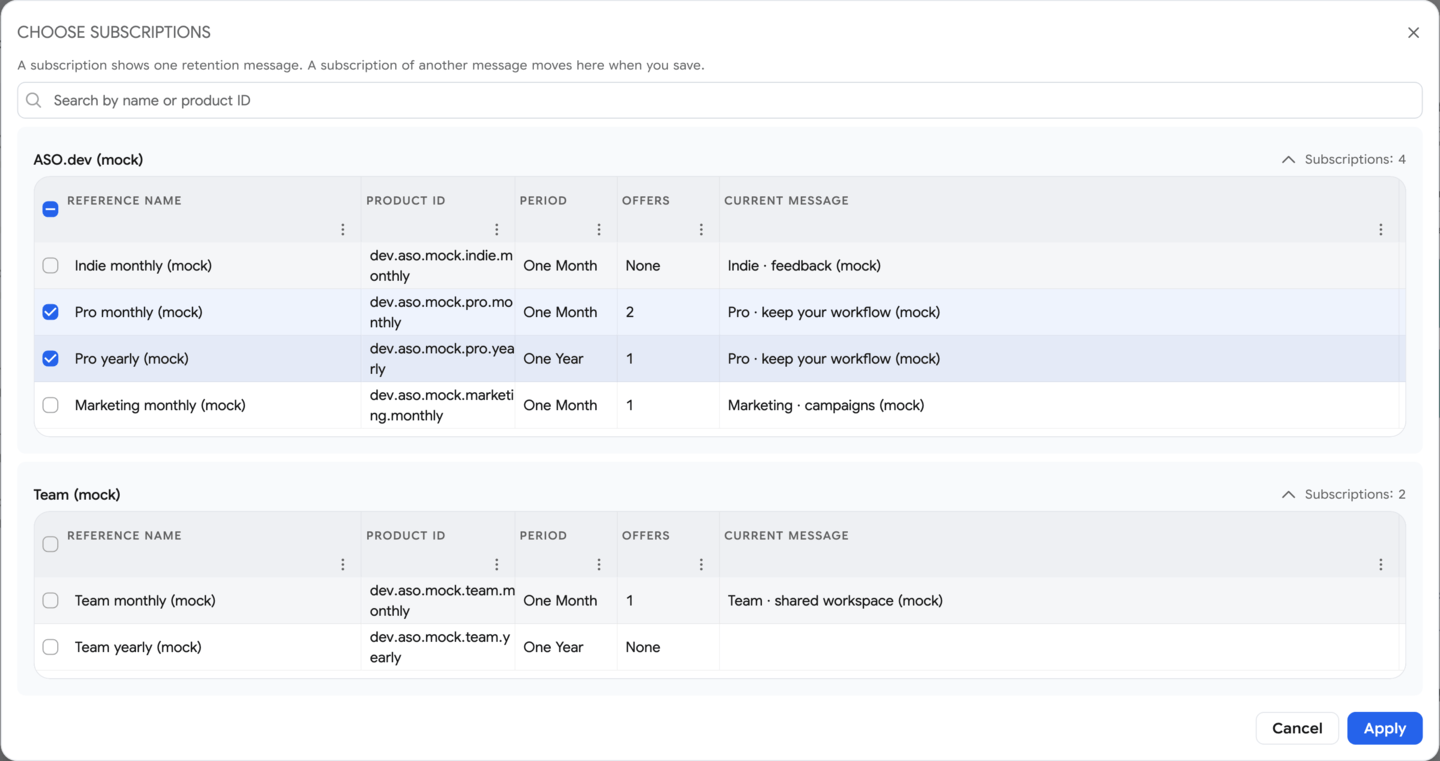
Click Choose subscriptions at the end of the Subscriptions & offers card. The dialog groups subscriptions the way App Store Connect lists them. On a desktop each group is a table with the columns:
- Reference Name with a checkbox;
- Product ID and Period;
- Offers: the number of retention offers, or None;
- Current message: the message the subscription is shown with now.
Use the search to find subscriptions by name or product ID. The checkbox in the table header selects every subscription of the group that the search found. Click a group header to collapse or expand it. Click Apply to confirm the selection.
Preview
Section titled “Preview”The preview shows the message as subscribers see it in the cancellation sheet: Confirm Cancellation, the From the developer card with your texts and the image or the offer, and the Cancel Subscription and Keep Subscription buttons. Empty fields show their names, so you can check the layout before writing texts.
- Device shows the whole sheet on an iPhone; Card shows only the developer’s card.
- Full Screen Mode opens the preview in a larger window.
- Locale switches the language of the preview.
- Subscription switches between the subscriptions the message is shown for.
- Offer previews one of the offers shown for this subscription with Accept Offer, or No offer for subscribers who aren’t eligible for any offer.
Saving
Section titled “Saving”Save sends the changes to App Store Connect in this order: uploads a new image, writes texts and the image into the version, links and unlinks subscriptions, and shows or hides offers. After saving, ASO.dev reloads the message and the list.
- If the message has a draft that isn’t with App Review, the texts and the image are written into that draft.
- If the message has only an approved version, or no version at all, saving creates a new version with every language and the image.
- If a header or body is too long, saving stops and lists the fields to shorten.
- If a step fails, the steps that succeeded stay saved. Your remaining changes stay in the editor, and the next Save reloads the message from App Store Connect before writing again.
Submitting for review
Section titled “Submitting for review”- Save all changes. Only a saved draft can be added for review.
- Check that every language has both a header and a body.
- Click Add for Review in the page header and choose Add for Review.
- In Choose a submission, select a draft submission of the app or New submission, then confirm.
- Send the submission from the App Review screen.
While the draft is with App Review, the editor locks the texts and the image. After approval, subscribers start seeing the new version. If App Review rejects the message, fix the texts, save and add the message again, or reply to App Review from the review menu.
Deleting a message
Section titled “Deleting a message”Click Delete retention message in the editor header and confirm. The message is deleted in App Store Connect, its subscriptions no longer show it, and ASO.dev returns to the list. Deletion can’t be undone.