
Access Permissions in Google Play Console
Google Play Console manages access through specific permissions.
Start by choosing the access level, then enable only the permissions the service account needs.
What to Select
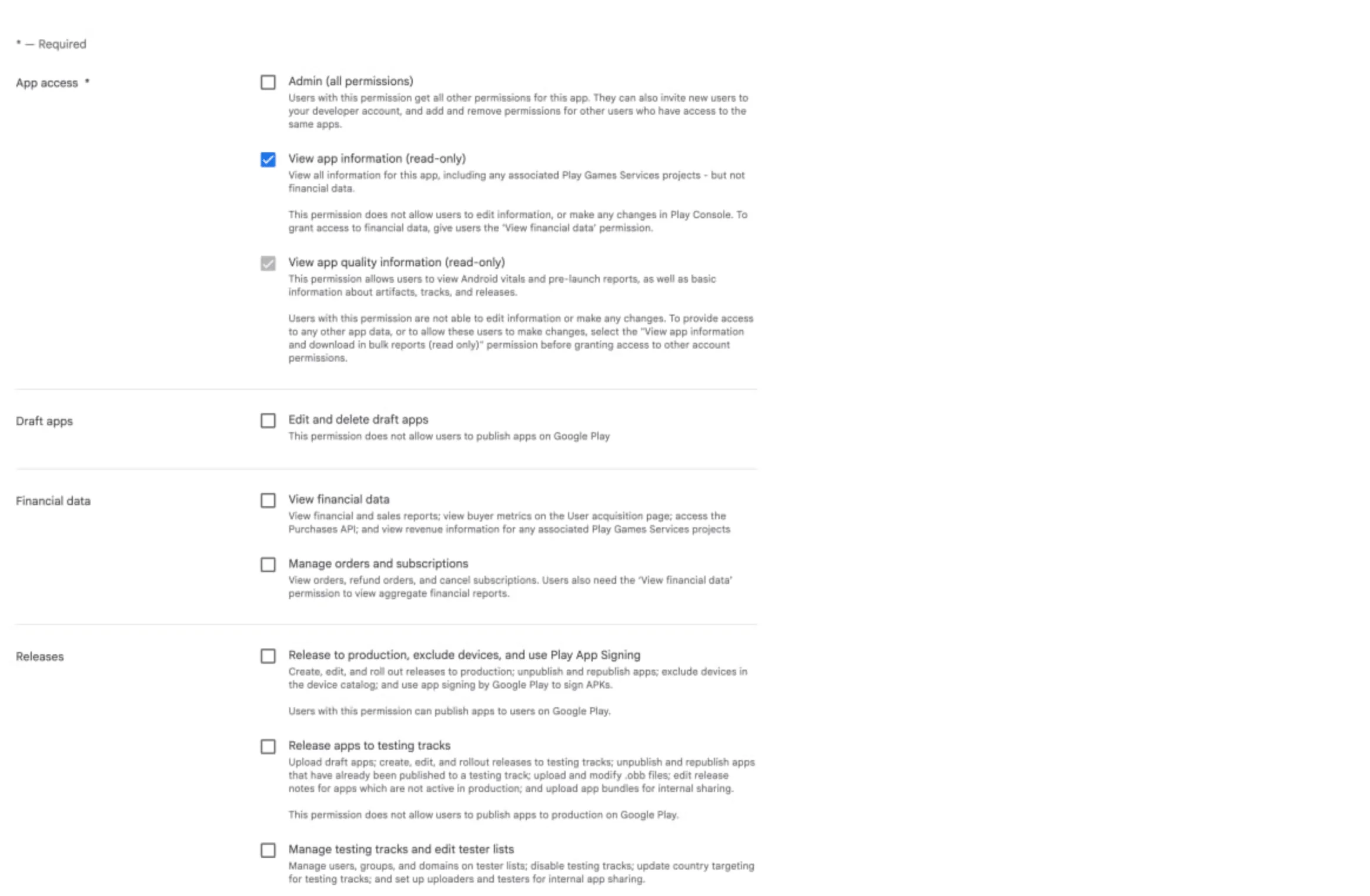
Section titled “What to Select”For an ASO.dev service account, start with App permissions for the selected app:
- Keep Admin (all permissions) off.
- Enable View app information (read-only) as the base permission.
- Leave View app quality information (read-only) enabled if Play Console selects it; it is read-only and does not allow edits.
- Add Manage store presence for metadata, screenshots, pricing, in-app products, distribution, and store listing work.
- Add Reply to reviews only if the service account should reply to Google Play reviews.
- Add release, testing, or financial permissions only for those workflows.
Access Levels
Section titled “Access Levels”App Permissions
Section titled “App Permissions”Permissions apply only to selected apps. This is the safest default for service accounts because you can grant access to one app or to a specific set of apps.
Account Permissions
Section titled “Account Permissions”Permissions apply to all apps in the developer account. Use this level only when the service account truly needs account-wide access or a permission that exists only at the account level.
Grant Permissions
Section titled “Grant Permissions”- Open Google Play Console → Users & permissions.
- Click Invite new user.
- Enter the service account email address.
- On the App permissions tab, click Add app.
- Select the required apps and click Apply.
- Enable only the required permissions.
- Click Invite user and save changes.
Minimum Permission Sets
Section titled “Minimum Permission Sets”| Scenario | Minimum permissions |
|---|---|
| Metadata, localizations, graphics, pricing, and distribution | View app information (read-only) + Manage store presence |
| Replying to reviews | View app information (read-only) + Reply to reviews |
| Releases to internal, closed, and open testing | View app information (read-only) + Release apps to testing tracks |
| Production releases | View app information (read-only) + Release to production, exclude devices, and use Play App Signing |
| Testing tracks and tester lists | View app information (read-only) + Manage testing tracks and edit tester lists |
| Financial data and the Purchases API | View financial data or View financial data, orders, and cancellation survey responses |
| Google Play Billing API: orders and subscriptions | View financial data, orders, and cancellation survey responses + Manage orders and subscriptions |
General Permissions
Section titled “General Permissions”Admin (all permissions)
Section titled “Admin (all permissions)”Grants administrative access: invite users, manage other users’ permissions, and remove users.
This permission also grants all other permissions. It is usually not recommended for service accounts.
View app information (read-only)
Section titled “View app information (read-only)”Grants read-only access to app information, including linked Google Play Games services projects, but excluding financial data.
This is often used as the base permission together with other app permissions.
View app quality information (read-only)
Section titled “View app quality information (read-only)”Grants read-only access to app-level Android vitals, pre-launch reports, and basic information about artifacts, tracks, and releases.
It does not allow edits or changes.
View app information and download bulk reports (read-only)
Section titled “View app information and download bulk reports (read-only)”Account-level read-only access to information for all apps in the account and to bulk report downloads.
Users with this permission also get access to new apps added to the account later.
Edit and delete draft apps
Section titled “Edit and delete draft apps”Allows editing and deleting existing draft apps.
It does not allow publishing releases.
Create, edit, and delete draft apps
Section titled “Create, edit, and delete draft apps”Account-level permission for creating new draft apps and editing or deleting existing draft apps.
It does not allow publishing apps on Google Play.
Manage policy declarations
Section titled “Manage policy declarations”Allows editing and submitting policy declarations, such as Data safety and permissions declarations.
It can be used together with View app information (read-only).
View financial data
Section titled “View financial data”Grants access to financial reports, sales reports, the Purchases API, and revenue information for linked Google Play Games services projects.
It does not allow changing pricing or releases.
View financial data, orders, and cancellation survey responses
Section titled “View financial data, orders, and cancellation survey responses”Account-level access to financial reports, sales reports, orders, buyer metrics, and cancellation survey responses.
It also grants access to the Purchases API.
Manage orders and subscriptions
Section titled “Manage orders and subscriptions”Allows viewing orders, refunding orders, and canceling subscriptions.
It does not provide access to aggregated financial reports without a separate financial permission.
Release to production, exclude devices, and use Play App Signing
Section titled “Release to production, exclude devices, and use Play App Signing”Allows creating, editing, and rolling out production releases, unpublishing and republishing apps, excluding devices in the device catalog, and using Play App Signing.
Enable this only if the service account must manage production releases.
Release apps to testing tracks
Section titled “Release apps to testing tracks”Allows uploading draft apps, creating and rolling out releases to testing tracks, unpublishing and republishing apps previously released to testing tracks, uploading and modifying OBB files, editing release notes for apps without active production releases, and uploading APKs for internal sharing.
It does not allow publishing production releases.
Manage testing tracks and edit tester lists
Section titled “Manage testing tracks and edit tester lists”Allows changing internal, open, and closed testing settings, and managing tester lists and associated users.
It does not allow publishing production releases.
Manage store presence
Section titled “Manage store presence”Allows managing the public store presence: store listing text and images, store listing experiments, pricing, in-app products, pricing templates, distribution information, content rating, promotions, sales, saved device filters, and promotional content.
This is the key permission for ASO, metadata, and pricing work.
Reply to reviews
Section titled “Reply to reviews”Allows replying to Google Play reviews and changing the contact information used in suggested replies.
Without this permission, a user can view ratings and reviews but cannot reply.
Managed Google Play Permissions
Section titled “Managed Google Play Permissions”Create and publish private apps to your organization
Section titled “Create and publish private apps to your organization”Allows creating, editing, and publishing private apps that are available only to users in your organization.
It does not allow managing internal testing tracks or publishing public apps on Google Play.
Google Play Games Services Permissions
Section titled “Google Play Games Services Permissions”Edit Google Play Games services projects
Section titled “Edit Google Play Games services projects”Account-level permission for editing Google Play Games services projects for all apps.
To create new projects or link apps, the user also needs View app information and download bulk reports (read-only) and access to the relevant project in Google Developers Console.
Publish Google Play Games services projects
Section titled “Publish Google Play Games services projects”Account-level permission for publishing new Google Play Games services projects, and unpublishing or republishing existing projects.
The user also needs access to the project in Google Developers Console.
Security Recommendations
Section titled “Security Recommendations”- Start with App permissions, not Account permissions.
- Grant access only to the apps the service account will work with.
- Do not enable Admin (all permissions) for automation unless it is truly required.
- Split service accounts by task: metadata, reviews, releases, and finance.
- Regularly review users and revoke access that is no longer needed.