
Google Play Editor
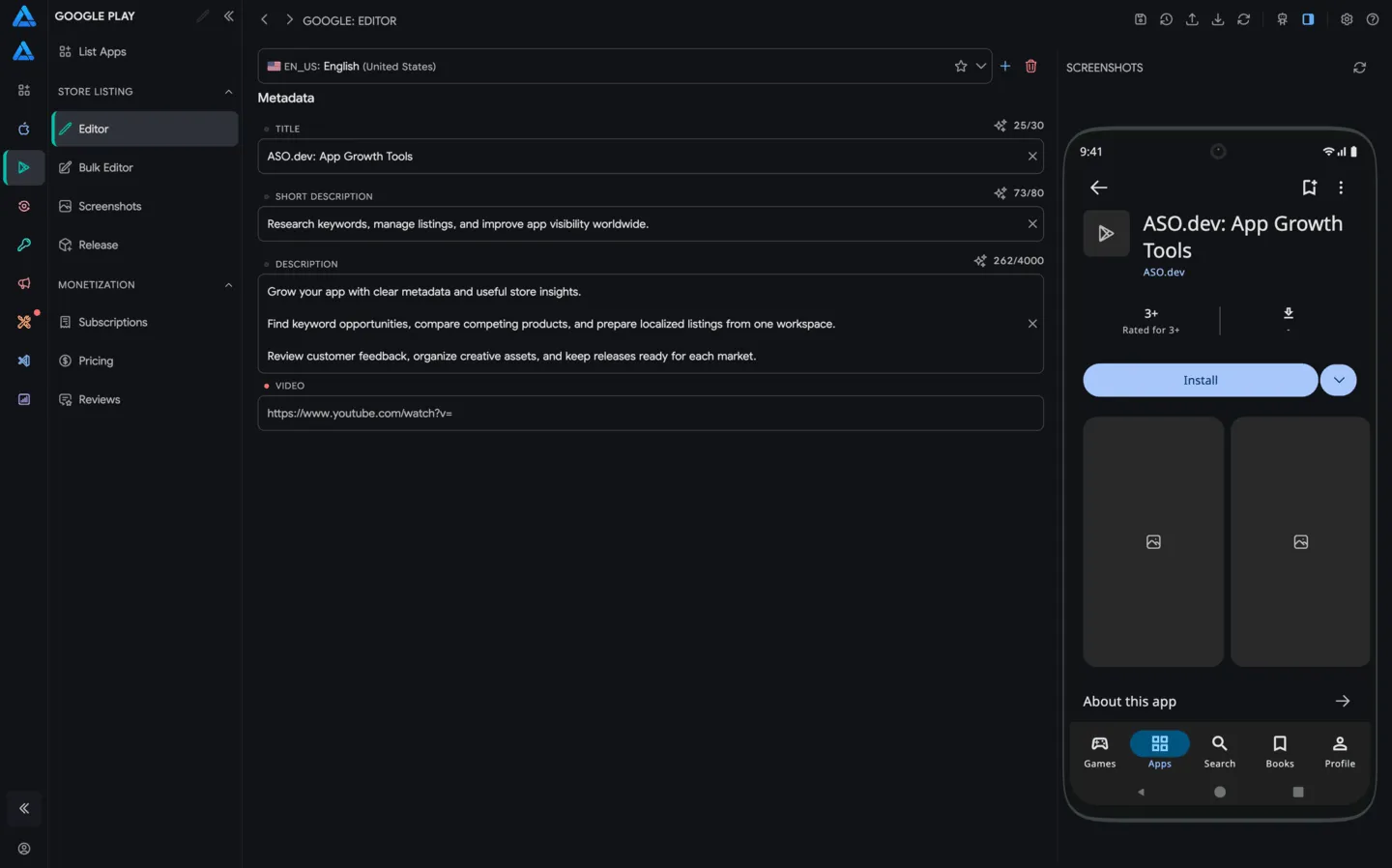
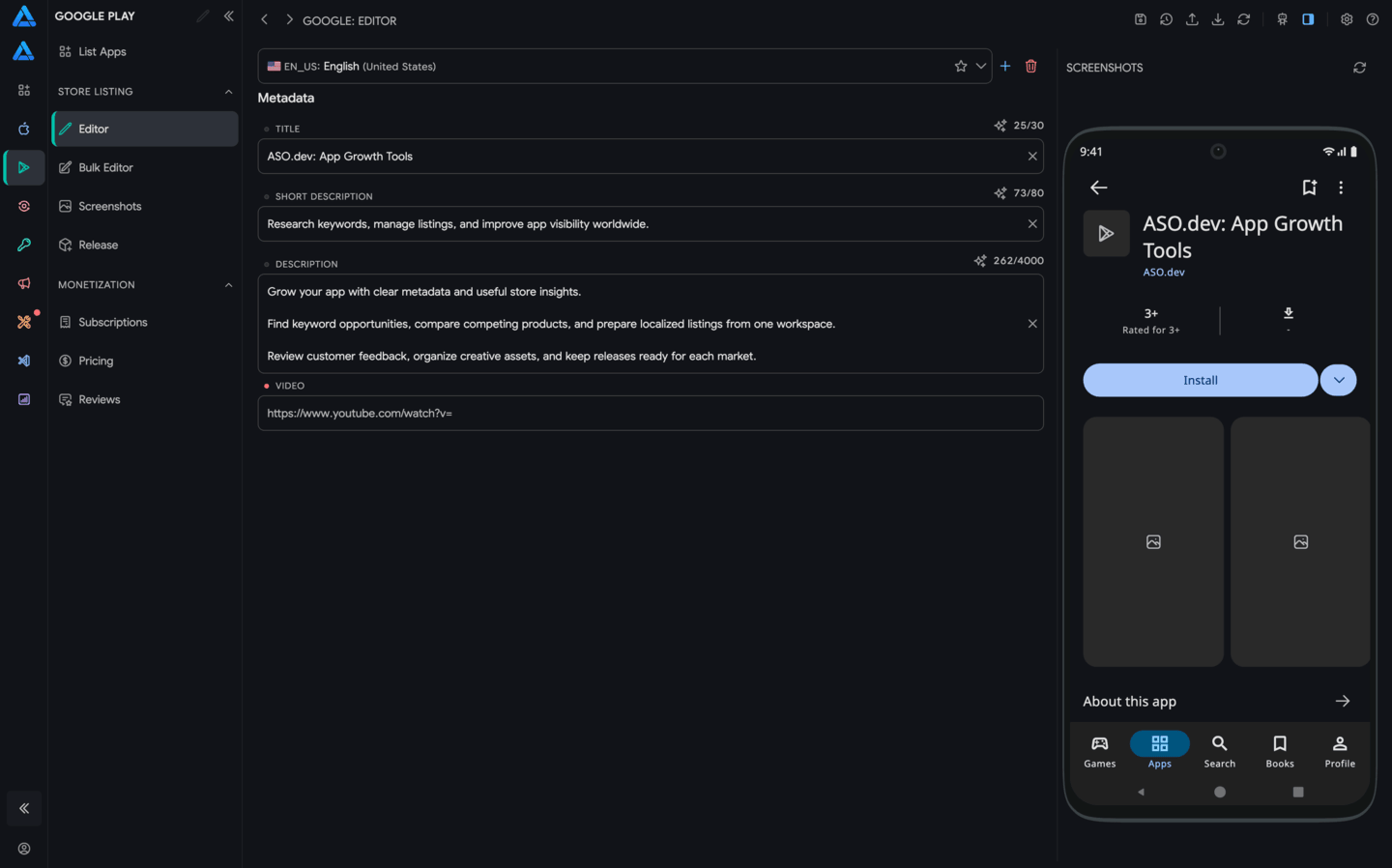
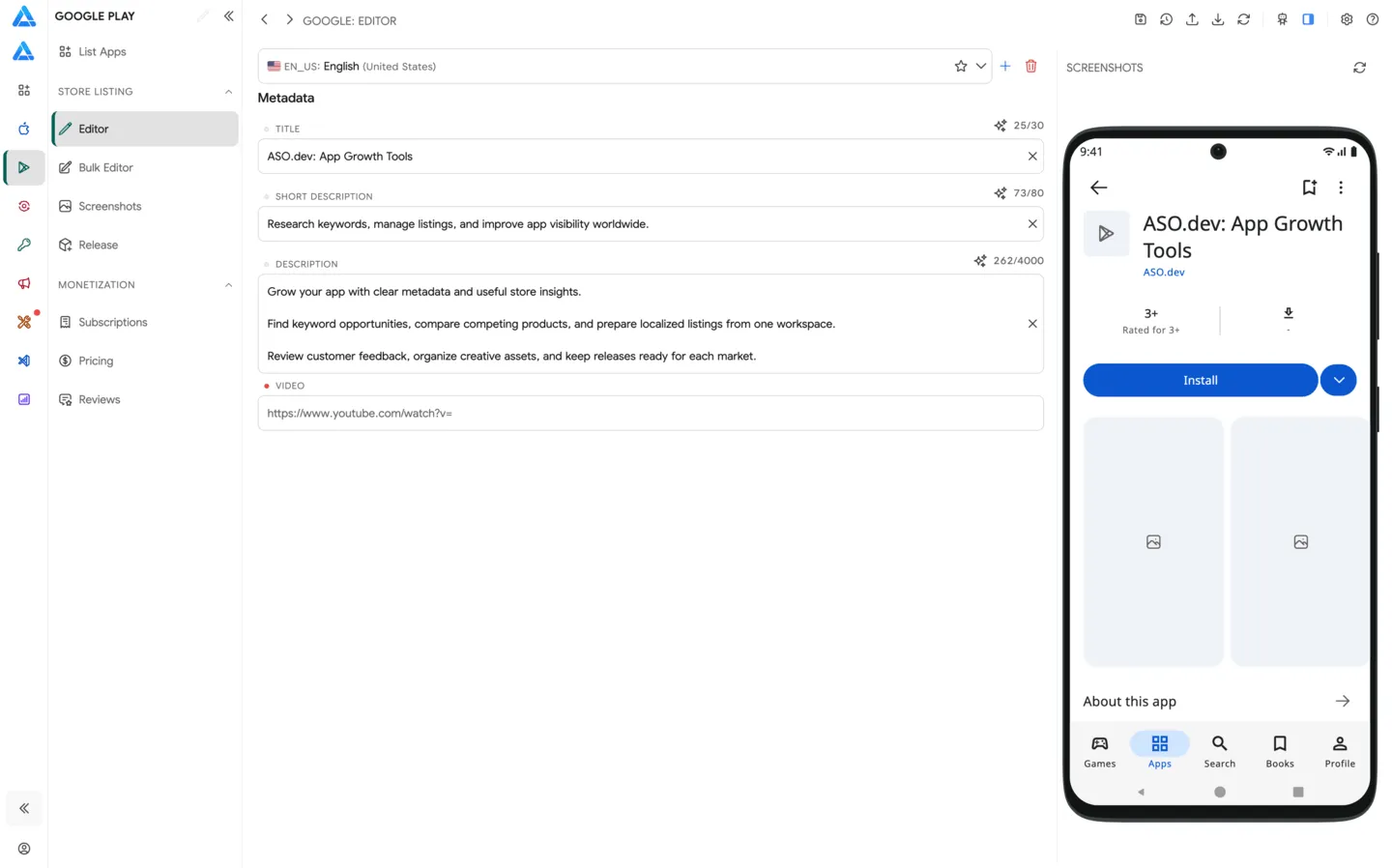
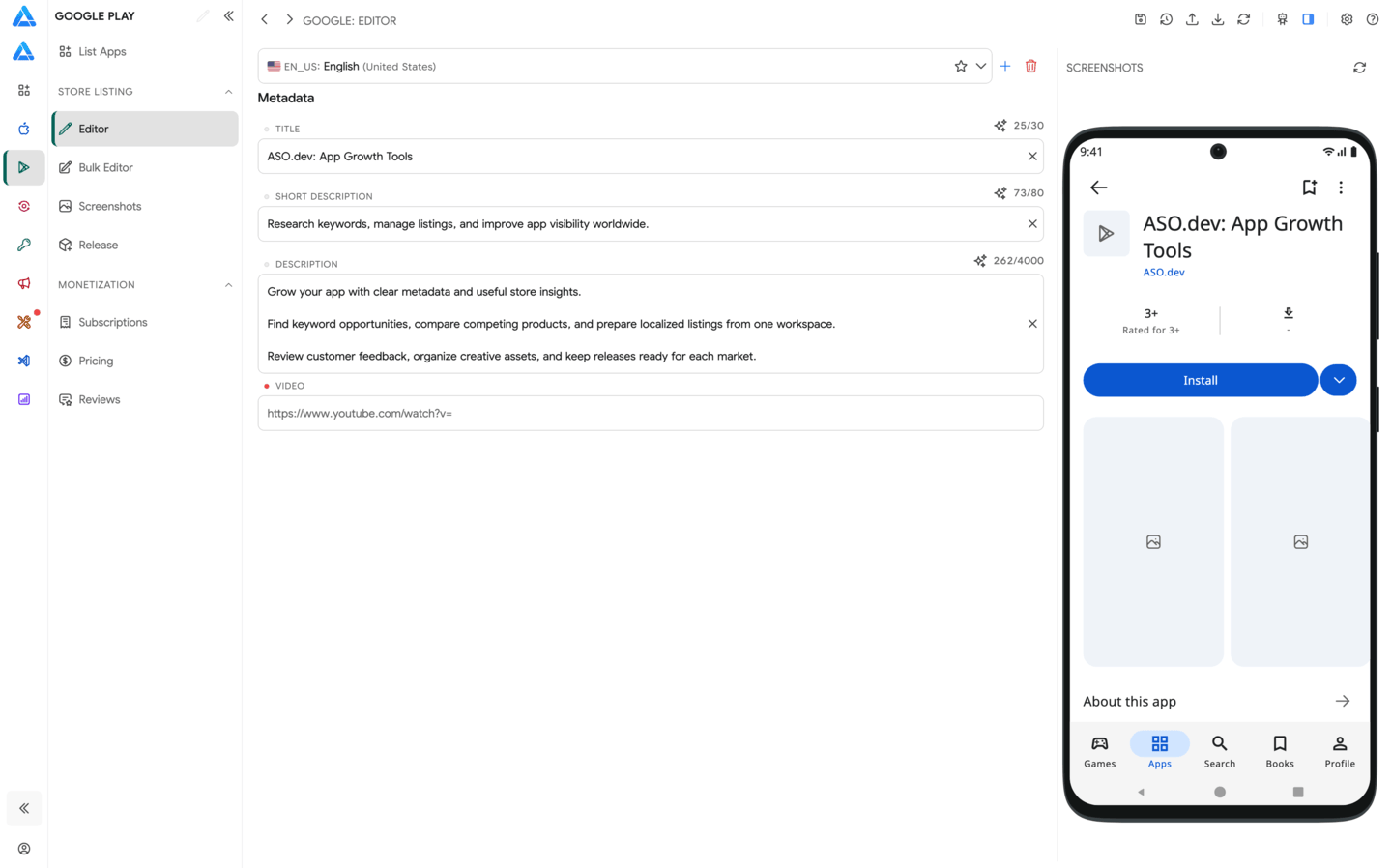
Google Play Editor lets you edit Google Play store listing metadata directly in ASO.dev: title, short description, full description, video, and localizations.
Top Bar
Section titled “Top Bar”The top bar contains the main editor actions:
- Save - saves metadata changes to Google Play Console.
- Submit for review - sends prepared changes to Google Play review.
- Cancel submission - appears during review and lets you cancel the submission.
- Import - imports metadata from files.
- Export - exports metadata in Fastlane or JSON format.
- Refresh - loads the latest app data from Google Play Console.
- Settings - opens editor and translation provider settings.
- AI Companion (MCP) - starts the local MCP server for AI-assisted metadata workflows.
Locales
Section titled “Locales”The locale selector is at the top of the editor. Choose a locale to edit its Google Play metadata.
Primary Locale
Section titled “Primary Locale”The star button next to a locale changes the app’s primary locale. This is the base locale that is useful for translation and source metadata checks.
To make another locale primary, select it and click the star.
Creating Missing Locales
Section titled “Creating Missing Locales”The plus button next to the locale selector creates missing locales.
ASO.dev takes metadata from the primary locale and auto-translates it through the selected translation provider. You can change the provider in Settings → Localization.
Metadata Fields
Section titled “Metadata Fields”The editor supports the main Google Play fields:
- Title - app title, up to 30 characters.
- Short description - short store listing description, up to 80 characters.
- Description - full description, up to 4000 characters.
- Video - YouTube video URL for the store listing.
Each field shows a character counter and completion state so you can stay within Google Play limits and quickly find required fields.
Field Validators
ASO.dev shows validation messages under metadata fields while you edit. Validators are informational: they help you notice risky text before saving, but the final decision stays with you.
The checks include:
- field length and store-specific limits
- required values and invalid data
- excessive uppercase text
- repeated words, keyword stuffing, and spam-like phrases
When a validation message points to a specific word or phrase, you can work with it directly:
- tap the word in the message to highlight it in the input field
- click to remove the word from the input field
- click the hide action to ignore this word in future validation messages
If a word or message is hidden, ASO.dev shows an eye button next to the validation messages. If there are no visible messages left, the eye button appears under the input field on the right. Click it to show hidden validation messages again.
Import and Export
Section titled “Import and Export”Import and export help you work with metadata outside ASO.dev or move data between projects.
Common workflows:
- Fastlane import and export
- JSON import and export
- metadata backups
- moving data between apps or workspaces
- preparing changes in files and loading them into the editor
After importing, review locales, field limits, and required values before saving.
Save and Submit for Review
Section titled “Save and Submit for Review”After editing, click Save to send changes to Google Play Console.
If the changes require Google Play review, use Submit for review. Before submitting, make sure all required fields are filled, locales are checked, and descriptions follow Google Play policies.
Refresh Data
Section titled “Refresh Data”Click Refresh to load the latest metadata from Google Play Console. Use it when changes were made manually in the console or by another team member.