
How to Accept Apple Agreements and Update Banking Details in App Store Connect
Available only for the Pro and Marketing memberships.
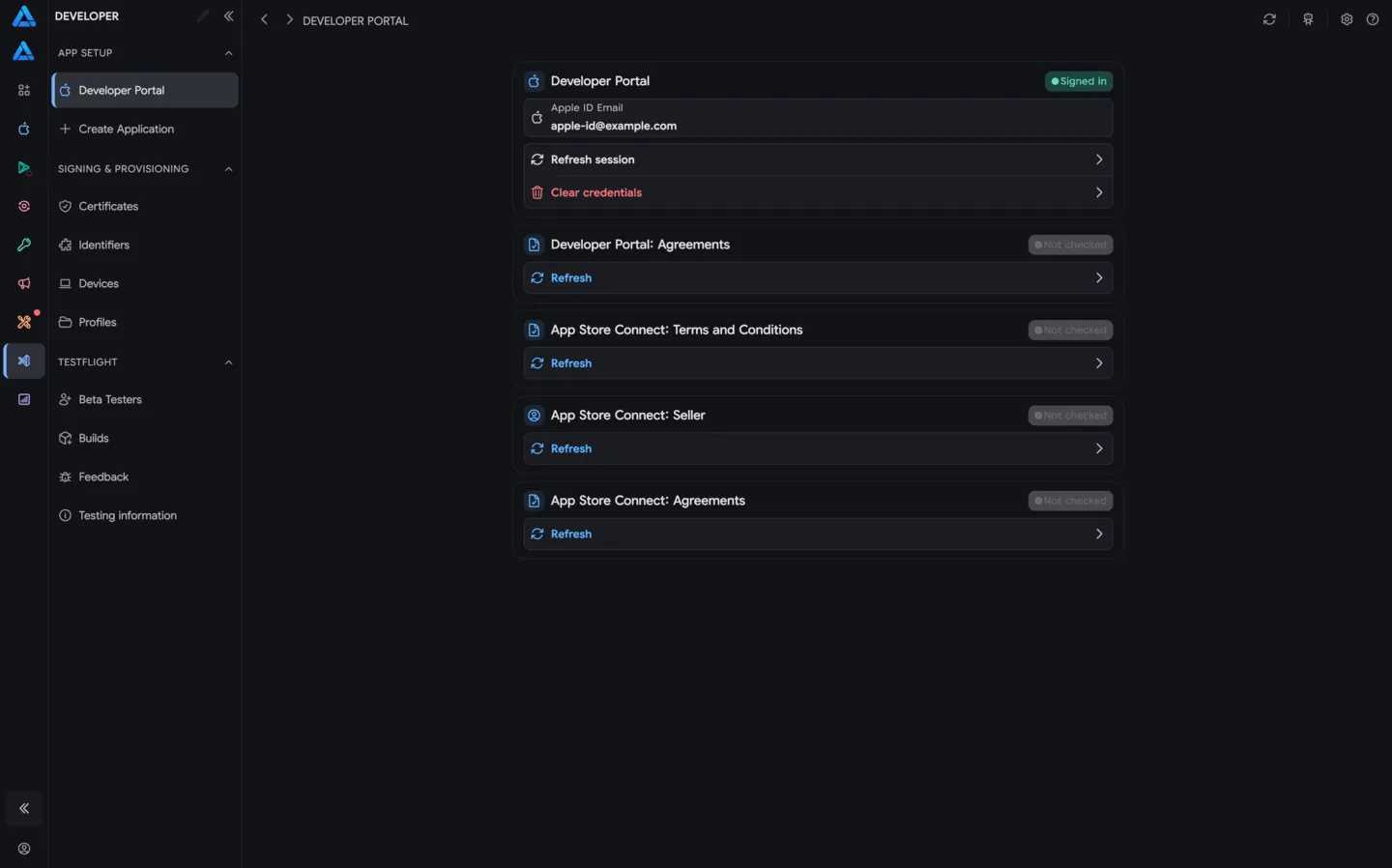
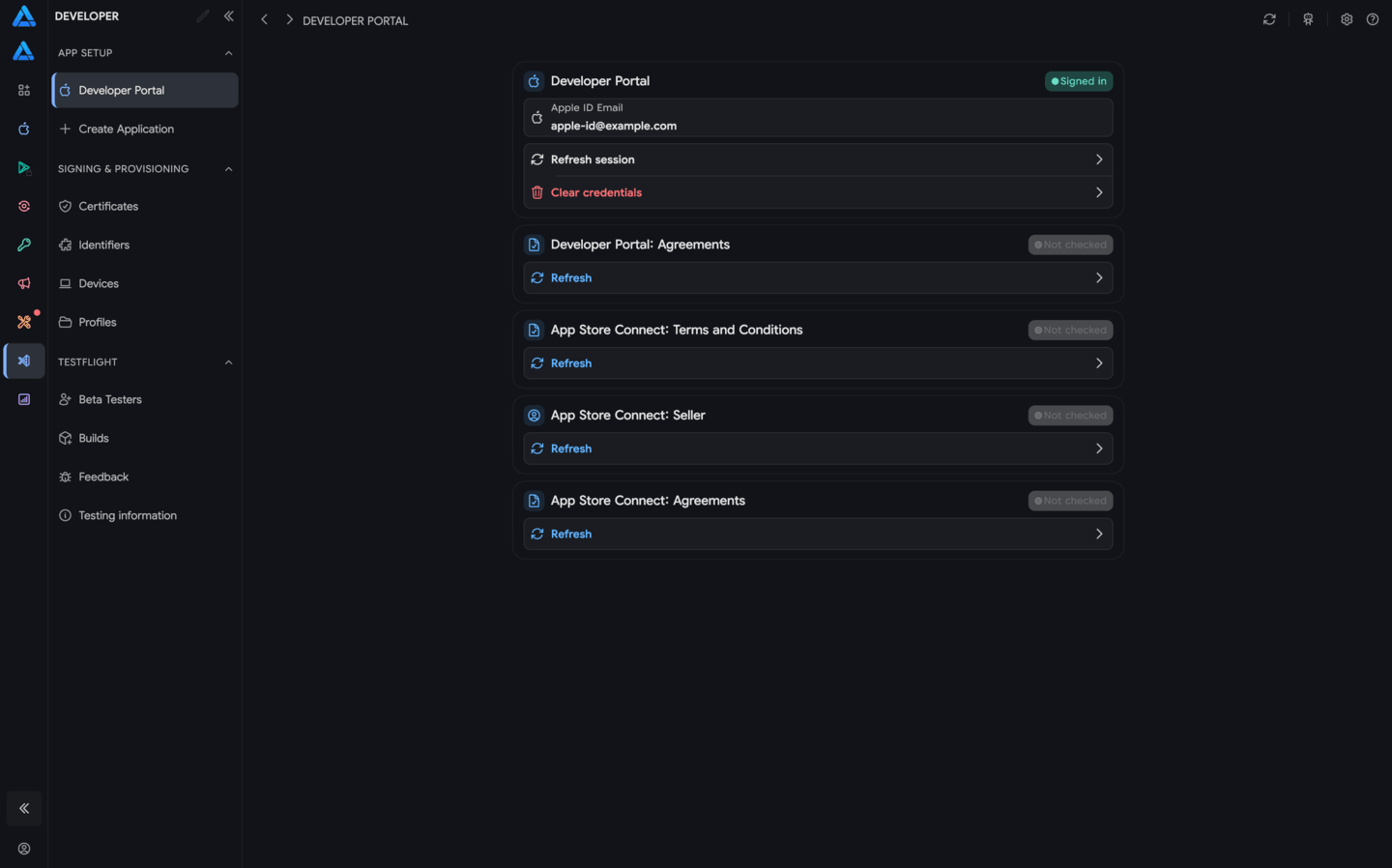
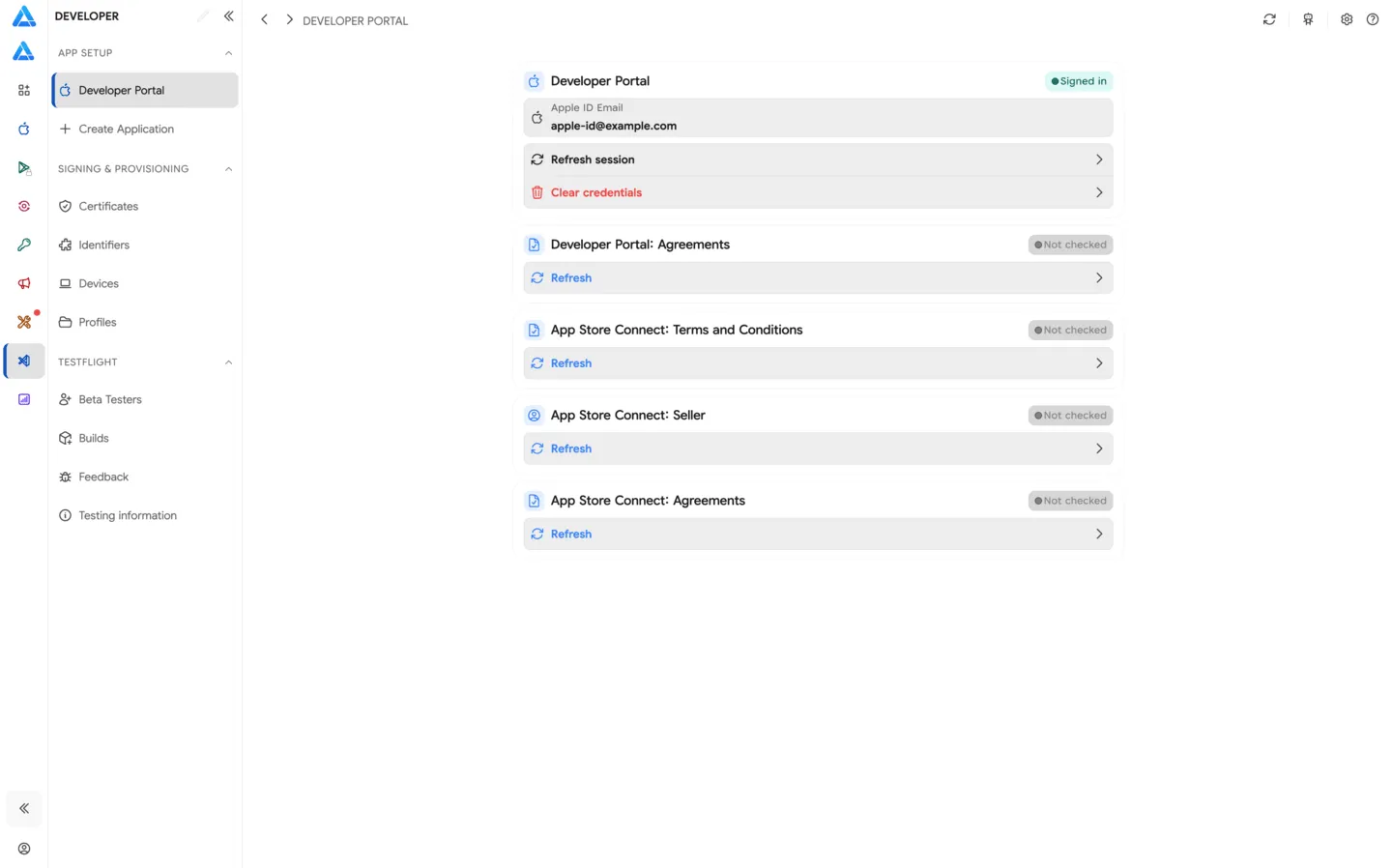
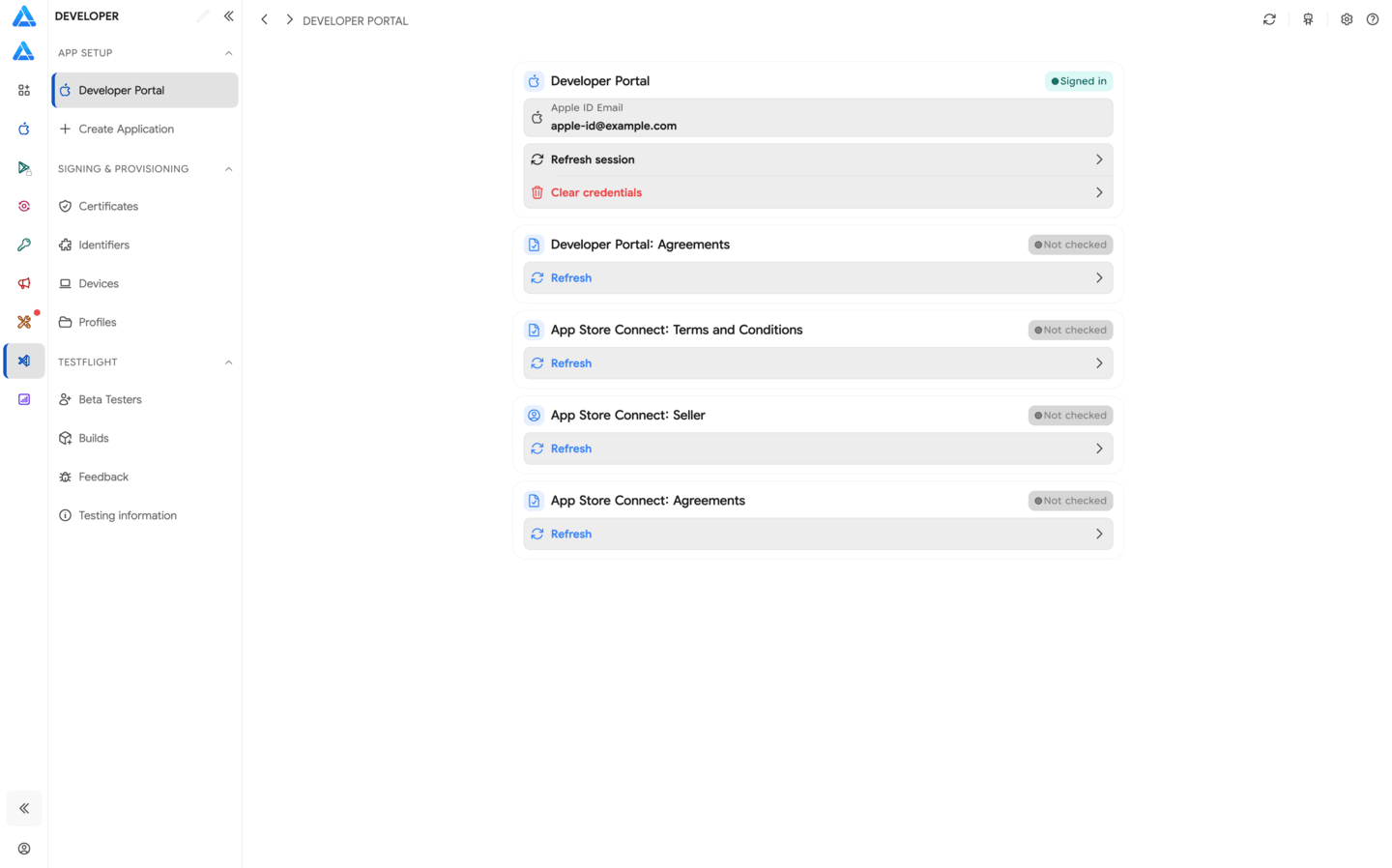
Developer Portal in ASO.dev provides access to App Store Connect operations that are not available through a .p8 API key or an app-specific password. It uses standard Apple Account authorization: your login, primary password, and a six-digit two-factor authentication code, just like signing in to App Store Connect in a browser.
Sign in
Section titled “Sign in”- Select a workspace.
- Open Developer → Developer Portal.
- Enter your Apple Account login and primary password. Do not enter an app-specific password here.
- Get the six-digit code from a trusted device or trusted phone number.
- Enter the code in ASO.dev and wait for Apple to finish verification.
Follow the on-screen instructions if Apple requests another confirmation or presents updated terms. Available actions depend on the user’s Apple role and the current account state.
Workspace proxy
Section titled “Workspace proxy”All Developer Portal functions support a workspace-level proxy. When a proxy is configured for the selected workspace, authorization, 2FA verification, and requests to Apple are routed through it.
Configure and test the connection in the workspace editor. See Proxy server.
Security
Section titled “Security”Your login, password, and other secrets are stored in Secure Storage on your device. See Security for details about storage and encryption.
Close Developer Portal after completing a sensitive operation. If you suspect password exposure, change it in Apple Account and review your trusted devices.
Available functions
Section titled “Available functions”Review and accept Apple agreements
Section titled “Review and accept Apple agreements”Standard Apple agreements
Section titled “Standard Apple agreements”ASO.dev checks the account for new or unsigned standard Apple agreements that periodically appear after Apple updates its terms. When an agreement requires action, open it, review the terms, and confirm acceptance through Developer Portal.
Paid Apps Agreement
Section titled “Paid Apps Agreement”This is a separate agreement required to publish paid apps and use In-App Purchases. After registering a new account, Apple may also require trader compliance information before it can be signed.
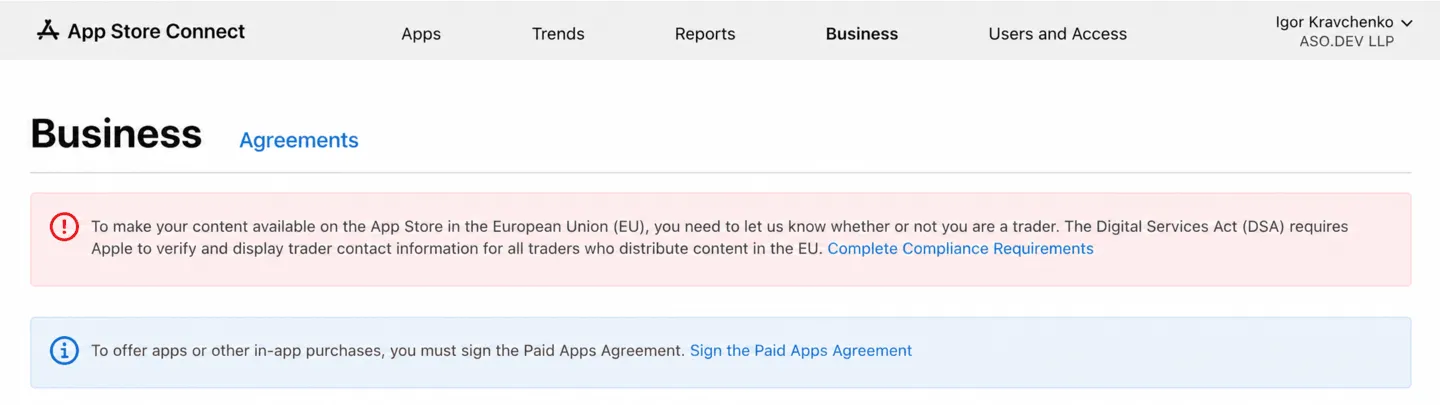
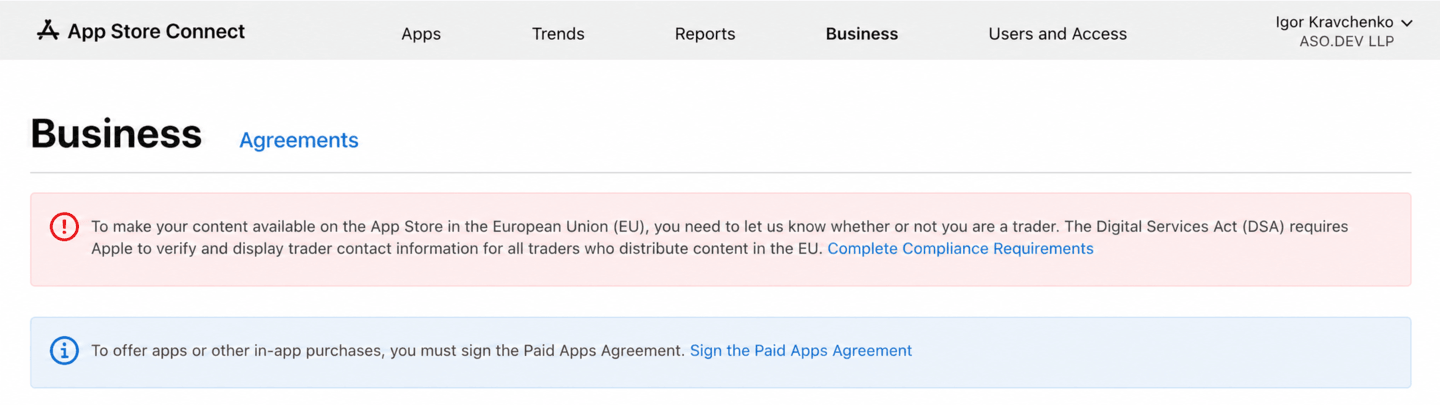
The agreements list shows the Paid Apps Agreement with the New status and the View and Agree to Terms action.


Legal agreements normally require the Account Holder role. Until a required agreement is accepted, Apple may restrict app creation, version submission, and other App Store Connect features.
App Store Connect errors after account registration
Section titled “App Store Connect errors after account registration”Immediately after registering a new Apple Developer account, App Store Connect may fail to open the Apps section. Two errors can appear instead.
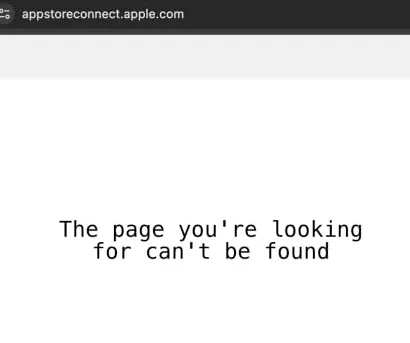
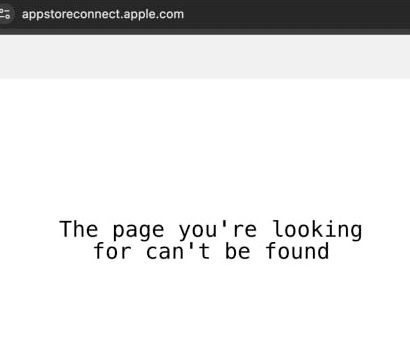
The page you’re looking for can’t be found
Section titled “The page you’re looking for can’t be found”After sign-in, App Store Connect displays a blank page with The page you’re looking for can’t be found.
This site can’t be reached — ERR_INVALID_RESPONSE
Section titled “This site can’t be reached — ERR_INVALID_RESPONSE”When opening the app list or switching teams, the browser may open a session/switchTo service URL and display This site can’t be reached with ERR_INVALID_RESPONSE.
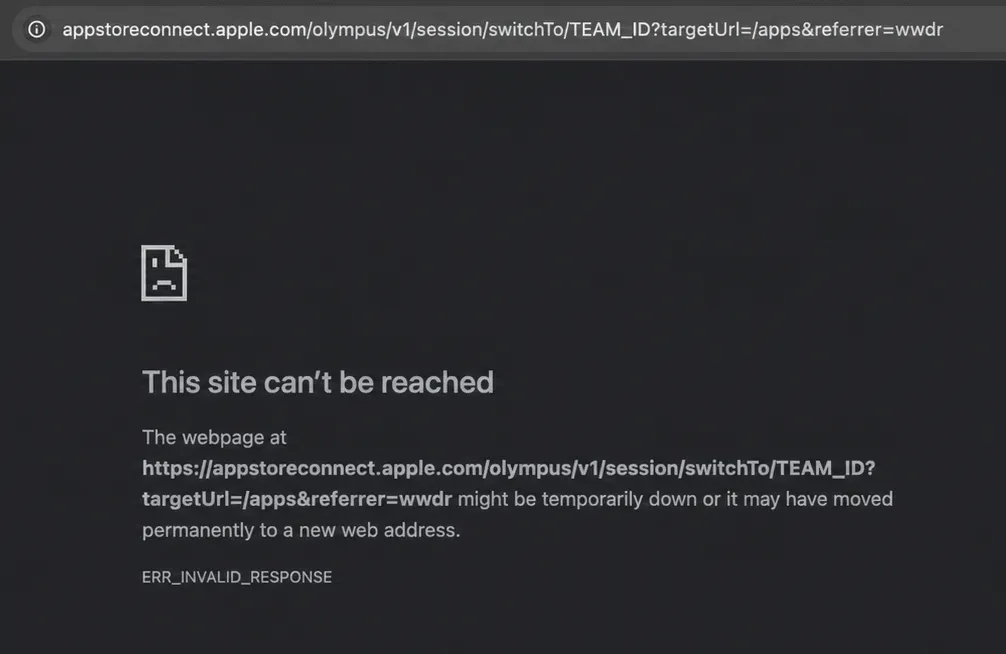
Both errors can occur while the new account has no Bundle ID and no apps. In this state, the App Store Connect browser interface may not allow the first app to be created.
Create the first app and Bundle ID
Section titled “Create the first app and Bundle ID”To restore App Store Connect access for an empty account, Developer Portal can create:
- a new Bundle ID;
- the first app record in App Store Connect.
Use this method when new app creation through an app-specific password or the browser is unavailable. Verify the Bundle ID before confirming: it cannot be replaced for that app after creation.
The user must have the relevant Apple permissions. Depending on the team configuration, access to Certificates, Identifiers & Profiles may also be required.
Follow these steps:
- Select a workspace in ASO.dev.
- Open Developer → Developer Portal and authorize with your Apple Account and 2FA.
- Create a new Bundle ID.
- Create the first app using that Bundle ID.
- Open App Store Connect again. If the old error remains cached, perform a hard refresh with Shift+R.
After the first app appears, the App Store Connect app list should open normally. If the error persists, sign out of App Store Connect, sign in again, and repeat the hard refresh.
Update, import, and export banking details
Section titled “Update, import, and export banking details”Developer Portal can update the banking details Apple uses for payouts, as well as import and export them. This is useful for transferring details and managing multiple accounts, especially when the App Store Connect browser workflow is unavailable or returns an error.
Importing changes the account’s financial data. Always review imported values before confirming. Export details only to a secure location and restrict access to the file because it contains sensitive financial information.
Before saving, verify the account holder, account number, bank codes, currency, and bank country. Access depends on the user’s role and active Apple agreements; use the Account Holder or a user with the required finance permissions.