
Google Play App List
The Google Play App List shows the Android apps connected to the current ASO.dev workspace. Use it to choose the app you want to work with, add missing apps, and keep only relevant apps pinned in the workspace.
Connect the service account
Section titled “Connect the service account”In a new workspace, there are no apps and no service account connected yet. Upload the service account JSON key to connect Google Play.
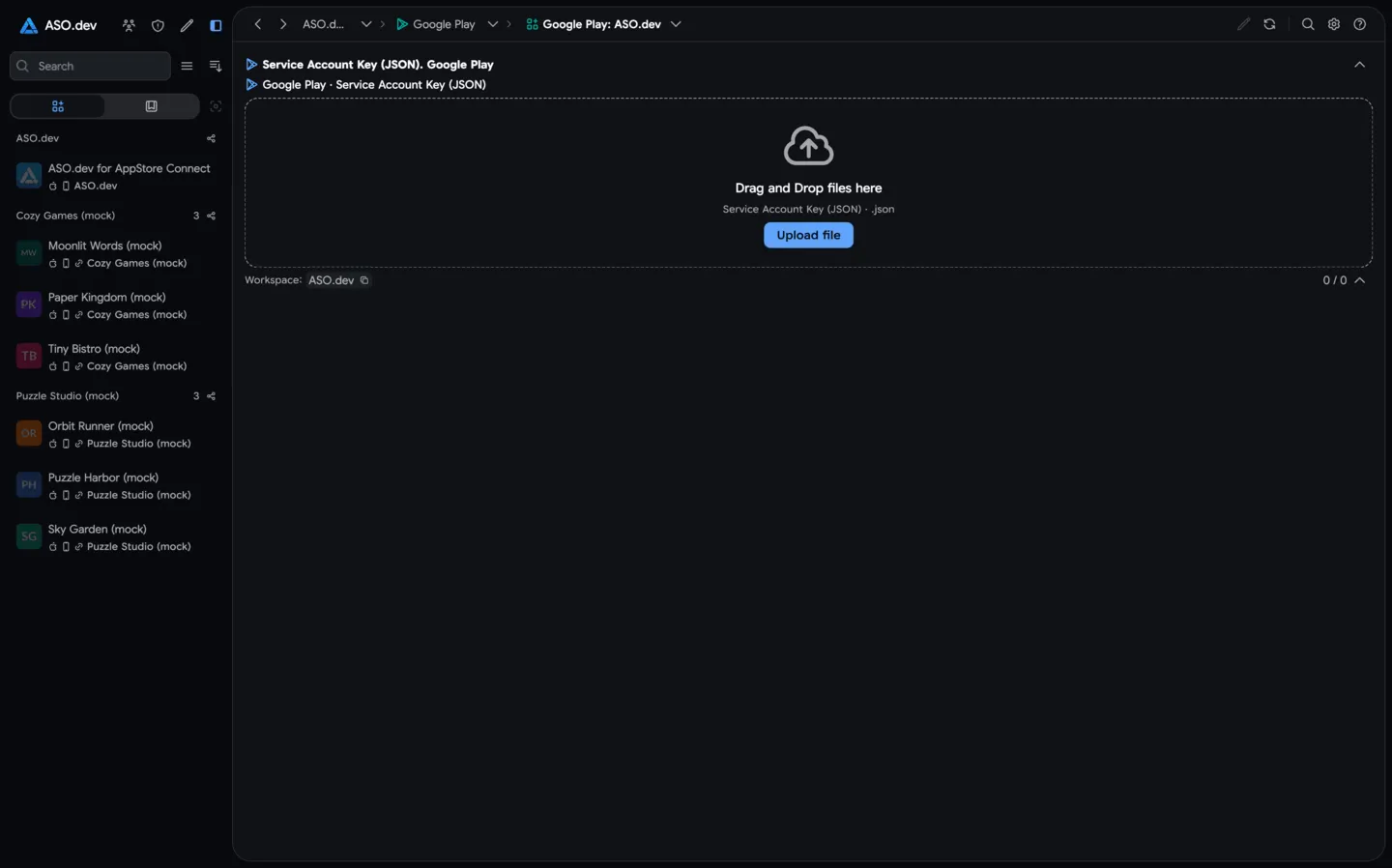
Apps after connection
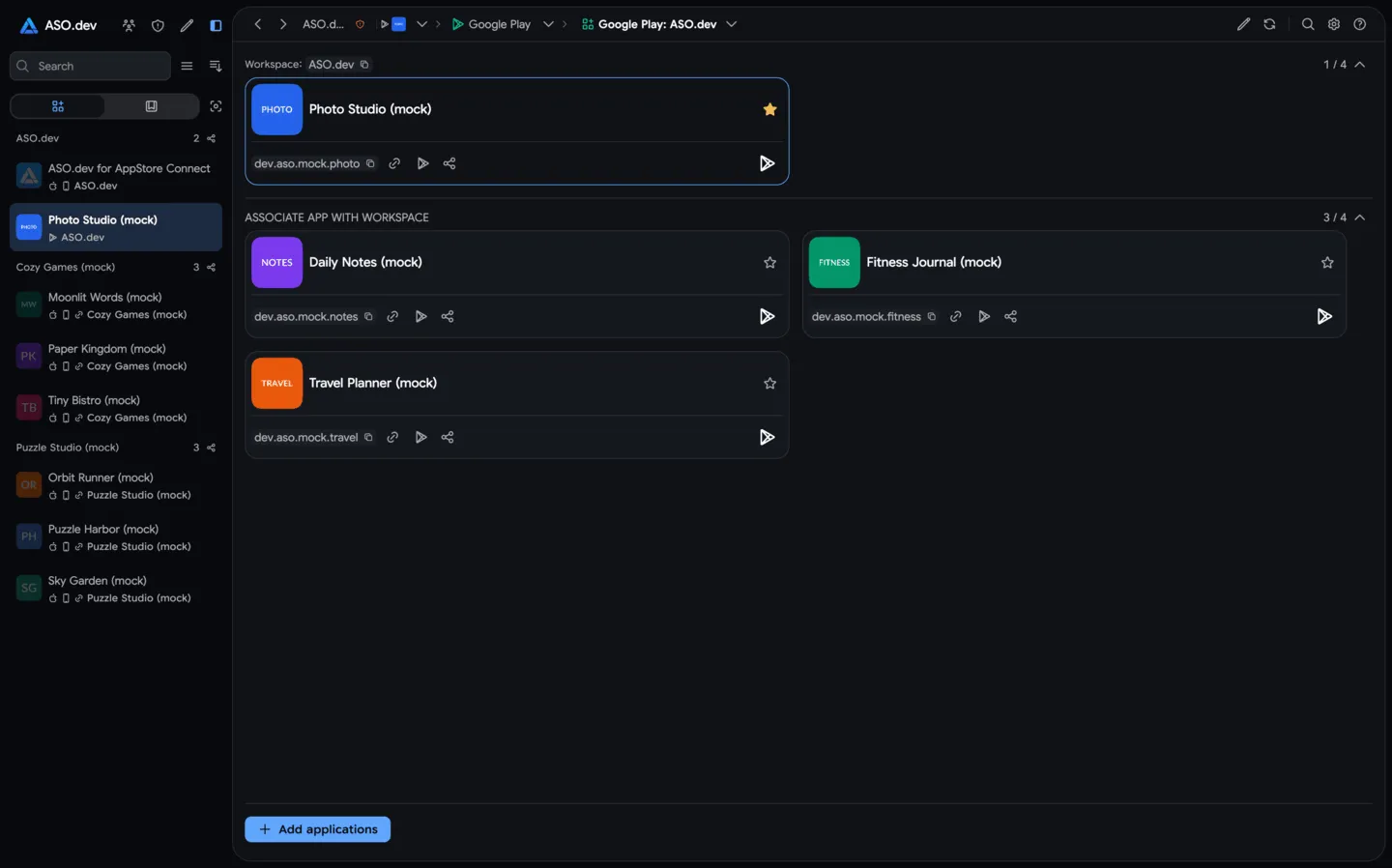
Section titled “Apps after connection”Once the service account is connected and the apps are loaded, the list shows the workspace app and other apps available to pin. The example below uses mock apps; the selected app has a blue border.
What the List Shows
Section titled “What the List Shows”The list is grouped by workspace and by store. In the Google Play section, each app card can show:
- app icon and app name
- package name, for example
com.example.app - a copy button for the package name
- link to the public Google Play page
- Google Play platform icon
- workspace pin state
The blue border around a card marks the currently selected app.
Add an App
Section titled “Add an App”Click Add applications at the bottom of the app list.
You can add a Google Play app in two ways:
- By Google Play link - paste a full URL, for example
https://play.google.com/store/apps/details?id=com.example.app. - By package name - paste only the app package name, for example
com.example.app.
ASO.dev extracts the package name from the link, checks the app, and adds it to the current workspace.
Remove an App from a Workspace
Section titled “Remove an App from a Workspace”To remove a visible app from the workspace, click the star on the app card again.
If you need to remove a manually added app and it is not visible in the current list, click Add applications, enter the same Google Play link or package name, select the found app, and remove or unpin it from the workspace.
After removal:
- the app is no longer pinned in the current workspace
- workspace tools stop showing it as an active workspace app
- Google Play Console access is unchanged
- the app can be added again later by link or package name
If the app came from a connected service account and the service account still has access to it, the app may still be available in the broader account list after refresh.
Refresh the List
Section titled “Refresh the List”Use Refresh when:
- a service account was just connected
- permissions changed in Google Play Console
- a new app was added to the developer account
- another team member changed the workspace app list
If the app still does not appear, check that the service account has access to the app in Google Play Console.
Open App Tools
Section titled “Open App Tools”Click an app card to select it and open the available Google Play tools for that app. From there you can work with metadata, releases, screenshots, subscriptions, pricing, or reviews depending on your service account permissions.