
Google Play Bulk Editor
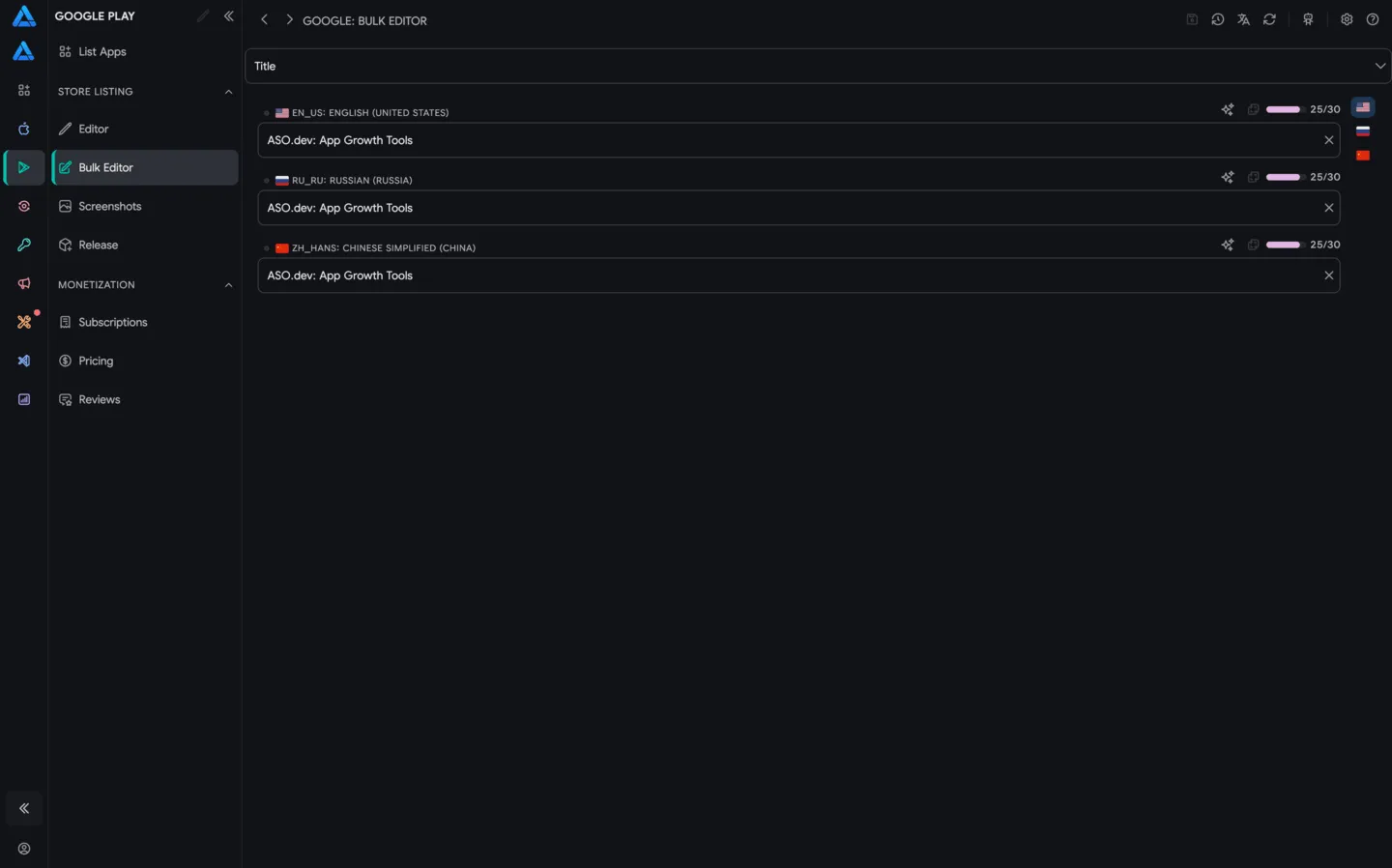
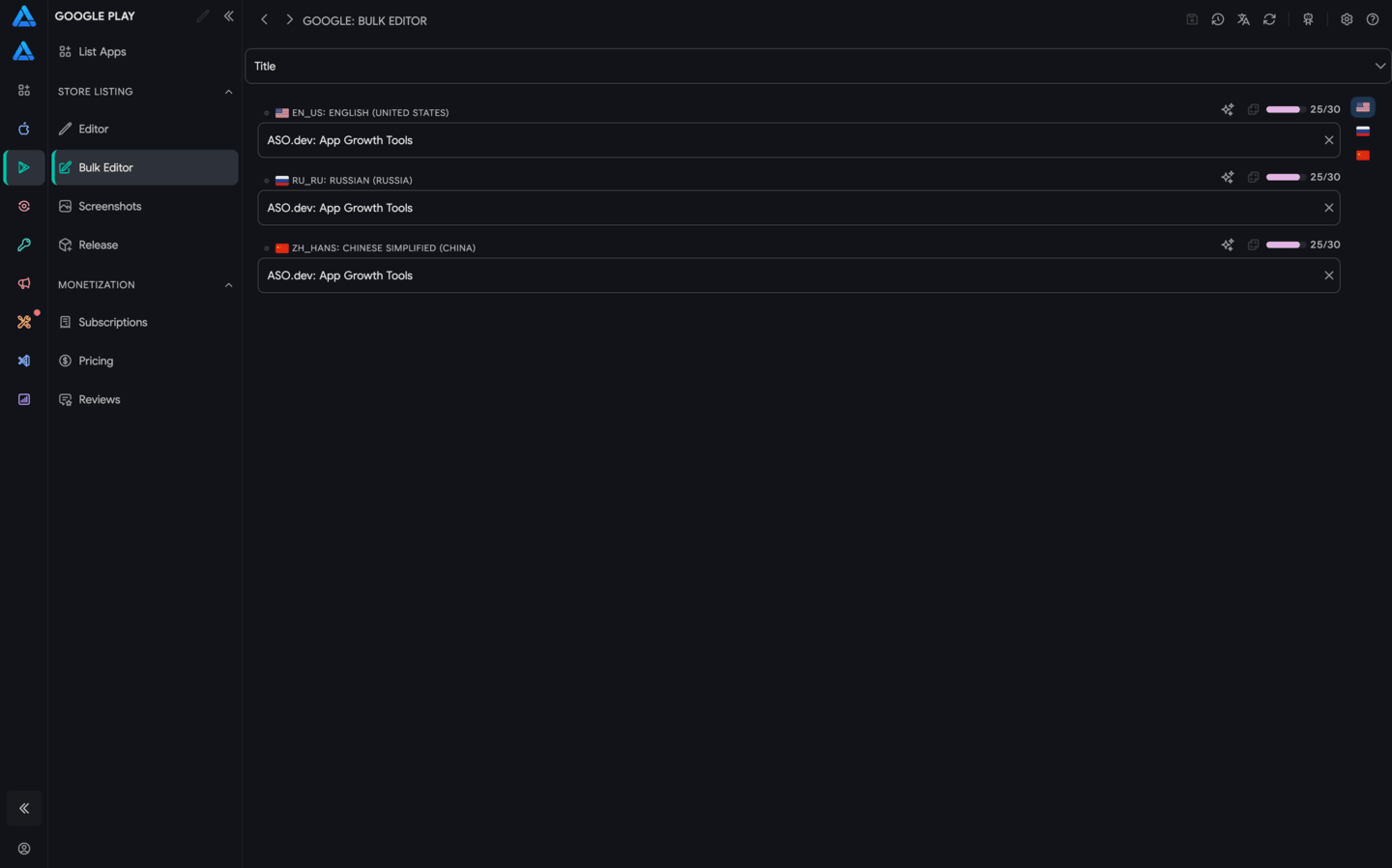
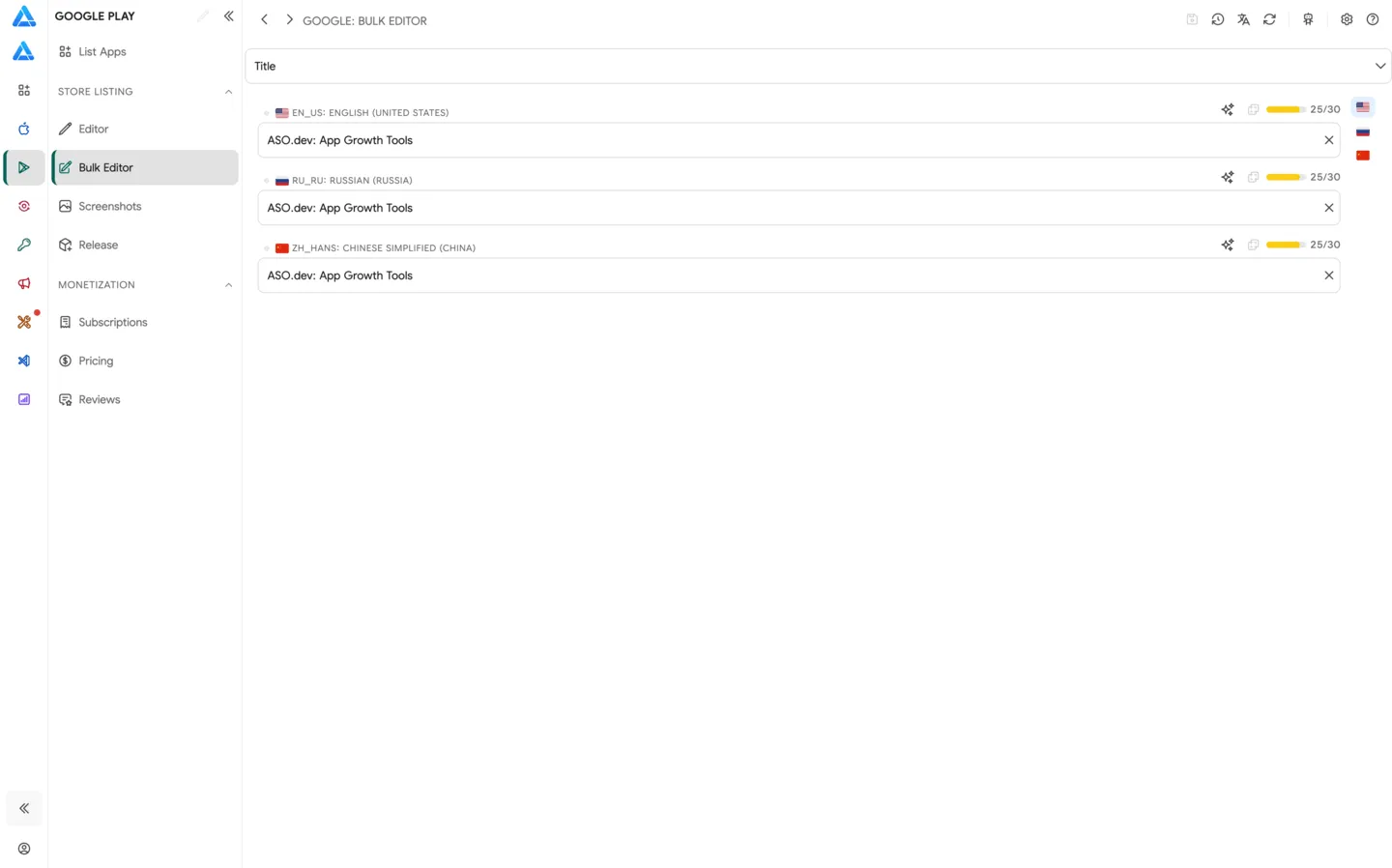
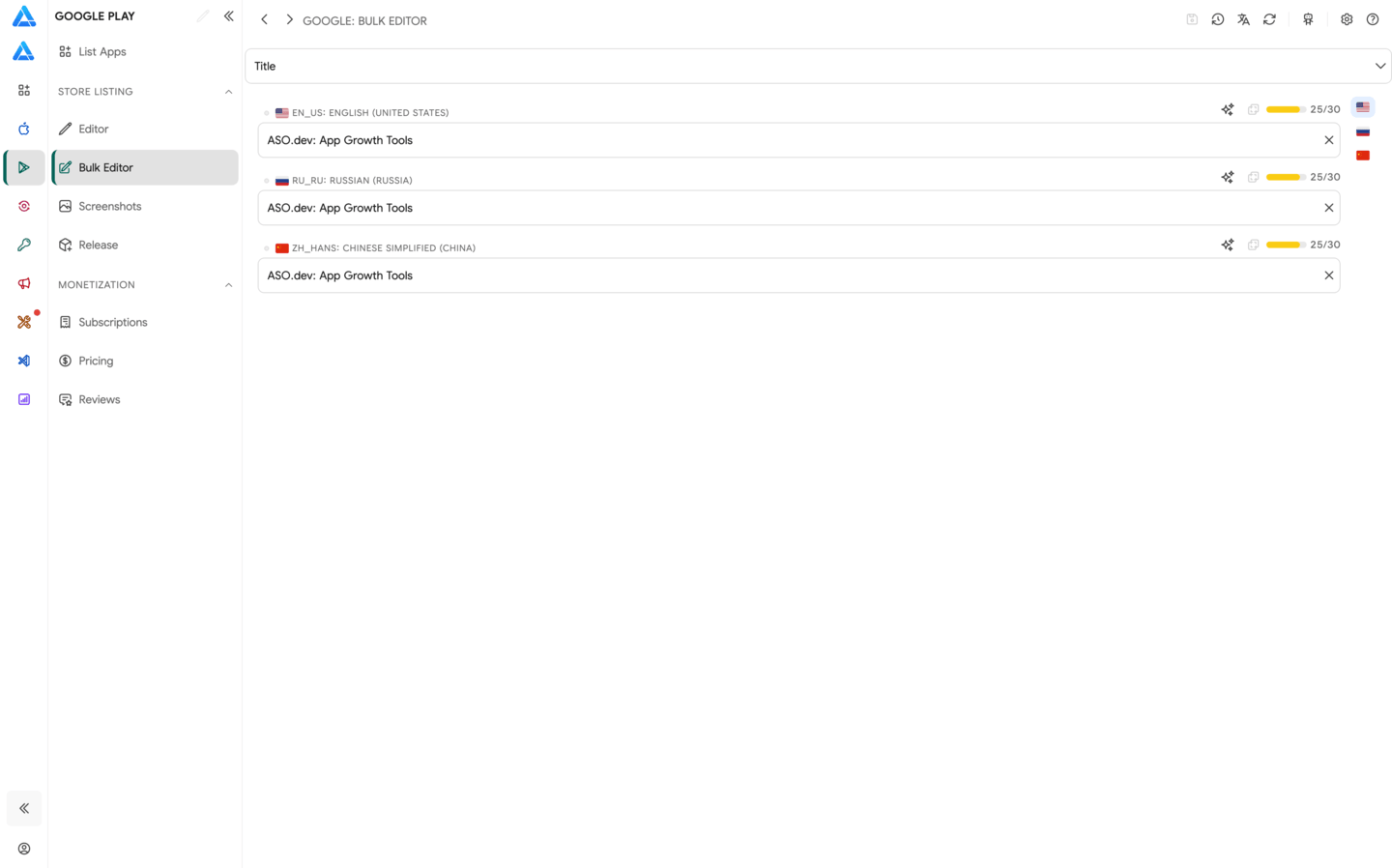
Google Play Bulk Editor lets you edit one metadata field across all Google Play locales for the selected app.
It is useful when you need to update a title, short description, full description, or video for multiple languages without opening each locale separately.
Available Fields
Section titled “Available Fields”Use the Field selector to choose which metadata field to edit in bulk:
- Title - app title.
- Short Description - short store listing description.
- Description - full description.
- Video URL - YouTube video URL for the store listing.
After you select a field, the editor shows values for the locales where that field is available.
Field Validators
ASO.dev shows validation messages under metadata fields while you edit. Validators are informational: they help you notice risky text before saving, but the final decision stays with you.
The checks include:
- field length and store-specific limits
- required values and invalid data
- excessive uppercase text
- repeated words, keyword stuffing, and spam-like phrases
When a validation message points to a specific word or phrase, you can work with it directly:
- tap the word in the message to highlight it in the input field
- click to remove the word from the input field
- click the hide action to ignore this word in future validation messages
If a word or message is hidden, ASO.dev shows an eye button next to the validation messages. If there are no visible messages left, the eye button appears under the input field on the right. Click it to show hidden validation messages again.
Bulk Editing
Section titled “Bulk Editing”Choose a field at the top, then edit values for the required locales. Bulk Editor keeps all languages visible, making it easier to find missing values, outdated copy, or inconsistencies between locales.
Useful workflows:
- updating descriptions after a release
- syncing short descriptions across languages
- fixing app titles in bulk
- replacing YouTube links for localized store pages
- preparing a draft before submitting changes for review
Auto-Translation
Section titled “Auto-Translation”ASO.dev can fill locales by translating from the primary locale through the selected translation provider.
The translation menu has two modes:
- Translate if empty - fills only empty values.
- Translate overwrite - translates the selected field again and replaces existing values.
You can change the provider in Settings → Localization. This is where API keys for ChatGPT, Claude, DeepL, Google Translate, and other providers are configured.
Top Bar
Section titled “Top Bar”The top bar contains these actions:
- Save - saves changes to Google Play Console.
- Translate - opens Translate if empty and Translate overwrite for the selected field.
- Refresh - loads the latest data from Google Play Console.
- Settings - opens editor and translation settings.
- AI Companion (MCP) - starts the local MCP server for AI-assisted metadata workflows.
- Help - opens documentation for this screen.
Saving
Section titled “Saving”After editing, click Save. Before saving, check field limits and required values.
If data was changed manually in Google Play Console or by another team member, click Refresh to load the current state.