
TestFlight feedback
The Feedback page is the TestFlight inbox for screenshot feedback and crash reports.
Use it to find reports, review what a tester sent, inspect the affected build and device, delete reports you no longer need, or email the tester when an address is available.
ASO.dev does not edit TestFlight feedback. The report content is read-only data from Apple.
Feedback List
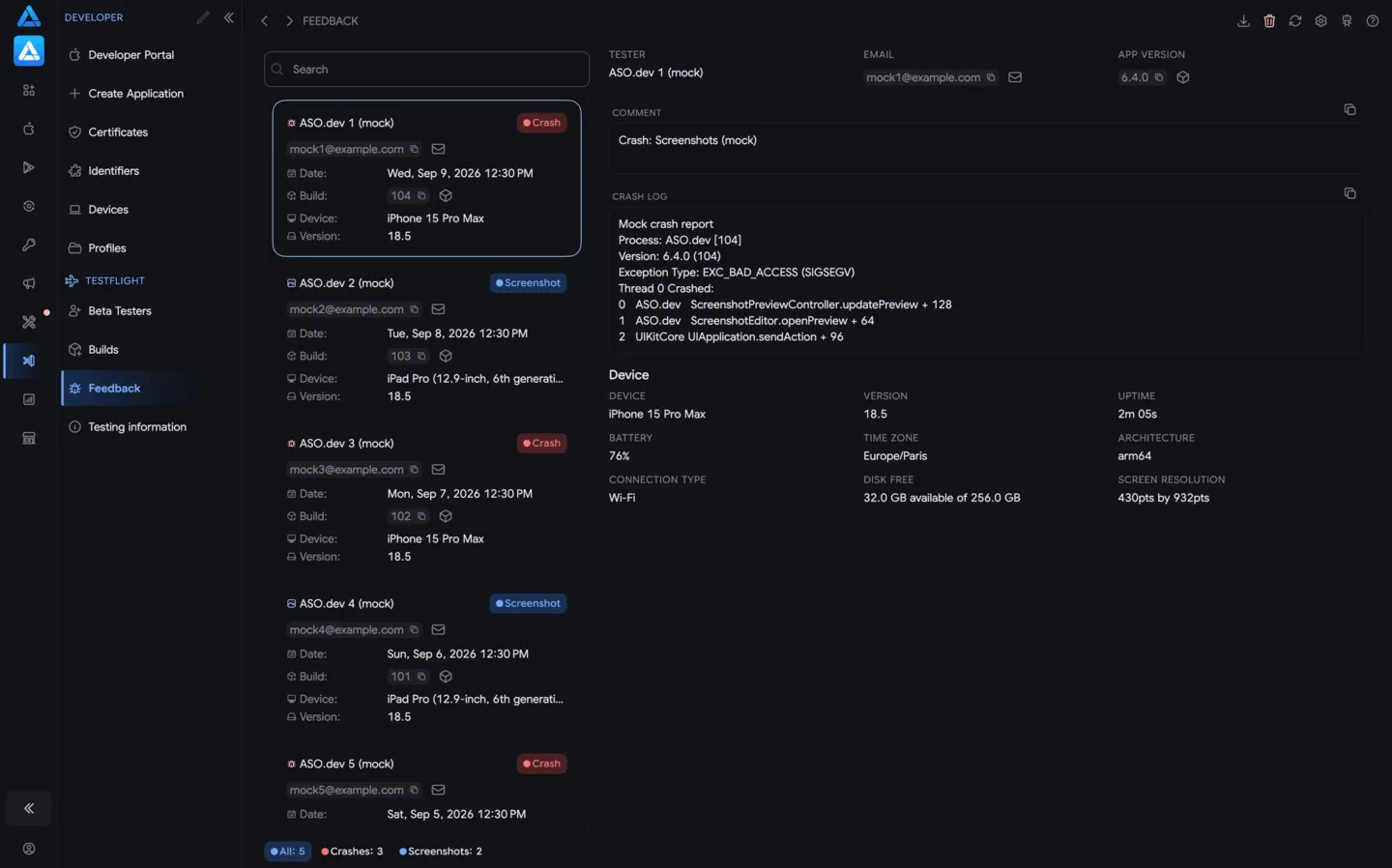
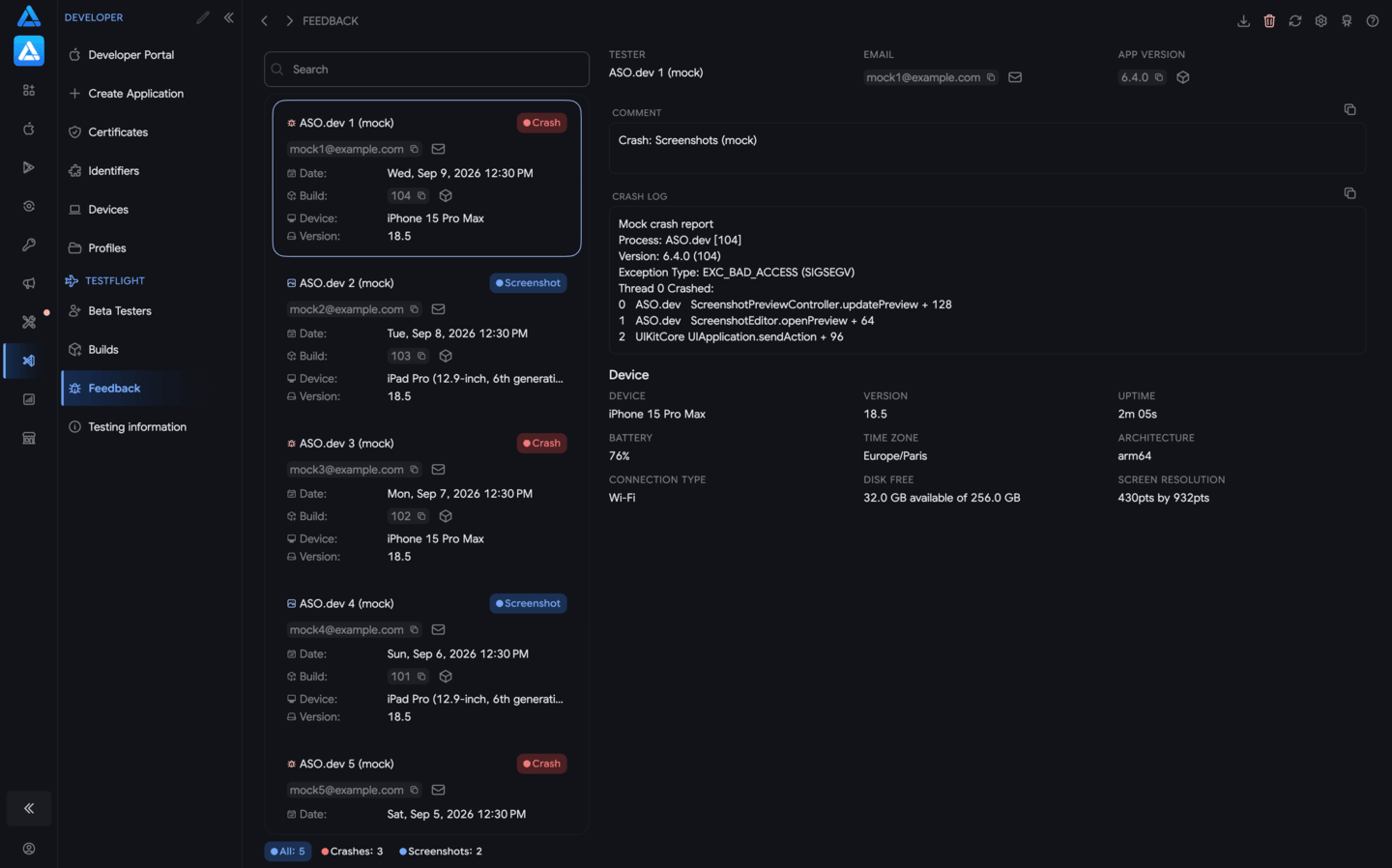
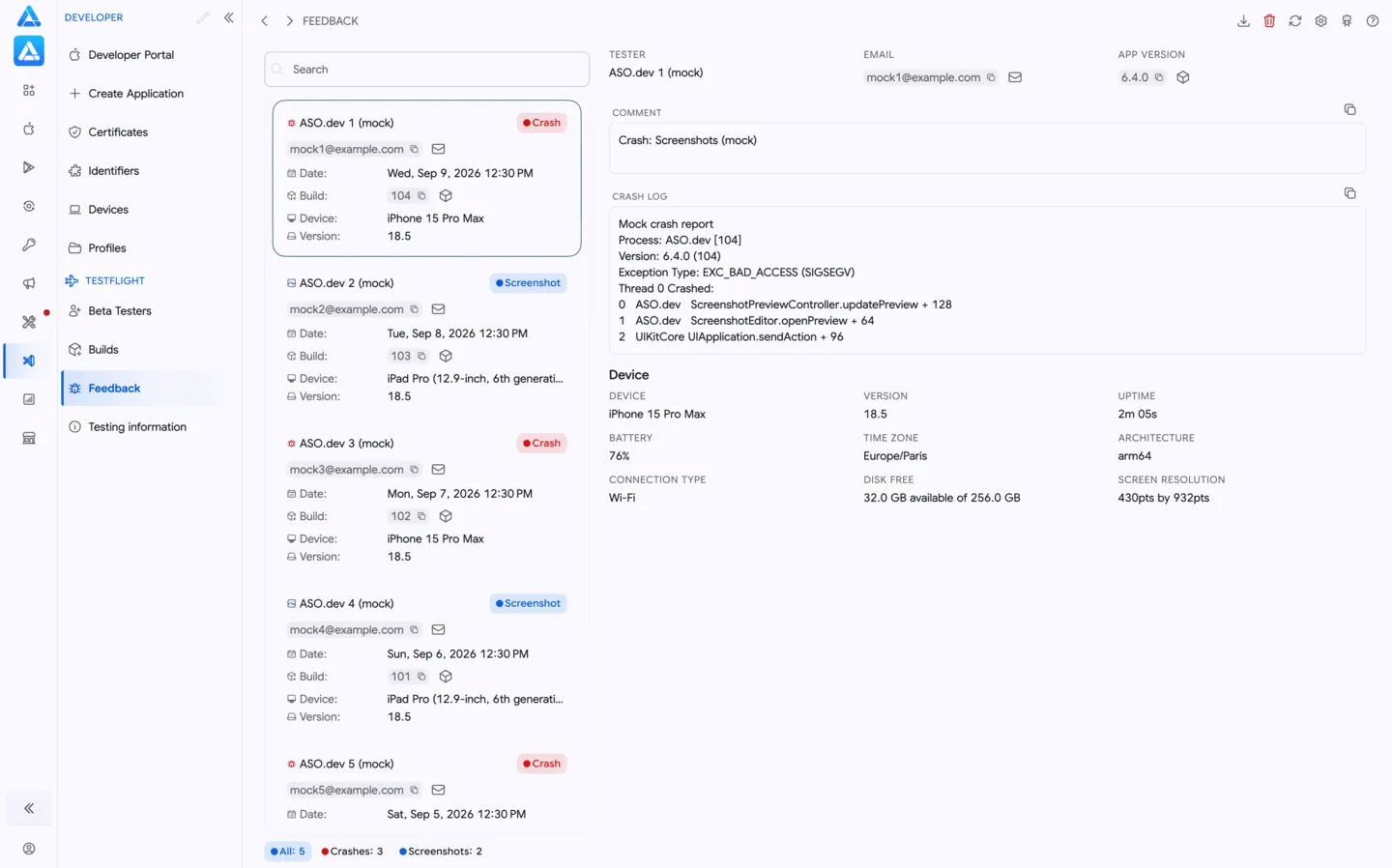
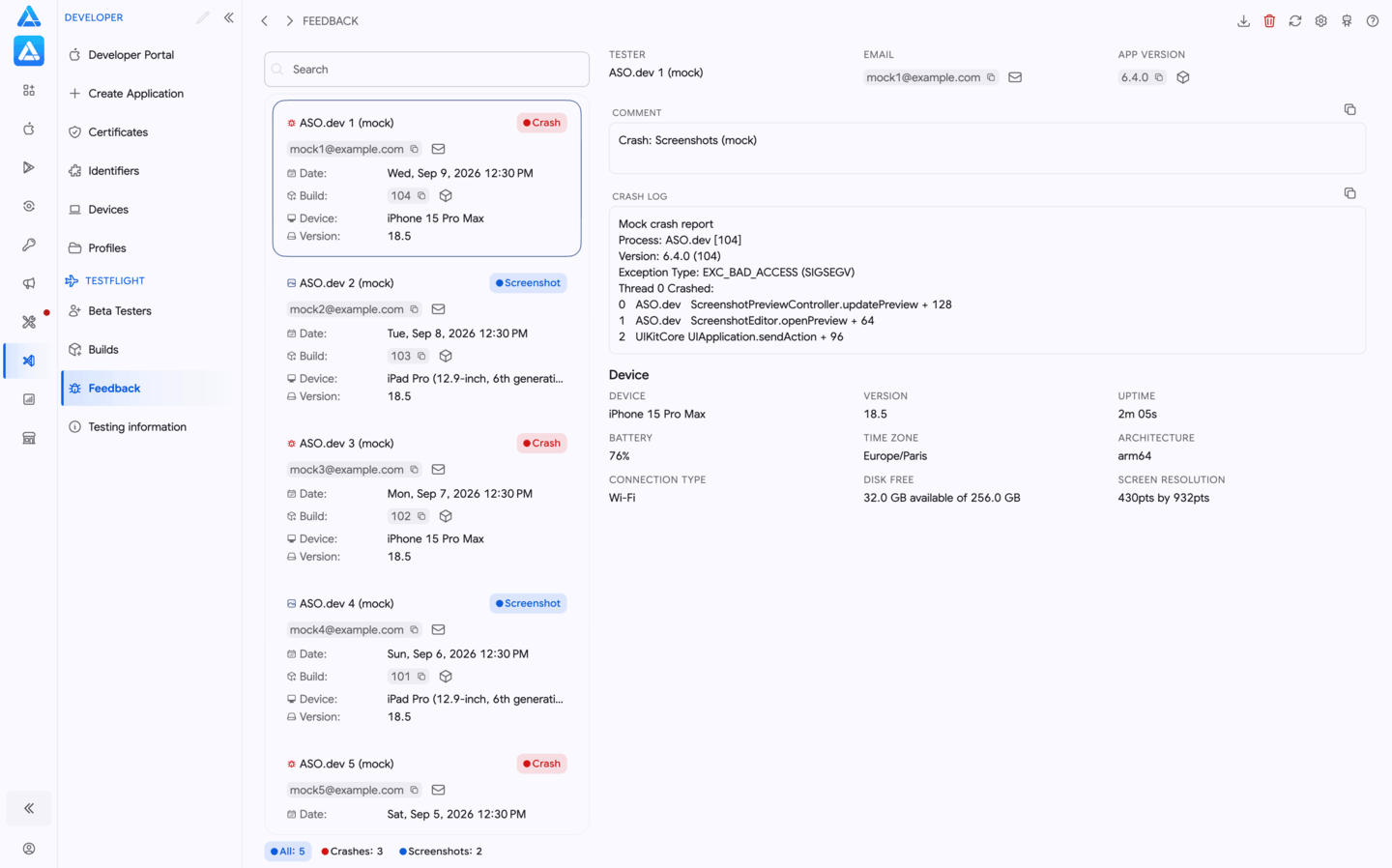
Section titled “Feedback List”The left panel loads TestFlight feedback and crash reports for the selected app.
Use the search field to find reports by tester, email, build, device, or visible text. The bottom filters split the list into All, Crashes, and Screenshots.
Each row can show:
- report type: screenshot feedback or crash;
- tester name;
- tester email, when Apple returns it;
- creation date;
- build number;
- device model;
- OS version;
- quick actions to copy values, email the tester, or open the related build.
Selecting a row opens the full report on the right.
Available Actions
Section titled “Available Actions”Feedback items are not editable. The page keeps the action set intentionally small:
- Delete - deletes the selected feedback or crash report after confirmation.
- Email - opens a mail draft to the tester when an email address is available.
- Copy - copies useful values such as email, comment, or build number.
- Download JSON - downloads the selected crash or feedback item in Apple-format JSON.
- Open build - opens the related TestFlight build from the build number or cube icon.
- AI Companion MCP - lets an AI client retrieve detailed crash information from the selected report through the local MCP workflow.
- Reload - loads the latest feedback data from App Store Connect.
If a tester email is missing, ASO.dev cannot create a direct email draft for that report.
Report Details
Section titled “Report Details”The detail panel shows the selected report in context.
At the top you can review:
- tester name;
- tester email;
- app version or build number;
- tester comment;
- translated comment when translation is available;
- screenshot preview for screenshot feedback.
For screenshots, use the preview to inspect the exact screen the tester captured. For crash reports, focus on the build, device, OS version, and runtime context Apple provides.
Device Information
Section titled “Device Information”The lower section explains the environment where the feedback or crash happened.
It can include:
- device model;
- OS version;
- app uptime;
- battery level;
- time zone;
- device architecture;
- connection type;
- free and total disk space;
- screen resolution.
This context is useful before you create a QA ticket, ask a follow-up question, or compare the report with a newer build.
Crash Details via MCP
Section titled “Crash Details via MCP”For crash reports, ASO.dev can expose the selected report to the local AI Companion MCP.
Use this when you want an AI client to inspect the crash context, summarize the environment, prepare a bug report, or compare the report with build and TestFlight data already visible in ASO.dev.
MCP does not edit the feedback item. It reads the selected crash information and returns the crash context Apple provides for that report.
Apple-Format JSON Download
Section titled “Apple-Format JSON Download”Use Download JSON when you need to attach raw report data to an issue tracker, send it to engineering, archive it before deleting feedback, or process it outside ASO.dev.
The export keeps Apple-style field names and values for the selected crash report or screenshot feedback item. Missing Apple fields are kept as null or an empty value.
Example shape:
{ "id": "APhFJhXIL5XYIwLbn60ApjU", "timestamp": "2026-07-06T21:30:27.026Z[UTC]", "appAppleId": 6445911688, "cfBundleShortVersion": "5.9.3444", "cfBundleVersion": "3290", "deviceModel": "iPhone14,3", "osVersion": "18.7.2", "locale": "en-RS", "timezone": "Europe/Belgrade", "architecture": "arm64e", "connectionStatus": "WI_FI", "appUptimeMillis": 11000, "availableDiskBytes": 4436369408, "totalDiskBytes": 255877271552, "batteryPercentage": 25, "screenWidth": 428, "screenHeight": 926, "emailAddress": "apple@aso.dev", "comment": "Tester comment text"}Practical Workflow
Section titled “Practical Workflow”- Use search or the Crashes / Screenshots filters to narrow the list.
- Select a report and read the comment, screenshot, build, and device details.
- Copy the build number or open the build with when you need release context.
- Download JSON or use MCP when engineering needs the raw crash or feedback context.
- Use only when the tester email is present and you need a follow-up.
- Delete reports that are no longer needed from the feedback queue.
Permissions and Limits
Section titled “Permissions and Limits”Reading feedback requires App Store Connect API access to TestFlight feedback resources for the app.
Deleting feedback requires write access for the relevant TestFlight feedback resource. Email follow-up depends on Apple returning the tester email and on the mail client available on your device.
MCP access is local to the ASO.dev app and the selected workspace. JSON download includes only the data Apple returned for the selected report.