
TestFlight beta testers and groups
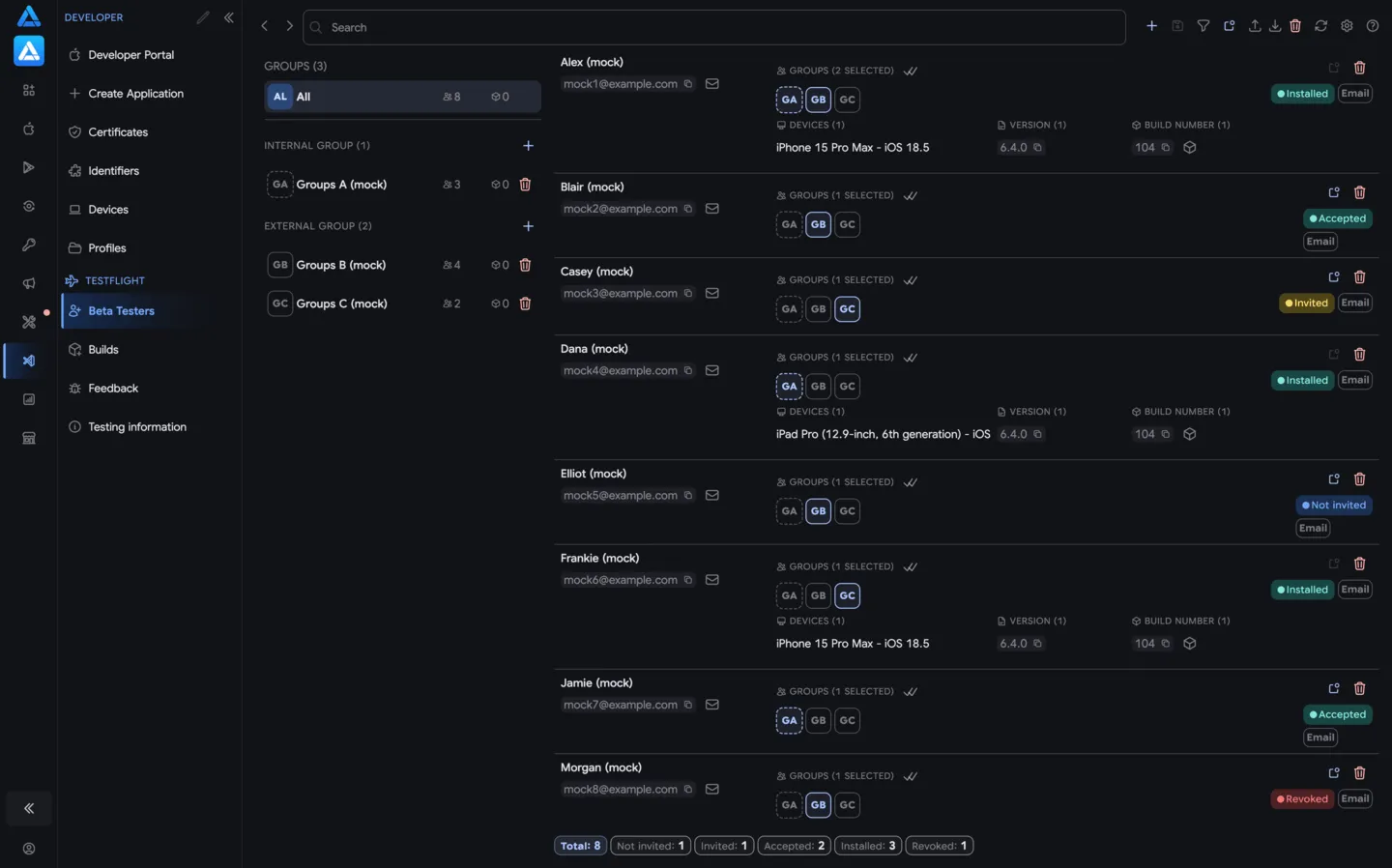
The Beta Testers page is the TestFlight audience control center in ASO.dev.
It loads all beta testers for the selected app from App Store Connect, shows the testing groups they belong to, and adds build, app, status, and device information when Apple returns it through the API.
Use it to prepare an external beta audience, keep internal and external groups clean, resend invitations, export access data, and remove old testers after a release or before an app transfer.
When to Use It
Section titled “When to Use It”Use this page when you need to:
- add one tester or import a full audience;
- load and audit all TestFlight testers for an app;
- move testers between internal, external, customer, agency, or feature groups;
- check which app, build, app version, build number, and device each tester is using;
- resend invitations to people who have not started testing;
- export the audience for audit or migration;
- clean up TestFlight access after a beta round or before transferring an app to another account.
Groups Panel
Section titled “Groups Panel”The group list on the left shows every TestFlight group loaded for the app.
ASO.dev separates internal and external groups, shows group-level counts, and lets you search groups by name. The All row shows the combined audience.
For each group, the page can show:
- tester count;
- linked build count;
- internal or external type;
- public link state when Apple exposes it;
- quick actions to create, open, copy, or delete groups.
The two-letter group avatar uses a dashed border for internal groups and a solid border for external groups. Hover the avatar to see the testing type and linked build count.
Selecting a group filters the tester list and changes the scope of bulk operations. For example, Delete can remove testers from the whole app, or remove them only from the selected group when that scope is chosen.
Audience List
Section titled “Audience List”Each row is a beta tester returned by App Store Connect.
ASO.dev adds related data when Apple exposes it through the API.
The list can show:
- tester ID, name, and email;
- TestFlight state such as
INVITED,ACCEPTED,INSTALLED,REVOKED, orNOT_INVITED; - invitation type;
- assigned beta groups;
- app count and app icon;
- related builds;
- devices used for testing;
- installed app version and build number;
- public link or installed status when available.
Tap a build number to copy it. Tap the cube icon next to the build number to open the related build on the TestFlight builds page.
Tap an email address to copy it. Tap the mail icon next to the email to compose a message to that tester.
Search and Filters
Section titled “Search and Filters”Use search when the audience or group list is large.
It matches email, name, tester ID, state, invite type, group, build ID, build version, and build processing state.
Helpful controls:
- Search - accepts one value or several comma-separated values.
- Filter changed - shows records that were changed on the page but not saved to App Store Connect yet.
- Status counters - filter by TestFlight state and show counts for each state.
- Alphabet index - appears near the scrollbar for large lists so you can jump through testers by first letter.
Page Buttons
Section titled “Page Buttons”- Add - creates one beta tester and assigns the person to a beta group.
- Save - writes staged group membership changes to App Store Connect.
- Reload - loads the latest testers, groups, relationships, and build data.
- Delete - removes the visible audience or removes testers from the selected group.
- Invite - sends TestFlight invitations in bulk.
- Import - reads testers from
.csv,.xlsx, or.xls. - Export - downloads the visible audience as CSV or Excel.
ASO.dev stages group edits first. This makes bulk changes safer: filter changed records, review them, and then save.
Add and Import Testers
Section titled “Add and Import Testers”The Add dialog asks for email, optional first name, optional last name, and a required beta group.
Use it for one-off access: a developer, product manager, external reviewer, agency contact, or customer who needs a specific beta group.
The Import action is for larger lists.
ASO.dev imports .csv, .xlsx, and .xls files, so you can upload a tester list prepared in Excel.
It detects common English and Russian headers for email, first name, and last name.
It can also extract emails from contact-style rows, skips invalid addresses, and reports imported and skipped records.
After adding or importing testers, assign the right group, then use Invite when the build is ready for them.
Export and Cleanup
Section titled “Export and Cleanup”Use Export before large changes.
The Apple-like export is a lightweight list with email, first name, and last name.
The full export includes tester IDs, statuses, invite types, app and group counts, build data, device counts, installed build, and device details when available.
Use Delete carefully:
- with no selected group, it removes the visible testers from the app;
- with a selected group, it can either delete testers or remove only the relationship to that group;
- if a tester belongs only to the selected group, removing that group relationship can remove the tester record.
Deleting all testers is useful before an app transfer to another Apple Developer account, after customer beta programs, or when external access should be closed after release.
Beta Group Widget
Beta groups are shared across TestFlight screens. On the Beta Testers page they organize people. On the Builds page they decide which audience receives the selected build.
Use groups for stable testing cohorts:
- internal QA and developers;
- external customers;
- agencies or reviewers;
- press and launch partners;
- feature-specific beta rounds;
- public-link campaigns.
The widget can show the group name, internal or external type, tester count, linked build count, public link state, and group settings Apple exposes through App Store Connect.
Two-letter group avatars use a dashed border for internal groups and a solid border for external groups. Hover a group avatar to see the testing type and linked build count.
Main controls:
- Group selector - chooses the active group or the groups linked to the current build.
- Add - creates a new beta group.
- Delete - removes the selected group after confirmation.
- Save - writes staged group changes to App Store Connect.
- Public link - shows the TestFlight public link when public link access is enabled.
- Settings - opens group options when Apple returns editable settings.
When creating a group, ASO.dev asks for the group name and whether it should be internal. When editing an existing group, Apple can expose public link options, tester limits, feedback settings, iOS-on-Mac availability, and Apple Vision availability.
Group changes are staged first. Review the group membership or build assignment, then click Save to apply the changes.
Working With Groups
Section titled “Working With Groups”Groups keep TestFlight manageable. Use separate groups for internal QA, external customers, agencies, press, feature-specific cohorts, and public-link campaigns.
On the Beta Testers page, the selected group filters the audience and changes the scope of bulk cleanup. On the Builds page, groups decide which audience receives a build.
Typical group flow:
- Create or select a group.
- Import or add testers.
- Assign people to the group.
- Review pending membership changes.
- Save.
- Assign a build to the group on the Builds page.
- Invite or notify testers.
Row Actions
Section titled “Row Actions”Depending on permissions and available data, tester rows can expose direct actions:
- send or resend an invitation;
- remove a tester;
- change group membership;
- open the related build;
- copy tester data, email, or build number;
- write an email to the tester.
Group changes in rows are not written immediately. ASO.dev marks them as pending so you can review several edits before saving.
Practical Workflow
Section titled “Practical Workflow”Prepare an External Beta Audience
Section titled “Prepare an External Beta Audience”- Create or select the external group.
- Import the email list.
- Check skipped rows and fix invalid emails if needed.
- Save group membership changes.
- Assign the build to the group on the Builds page.
- Use Invite or notify testers after the build is available.
Move People Between Groups
Section titled “Move People Between Groups”- Filter by the source group or search by email.
- Change group membership on the affected rows.
- Use Filter changed to review unsaved updates.
- Save changes.
- Reload to confirm App Store Connect returned the new relationships.
Clean Up Before an App Transfer
Section titled “Clean Up Before an App Transfer”- Export the full audience.
- Select a group if only one testing audience should be removed.
- Use Delete and choose the correct cleanup scope.
- Reload and verify who remains.
Permissions and Limits
Section titled “Permissions and Limits”Reading testers requires an App Store Connect API key and a role that can access TestFlight beta testers and beta groups.
Write actions require ASO.dev write access and the matching App Store Connect permissions.
Large audiences are paginated by Apple. ASO.dev loads related data and extra relationship pages when Apple returns only part of the group or build relationships.