
Placements Explorer: App Store Header and Search Media
Available only for the Marketing membership.
Placements Explorer shows apps already using images or videos for Search Results and Product Page Header in the App Store.
Choose a category and localization to view competitor assets, find ideas for your app or compare designs across localizations.
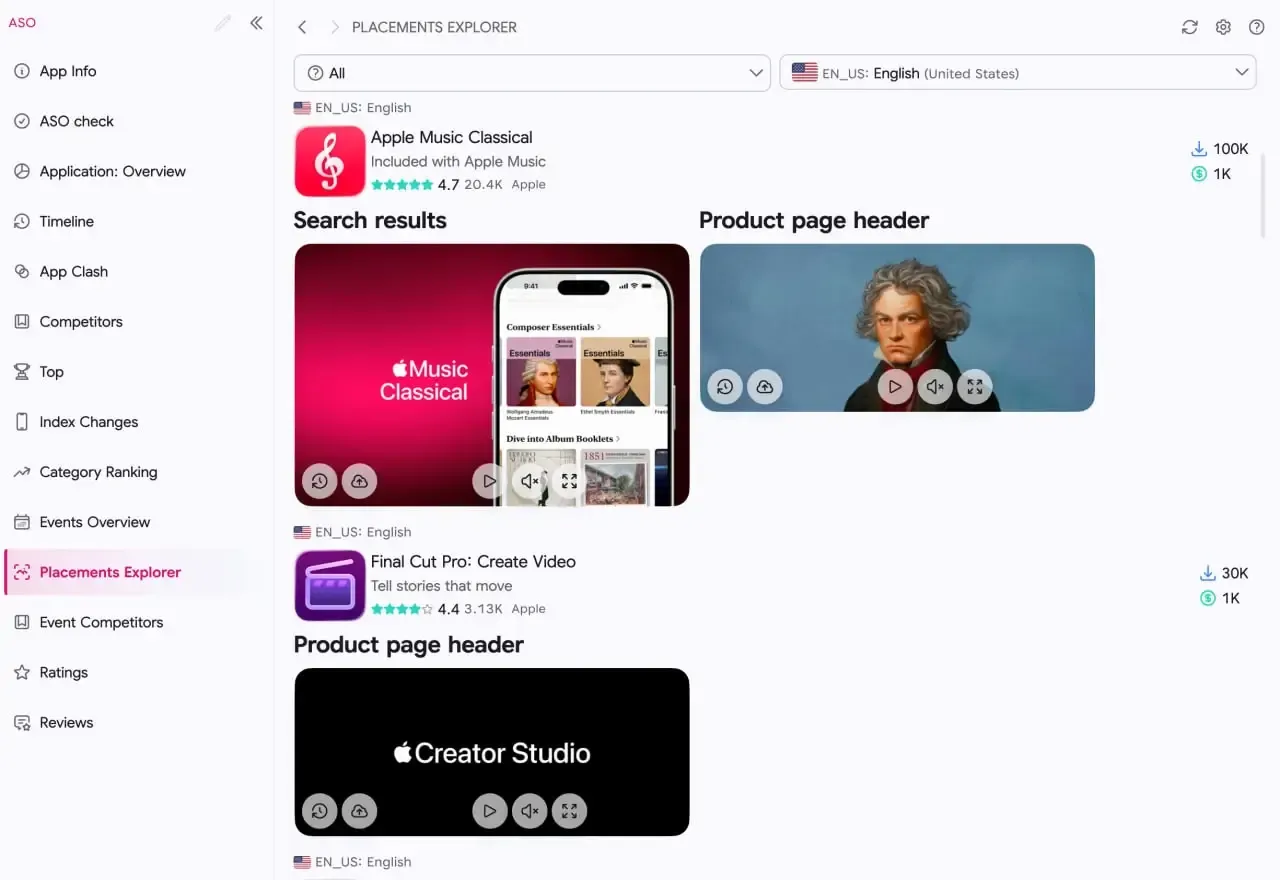
The screenshot shows all categories and the English (United States) localization. Apple Music Classical uses both placements; Final Cut Pro displays only a product page header.
Get started
Section titled “Get started”- Open ASO → Placements Explorer.
- Choose a category, such as Music, or leave All selected to browse different apps.
- Choose a localization, such as English (United States).
- Browse the apps and their assets. If more results are available, select Load more.
You can select one localization at a time; switch it to compare how assets change across localizations. To inspect a specific app with a country selection, use App Info.
What the list shows
Section titled “What the list shows”App information
Section titled “App information”



Media for placements
Section titled “Media for placements”Separate blocks below the card show:
- Search results — the image or video used in the App Store search card.
- Product page header — the image or video at the top of the app’s product page.
If an app has an asset for only one placement, only that block appears. This makes it easy to see how different apps use the new formats.
View and download videos
Section titled “View and download videos”Each video has these controls:
- Restart — the circular arrow on the left. Returns the video to the beginning.
- Download — the cloud button next to the circular arrow. Saves the video.
- Play or pause — the triangle or pause icon.
- Enable or disable sound — the speaker icon.
- Open full screen — the outward arrows.
These are ASO.dev player controls. In the App Store itself, search results videos always play without sound.
Open from App Info
Section titled “Open from App Info”If you are already researching an app, open App Info and choose the country and localization.
The screenshots section shows available header and search assets. The button to the right of Search results, with a framed image icon, opens Placements Explorer.
This uses the current localization and the app’s category when available. You can change the filters to browse more examples.
Regular app cards also show these assets below the screenshot strip, so you can spot the placements while browsing other ASO.dev lists.
Use the examples
Section titled “Use the examples”- Research competitors. See what they show first: the interface, gameplay, a character or a key benefit.
- Compare localizations. Check whether they change only the text or also the imagery and design.
- Collect ideas. Download useful video references and prepare your own versions to test.
Explorer shows the assets apps use. Test their effect on installs for your own app with Product Page Optimization.