
Product Page Header and Search Results
You can add a separate image or video to two places in the App Store:
- Search Results — the app’s card in search.
- Product Page Header — the top of the page users open before downloading the app.
These assets help show what the app offers before users browse the regular screenshots.
Search Results
Section titled “Search Results”The image or video appears in the app’s search card. Users see it while choosing between search results.
Use this space to show a key feature, gameplay or the result users can get. For example, a travel app could show a trip plan, while a game could show a short gameplay scene.
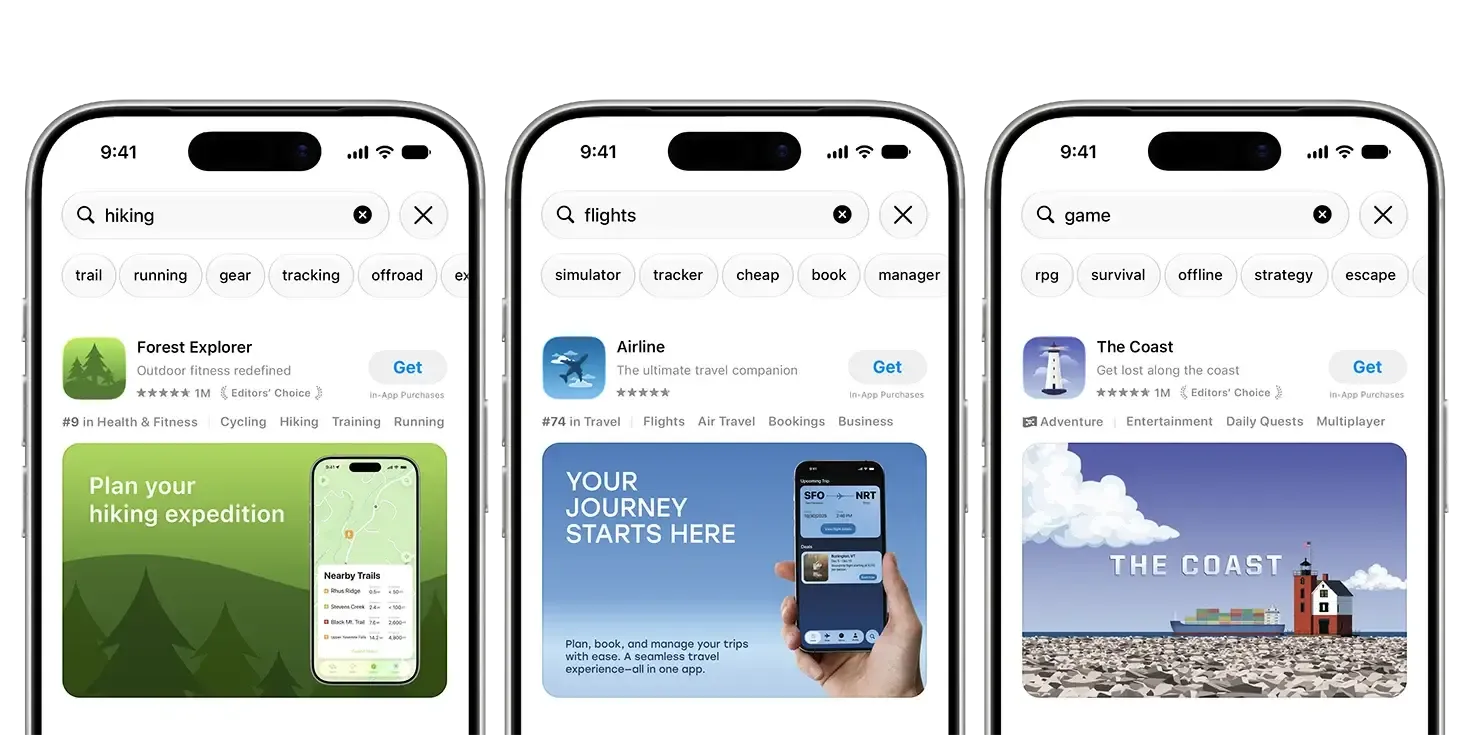
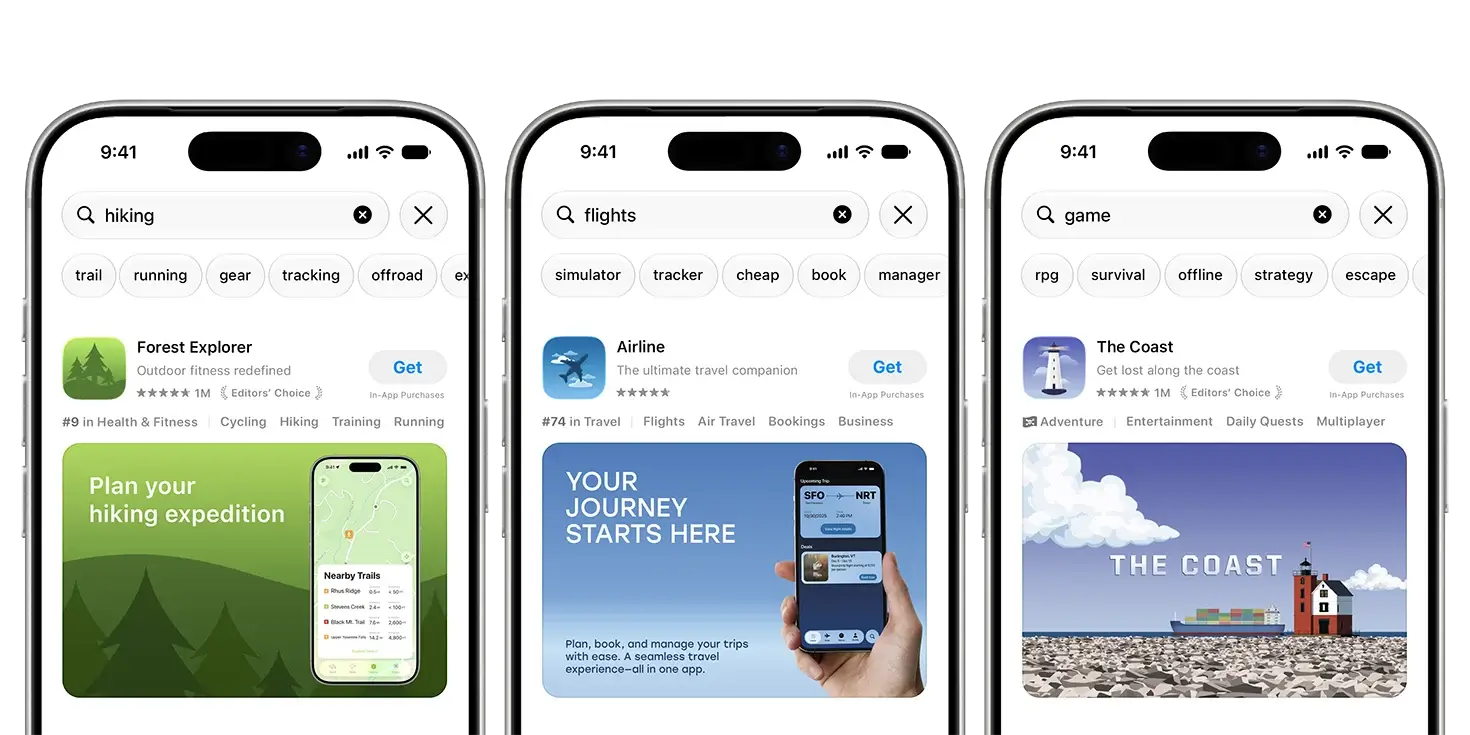
Apple examples: Search Results assets.
Without a dedicated asset, the App Store uses available in-app events, app previews and screenshots. Uploading an image or video for this placement does not require an Apple Ads campaign.
Product Page Header
Section titled “Product Page Header”The header is a wide image or video at the top of the product page, above the app’s icon and name.
It introduces the app: show a main character, highlight a key benefit or convey the feel of the experience. The screenshots below continue the story and explain specific features.
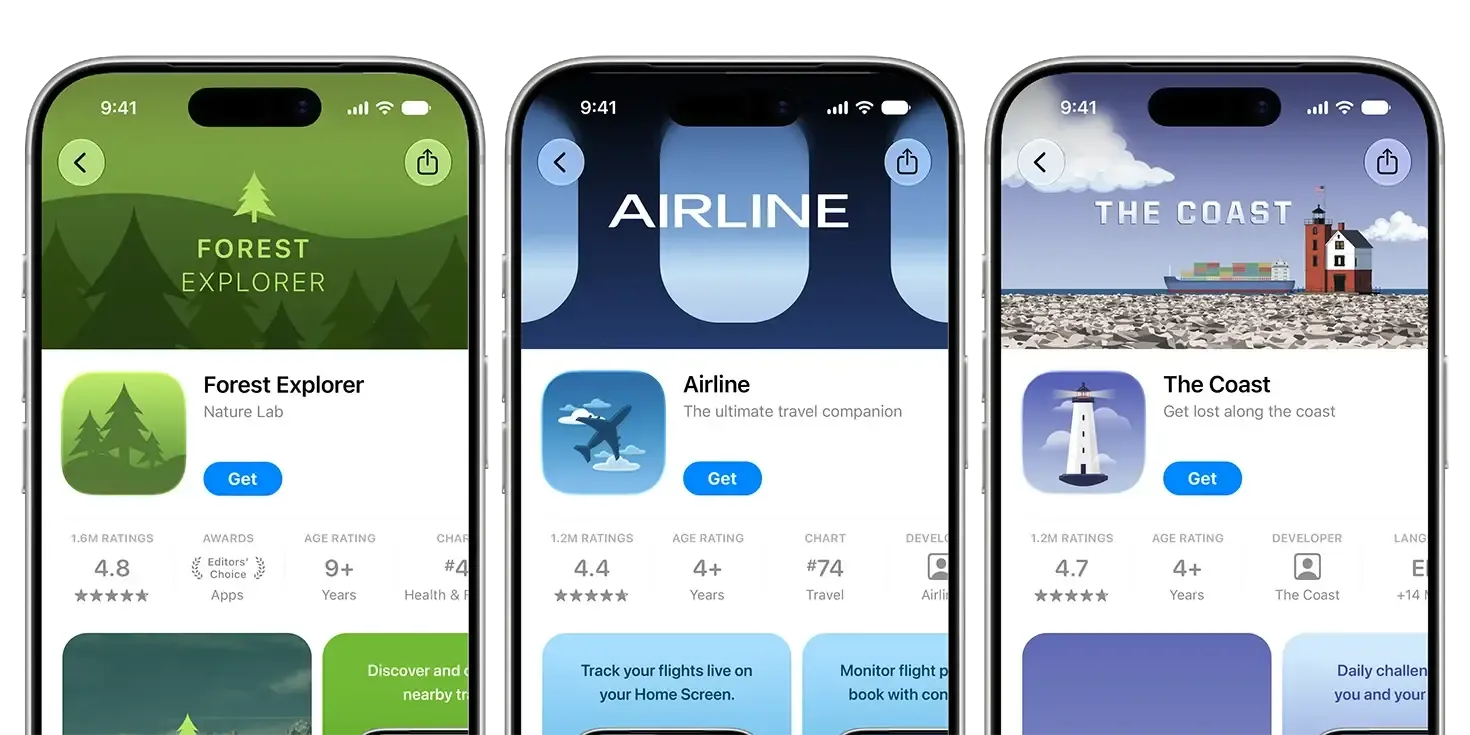
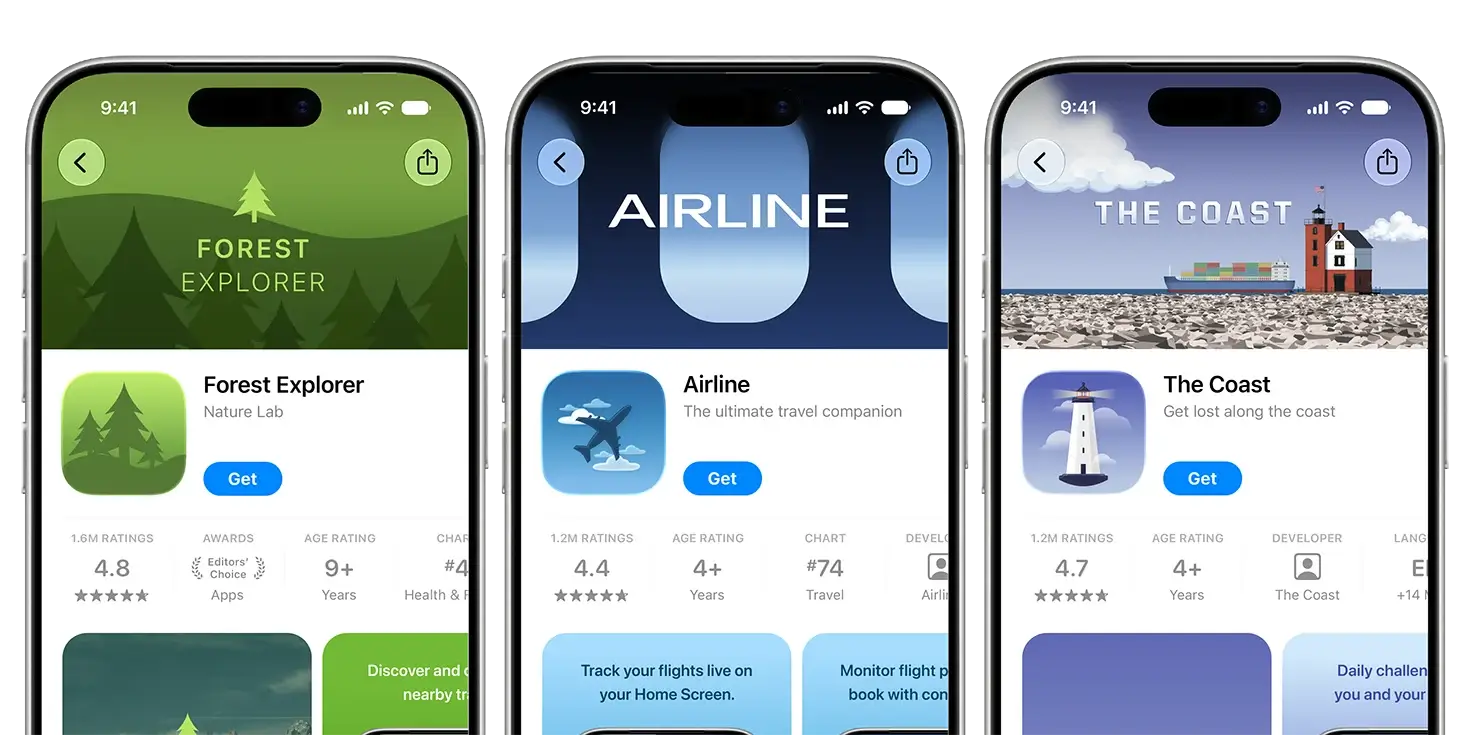
Apple examples: Product Page Header assets.
Image sizes
Section titled “Image sizes”Sizes are width × height in pixels.
| Placement | Size and aspect ratio | Format |
|---|---|---|
| Header only | 3840 × 1646 21:9 | JPEG, JPG, PNG |
| Search Results only | 1920 × 1280 to 3840 × 2560 3:2 | JPEG, JPG, PNG |
| One image for both placements | 5244 × 2950 16:9 | PNG |
Images must have no transparent backgrounds or partly transparent areas. Disable transparency, also called the alpha channel, when exporting.
One image for both placements
Section titled “One image for both placements”You can prepare a universal image for both places. This is a separate 5244 × 2950 PNG, rather than a regular screenshot.
App Store Connect offers Use header asset in search results for this type of asset.
The header and search card crop the image differently. Keep the main subject and text near the centre, then check both versions in Preview.
Apple’s templates for Figma, Photoshop, Pixelmator and Sketch help you see which parts of the design will remain visible.
Video requirements
Section titled “Video requirements”The size depends on where the video will appear:
| Placement | Video size | Aspect ratio |
|---|---|---|
| Product Page Header | 3840 × 1646 | 21:9 |
| Search Results | 1920 × 1280 to 3840 × 2560 | 3:2 |
Both placements support:
- Duration: 5–30 seconds.
- Frame rate: 30 or 60 frames per second.
- File format: MOV, M4V or MP4.
- Playback: videos repeat in a loop.
In App Store search results, videos are always muted. In the product page header, they start muted, but users can enable sound.
Make the key action understandable without narration. Choose a useful poster frame too: this is the still image shown while the video is not playing.
The universal image size of 5244 × 2950 applies to PNG files. For video, use the requirements for the intended placement in the table above.
Upload in App Store Connect
Section titled “Upload in App Store Connect”- Open your app and the intended version in App Store Connect.
- In Product Page Information, open Header and Search Results.
- Choose the placement. Upload a file or select an existing asset from Asset Library.
- Use Preview to check different devices, screen orientations and localizations.
Apple must review the asset. You can submit it with a new app version or separately through Asset Library.
You can publish an approved asset for an already released app version. A new app version is not required just to replace it. See Apple’s asset management instructions.
How assets can affect conversion
Section titled “How assets can affect conversion”Conversion measures how many users install the app after discovering it in the App Store.
Search media helps attract attention and explain what the app offers. The header helps persuade users who have already opened its page.
To make your assets easy to understand:
- Choose one main idea. Show what the app is for instead of listing every feature.
- Connect the header and screenshots. If the header promises easy trip planning, the first screenshots should show how it works.
- Check text and cropping. Text should be readable on a phone, and important details should stay visible.
- Prepare localizations. Translate text and check that the images suit the target market.
Test the result with Product Page Optimization (PPO). Apple supports header and search treatments in these tests.
An attractive image alone does not guarantee more installs. Compare versions with similar audiences and change one main idea per test.
Assets must be suitable for ages 4+, even if the app has a higher age rating. Avoid prices, discounts, website addresses and unsupported promises. See Apple’s guidelines.
View assets in ASO.dev
Section titled “View assets in ASO.dev”App Info
Section titled “App Info”Open App Info using an App Store link or app ID.
Choose the country and localization. The screenshots section displays separate Search results and Product page header blocks when those assets are available for the selected localization.
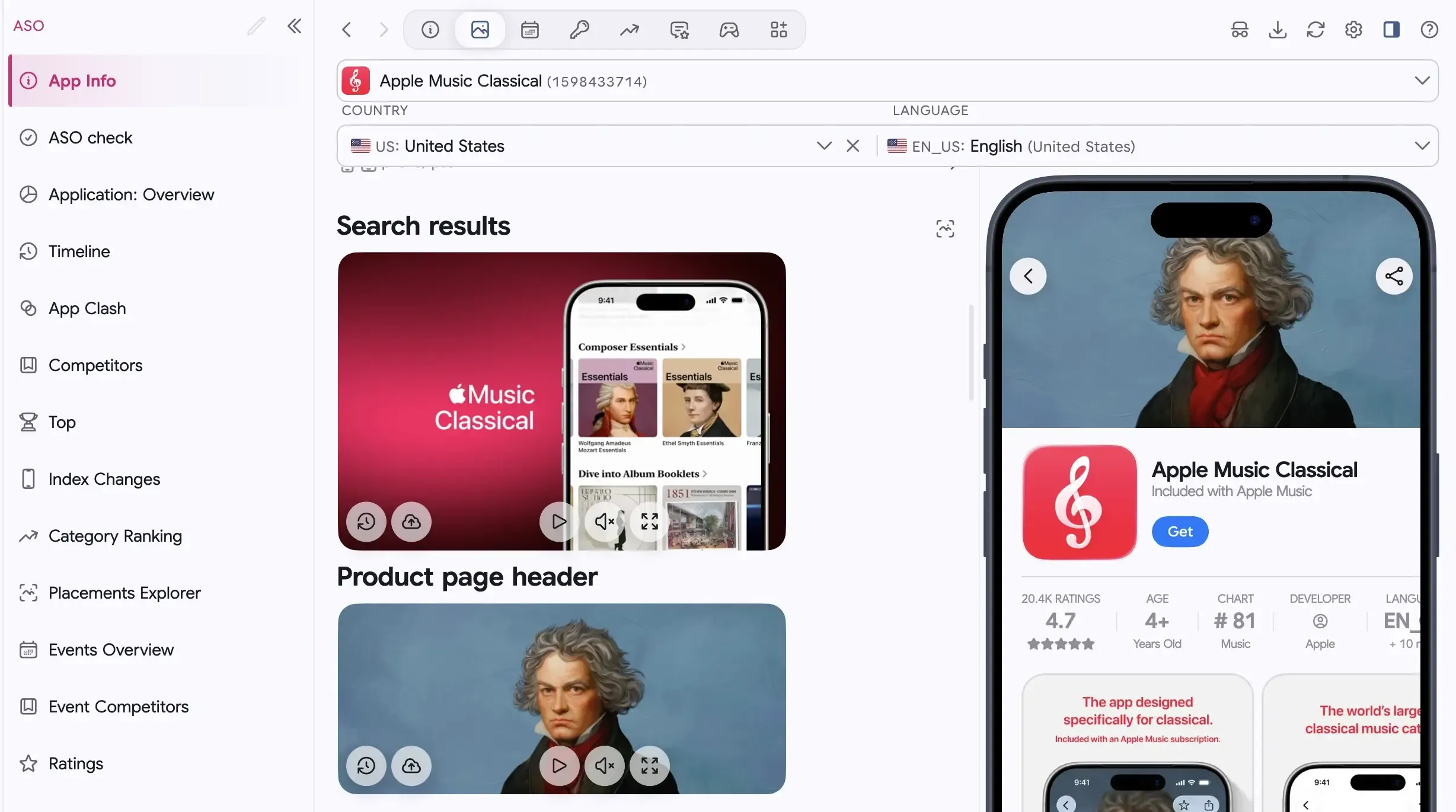
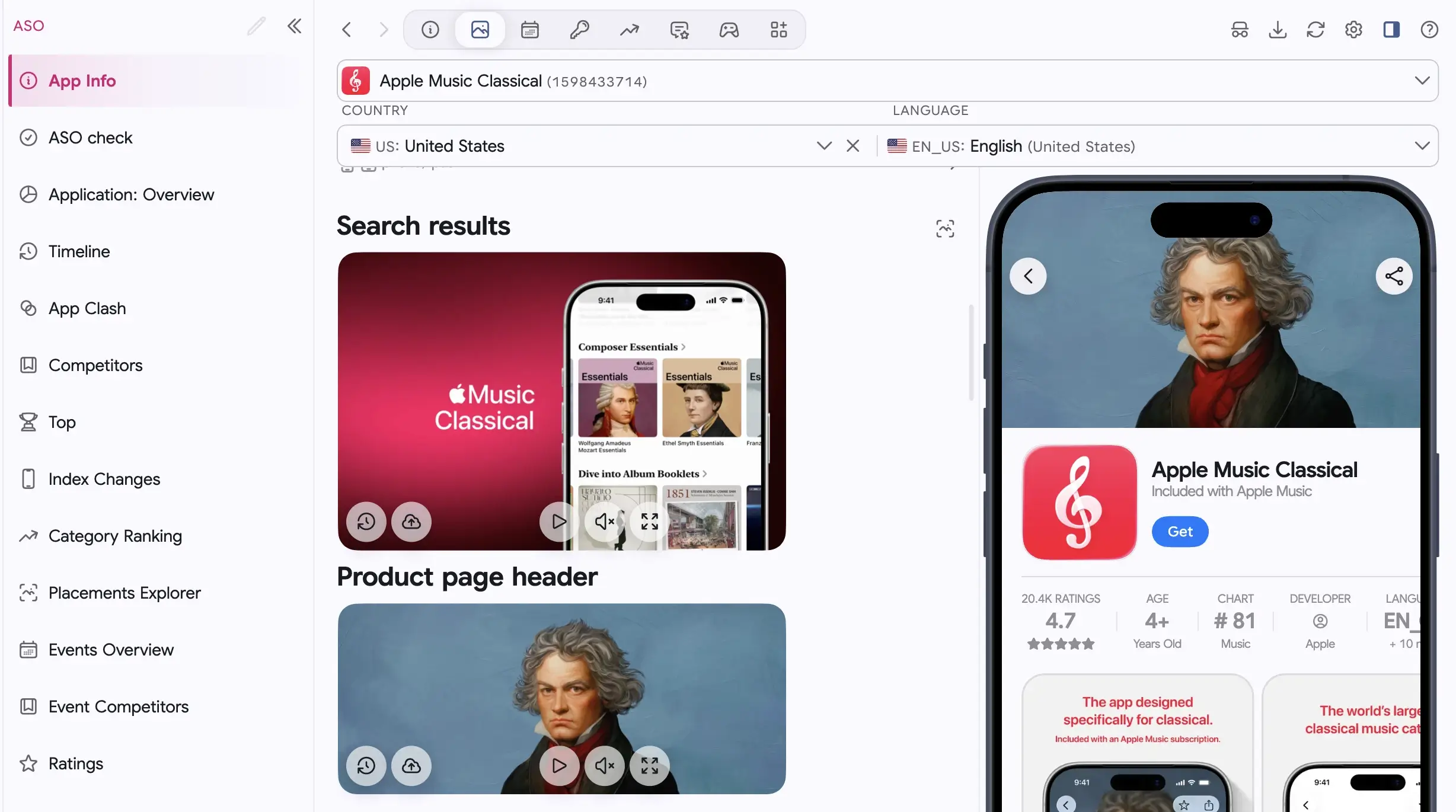
Apple Music Classical: the two placement assets are on the left; the header appears in the iPhone page preview on the right.
App cards
Section titled “App cards”The card shows placement media below the regular screenshot strip, in separate labelled blocks.
You can immediately see which placements an app uses. The blocks appear side by side when space allows, or one below the other on a narrow screen.
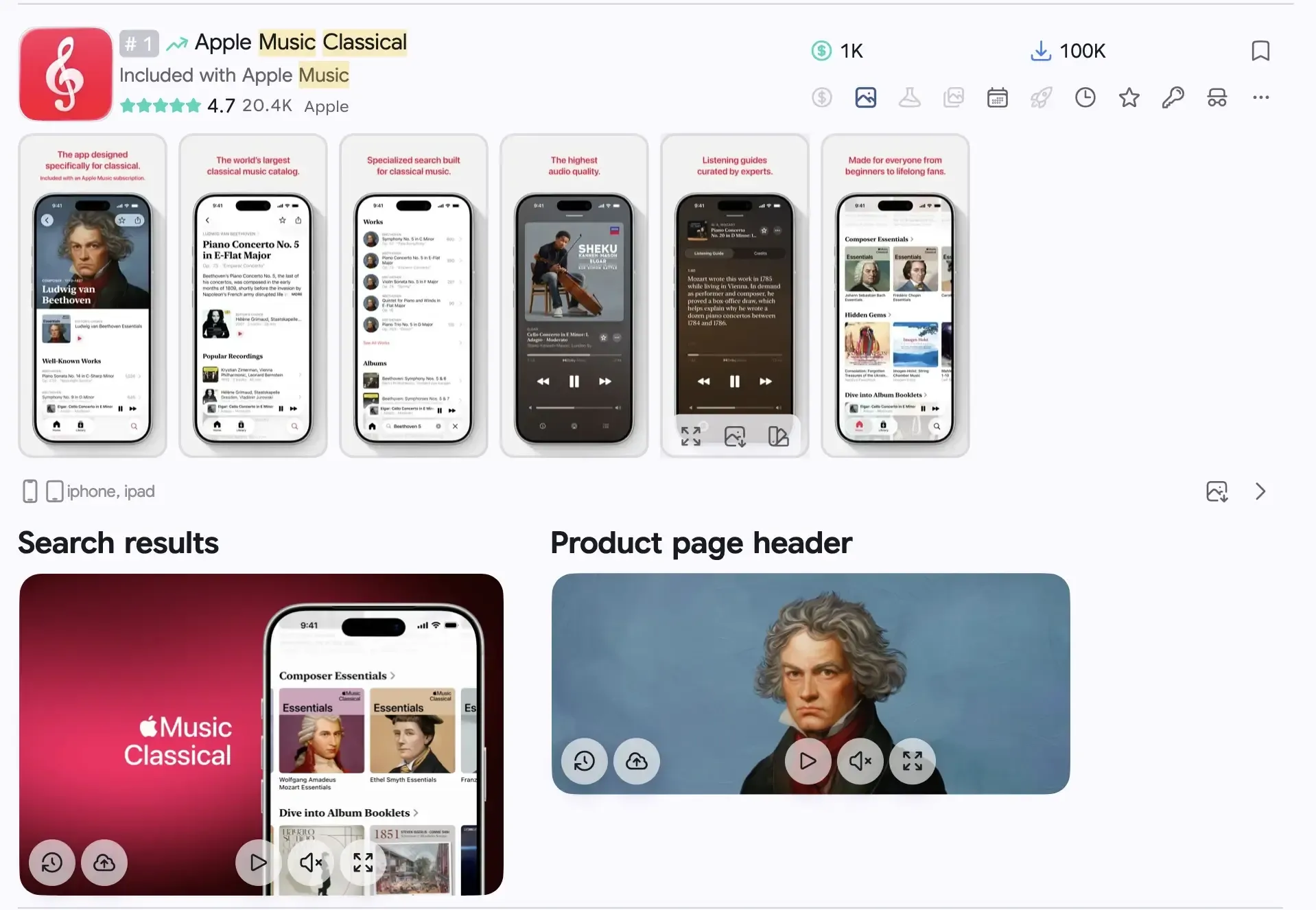
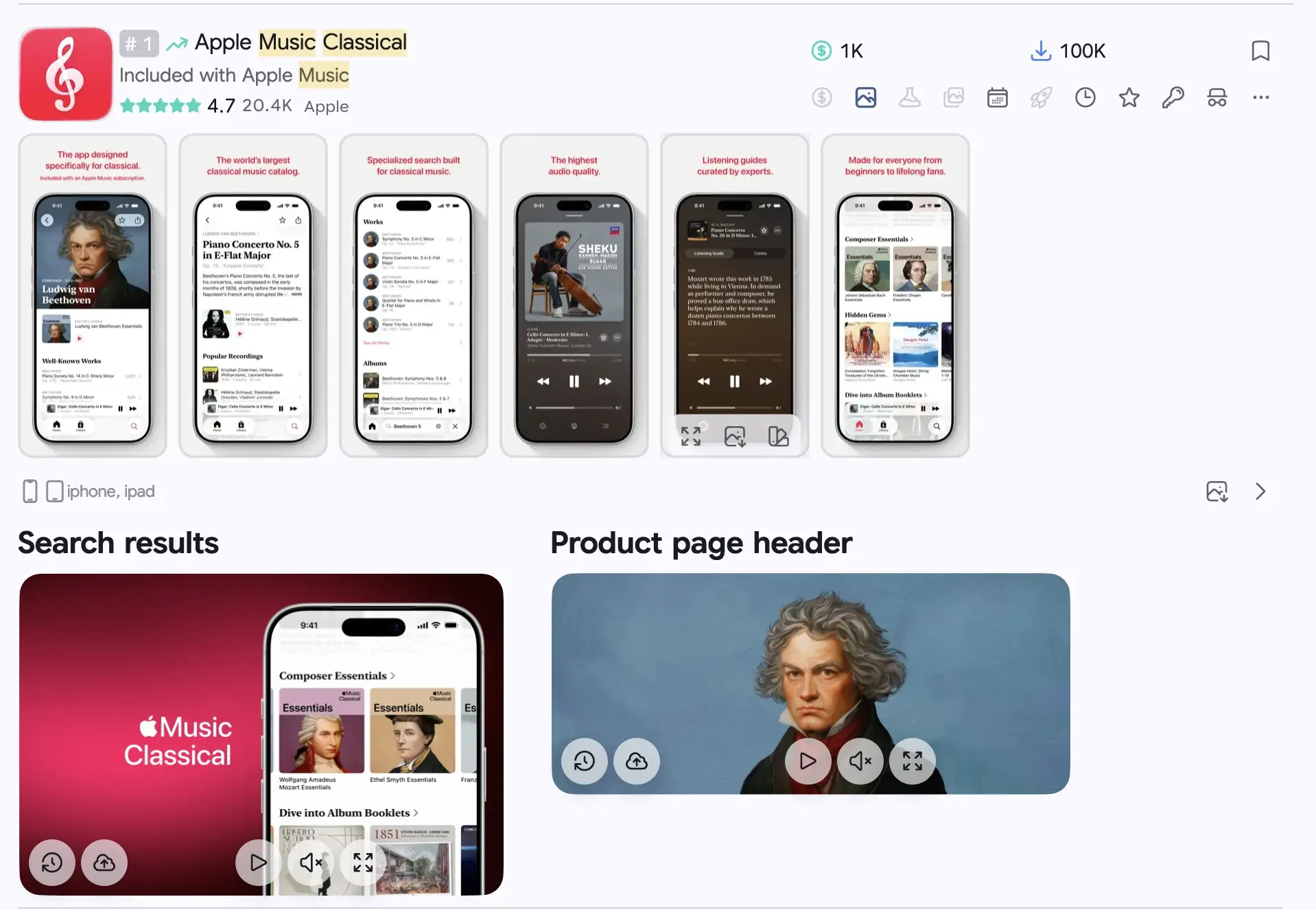
To find more examples, open Placements Explorer. Select a category and localizations to browse apps already using the new formats.
Technical requirements checked on October 7, 2026 against the Apple sources linked above.