
Asset Library: Manage App Store Assets
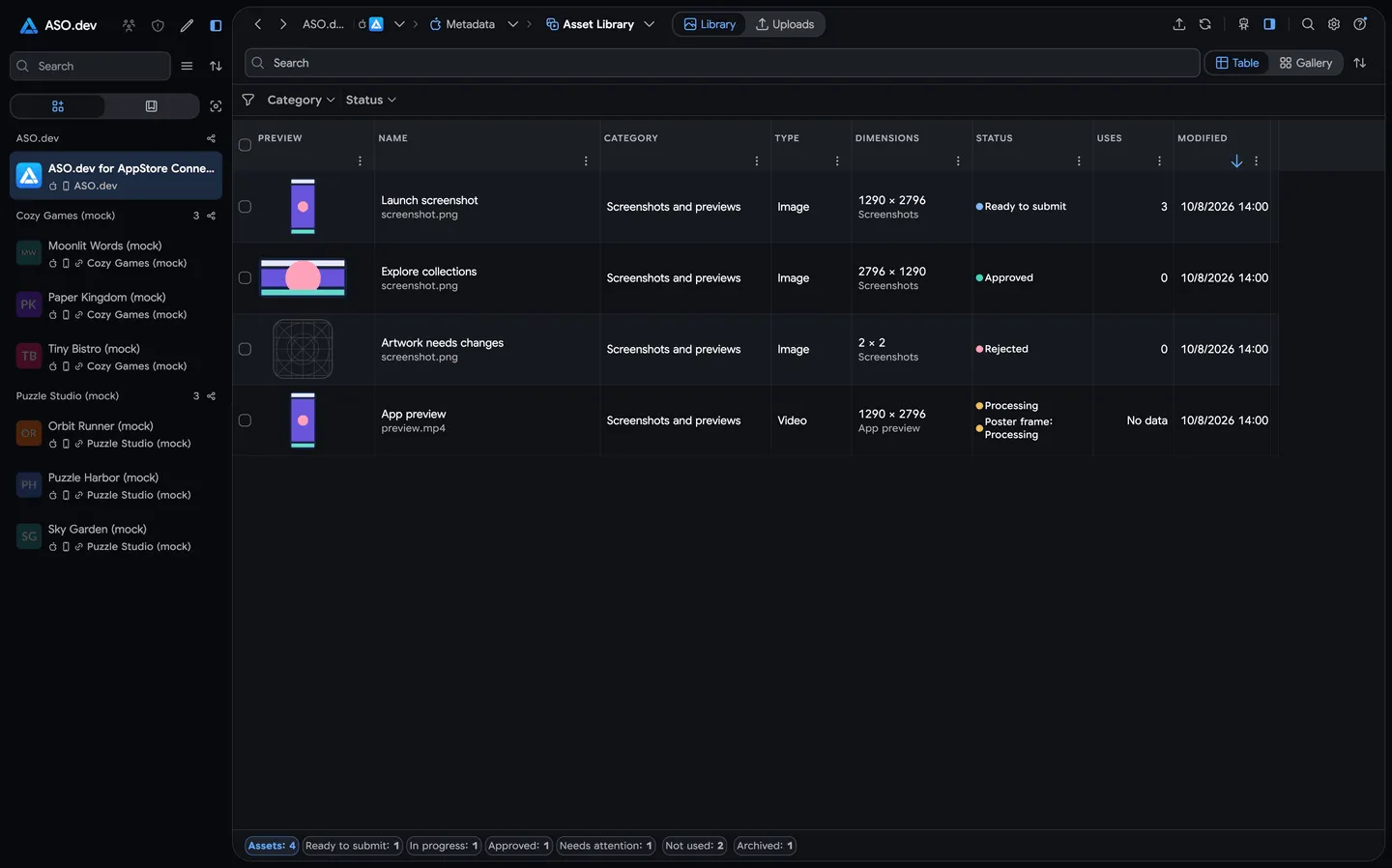
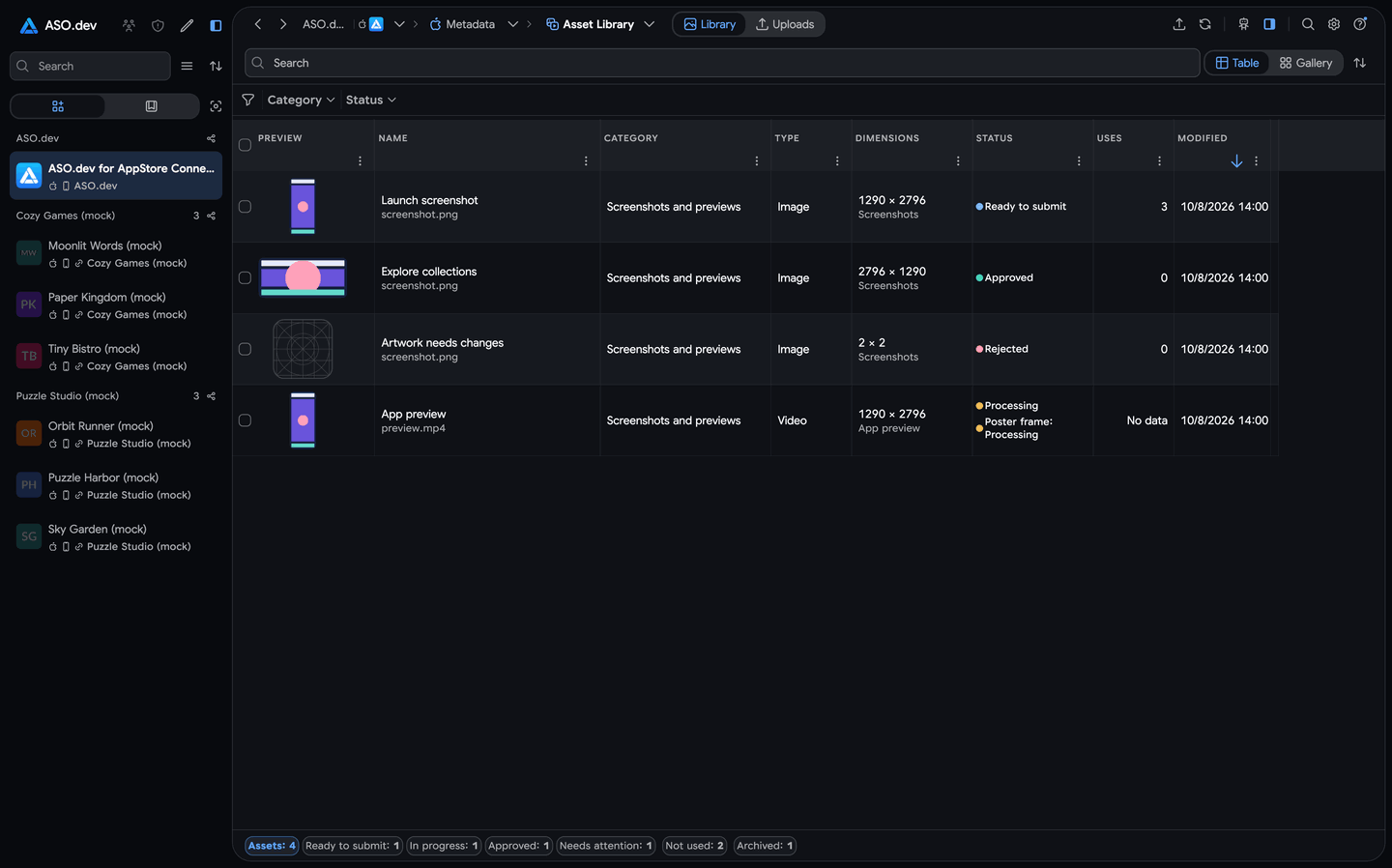
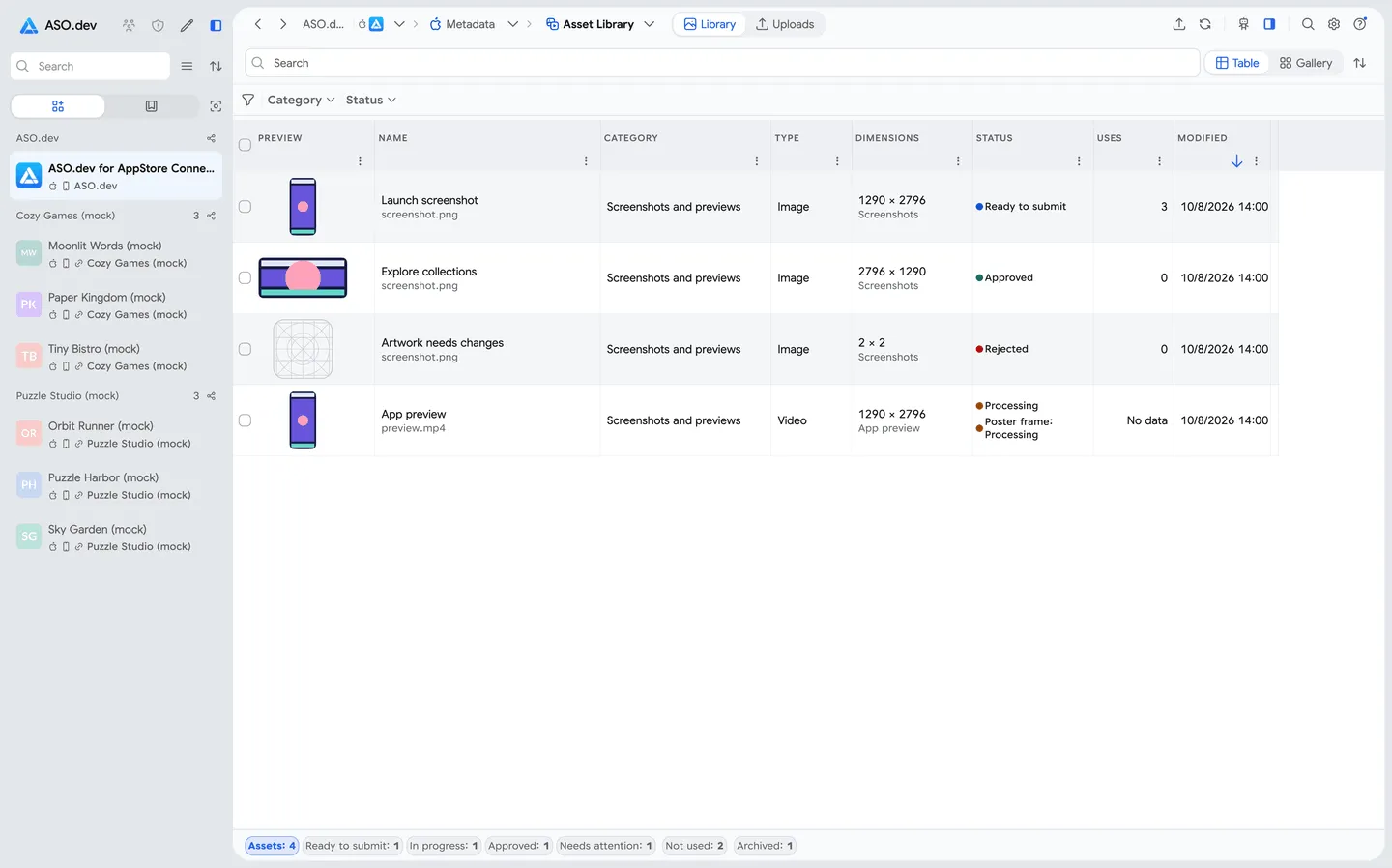
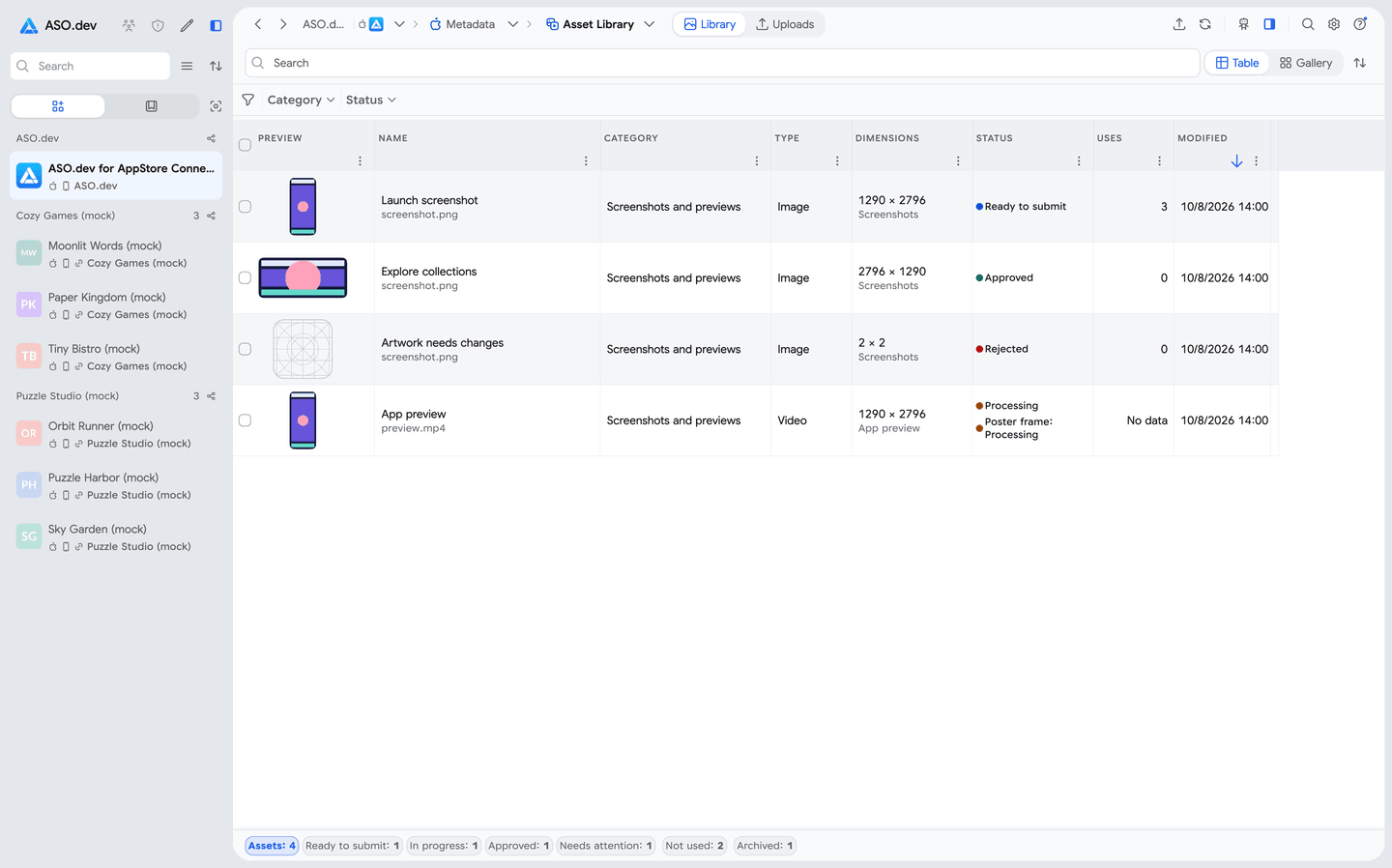
Asset Library is the shared media catalog for the selected App Store app. It helps you reuse assets and see where they appear before changing a page.
Open the app, then go to Metadata → Asset Library. The page has two modes:
- Library shows assets already in the catalog.
- Uploads shows files being checked or uploaded.
Icon buttons
Section titled “Icon buttons”Some buttons show only an icon in the app. Use these names to identify them:
- Reload refreshes the library.
- Upload file opens the file picker.
- More opens the selected asset’s action menu.
- Rename asset changes the asset’s reference name.
- Close closes the asset’s details.
What the library contains
Section titled “What the library contains”- Screenshots and previews are media for the app’s product pages.
- Creative assets are media for other supported App Store placements. Compatibility depends on Apple’s specifications for each asset.
Choose a view for your task:
- Table helps you compare asset details.
- Gallery makes it easier to browse visually. You can change how assets are grouped.
Find an asset
Section titled “Find an asset”Search by the asset name or file name. Use filters to narrow the catalog:
- Category selects the type of App Store content.
- Status selects the asset’s processing or review state.
- Media type separates images from videos.
- File format filters by the file extension.
- Dimensions selects the asset’s pixel size.
- Compatible with finds assets suitable for a particular placement.
- Usage helps you find assets that are already used or have no placements.
- Placement selects where an asset can appear.
- Page type narrows the kind of page using the asset.
- Version finds assets used by a particular app version.
- Product page optimization finds assets used by a test treatment.
- Custom product page finds assets used by a specific CPP.
- Localization selects the language of the page using the asset.
- Archive includes archived assets when needed.
Several values within one filter expand the selection. Different filters narrow it together. For example, choose a version and a localization to find assets used in that localized version.
Upload files
Section titled “Upload files”- Click Upload file in the page header, or drag files onto the page.
- For a whole folder, open Uploads and click Choose folder. Media in subfolders is included.
- Check each file’s result. ASO.dev validates it against Apple’s specifications before uploading. If a file fits more than one category, choose the category first.
- Click Upload file for a ready file. After the upload, wait for Apple to process it.
The queue shows why a file cannot be uploaded. Correct the file and retry the check. See the screenshot and preview specifications when preparing media.
If ASO.dev recognizes a file uploaded earlier, it can reuse the existing library asset. The Upload a separate copy action is available when you need another asset.
Inspect an asset
Section titled “Inspect an asset”Open an asset to see its details. On desktop, they appear in the side panel. On a narrow screen, click Close to return to the catalog.
- Preview helps you identify the media.
- Details shows the file properties and modification date.
- Compatible with shows where the asset can be used.
- Current placements shows the pages using the asset.
Use Rename asset to change the asset’s reference name in the library.
For a video with an available source, Edit Poster Frame lets you choose its preview frame. If the video is used in a screenshot editor, the change waits there until you click Save. Apple may need time to render the new frame.
Add assets to pages
Section titled “Add assets to pages”- Select one or more compatible assets.
- Click Add to pages.
- Choose the destination page and its localizations. Supported destinations are:
- An editable app version.
- A custom product page.
- A product page optimization treatment.
- Open the screenshot editor for the destination page and review the result.
- Click Save in that editor to send the changes to App Store Connect.
The destination determines how media is added:
- Screenshots go to the end of the selected localization’s set.
- App previews go to the end of the selected localization’s preview set.
- Header media replaces the current asset in that slot.
- Search results media replaces the current asset in that slot.
Only compatible assets can be added. A locked page cannot be selected for editing.
Replace an asset across localizations
Section titled “Replace an asset across localizations”Use replacement when an asset is already used in the version you are preparing for submission.
- Open the asset’s Current placements.
- Choose Replace for the editable version.
- Select the localizations to update. Editable localizations are selected by default.
- Choose the source:
- From library uses an existing compatible asset.
- New file uploads a replacement.
- Confirm the replacement. A new file is checked and uploaded first; the replacement continues after Apple processes it.
- Review the changes in the screenshot editor and click Save.
Review and organize assets
Section titled “Review and organize assets”Select assets to see the available batch actions. Each action applies only to eligible assets; the page shows when part of the selection cannot be processed.
- Add for Review adds eligible assets to a review submission. Adding them to a draft does not submit it to Apple.
- Download exports the selected media when you have export access.
- Archive is available for approved assets.
- Restore restores archived assets.
- Delete is available only for assets in a deletable state. If an asset is used, the confirmation explains whether its placements must be removed first.
After a batch action, check the result on the page. Failed items include a reason. Retry those items after resolving the problem.