
CPP Explorer: Research Competitors' Custom Product Pages
Available only for the Marketing membership.
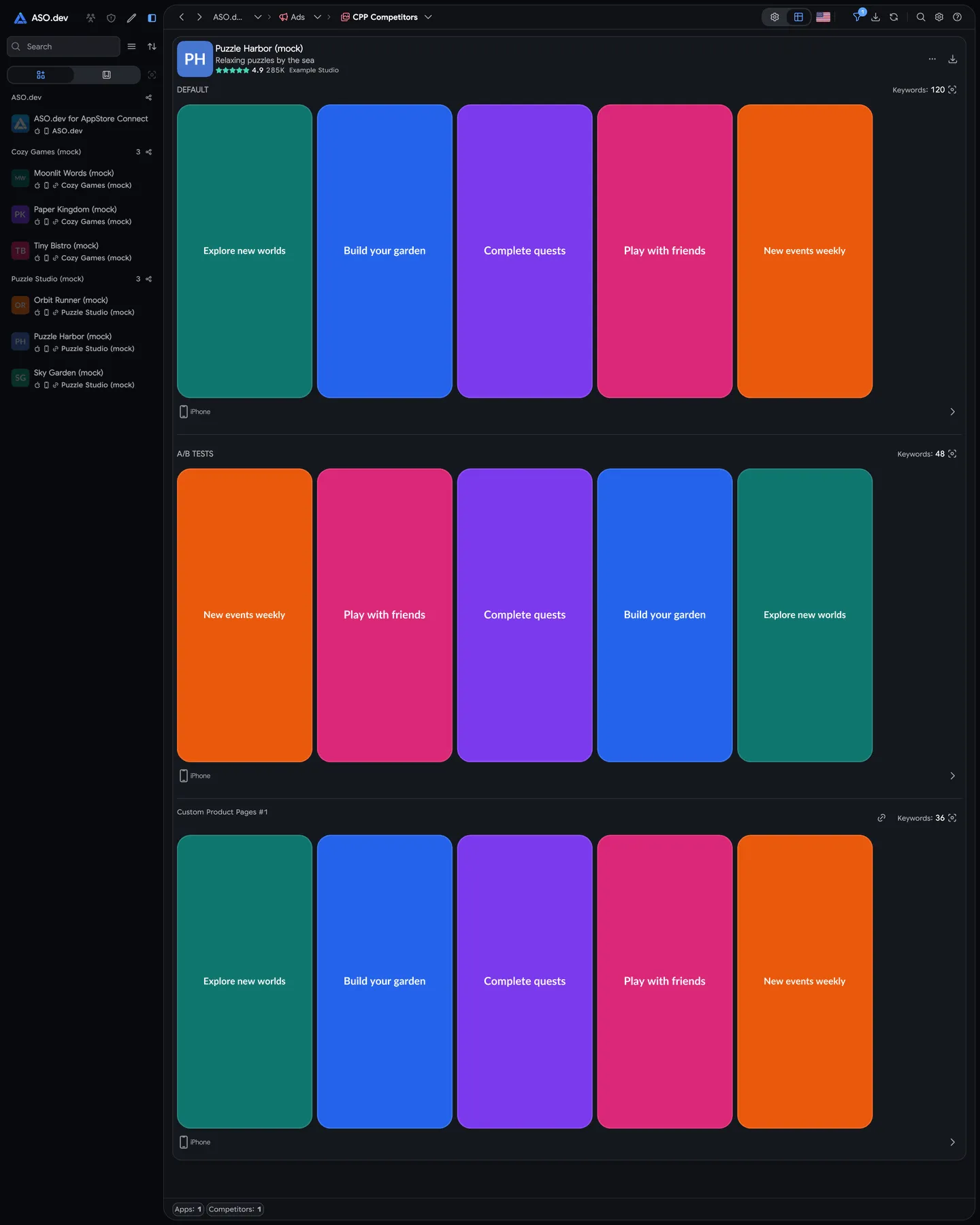
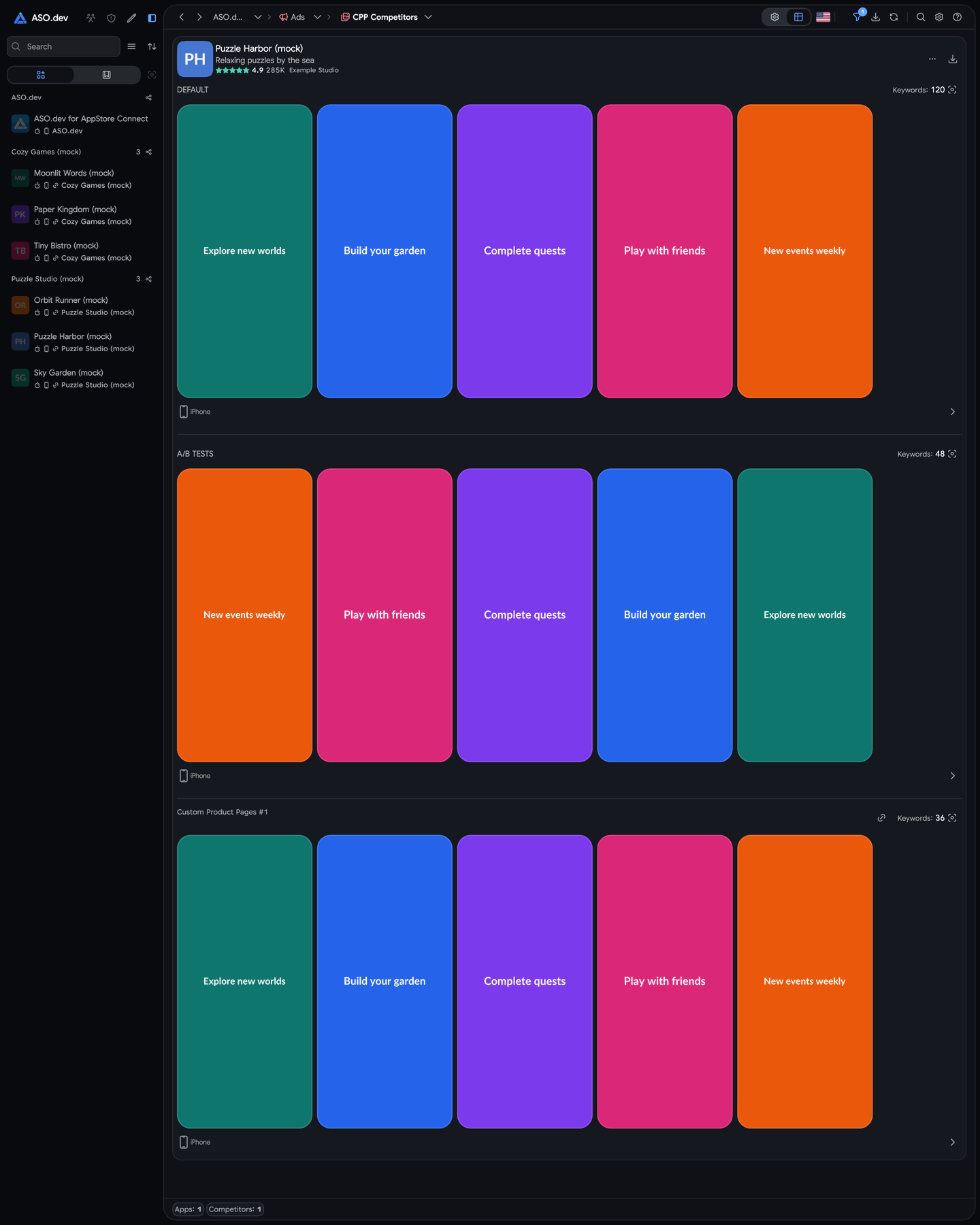
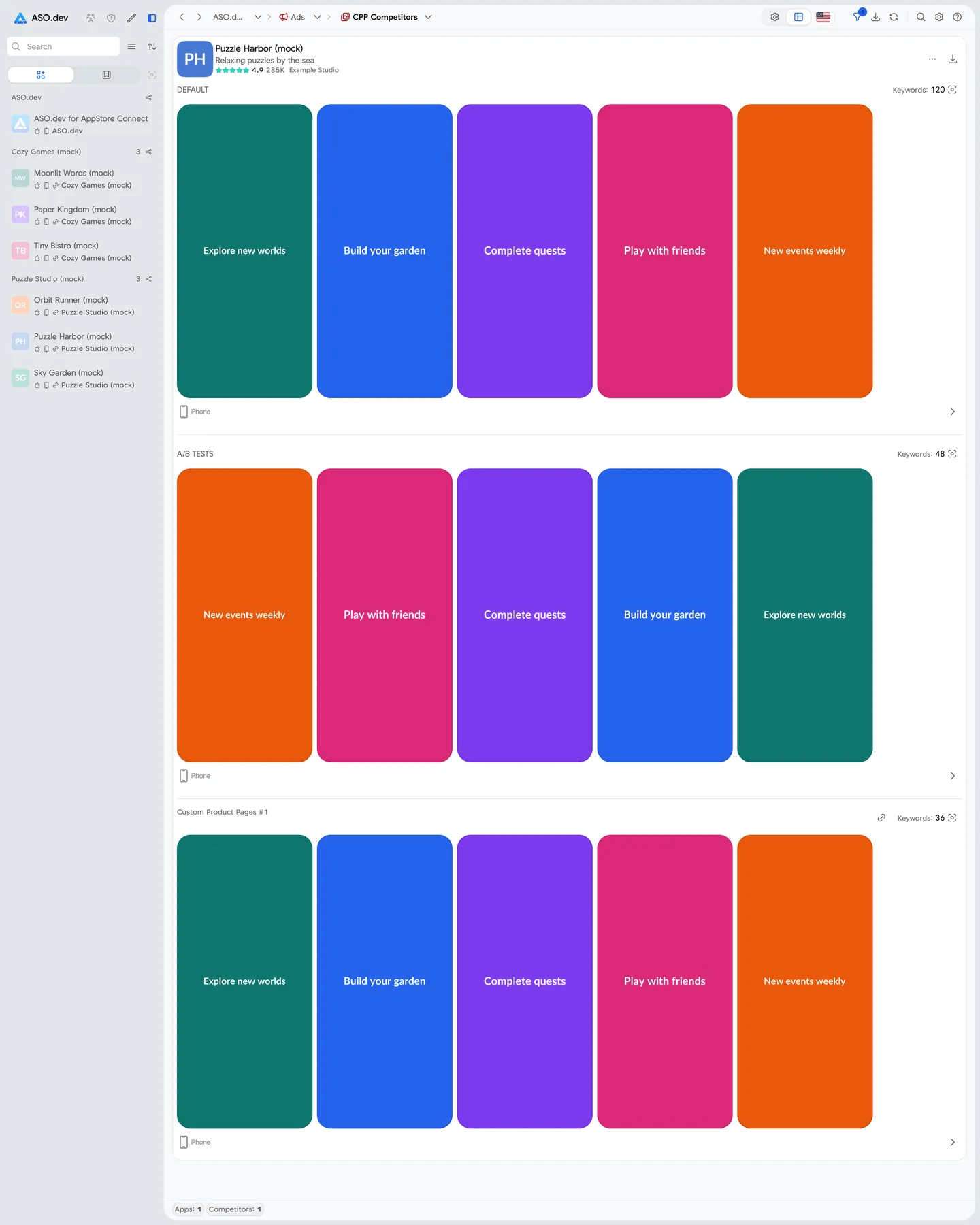
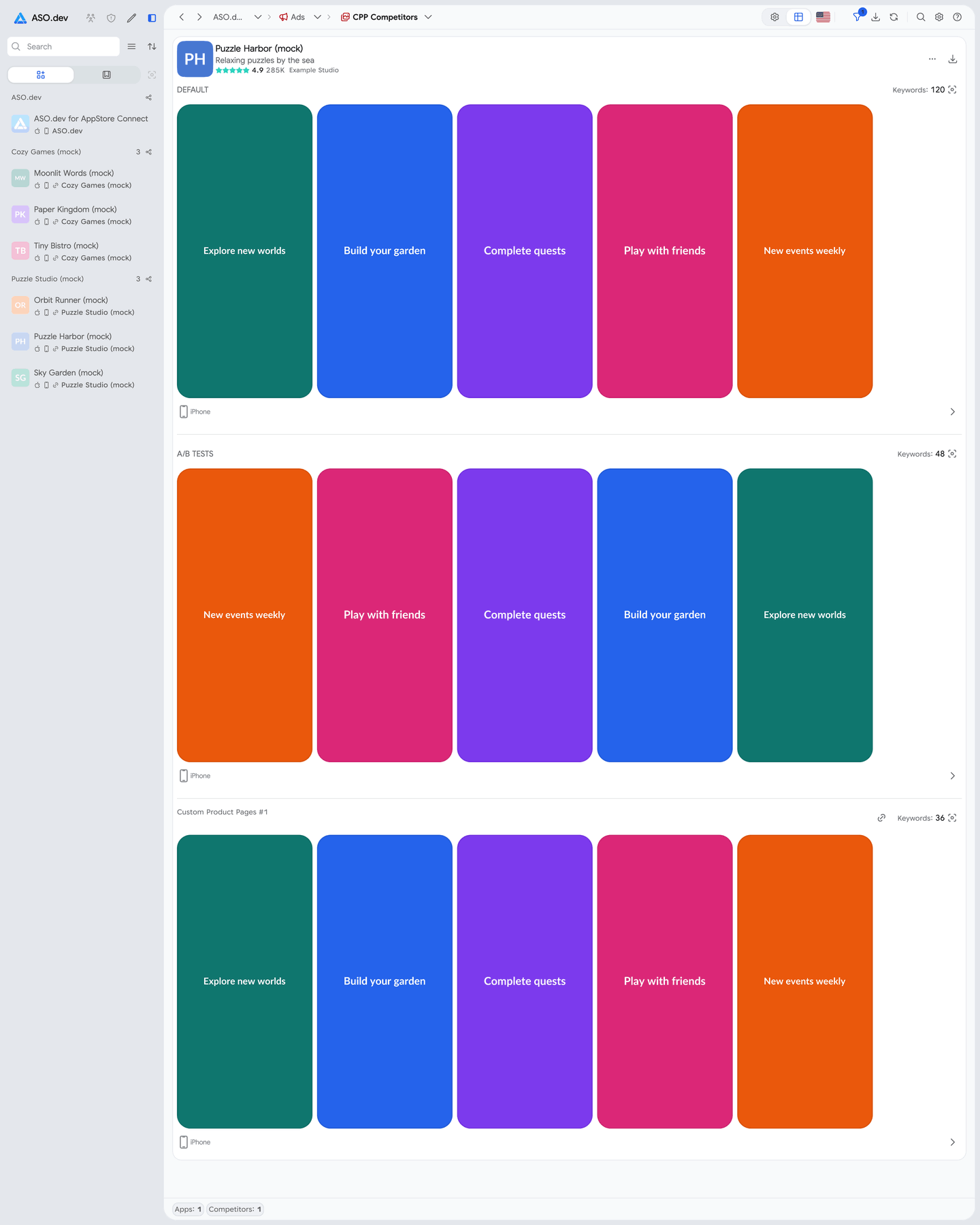
CPP Explorer brings the advertising creatives of multiple App Store apps into one view. Compare the default product page, A/B variants and observed Custom Product Pages (CPP) without opening each app separately in App Ads.
Use it to study how competitors adapt screenshots to different audiences, find creative ideas and collect references for your own Custom Product Pages.
Choose Apps and Filters
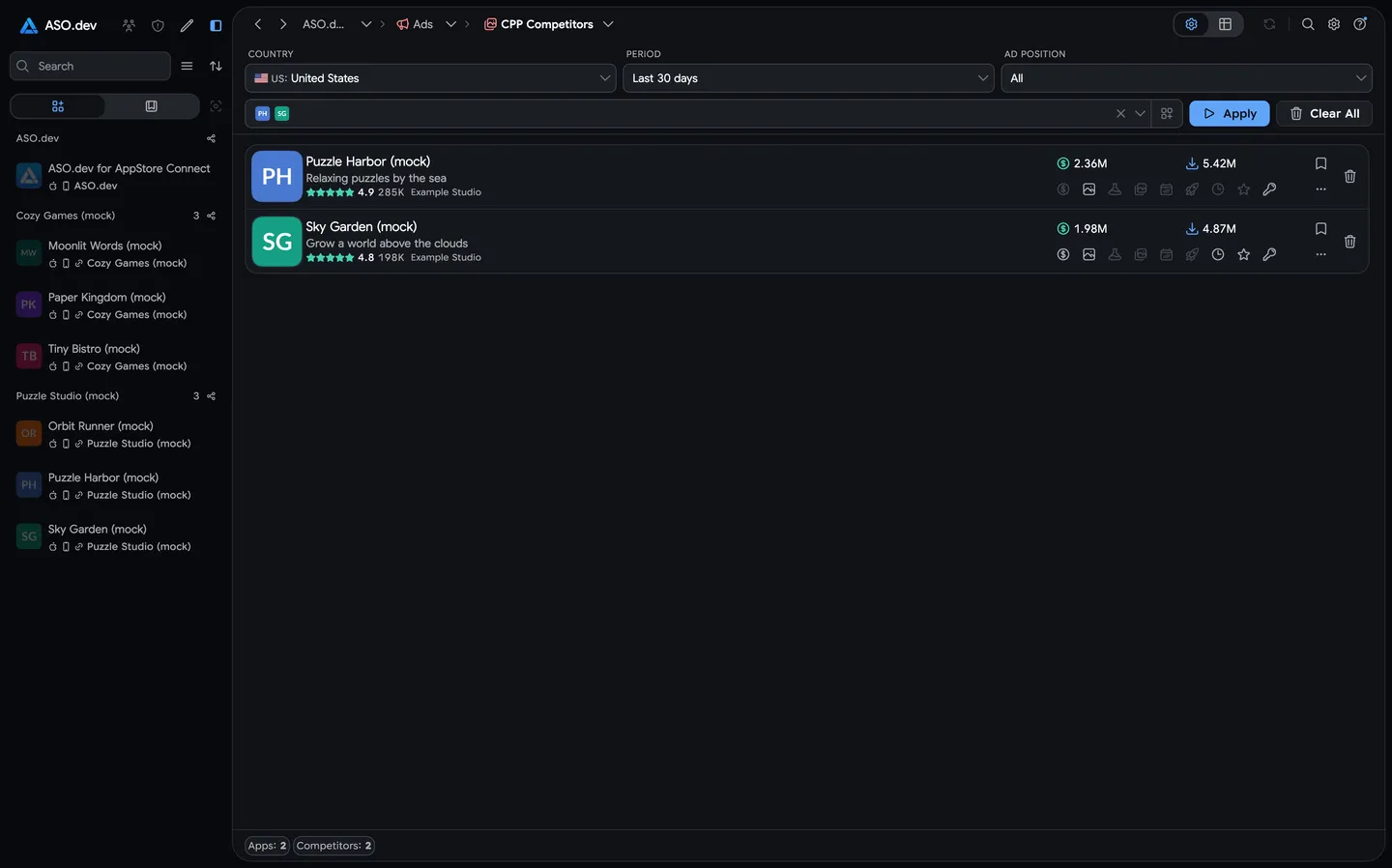
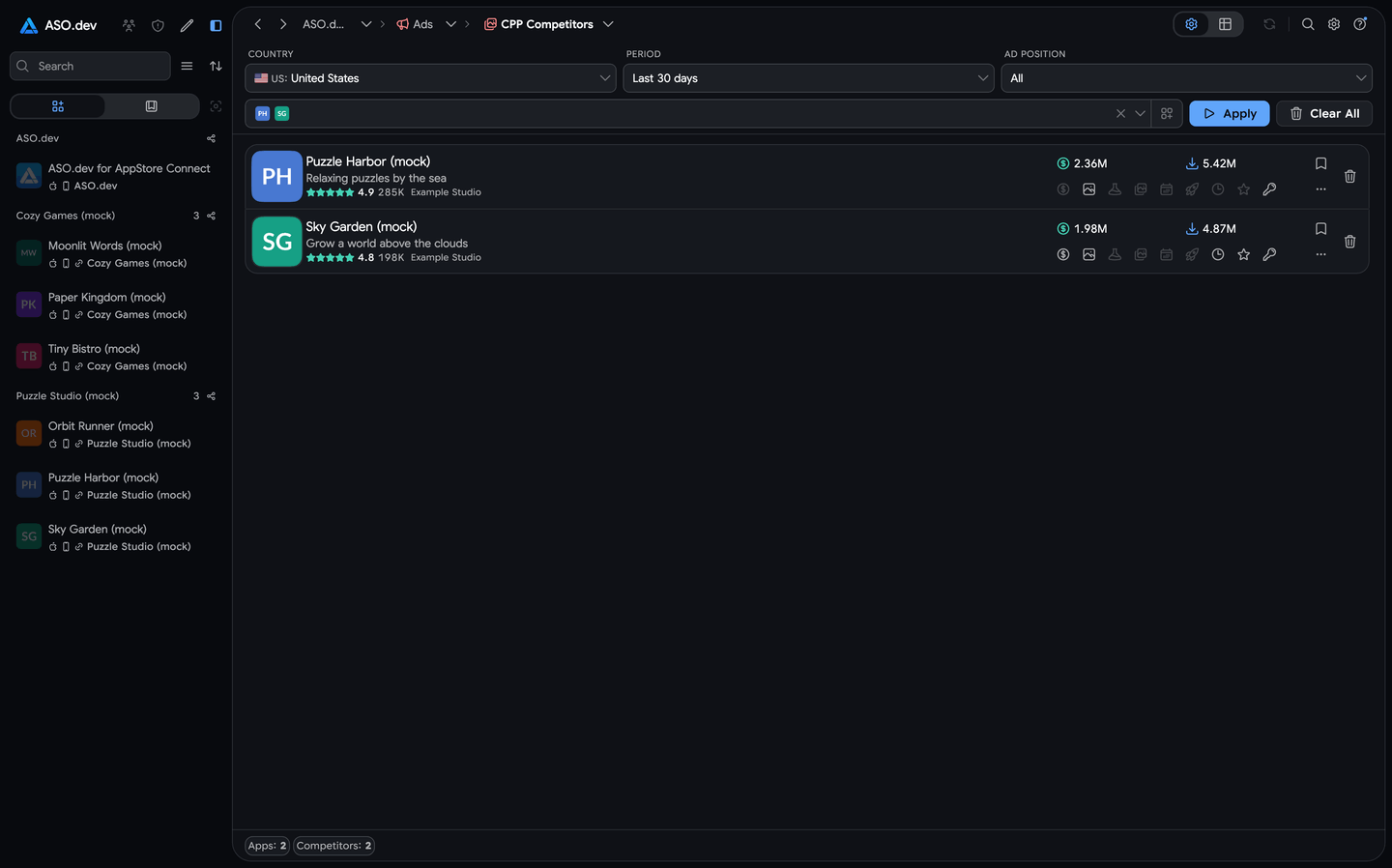
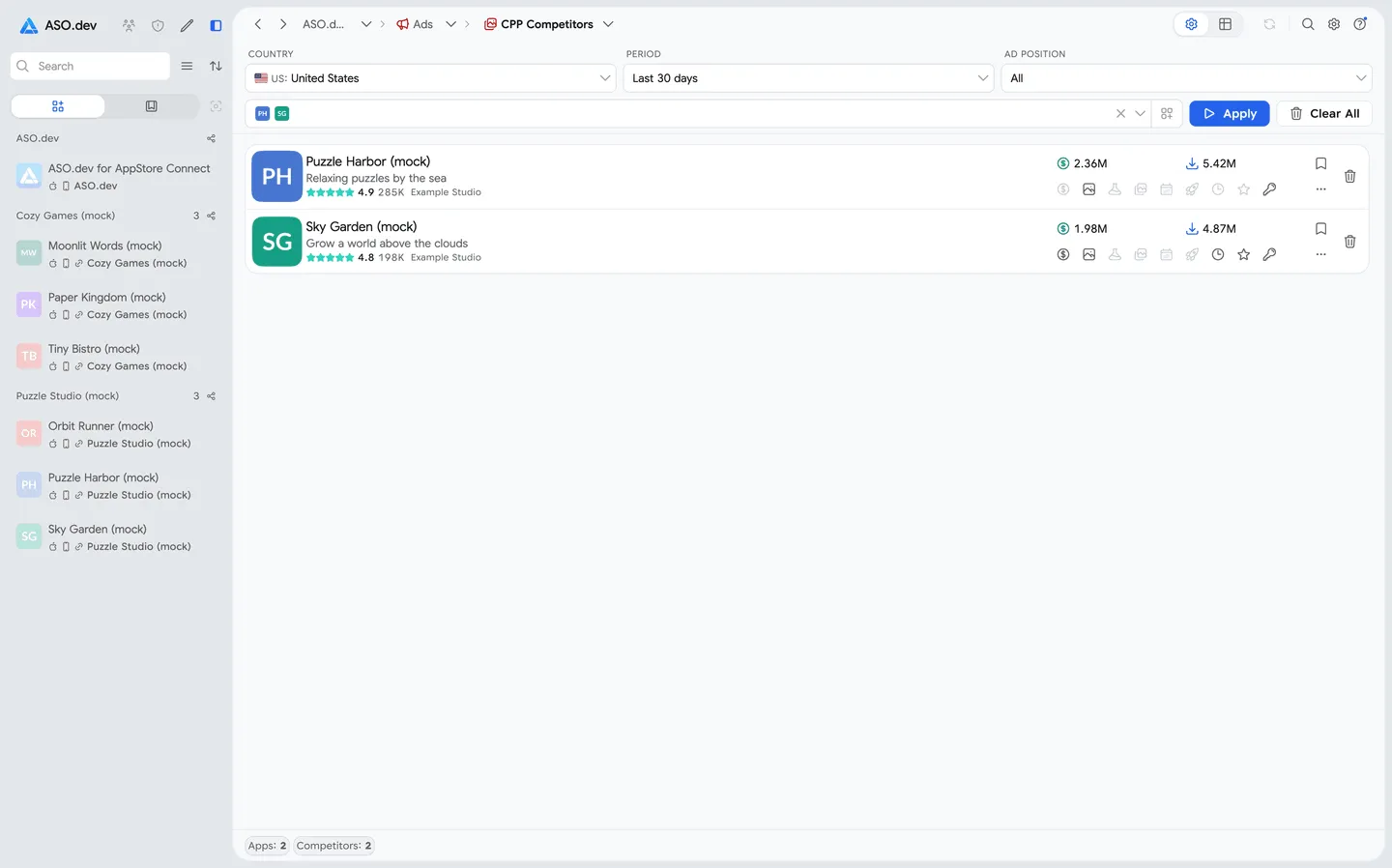
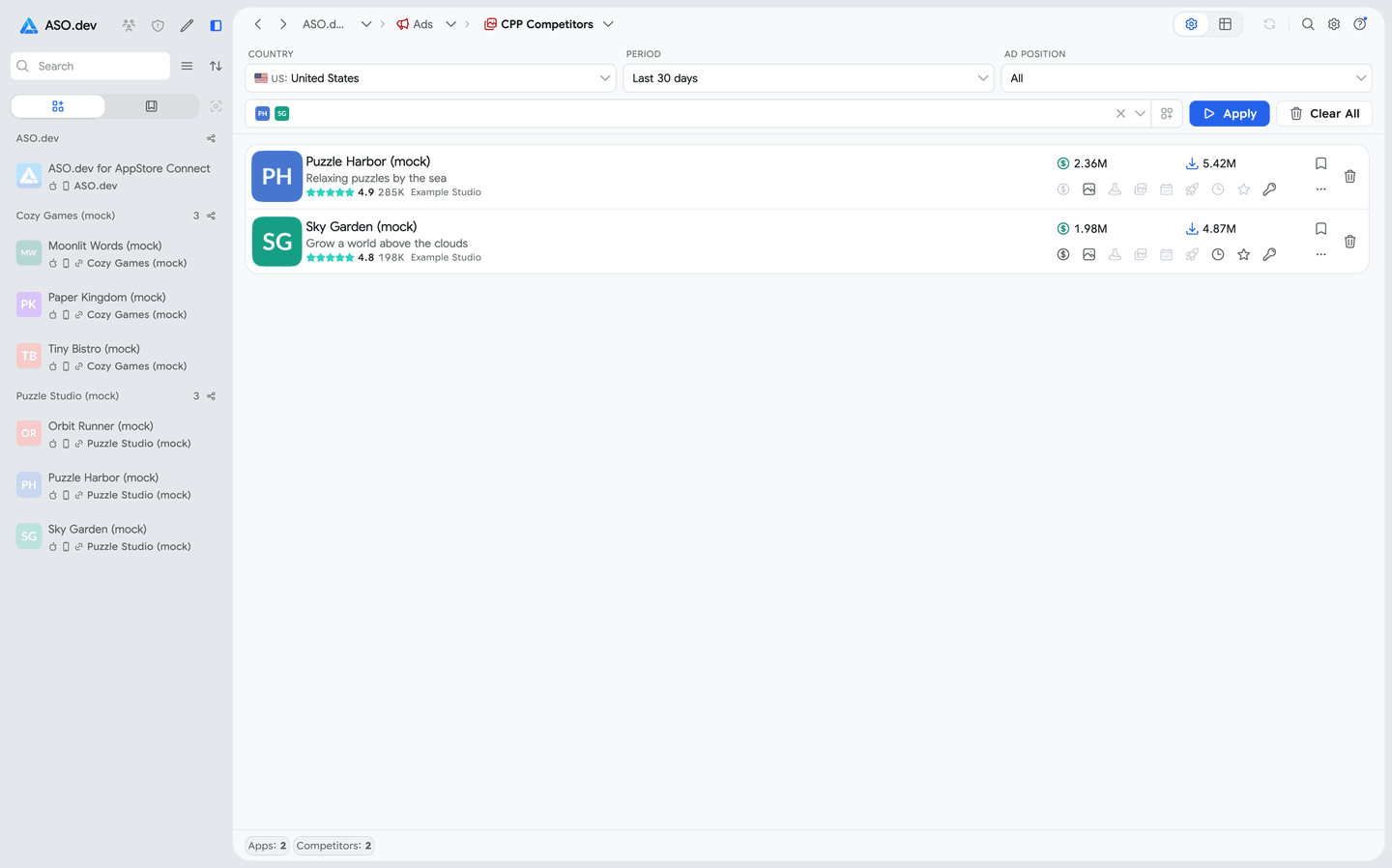
Section titled “Choose Apps and Filters”- Open CPP Competitors in the Ads section (the CPP Explorer screen) and switch to Settings.
- Add apps through search, paste a list of App Store links or IDs, or import apps from the project and its saved competitors. Remove individual apps or clear the list as needed.
- Choose a country, period and ad position. Available periods are 7, 30, 60 and 90 days, or all available data. Choose position 1, position 2 or both.
- Click Apply to load the results.
Read the Results
Section titled “Read the Results”The All Data view groups results by app. Each app card shows the available media in separate blocks:
- Default: creatives associated with the default product page.
- A/B variants: alternative creatives present in the collected data.
- CPP: observed Custom Product Pages, including their screenshots, available videos and public page links.
When keyword counts are available, open a media block’s keyword list to investigate the searches associated with that creative. Use the country shown in the header to keep comparisons within the same market.
The filter button hides apps without advertising data by default. Turn it off to include these apps in the list. Return to Settings to change the app list or filters, then apply the new selection. Use Reload to refresh the current results.
Download Media
Section titled “Download Media”Use the download button on an app card to save its available screenshots and videos. The download button in the page header exports media for the whole result list. Export availability depends on your access rights.
CPP Explorer is for researching observed creatives. Create and edit your own pages in Custom Product Pages.