
Google Play Release
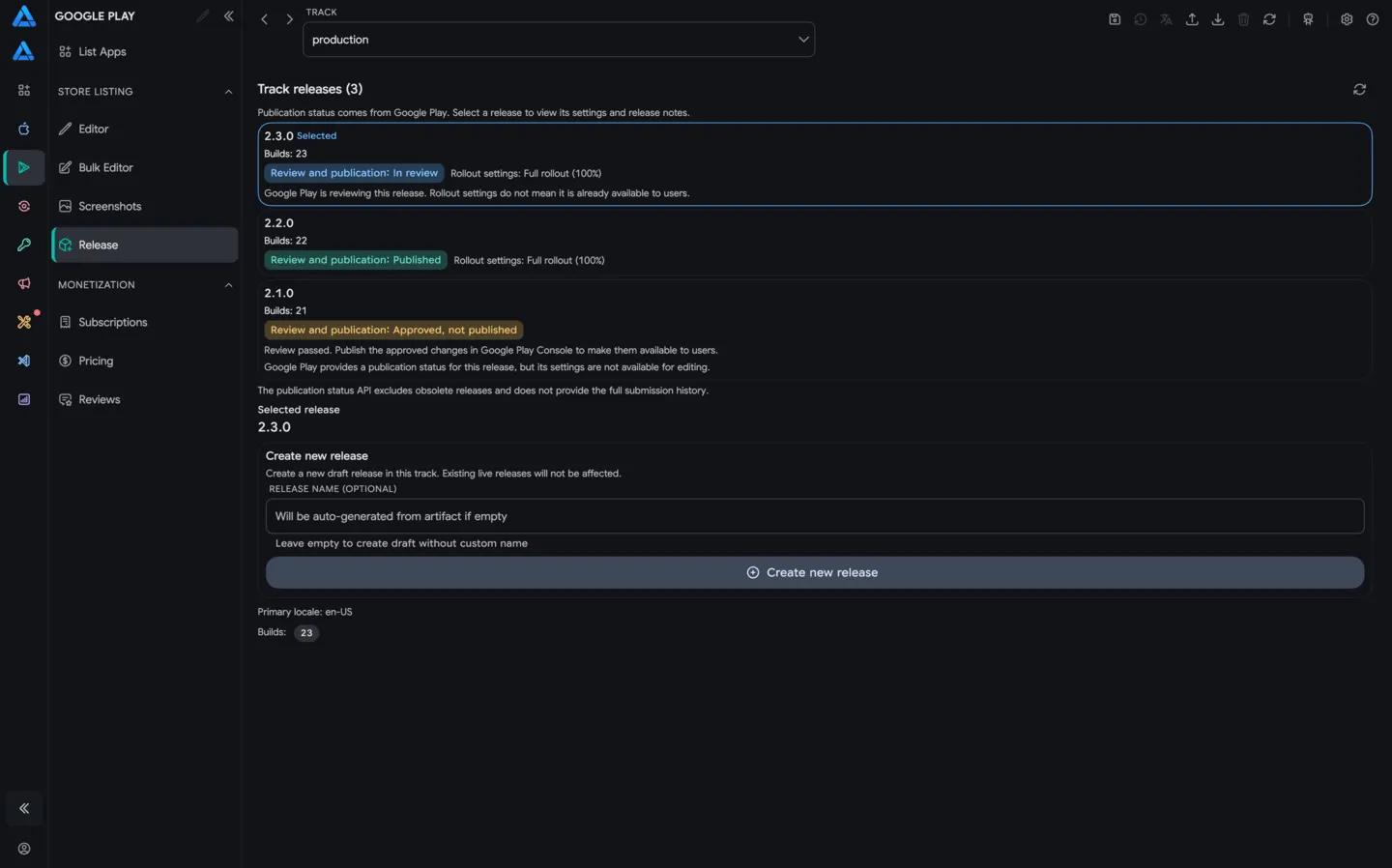
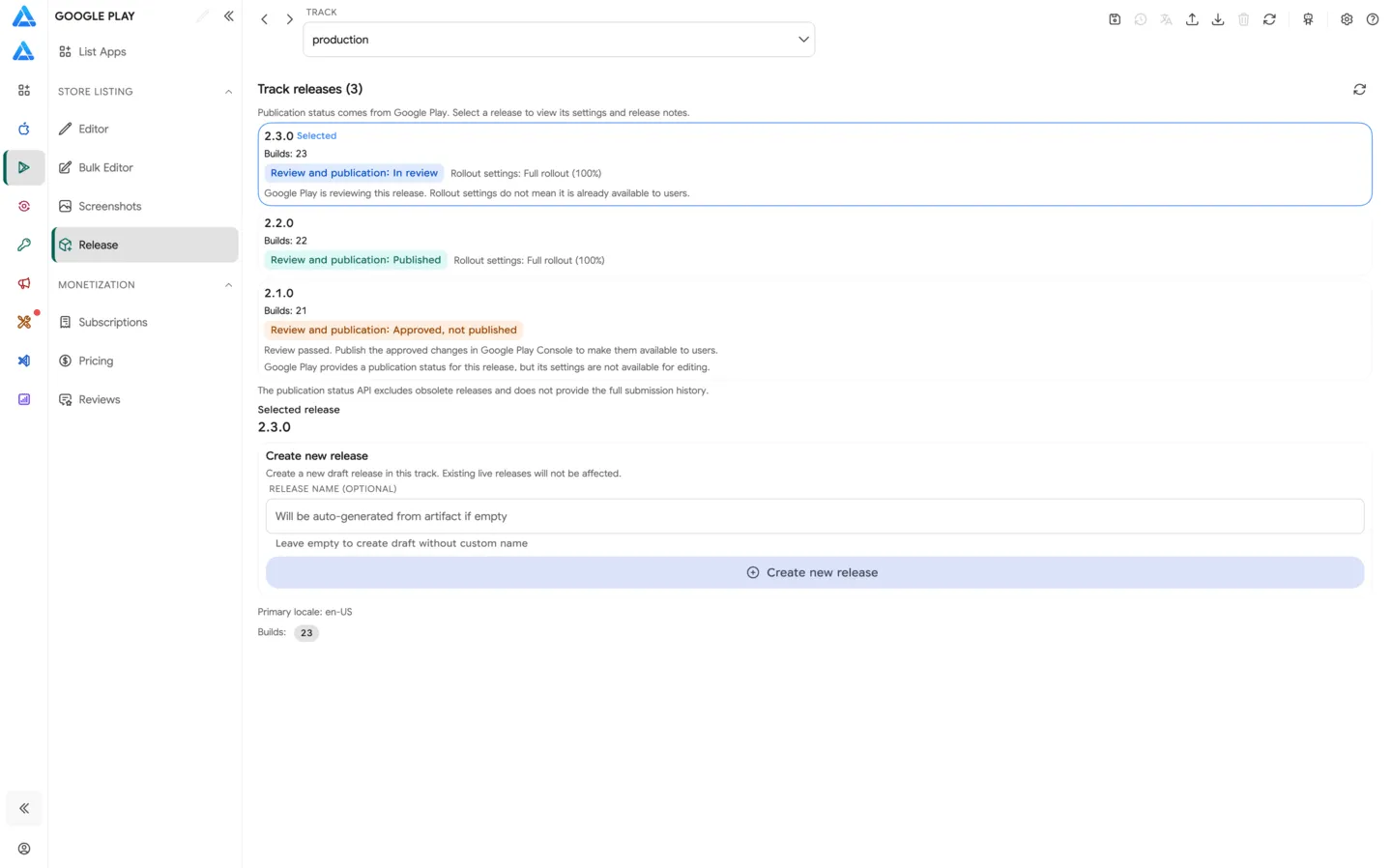
Google Play Release in ASO.dev helps you prepare an app release for Google Play: select a track, upload AAB/APK, choose a build, configure publishing options, and fill What’s New for every locale.
Top Bar
Section titled “Top Bar”The Release top bar contains these actions:
- Submit for review - sends the prepared release to Google Play review.
- Delete - deletes the draft release or unsaved changes.
- Save - saves release changes to Google Play Console.
- Translate - opens translation actions for What’s New.
- Import - imports release data from a file.
- Export - exports release data for backup or transfer.
- Refresh - loads the latest data from Google Play Console.
- Settings - opens editor and translation settings.
- AI Companion (MCP) - starts the local MCP server for AI-assisted release workflows.
- Help - opens documentation for this screen.
Use Track to select the release channel.
Common tracks include:
- production - the main release for users.
- internal - internal testing.
- alpha and beta - testing tracks.
- custom closed testing tracks if they exist in Google Play Console.
The selected track determines the audience, review requirements, and available rollout options.
Releases
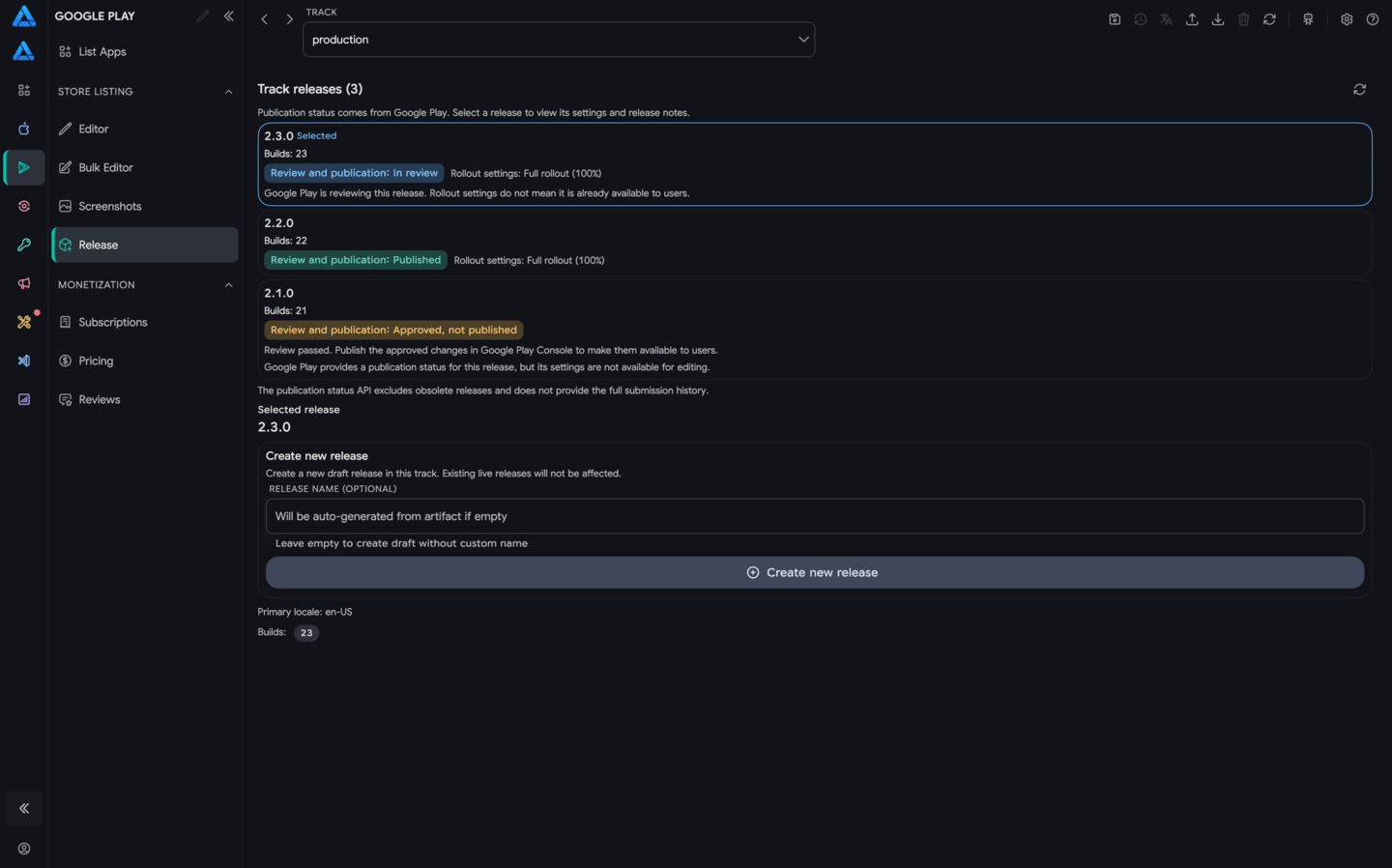
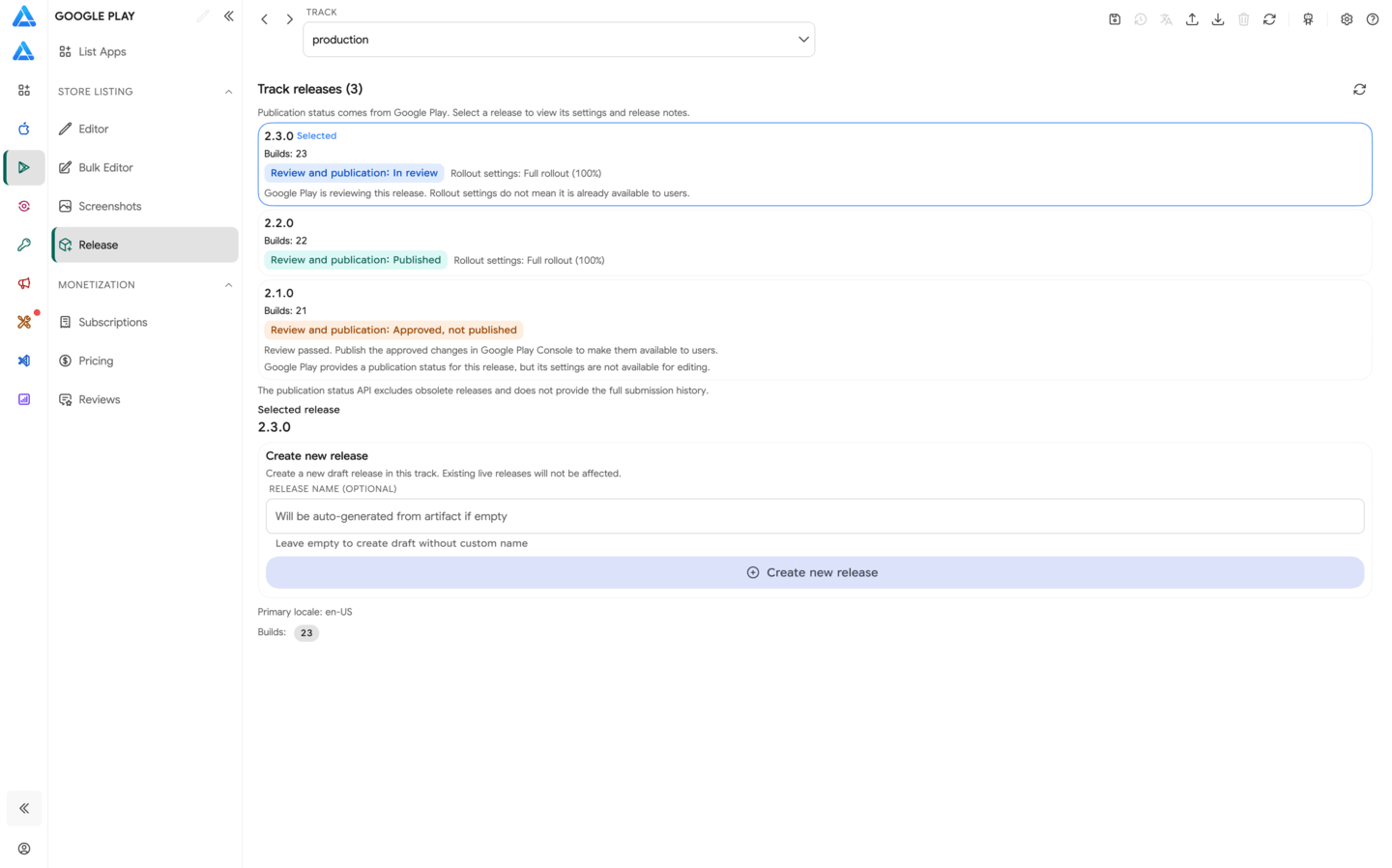
Section titled “Releases”The Releases block shows releases available in the selected track.
Use it to:
- select an existing release
- create or open a Draft
- see active release counts by track
- click Reload to refresh the release list from Google Play Console
The Name field is the release name. The Draft badge means the changes have not been submitted for review yet.
Upload APK/AAB
Section titled “Upload APK/AAB”Use Upload APK/AAB to upload a build file.
Supported formats:
.aab.apk
After upload, ASO.dev attaches the build to the current draft release. If the build already exists in Google Play Console, select it in Builds.
Builds
Section titled “Builds”Use Builds to select the version code that should be included in the release.
If the required build is missing, click Refresh or upload a new AAB/APK.
Publish Options
Section titled “Publish Options”Publish options controls how the release is distributed:
- Staged rollout - enables gradual release distribution.
- In-app update priority - sets Android In-App Updates priority from
0to5.
Staged rollout is especially useful for production: start with a small user percentage, monitor stability, then increase the rollout.
What’s New
Section titled “What’s New”What’s New contains release notes for each Google Play locale.
ASO.dev shows the primary locale first, then the other app locales. Each locale can have its own release notes so users see the update text in their language.
Auto-Translate What’s New
Section titled “Auto-Translate What’s New”The translation menu works for release notes:
- Translate if empty - fills only empty texts.
- Translate overwrite - translates again and replaces existing texts.
You can change the translation provider in Settings → Localization.
Save and Submit
Section titled “Save and Submit”First click Save to save the draft release to Google Play Console.
After the track, build, publish options, and What’s New are ready, click Submit for review. Google Play will review the release, and user availability will depend on the selected track and rollout.