Keyword Color Tags: Organize & Prioritize ASO Keywords
𑗘 When you click the button for the first time, you’ll be prompted to create a color tag.
Creating a new color tag.
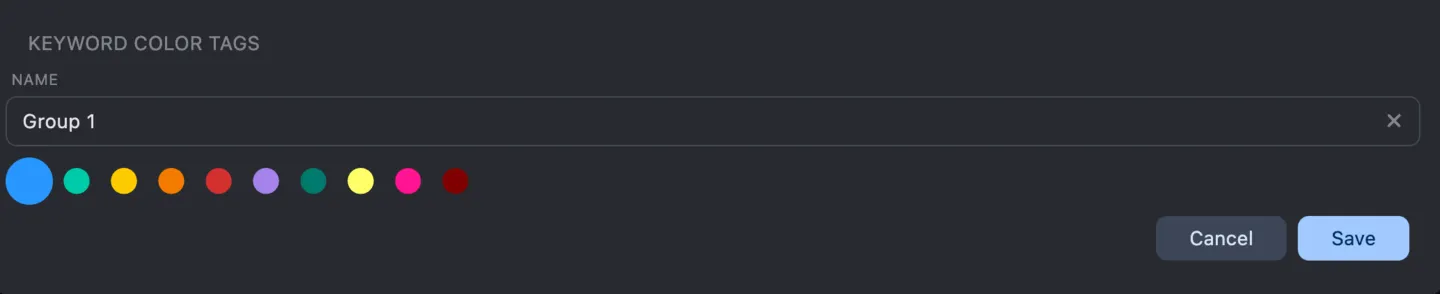
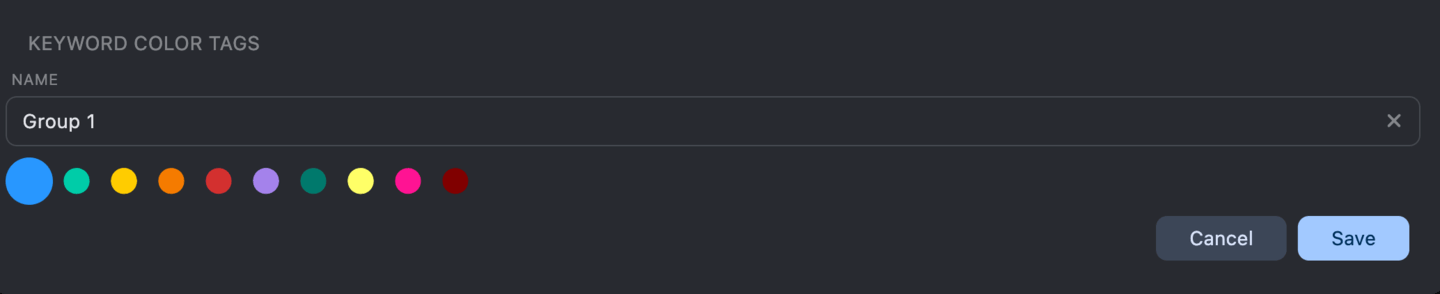


In the dialog, you can choose a color and enter a name for your tag.
Once created, the tag will appear in your list of color tags.
If needed, you can edit the tag later by clicking - this lets you change both the name and the color in the same window.
If you have rows selected in the table, the new color tag will automatically be applied to all selected keywords.
Color tags sync automatically and are visible to everyone who has access to the project.